Manually Closing a Fiscal Day
Users have an option to manually close a fiscal day in the Night Audit screen. Before closing the date, users must manually review the Night Audit Reports and make any necessary adjustments to the day’s revenues. Once a fiscal day is closed, no more charges can be posted for that day.
To manually close a fiscal day, the following settings must be configured in Stay:
Navigate to Settings ➜ Guest Accounting. The Guest Accounting screen will be displayed.
Uncheck the Automatically close accounting date checkbox under the Date Roll and Night Audit tab to manually close an accounting date.
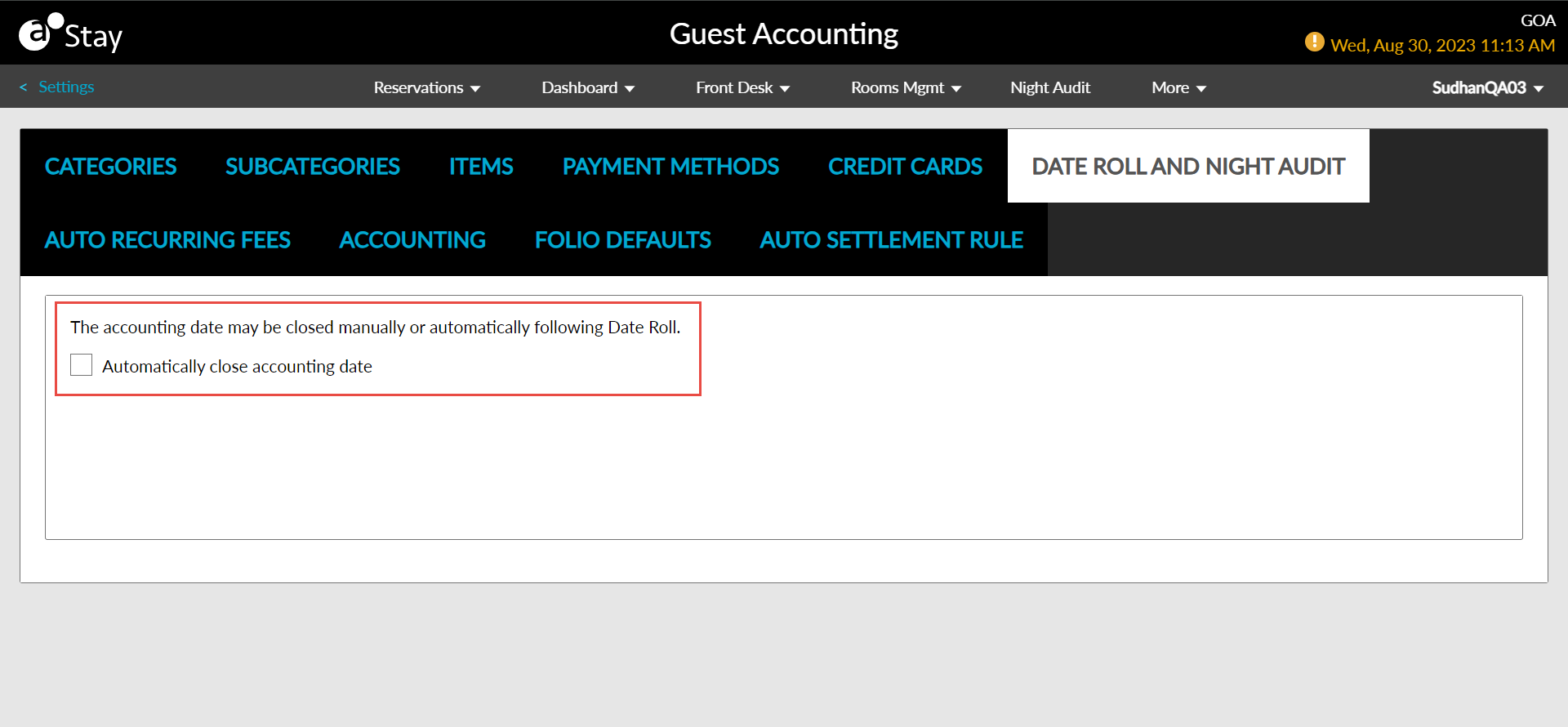
Click Save.
Perform the following steps to close the fiscal day manually:
Navigate to Night Audit. The Night Audit screen will be displayed.
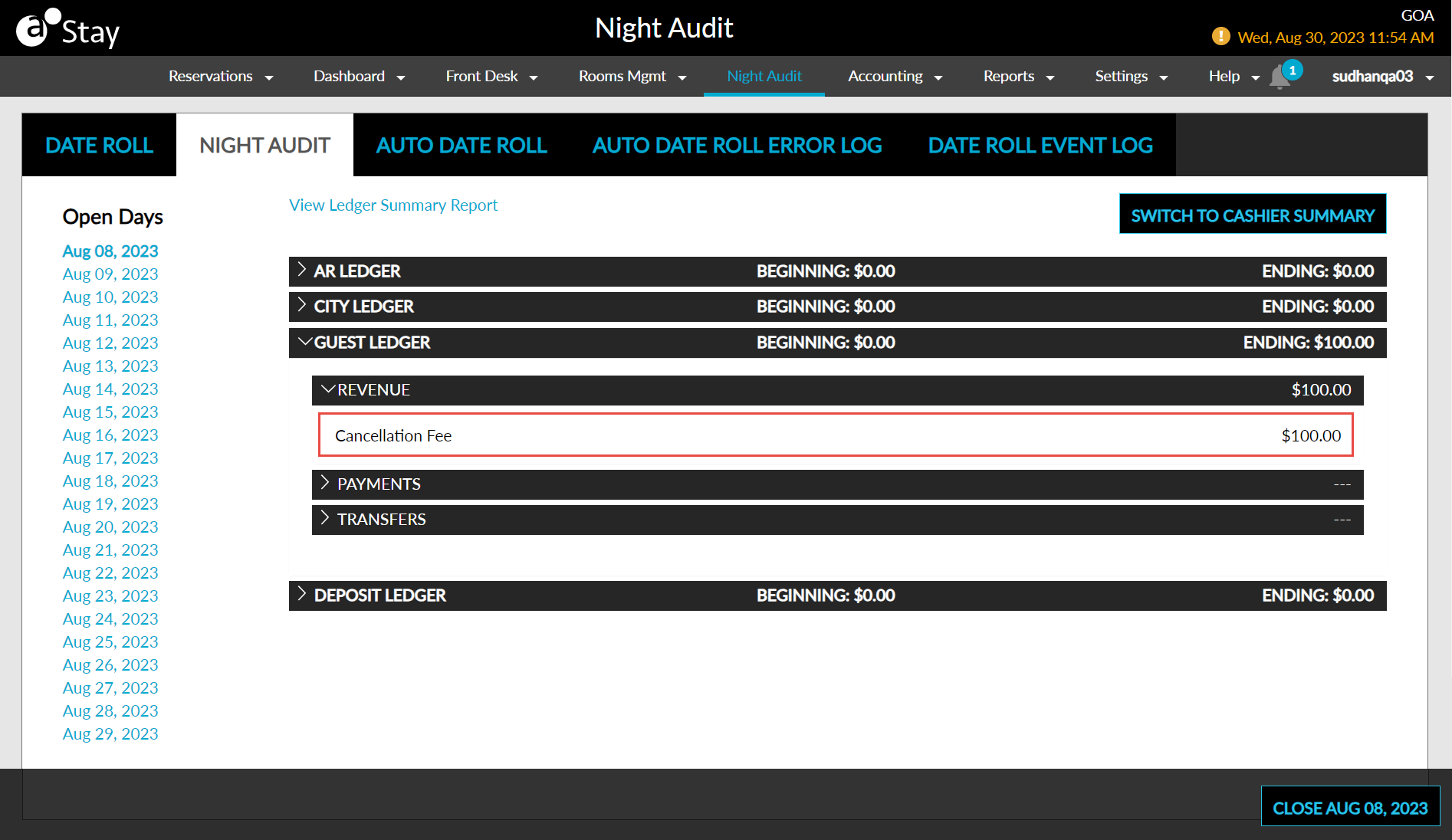
Click on the Night Audit tab. The list of all open accounting dates are displayed under the Open Days column in the chronological order.
The following ledgers are displayed under the Night Audit tab:
-
AR Ledger
-
City Ledger
-
Guest Ledger
-
Deposit Ledger
The transaction amounts are grouped by the ledger assigned to the transaction and are displayed as follows:
|
Field |
Description |
|---|---|
|
Beginning |
The sum of revenue/payments/transfers at the time of the opening of the fiscal day. The beginning balance of each ledger will match the ending balance of the ledger from the previous date. |
|
Ending |
The sum of revenue/payments/transfers at the time when the fiscal day is closed. The ending balance is the sum of the opening balance plus the revenue for that ledger for the selected date, in addition to the transfers for the ledger for that date. |
Each ledger consist of the following subgroups that is displayed on clicking the accordion:
-
Revenues
-
Payments
-
Transfers
Here, each account’s revenues, payments, and transfers are displayed in a separate line under its respective accordion.
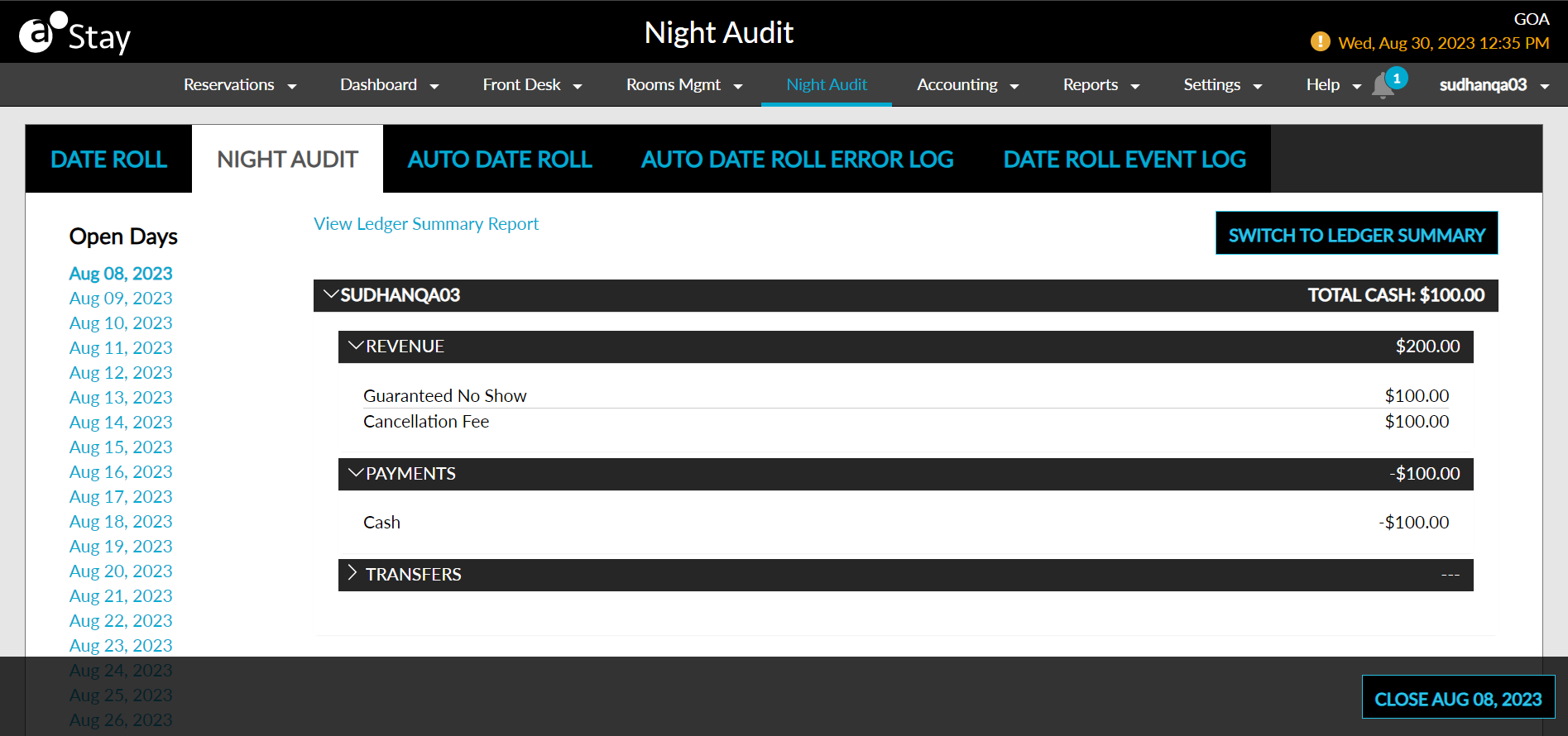
Click on the Switch to Cashier Summary button to review the transactions posted by the logged-in user for the selected open date.
Review and correct postings, if required for the selected open day.
To correct postings, users must navigate to the particular reservation/group/account and add a charge or make a payment for a historical accounting date by selecting a preferred date from the Post Date drop-down list in the Add a Charge screen and audit the changes made in the Night Audit screen.
Click on the View Ledger Summary Report hyperlink to redirect to the Ledger Summary Report.
This report allows users to monitor the activity within and between the A/R, City, Deposit, and Guest ledgers for the selected open day.
Once validated, click on the Close <Month Date, Year> button to close the fiscal day. The Confirm Close Fiscal Day pop-up screen will be displayed.
Users can only close dates in date order. For example, if July 1 and July 2 are open, user has to close July 1 first before closing July 2.
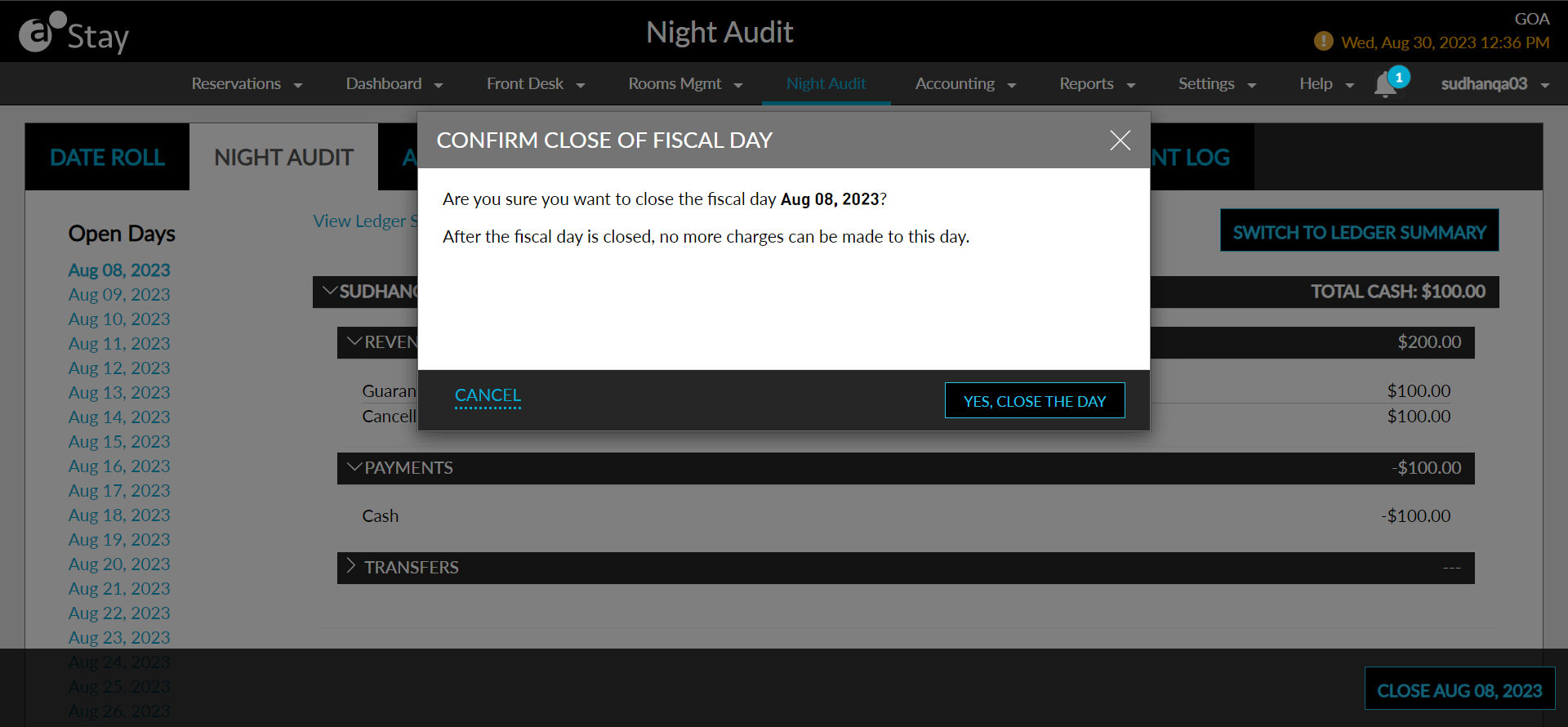
Click Yes, Close The Day to move the system date to the next day.
Once a fiscal day is closed, no more charges can be posted for that day.