Mark A/R Accounts as Delinquent
Stay allows users to mark an A/R account as delinquent when it has a balance due that remains unsettled beyond a configured period.
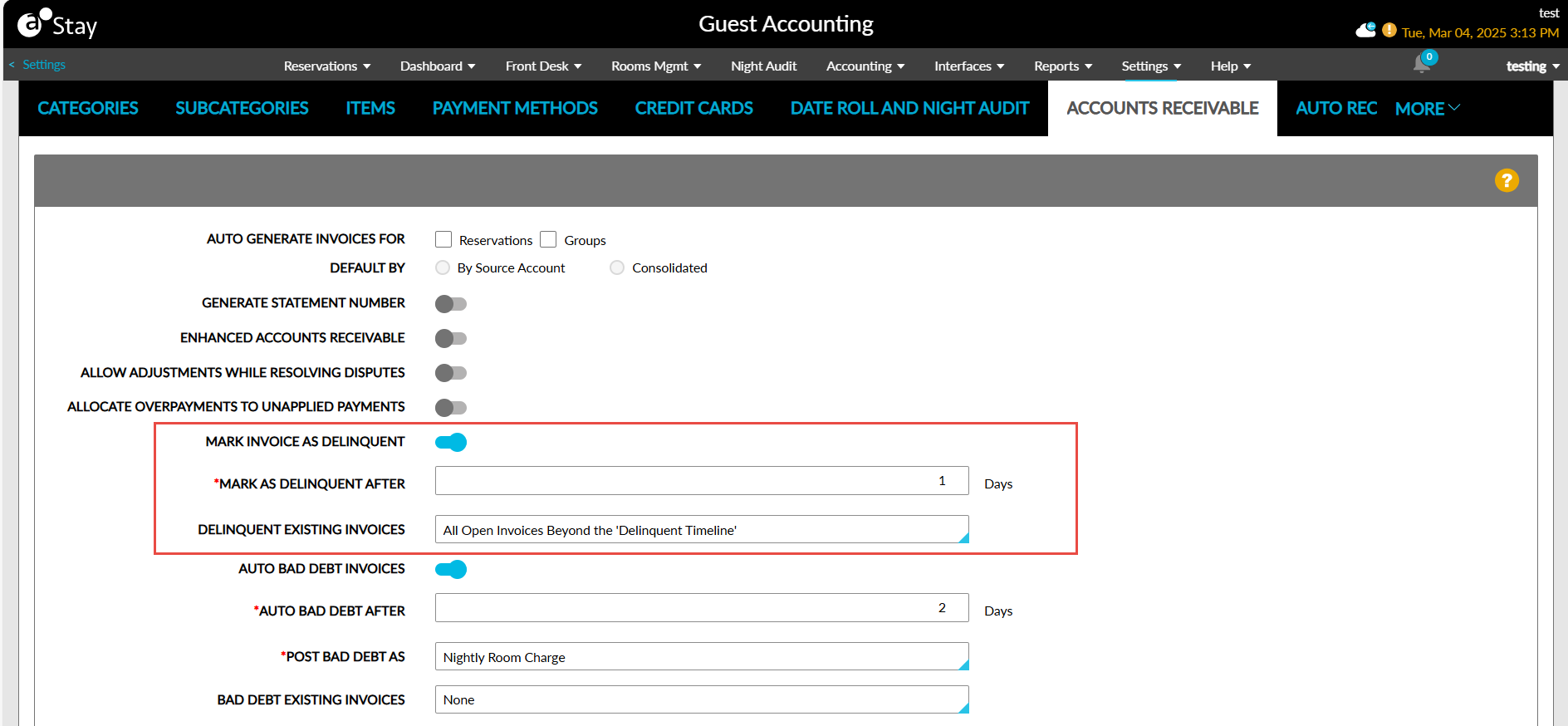
The following fields in the Accounts Receivable tab in the Guest Accounting screen (Settings ➜ Guest Accounting) must be configured to use this feature:
|
Field |
Description |
|---|---|
|
Mark Invoice as Delinquent |
This flag must be enabled to allow users to mark an invoice as delinquent. When enabled, the following additional fields are displayed. |
|
Mark as Delinquent After |
This field is displayed once the Mark Invoice as Delinquent flag is enabled. Users can enter the timeframe for bad debt invoices in days. Any value between 1 and 9999 can be entered. Users cannot enter alphabets or special characters. The value configured in this field must be lesser than the value configured in the Auto Bad Debt After field when both the Mark Invoice as Delinquent and Auto Bad Debt Invoices flags are enabled. When users enter a value greater than the value configured in the Auto Bad Debt After field, the field is highlighted, and the following message is displayed when hovered upon: Delinquent timeline must be lesser than Bad Debt timeline. |
|
Delinquent Existing Invoices |
This is a single-select drop-down list that allows users to define how the existing invoices that have aged beyond the delinquent timeline must be processed. Users can select from the following options:
|
Mark Invoices as Delinquent
When the Mark Invoice as Delinquent flag is enabled, and the Mark as Delinquent After field is configured with a specific number of days, the system automatically evaluates all invoices at the property after the date roll is completed on the configured day. An invoice is considered as delinquent when the following condition is satisfied:
Property Date - Invoice Created Date ≥ Delinquent Timeline.
-
Invoices with a negative balance are not marked as delinquent even after the delinquent timeline is reached.
-
Invoices marked as Bad Debt are not considered as delinquent.
-
When the A/R accounts management for a property is configured as External AR and for settlement reconciliation A/R accounts, the delinquent validation is skipped.
-
An invoice cannot be marked as delinquent manually.
Delinquent A/R Accounts
-
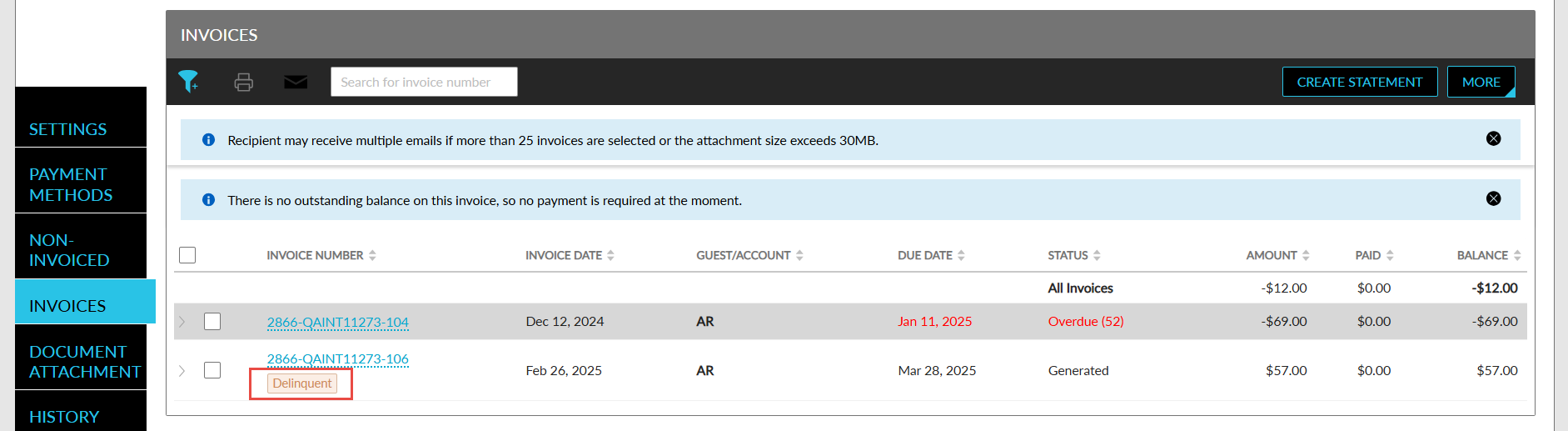
The delinquent invoices are indicated by a Delinquent indicator.
-
The invoices marked as delinquent continue to remain in the Open status.
-
The Delinquent indicator is removed once the invoice is settled.
-
When a charge or a credit is added to an invoice marked as delinquent, the Delinquent indicator is continued to be displayed even if the status of the invoice is updated as Closed.
-
When an invoice marked as delinquent is marked as Bad Debt manually or during the night audit, the Delinquent indicator is removed.
-
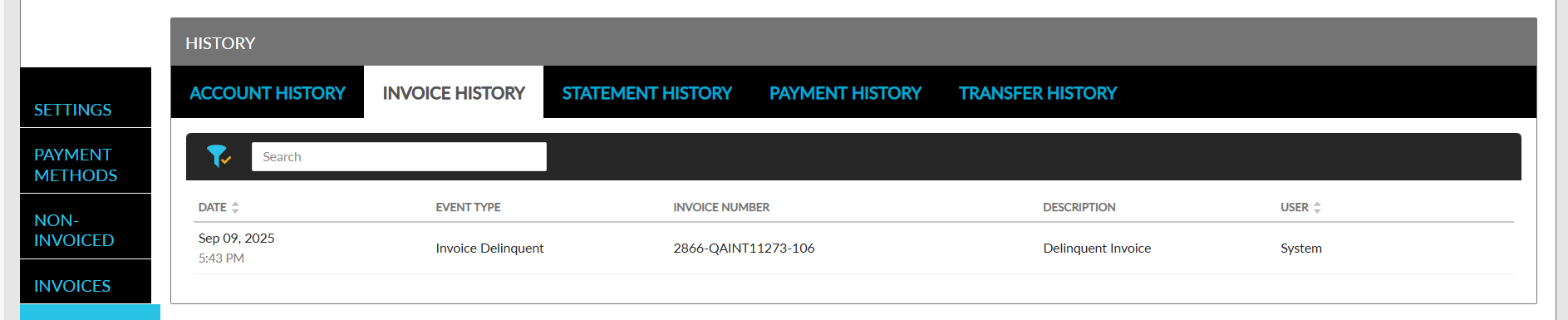
A new filter option, Invoice Delinquent, has been added to the Event Type filter in the Invoice History tab in the History section of A/R accounts, to help users filter records of invoices that are marked as delinquent. The description of these records are displayed as Delinquent Invoice.
-
The delinquent invoices can be printed and emailed. The Delinquent indicator is not displayed in the printed and emailed invoices.
Display Delinquent Accounts in the Accounts Receivable Dashboard
When the Mark Invoice as Delinquent flag is enabled, users can view the invoices with a delinquent amount by enabling the Include Delinquent Amount flag in the Accounts Receivable dashboard (Accounting ➜ Accounts Receivable). When enabled, the Delinquent Amount column is displayed in the dashboard. Users can view the invoice balance of delinquent accounts in this column.
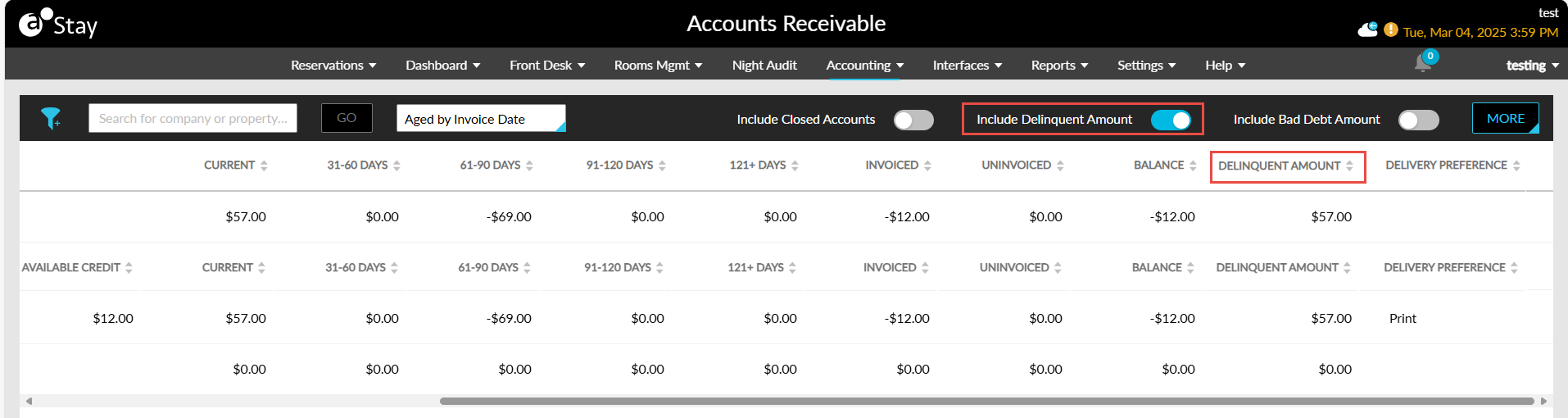
A new option, Delinquent Amount, has been added to the filter in the dashboard to enable users to filter accounts with a delinquent amount. When the details displayed in the dashboard are exported with the Include Delinquent Amount flag enabled, the Delinquent Amount column is displayed in the exported file.