Mark Function Rooms as Out of Order
Users can mark a function room as out of order by selecting the preferred rooms and clicking on the Out of Order button. When clicked, the following options will be displayed:
-
Mark as Out of Order
-
Remove Out of Order
When users select the Mark as Out of Order option, the Confirmation pop-up screen appears that prompts users to confirm if the selected rooms must be marked as out of order.

When users click Yes, the selected rooms will be marked as out of order and an Out of Order indicator will be displayed for the rooms.
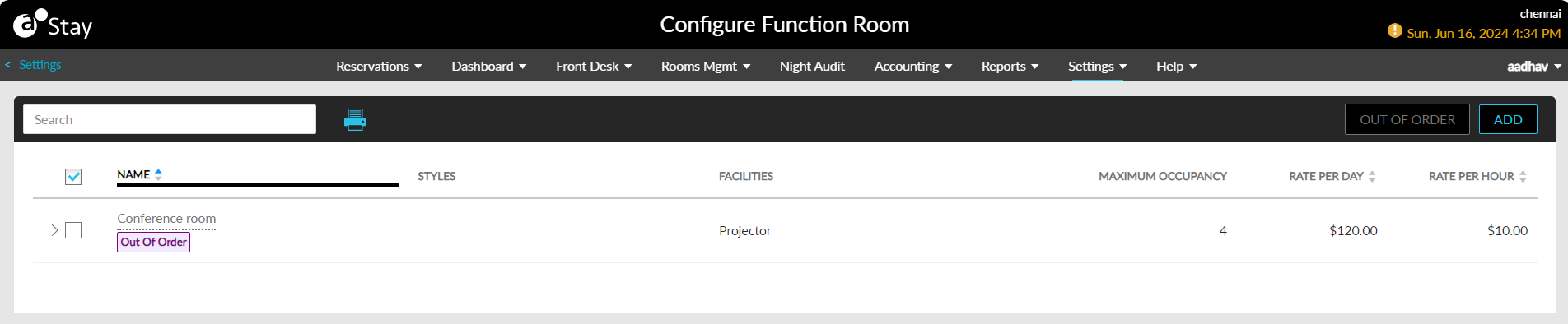
To remove the out of order inventory block created for a function room, users must select the rooms marked as out of order and select the Remove Out of Order option. When selected, the Confirmation pop-up screen appears that prompts users to confirm if the out of order block must be removed from the rooms.
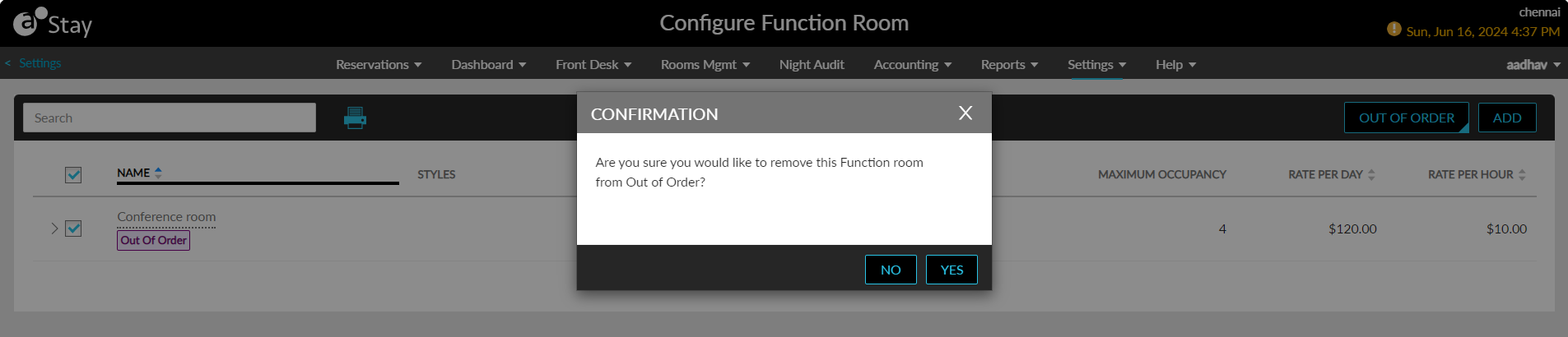
When users click Yes, the out of order block will be removed from the room and the indicator will no longer be displayed.
The Out of Order option will be enabled for selection only when at least one function room is configured. Users can print the details of the function rooms configured using the print icon.

The print icon will be enabled for selection only when at least one function room is configured.