Masking or Providing Alias Names for a Guest
Users with access to the following roles can mask guest names or provide an alias name for guest names, associated as a Non-Registered Guest in the Other section:
-
System Administrator
-
Stay Hotel Manager
-
GSA Supervisor
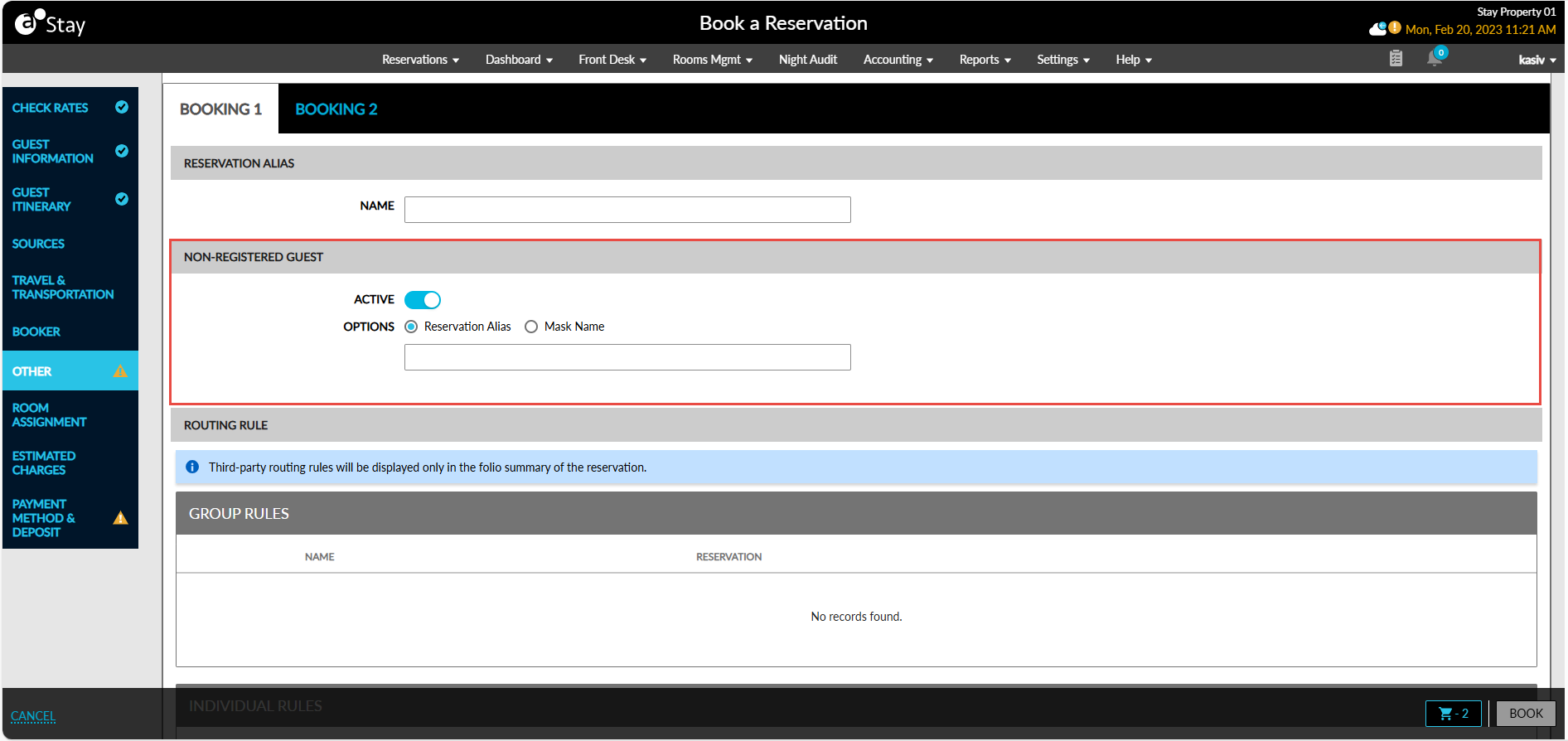
Perform the following steps to mask the guest’s name or provide an alias name:
Turn on the Enhanced Non-Registered Guest and the Reservation Alias feature settings.
Enable the Active flag under Non-Registered Guest in the Other section. The following options will be displayed:
-
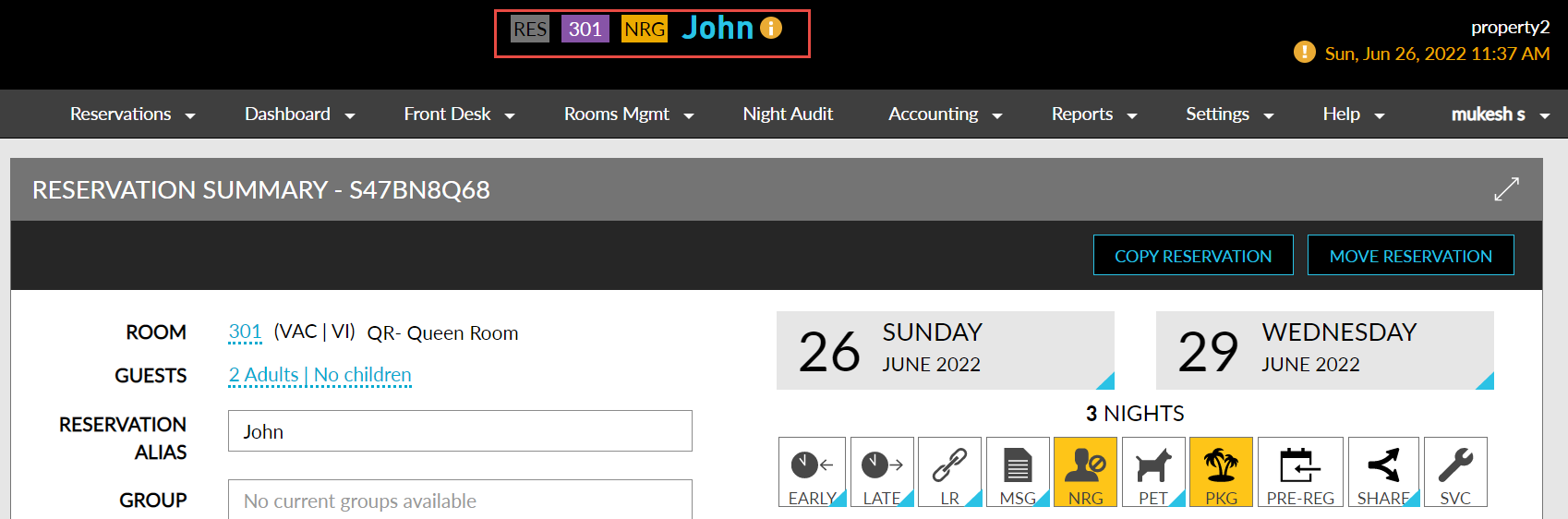
Reservation Alias: Select this option to provide an alias name for the guest’s name. Enter the alias name to be displayed.
Once saved, the guest’s name at the top of the Reservation page will change to an alias name. An info icon is displayed next to the alias name for users with the required permission. Mouse over the icon to see the original name of the guest.
-
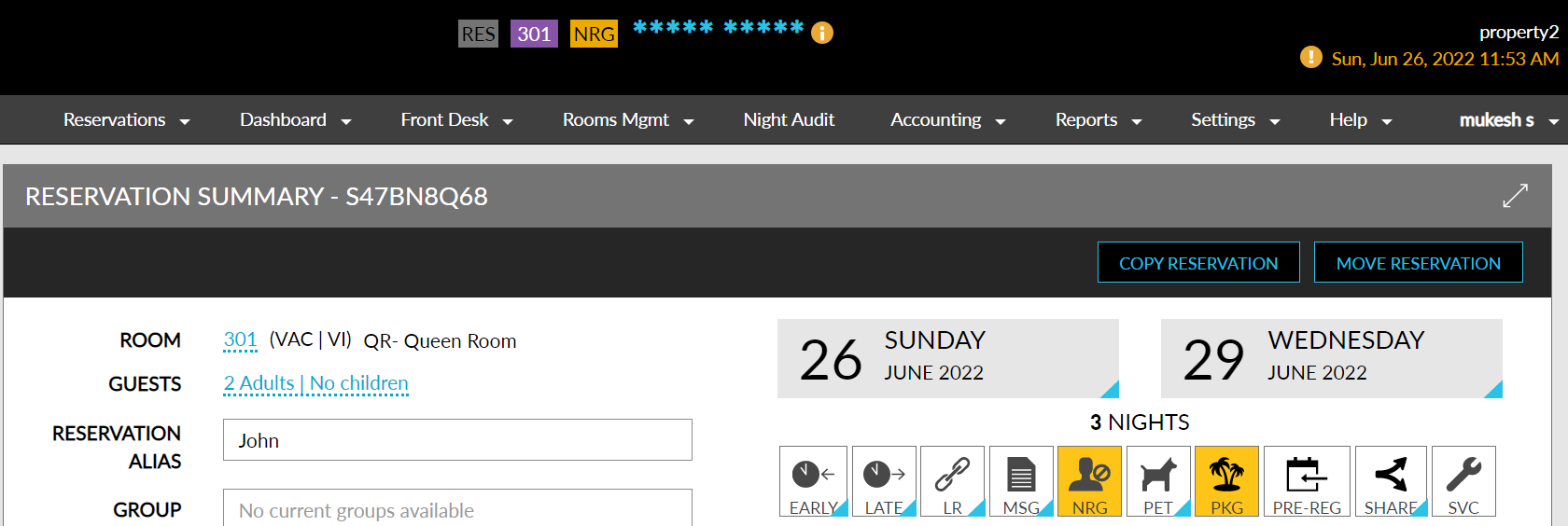
Mask Name: Select this option to mask the guest’s name with asterisks.
Once saved, the guest’s name at the top of the Reservation page will be masked by asterisks. An info icon is displayed next to the masked name for users with the required permission. Mouse over the icon to see the original name of the guest.
The guest’s name will be hidden in the following places:
-
Guest Name at the top of the Reservation Page
-
Search Results in the Front Desk ➜ Home page
-
On the reservations list on the Front Desk ➜ Home page ➜ Reservation Tab
-
Guest name on the Front Desk ➜ Home page ➜ Rooms Tab
-
Tape Chart
-
Assign Room Modal in Tape Chart
-
Batch Operations
-
Check-in
-
Deposit Due
-
Settle & Checkout
-
Batch Edit
-
Folio
-
Batch Posting
-
Schedule Room Moves
-
-
Welcome script for the Reservation