Perform Bulk Updates to Group’s Staged and Reserved Reservations
Stay provides users with the ability to perform bulk updates of the following values for group’s reserved reservations, and for the staged reservations created in the Staging section of the group:
-
Room Type
-
Routing Rule
-
Define Guest Count
-
Arrival and Departure Dates
-
Market Codes - Guest Type, Market Segment, and Source of Business
Users can also perform bulk updates to departed/cancelled and no show reservations.
Feature Setting
The following feature setting must be enabled to allow users to perform bulk updates for the group reservations:
-
Name: Group Reservations - Bulk Update
-
Value: Must be enabled
-
Comments: License is not required
Updating the Room Type of the Reservations
Users can update the room type of the group’s reserved and staged reservations based on the following criteria:
-
INH Reservation: If the reservations are in INH status, the room type is not updated, and the following message is displayed: Reservation is Inhouse.
-
Do Not Move Enabled: The room type is not updated for the reservations with Do Not Move Guest option enabled, and the following message is displayed: Room is set for do not move.
-
Pet and Pet Count: The room type of the reservation is not updated if the reservation has pets and if the selected room type does not allow pets, or if the maximum number of pets allowed in the selected room type is lesser than the current room type, and the following message is displayed: Pets not allowed/exceeds max. no. allowed.
-
Shared Reservation: The room type is not updated for reservations in share, and the following message is displayed: Shared reservation.
-
Max Guest: The room type of the reservation is not updated if the guest count of the reservation is greater than the maximum guest count allowed in the selected room type, and the following message is displayed: Exceeds max. guest count of x (x - number of max guests allowed for the room type).
-
Group or Non-Group Room Type: If the selected room type is part of a group, the pickup count is increased based on the number of actual reservations selected. If the selected room type is not part of a group, the rate of the room type is picked from the priority order of the rate plan, and the room type is added to the group, and the pickup count is updated based on the number of actual reservations selected. If the rate plan that is first in the priority order does not allow the selected room type, the next rate plan is considered. If no rate plan allows the selected room type, the room type is not updated, and the following message is displayed: Rates not found.
-
Auth Rule: When there is a change in auth rule for the selected room type, the auth rule is updated for the reservations.
-
Room Assignment for RES Reservation with Room Assigned: The room type of the reservation in RES status with room assigned is not updated when there are no available rooms for the selected room type.
-
Overbook: The room type of the reservation is not updated when there are no available rooms for the selected room type.
-
Comp: The room type of the reservation is not updated if the room rate of the selected room type is below the comp threshold, and the following message is displayed: Room rate is below comp threshold.
-
Rate Plan: When updating the room type, the rate plan of the reservation is not changed for any day of stay. When the current rate plan of the selected reservation is a group rate plan, and if the room type selected to be updated is not part of the group rate plan, the following message is displayed: Room type is not associated to rate plan. Override. The override is successful based on the following conditions:
-
The room type is updated for the rate plan depending on the priority order defined.
-
The room type is not updated irrespective of the override, if the rate plan is a non-group rate plan, and if the room type is not associated with the rate plan.
-
If the room type is associated with a group, and if the rate plan is a non-group rate plan, the room type is updated based on the room type availability in the corresponding rate plan.
-
-
Arrival and Departure Dates are in the Past for Staged Data: The room type of the reservation is not updated when the arrival and departure dates are in the past, and the following message is displayed: Arrival and departure dates are in the past.
-
Restricted Inventory Items: The room type of the reservation is not updated if the reservation has inventory items and if the selected room type does not allow inventory items, and the following message is displayed: Reservation consists of inventory items restricted to destination room type.
-
Overbook Suite Room Type: The room type is not updated if the selected room type results in overbooking of a suite room type, and the following message is displayed: Suite room type cannot be overbooked.
Updating the Routing Rule of Reservations
Users can update the routing rule of the group’s reserved reservations. The selected routing rule is not applied to staged reservations. The routing rule is updated based on the following criteria:
-
Applying Same Rule: If the selected routing rule is already added to the reservation, the routing rule is not updated, and the following message is displayed: Routing rule already associated.
-
Valid On: The valid on dates are updated based on the reservation’s arrival and departure dates as follows:
-
If the reservation’s arrival and departure dates are in the future and if the start and end dates defined in the routing rule template are in the past, the routing rule is not updated for the selected reservations.
-
If dates are not defined in the routing rule template, or if the dates defined in the template does not match with the reservation’s dates, the routing rule is not updated, and the following message is displayed: Valid on days are not defined/match with reservation days.
-
-
Destination Account Status: The routing rule is not updated for the reservations if the status of the destination account in the routing rule is Hold/Closed/Departed/Cancelled/No Show, and the following message is displayed: Routing rule destination discrepant.
-
Routing Rule for Staged Data: The routing rule is not updated for staged reservations, and the following message is displayed: Routing rule is not applicable.
-
Destination is A/R, and the Credit Limit is Exceeded: The routing rule is not updated for the reservations if the destination of the routing rule is an A/R account, and if the credit limit of the account is exceeded.
-
Folio Name Already Exists: The routing rule is not updated for the reservations if the destination of the routing rule is a folio name defined using the Add a Folio option, and if the folio name already exists. The following message is displayed in this case: Routing rule destination folio <Folio name> already exists.
-
Network or Any Technical Issues: When the update of the routing rule fails due to technical issues, the following message is displayed: Routing rule update failed due to technical issues.
Updating the Number of Guests in the Reservations
Users can update the guest count of the selected reserved and staged reservations. Users can update the count in the corresponding age groups configured in the property, such as, Adults, and Child. The guest count is updated based on the following criteria:
-
The adult count in a reservation cannot be updated as 0. The following message is displayed in this case: Adults cannot be zero.
-
Guest Count Allowed for Room Type: If the defined guest count exceeds the current room type’s maximum guest count, the guest count is not updated for the selected reservations and the following message is displayed: Exceeds max. guest count.
-
Extra Charges Defined in Group/Rate Plan/Package: When the guest count is updated for the reservations, the extra charge defined for the age group in the Group/Rate Plan/Package is applied.
-
Auto Recurring Fees: When the guest count is updated for the reservations, the auto recurring fees is also updated (added/removed).
Updating the Arrival Date of the Reservations
Users can update the arrival date of the group’s reserved and staged reservations. The arrival date can be updated only for reservations that are not checked in. The arrival date is updated for selected reservations based on the following criteria:
-
Room Availability for New Dates: The arrival date is not updated for the selected reservations if no rooms are available for the newly selected dates, and the following message is displayed: No room available.
-
Arrival Date Update for INH Reservation: The arrival date is not updated for INH reservations, and the following message is displayed: Reservation is Inhouse.
-
Arrival Date Update After Departure Date: The arrival date is not updated for the selected reservations if the selected arrival date is beyond the reservation’s departure date, and the following message is displayed: Arrival date cannot be after the departure date.
-
Same Arrival and Departure Date: When the newly selected arrival date matches the departure date of the reservation, and if the reservation is set to arrive in the future, the arrival date is not updated, and the following message is displayed: Future reservation cannot have same arrival and departure date.
-
Single Use Profile: The arrival date is not updated when the selected reservation is associated with a single use profile, and the following message is displayed: Reservation is associated with single use profile.
Updating the Departure Date of the Reservations
Users can update the departure date of the group’s reserved and staged reservations. The departure date can be updated only for reservations that are not departed or cancelled. The departure date is updated for selected reservations based on the following criteria:
-
Room Availability for New Dates: The departure date is not updated for the selected reservations if no rooms are available for the newly selected dates, and the following message is displayed: No room available.
-
Departure Date Before Arrival Date: The departure date is not updated for the reservation if the newly selected departure date is before the arrival date of the reservation, and the following message is displayed: Departure date cannot be before the departure date.
-
Same Arrival and Departure Date: When the newly selected departure date matches the arrival date of the reservation, and if the reservation is set to arrive in the future, the departure date is not updated, and the following message is displayed: Future reservation cannot have same arrival and departure date.
-
Single Use Profile: The departure date is not updated when the selected reservation is associated with a single use profile, and the following message is displayed: Reservation is associated with single use profile.
Updating the Source of Business for the Reservations
Users can update the source of business for the group’s reserved reservations. The source of business cannot be updated for the staged reservations. The following message is displayed in this case: Reservation is associated with Single use profile.
Updating the Guest Type of the Reservations
Users can update the guest type of the group’s reserved and staged reservations. The guest type is updated based on the following criteria:
-
Single Use Profile: The guest type is not updated for reservations that are associated with a single use profile, and the following message is displayed: Reservation is associated with single use profile.
-
Guest Type Update Without Market Segment (Non-Mandatory): If the selected guest type is not associated with the market segment selected in the reservation, and if the market segment is non-mandatory for the reservation, the guest type is updated for the reservation and the previously selected market segment value is cleared.
-
Guest Type Update Without Market Segment (Mandatory): If the selected guest type is not associated with the market segment selected in the reservation, and if the market segment is mandatory for the reservation, the guest type is not updated, and the following message is displayed: Market segment is not associated to the Guest type.
Updating the Market Segment of the Reservations
Users can update the market segment values of the group’s reserved and staged reservations. The market segment values are updated based on the following criteria:
-
Single Use Profile: The market segment value is not updated if the reservations are associated with a single use profile, and the following message is displayed: Reservation is associated with Single use profile.
-
Market Segment Update when the Guest Type of the Reservation is Associated with the Market Segment: When the selected market segment is associated with the current guest type of the reservation, the market segment value is updated successfully.
-
Market Segment Update when the Guest Type of the Reservation is Not Associated with the Market Segment: When the selected market segment is not associated with the current guest type of the reservation, the market segment value is not updated for the reservation, and the following message is displayed: Market segment is not associated to the Guest type.
Updating the Auto recurring Fees for the Reservations
Users can update the auto recurring fees for the selected reservations. The auto recurring fees is updated based on room type, source of business, guest type, market segment.
The Bulk Update button in the Reservations tab of the group is displayed only when the Group Reservations - Bulk Update feature setting is enabled.
The Bulk Update button is enabled only when more than one reservation is selected. When clicked, the Bulk Update screen appears.
Bulk Update Screen
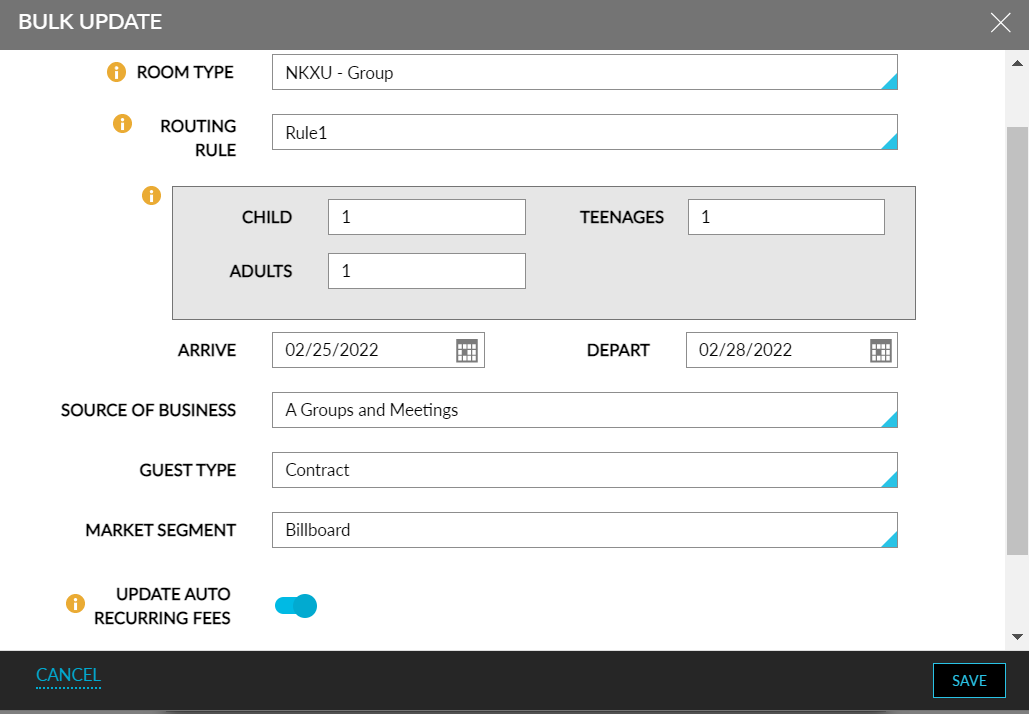
The Bulk Update screen displays the following options:
-
Room Type: It is a single select drop-down list that displays all the room types that are blocked as part of the group and all the non-group rom types.
-
Routing Rule: It is a single select drop-down list that displays all the non-comp routing rules that are created in the routing rules template setup. An info icon is added next to this field that displays the following message: Routing rules will not be applied to staged reservations.
-
Define No of Guests: Displays all the age groups configured in the property. An info icon is added that displays the following message: Guest count in the reservation will be overridden with the count specified in the bulk update. Do not enter zero and leave the fields empty if you intend not to update the guest count.
-
Arrive: Displays a date picker that allows users to select a date. The past dates and the non-group dates are greyed out. The group dates including the arrival shoulder date are available for selection.
-
Depart: Displays a date picker that allows users to select a date. The non-group dates are greyed out. The group dates including the departure shoulder date are available for selection.
-
Source of Business: It is a single select drop-down list that displays all the active source of business values configured in the property. If source of business is marked as required for reservations, then the none option is not displayed.
-
Guest Type: It is a single select drop-down list that displays all the active guest types configured in the property. If guest type is marked as required for reservations, then the none option is not displayed.
-
Market Segment: It is a single select drop-down list that displays all the active market segment values configured in the property. If market segment is marked as required for reservations, then the none option is not displayed.
-
Update Auto Recurring Fees: It is a flag that is disabled by default. When enabled, users can update the auto recurring fees for the selected reservations. An info icon is added that displays the following message: Auto recurring fees may vary based on room type, source of business, guest type, market segment. Enable the toggle to update the auto-recurring fees during the bulk update.
Once the bulk update is in progress, all the selected records are in read only mode and the following message is displayed: Bulk update in progress. Click here to see the status.
This message is not dismissible and is displayed even if the page is refreshed, until the batch update is completed.
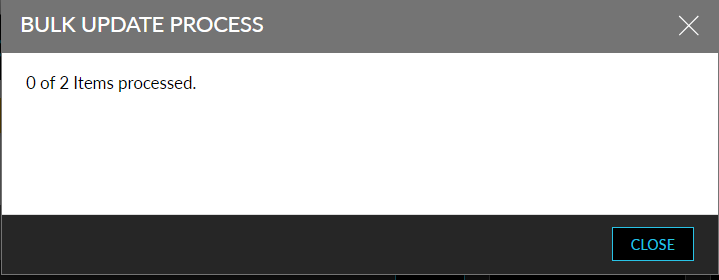
Click here is displayed as a hyperlink. When clicked, the Bulk Update Process screen appears that displays the following information: X out of Y items processed, where, X represents the number of items processed, and Y represents the number of items selected.
Once the bulk update is completed, the following message is displayed in the Reservations tab: Bulk update completed. Click here for details. X Success Y Failed, where, X is the number of successful records, and Y is the number of failed records.
Click here is displayed as a hyperlink. When clicked, the Results of Bulk Update screen appears.
Results of Bulk Update Screen
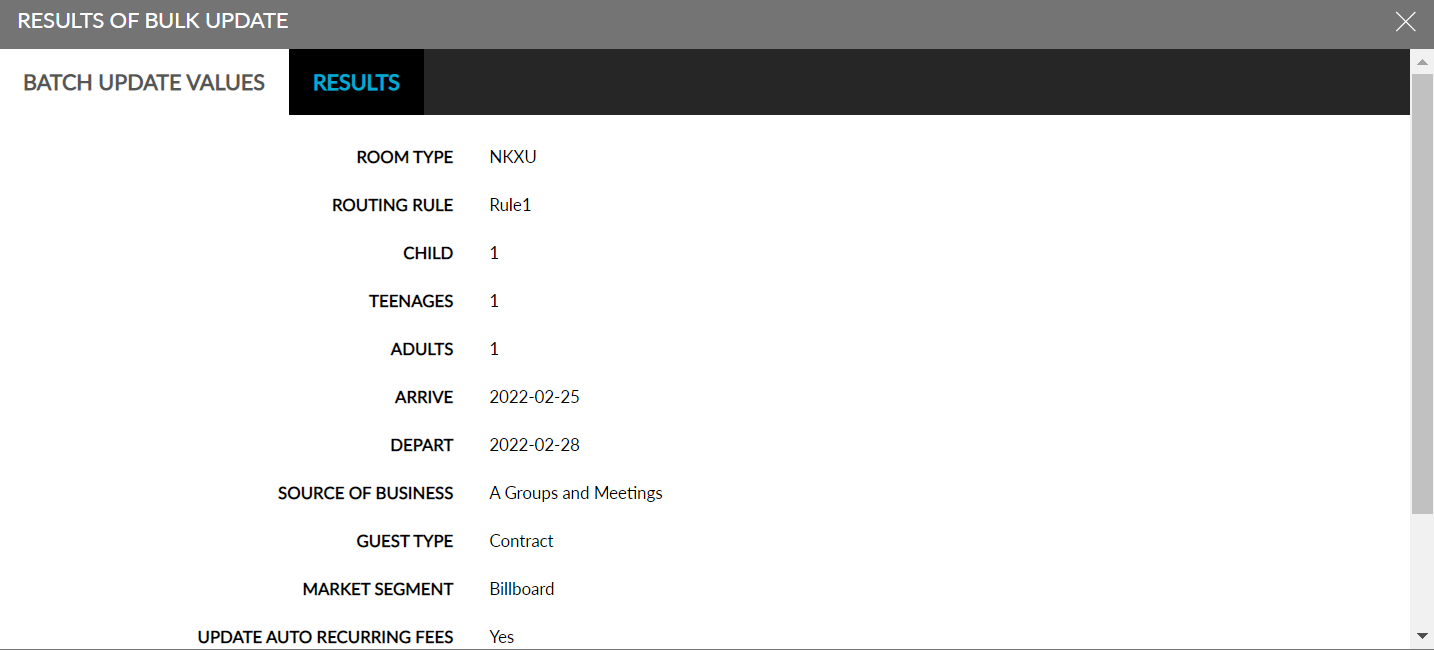
This screen displays the following details in two tabs:
-
Batch Update Values: All the following categories that are part of the batch update are displayed with the selected options:
-
Room Type
-
Routing rule
-
Guests - Adults, children, infants
-
Arrive
-
Depart
-
Source of Business
-
Guest Type
-
Market segment
-
If no value is selected for the field, the field name is displayed, and the value is left blank. The values in this section are retained until the next batch update and cleared upon date roll.
-
Results: Displays the results of the batch update. An info icon is added that displays the following message: Results will be overridden by any batch updates or until the date roll, whichever comes first. The results in this section are retained until the next batch update. Upon date roll, the results are cleared, and the following message is displayed: No results to display.
The following columns are added to the Results tab:
|
Field |
Description |
|---|---|
|
Guest |
Displays the guest’s name as a hyperlink. This column is sortable. Users can search for a record using the guest’s name. |
|
Confirmation |
Displays the confirmation number of the reservations. This column is left blank for staged reservations. This column is sortable. Users can search for a record using the confirmation code. |
|
Status |
Displays the status of the update (success/failed). This column is sortable. Users can filter records based on the status. |
|
Update For |
Displays the name of the category for which the bulk update failed. This column is sortable. |
|
Reason For Failure |
Displays the reasons for failed updates. For example, if the room type update has failed due to 3 reasons, all the 3 reasons are captured and displayed. This column is sortable. |
|
New Average Nightly Rate |
If the average nightly room rate changes for a successful bulk update, the new rate is displayed along with the inclusive tax if applicable. Exclusive tax is not considered. This column is left blank if there is no change in the rate. This column is sortable. |
|
Total Estimated Due |
If the total estimated due changes for a successful bulk update, the new estimated due is displayed along with the inclusive tax if applicable. Exclusive tax is not considered. This column is left blank if there is no change in the estimated due. This column is sortable. |
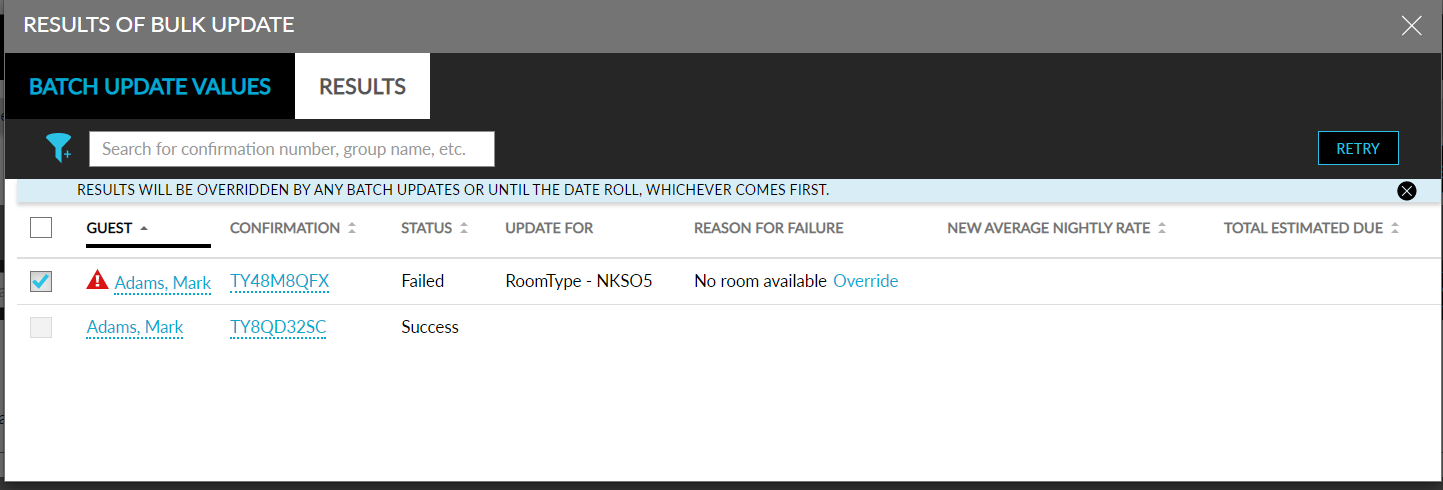
When a bulk update fails due to unavailability of rooms in the property, users can perform an override to overbook rooms. Clicking on the override hyperlink displays the Override screen:
-
Message displayed in the screen: Enter user credentials to authorize
-
Username: Username of the user performing the override
-
Password: Password configured by the user
Clicking on Confirm, the user credentials are validated. If authorization fails, the following message is displayed: Permission denied. For each failed record, an indicator is displayed before the guest’s name.
Users can select the failed records and perform Retry. Users can select the failed records across different pages by enabling the checkbox for the records and click on the Retry button. The checkbox is disabled for the successful records. When Retry button is clicked, the failed updates are rerun, and the batch update progress message is displayed. Once the batch update is completed, users can view the results of the rerun in the Results tab.
Pagination is provided to help users navigate across pages and view the records. By default, 10 records are displayed per page.
Bulk Updates for Multiple Groups
Stay allows users to initiate bulk updates for multiple groups. When a bulk update is in progress for one group and the user initiates a bulk update for another group, the bulk updates are queued up for each group based on the order they were initiated. Once the first bulk update is completed, the bulk update for the second group is initiated.
To support this, when more than one group’s bulk update is initiated, the following message is displayed to users in the group reservation which has an upcoming bulk update: A group in this property has a bulk update running already. When the bulk update process for that group is finished, the process will begin for this group. The message is displayed on clicking Save in the Bulk Update screen of the group reservation.
If a retry is initiated for the first group, the following message is displayed in the Results of Bulk Update screen: A group in this property has a bulk update running already. When the bulk update process for that group is finished, the process will begin for this group.
Important Points
-
Bulk updates can be queued for a maximum of 10 groups (including attempts to retry).
-
When the maximum of bulk updates for 10 groups are initiated and another bulk update is initiated for a group, the following message is displayed on clicking Save in the Bulk Update screen of the group reservation: Bulk update cannot be processed as there are already few bulk updates in queue. Please try again later.
Override and Update Room Type When Allocation is Set
Users can create reservations for a room type within the allocation limit configured in the Allocations tab of the Rates screen. Only the users with the OverbookRateAllocations permission can override the allocation limit and create reservations. This is also applicable to the bulk updates performed for the group reservations.
When a reservation with non-group rate plan is selected and the room type is changed via bulk update, the allocation limit of the room type is checked. If the limit is not exceeded, the room type is updated successfully. If the limit is exceeded, the room type is not updated, and the following message is displayed: Exceeds Room allocation count. Override.
When users click the Override hyperlink, the Override pop-up screen appears that prompts users to authenticate their credentials. If the user has the OverbookRateAllocations permission, the room type is updated successfully upon retry. If the user does not have the permission, the message, User Does Not Have the Required Permission, is displayed.
Update Room Type When Restriction is Set
When any restriction, such as, Closed, Closed to Arrival, Closed to Departure, Minimum Length of Stay, Maximum Length of Stay, and Hurdles is configured for a room type and when users try to update the room type or modify the arrival/departure date of the reservation, the message, Closed/Closed to Arrival/Closed to Departure/Minimum Length of Stay/Maximum Length of Stay restriction. Override is displayed. When the room type of the reservation is being updated and when the rate is below the hurdle rate, the room type does not get updated, and the following message is displayed: Room rate is below Hurdles rate. Override.
When users click the Override hyperlink, the Override pop-up screen appears that prompts users to authenticate their credentials. If the user has the OverbookRateAllocations permission, the room type is updated successfully upon retry. If the user does not have the permission, the message, User Does Not Have the Required Permission, is displayed.
When more than one restriction is configured, for example, when an allocation and a closed restriction is set, the following message is displayed when the room type is updated: Closed, No inventory rate allocation. Override. When users click the Override hyperlink, the Override pop-up screen appears that prompts users to authenticate their credentials to determine if the user has the required permission to override closed restriction and rate allocation.
If the user has permission only for 1 override, the message, User does not have the required permission to override closed restriction, is displayed. If the user does not have permission to override either the allocation or the restriction, the message, User does not have the required permission to override closed restriction and rate allocation, is displayed.
Capture Room Blocks When Releasing/Unreleasing Rooms
When users manually release the remaining rooms of a group for the day or when the rooms are released using the Auto Release or Rolling Release options, and when users manually update the Room Blocks of a group, the count of the rooms blocked is recorded and the overbooking indicator is displayed when a new reservation is created.
This is also applicable to the updates made from Agilysys Sales & Catering
Display Estimated Total Room Rate for Staged Reservations
Stay displays the estimated total room rate for the staged reservations as a separate column in the Staging and Reservations sections in the Reservations tab of groups.
The estimated total room rate will be displayed under the Room Rate column present in the Staging and Reservations sections of the groups (Groups ➜ Reservations ➜ Staging/Reservations) when the following details are available for the staged reservations:
-
Arrival date
-
Departure date
-
Room type
If any of the mentioned details are not available, the room rate is not displayed. The room rate is displayed based on the following:
-
If inclusive tax is configured for the nightly room rate, the tax amount is included in the room rate.
-
If exclusive tax is configured for the nightly room rate, the tax amount is excluded and only the nightly room rate is summed up displayed.
-
If a group room type is selected, the room rate for each night of stay is considered.
-
If a non-group room type is selected, the room rate from the priority order of the rate plan is considered.
-
If the room type is not associated with the 1st rate plan in the order of priority, the next rate plan is considered.
-
If the room type is not associated with any rate plan, the room rate is displayed blank.
-
-
If the nightly room rate is overridden, the overridden rate is considered for all nights of stay.
When users update multiple staged reservations using the Bulk Update option and if the estimated room rate is increased or decreased, the updated rates are displayed in the following columns in the Results tab of the Results of Bulk Update screen:
-
New Average Nightly Rate: For successful updates, if inclusive tax is configured for the nightly room rate, the tax amount is included in the average nightly room rate. For exclusive tax, the tax amount is excluded. If the nightly room rate is not modified, this column is left blank.
-
Total Estimated Due: For successful updates, if the Total Estimated Due is increased or decreased, the modified amount is displayed with inclusive tax if applicable. For exclusive tax, the tax amount is excluded. If the Total Estimated Due is not modified, this column is left blank.