Reservation Folio: Make Payments and Split Payments
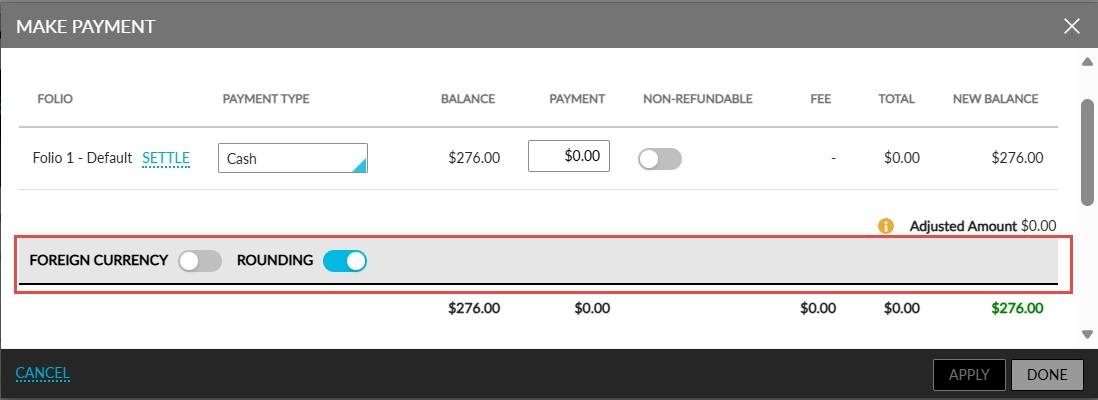
When users make payments for reservation folios, the Show additional options hyperlink will be displayed in the Make Payment pop-up screen. When clicked, a Rounding flag will be displayed for each folio.
When the flag is enabled, the rounding is applied based on configured rules and denominations. When disabled, the exact amount will be processed without applying rounding.
When users manually enter a payment amount and rounding is enabled, the amount is validated to check if it complies with the configured denomination values (for example, multiples of 0.05). If the entered value does not meet the denomination requirement, the following message will be displayed: Invalid amount due to rounding rule. When rounding is disabled, no such validation is enforced, and exact values are accepted.
When users select the Pay All or Settle options, the configured rounding rule will be applied automatically, and the rounded amount will be displayed in the Payment field. The difference between the actual and rounded amount is calculated as the adjusted amount and is posted to the folio as either a charge or a credit. This ensures that the folio balance is fully settled and reduced to zero.
The Adjusted Amount is displayed only when rounding is applied through the Pay All or Settle options. This value represents the rounding difference and is posted to the folio to balance the transaction. The Adjusted Amount is not displayed when users manually enter payment amounts or when the rounding flag is turned off.
When users make manual payments, only the entered amount is posted to the folio. In such cases, no adjustment transaction is created, and any remaining balance must be handled operationally.
Split Payment Functionality
In split payment scenarios, users can access the Show additional options hyperlink for each payment, where the Rounding flag is available. The flag behavior follows the same rules defined for standard payments.
When the Pay All option is used in split payments, all folios are automatically selected and the total outstanding balance is populated in the Payment field, enabling full settlement.
When users select the Split by Equally option, the total amount is evenly distributed across the selected folios. When rounding is enabled, each split amount is automatically rounded based on the configured rules. The corresponding adjusted amount for each folio is displayed and posted as a separate transaction to ensure that each folio balance is reduced to zero. When users manually modify the distributed amounts, the amount is validated against the denomination rules, and no adjustment is posted for the manually modified values.
When users selected the Split by Unequally option, they must manually enter the payment amounts for each folio. When rounding is enabled, each entered amount is validated to check if it complies with the denomination rules. No adjustment transactions are created in this scenario, and any remaining balance is handled through subsequent processes such as checkout.
When the Split by Percentage option is selected, rounding rules are not applied, and the behaviour remains consistent with the existing functionality.
House Account Enhancements
For house account payments, users can proceed to make payment using the Continue to Payment option. The Adjustment column in the Make a Payment screen displays the rounding difference applied to the total amount. After the completion of payment, the adjusted amount is posted to the folio as a transaction item to ensure the folio balance is zero.