Reverse Payments Made for an Invoice
Stay allows users to reverse the payments made for an A/R invoice. Users can reverse the payments made using direct payment methods (cash, credit card, check, and so on) or unapplied payments, for invoices in both open and closed statuses.
Permission
The following permissions must be assigned to enable users to reverse the payments made for an A/R invoice:
-
Stay_UnapplyPaymentsonOpenInvoice: Users with this permission can reverse the payments made for an open invoice.
-
Stay_UnapplyPaymentsonClosedInvoice: Users with this permission can reverse the payments made for a closed invoice.
These permissions are provided to users with access to the following roles by default:
-
System Administrator
-
Stay Accounting
-
Account Receivable Manager
Reverse Payments for an Open Invoice
Payments for open invoices can be reversed in the following ways:
-
Users can reverse the payments made for an open invoice that have Modified status by selecting the invoice and clicking on the Unapply Payment option.
-
For payments made via direct payment methods, both the Issue Refund and Unapply Payment options under the More button are enabled for selection. For payments made via unapplied payments, only the Unapply Payment option is enabled for selection.
When the Unapply Payment option is selected, the Unapply Payment pop-up screen appears that displays the following details:
|
Field |
Description |
|---|---|
|
Payment Date |
This field is pre-populated with the date when the payment was posted for the selected invoice. |
|
Payment Method |
This field is pre-populated with the payment method used for the payment made. |
|
Balance |
This field is pre-populated with the amount for which the payment was made. |
|
Amount to Unapply |
Allows users to enter the amount to be reversed from the actual amount paid. Users can enter an amount that is less than or equal to the amount paid. When users enter a greater amount, the following message is displayed: Entered amount exceeds the balance due. |
|
New Balance |
Displays the new balance after deducting the amount to be unapplied from the amount paid. |
|
Reference No |
Allows users to enter a reference number. |
|
Reason |
Allows users to enter a reason. |
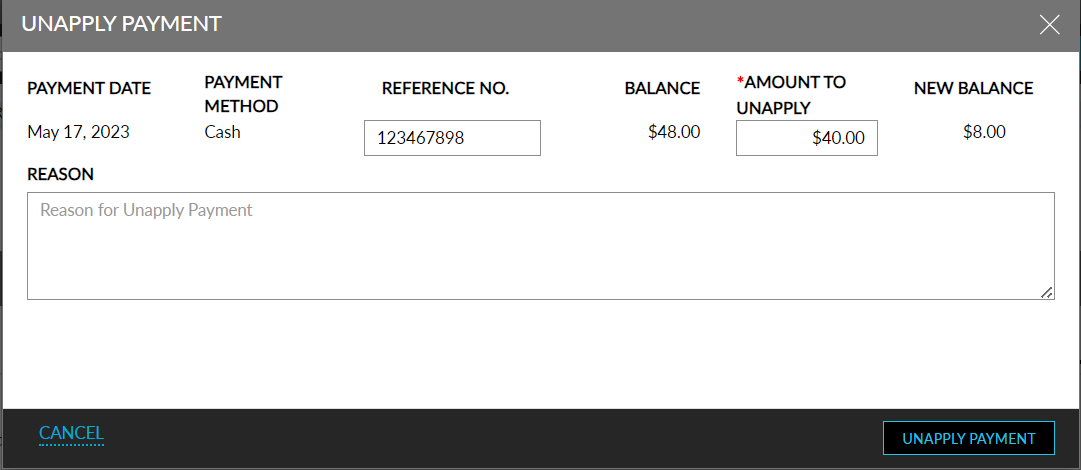
When users click the Unapply Payment option, the credentials of the user are validated for required permissions to reverse the payment. On successful validation, the amount is reversed from the original payment and the following details for the reversed payment amount are displayed in the Payments and Refunds section of the invoice:
|
Field |
Description |
|---|---|
|
Type |
Displays the type of payment, that is, Unapplied. |
|
Date |
Displays the date when the payment was reversed. |
|
Amount |
Displays the amount reversed. |
|
Reference No |
Displays the reference no entered for reversing the payment. |
|
Reason |
Displays the reason entered for reversing the payment. |

If the user does not have the required permissions, they are prompted to re-enter their credentials. On successful authentication, the amount is reversed. For unsuccessful authentication, users can choose to re-enter the credentials or click Cancel.
Reverse Payments for a Closed Invoice
For a closed invoice, users should first retrieve the closed invoice and then click the Unapply Payment option.
-
For payments made via direct payment methods, both the Issue Refund and Unapply Payment options under the More button are enabled for selection.
-
For payments made via unapplied payments, only the Unapply Payment option is enabled for selection.
When the Unapply Payment option is selected, the Unapply Payment pop-up screen appears that displays the following details:
|
Field |
Description |
|---|---|
|
Payment Date |
This field is pre-populated with the date when the payment was posted for the selected invoice. |
|
Payment Method |
This field is pre-populated with the payment method used for the payment made. |
|
Balance |
This field is pre-populated with the amount for which the payment was made. |
|
Amount to Unapply |
Allows users to enter the amount to be reversed from the actual amount paid. Users can enter an amount that is less than or equal to the amount paid. When users enter a greater amount, the following message is displayed: Entered amount exceeds the balance due. |
|
New Balance |
Displays the new balance after deducting the amount to be unapplied from the amount paid. |
|
Reference No |
Allows users to enter a reference number. |
|
Reason |
Allows users to enter a reason. |
When users click the Unapply Payment option, they are navigated to the next part of the Unapply Payment pop-up screen that displays the following fields:
|
Field |
Description |
|---|---|
|
Invoice Date |
This a date picker that displays the original invoice date by default and allows users to select a future invoice date. |
|
Terms |
This is a drop-down list that displays the original AR terms by default and allows users to change the terms if required. |
|
User |
Username of the user. |
|
Password |
Password for the user. |
When users click Save, the credentials of the user are validated for the required permissions to reverse the payment. On successful validation, the amount is reversed from the original payment and the following details for the reversed amount are displayed in the Payments and Refunds section of the invoice:
|
Field |
Description |
|---|---|
|
Type |
Displays the type of payment, that is, Unapply. |
|
Date |
Displays the date when the payment was reversed. |
|
Amount |
Displays the amount reversed. |
|
Reference No |
Displays the reference no entered for reversing the payment. |
|
Reason |
Displays the reason entered for reversing the payment. |
The invoice date and terms for the invoice are updated based on the date and terms selected on the Unapply Payment pop-up screen. If there are no changes made to the date and terms, the original details in the invoice is retained. Based on the amount reversed from the original payment, the new balance is updated for the invoice.
If the user’s credentials are not valid, the following message is displayed: User does not have the required permission, and the users can re-enter their credentials.
Update the Amount Reversed in Unapplied Payments
The amount reversed from the original payment is updated in the Unapplied Payments section of the A/R account and is indicated by a visual indicator. This section displays the following details for a reversed payment:
|
Field |
Description |
|---|---|
|
Type |
Displays the payment type of the invoice. |
|
Date |
Displays the date when the payment was made for the invoice. |
|
Amount |
Displays the total amount paid for the invoice. |
|
Available Amount |
Displays the amount reversed from the original amount. |
|
Status |
Displays the following statuses:
|
When users expand a record in the Unapplied Payments section, the following details are displayed for both the original and reversed payments:
|
Field |
Description |
|---|---|
|
Date |
Displays the date when the payment was made and reversed. |
|
Type |
Displays the type of payment, such as, payment, unapply, and unapplied payment. |
|
Reference No |
Displays the reference number entered when the payment was made and reversed. |
|
Total Amount |
Displays the amount for which the payment was made and reversed. |
|
Invoice Number |
Displays the invoice number for which the payment was made and reversed. |
|
Reason/Comment |
Displays the reason/comments entered when the payment was made and reversed. |
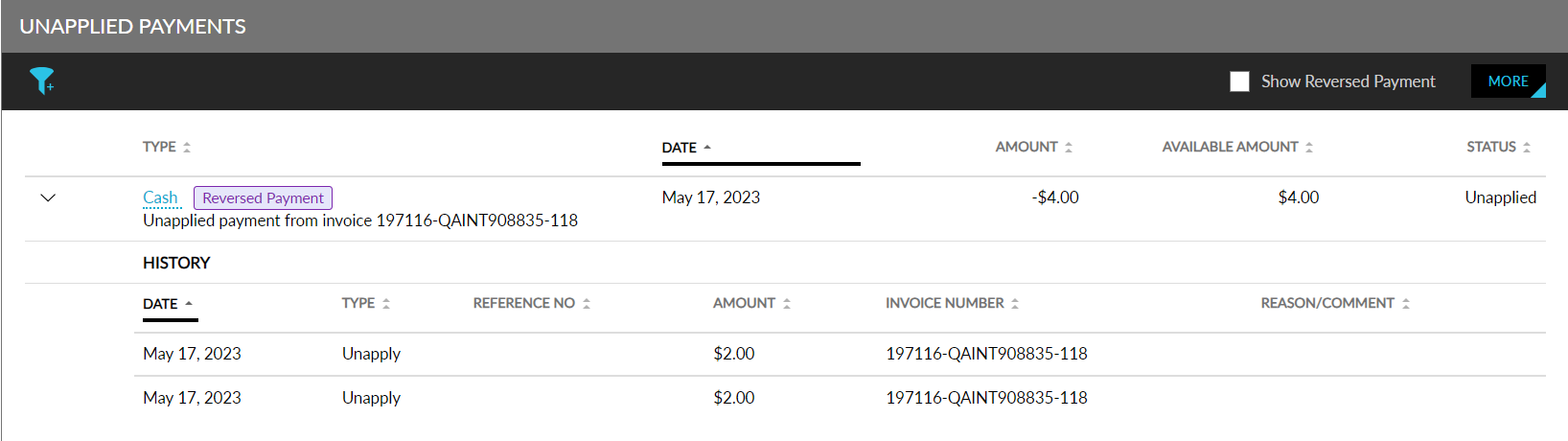
Users can also filter records for which the payment type is Unapply using the filter icon in the Unapplied Payments section.
Update Reversed Payment Details in Invoice History
A new record is created for the reversed payment in the Invoice History tab on the History section of the A/R account with the Event Type and Description as Invoice Unapply.
If any reference number or reason is entered when reversing the payment, the following details are displayed in the Description column:
-
Amount: Displays the amount that is reversed.
-
Reason: Displays the reason entered when reversing the payment.
-
Reference No: Displays the reference number entered when reversing the payment.

Update Reversed Payment Details in Payment History
A new record is created for the reversed payment in the Payment History tab on the History section of the A/R account with the payment type as Unapply. Users can also search and filter records with payment type as Unapply.
The following fields/options support this feature:
-
The Unapply Payment option in the list of options under the More button of an individual invoice (Account Receivable ➜Invoices ➜ Individual invoice ➜ More) allows users to reverse a payment.
-
A new record is created for the reversed payment in the Invoice History tab on the History section of the A/R account with the Event Type and Description as Invoice Unapply.
-
A new record is created for the reversed payment in the Payment History tab on the History section of the A/R account with the payment type as Unapply.
-
The details of the reversed payment are displayed in the AR Event Report in the following format: Unapplied payment on invoice. [Payment method: Check, Amount: $100, Unapplied date: Oct 26,2022].
