Searching for Available Rooms and Rates
This feature allows users to search for available and appropriate rooms for the guest's budget and time frame.
Perform the following steps to search for the available rooms:
Navigate to Reservations ➜ Book a Reservation.
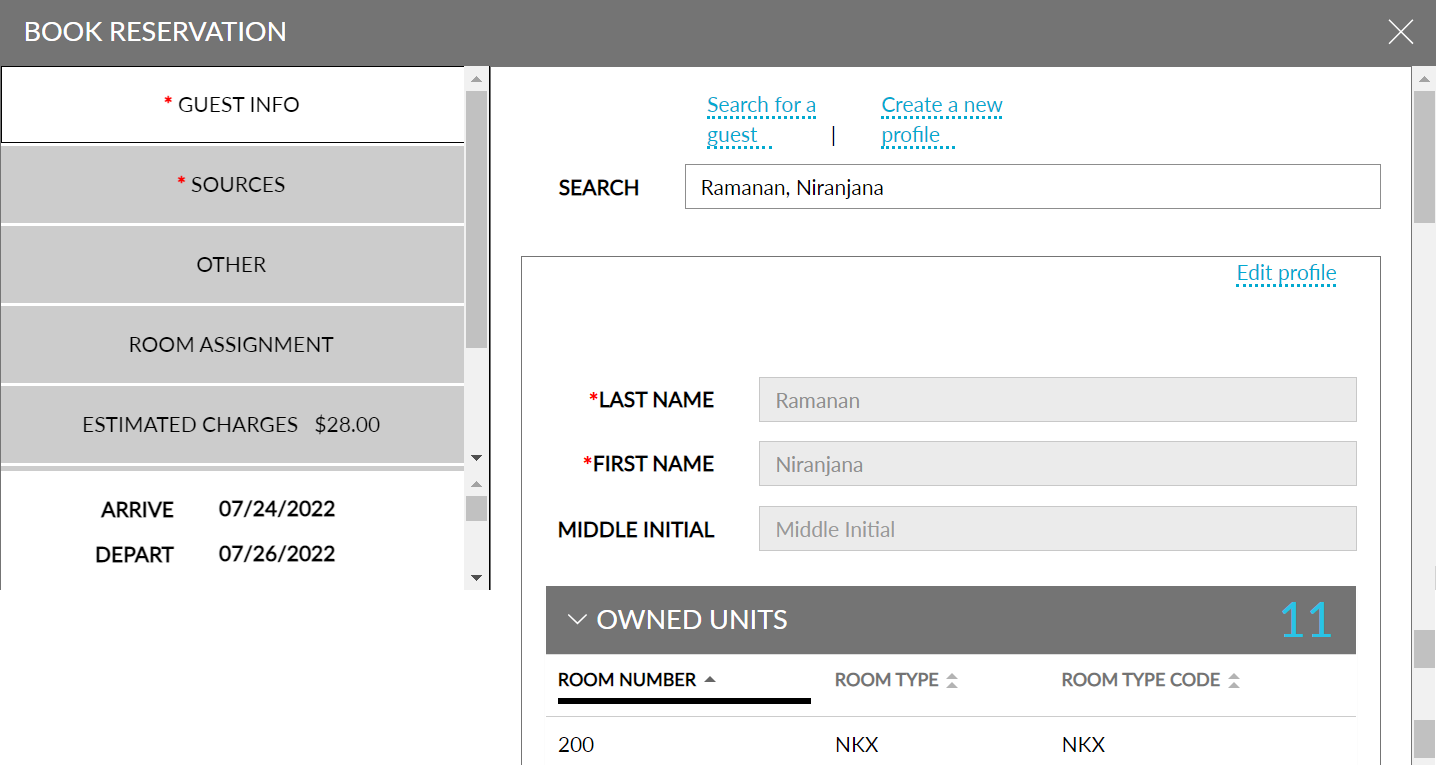
Users can either select an existing profile from Search Profile field or enable the Click Create New Profile to create a new guest profile. On selecting the guest’s profile, a hyperlink, Show guest details, is displayed. On clicking the hyperlink, the guest details are displayed. Users can view the list of units owned by the guest selected under the Owned Units section.
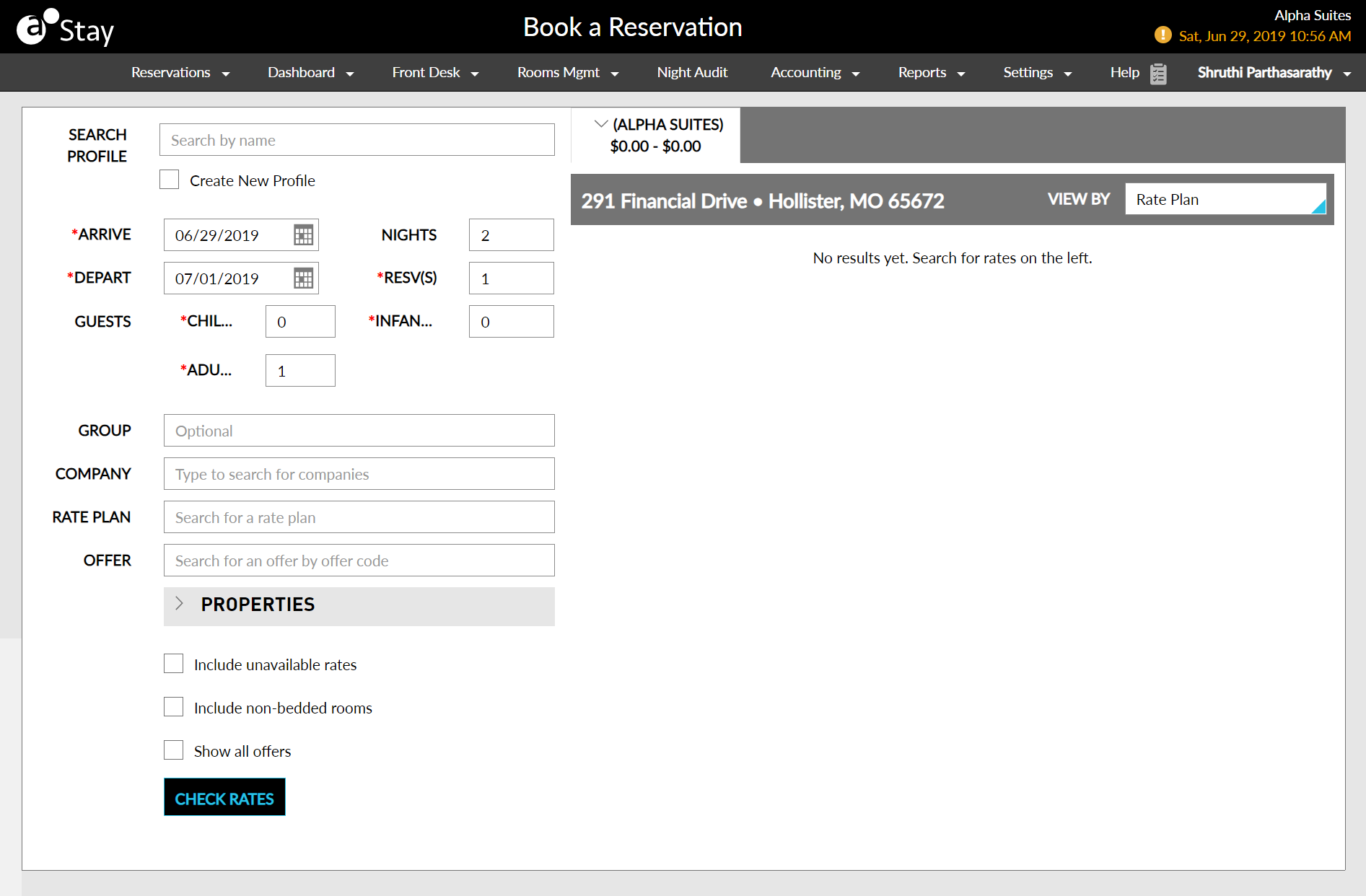
Refer to the following table and fill in the fields to search for available rooms:
|
Field |
Description |
|---|---|
|
Search Profile |
Search the existing guest profile |
|
Create new profile |
Create a new guest profile |
|
Arrive |
Select the guest's arrival date |
|
Depart |
Select the guest's departure date |
|
Nights |
The number of nights in the reservation |
|
Resv(s) |
The number of reservations to be booked |
|
Rooms |
The number of rooms required for a reservation |
|
Guests |
The number of guests to reserve room. Other custom age categories can be set up in the Age Categories setup page |
|
Adults |
The number of adults in the reservation |
|
Children |
The number of children in the reservation |
|
Group |
Search by group name. This indicates that the guest is associated with a group reservation |
|
Company |
Search by company name. This indicates that the guest is associated with a company if the guest is traveling for business |
|
Rate Plan |
Search the specific rate plan preferred by the guest |
|
Offer |
Search the offer code |
|
Player ID |
Search the casino player ID to choose applicable offers |
|
Properties |
Select one or more property from properties if the user has more than one guest property in which the user wants to search for a room |
|
Include unavailable rates |
Includes all the rates in the search |
|
Include Non-Bedded Rooms |
Includes non-bedded rooms in the search |
|
Show all offers |
It shows all the casino-related offers |
Click Check Rates. The list of available rooms on the Book a Reservation page is displayed
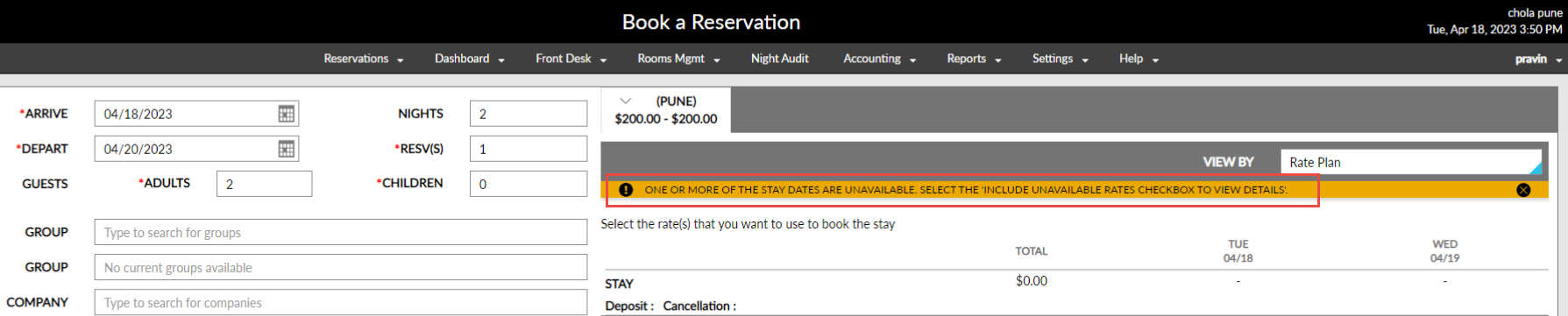
An alert message is displayed in the Book a Reservation screen, when the stay dates selected by the users are not available for booking. The message is displayed in the following scenarios:
-
When there are no rooms available for the selected dates
-
When restrictions are created in the property calendar for the selected dates
-
When rate plans are not available for the selected dates
For example, a Closed to Arrival restriction is placed in the property calendar for the dates, May 11, 2023, to May 15, 2023. When users try to book a reservation for these dates, the rate details will not be displayed. The rate details will be displayed only when users enable the Include Unavailable Rates checkbox and click on the Check Rates button.
The following message is displayed when users try to create reservations for the unavailable dates: One or more of the stay dates are unavailable. Select the Include Unavailable Rates checkbox to view details.
If the ROH room type is not configured in the property, it is not displayed when users click on the Check Rates button.
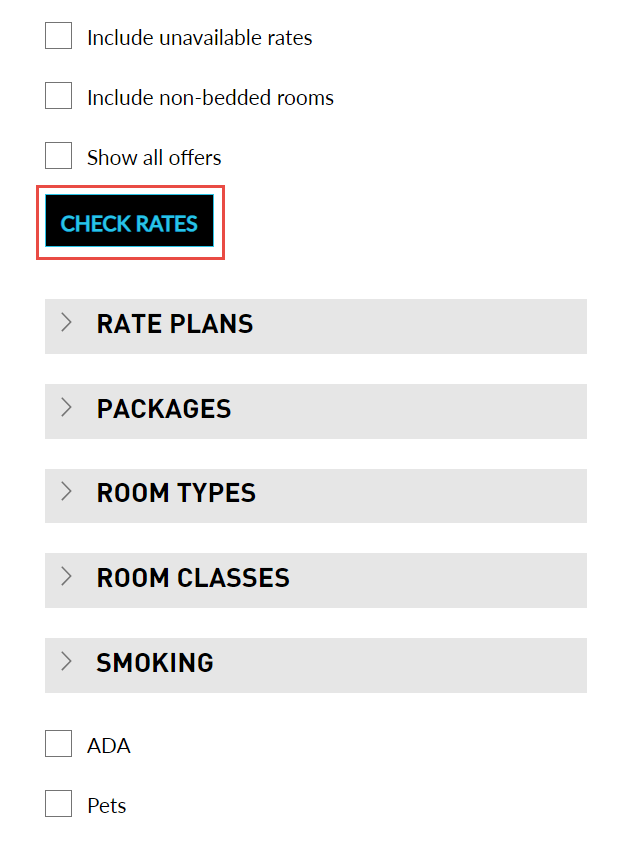
Refer to the following table and fill in the fields:
|
Field |
Description |
|---|---|
|
Rate Plans |
The rooms that are associated with a specific rate plan |
|
Packages |
Allows the user to search for packages based on the rate plan or package name |
|
Room Types |
The room type that the guest is interested in. For example, a Suite or King |
|
Room Classes |
If there are different classes of room types, select which the guest prefers. For example, a Basic or Grand |
|
Smoking |
This indicates that the guest has a specific need for a Non-Smoking or Smoking room |
|
ADA |
Allows the user to search for an Americans with Disabilities Act (ADA)-compliant room |
|
Pets |
Allows the user to search for a pet-friendly room |
Create New Guest Profile
Users can create a reservation for a new guest profile directly from the Book a Reservation page.
Perform the following steps to create a new guest profile.
Enable the Create New Profile checkbox.
Refer to the following table and fill in the fields to create a new guest profile.
|
Field |
Description |
|---|---|
|
Last Name |
The last name of the guest. |
|
First Name |
The first name of the guest. |
|
Email Address |
The email address of the guest. |
|
Phone Number |
The phone number of the guest. |
|
Source Of Business |
The source of business for the guest. |
|
Guest Type |
The type of guest. |
|
Market Segment |
The market segment associated with the guest |
The following fields are mandatory for creating a guest profile:
-
First Name
-
Last Name
-
Address or phone number or email address or loyalty program
Click Check Rates. The list of available rooms is displayed.
By default, the market codes, Source Of Business, Guest Type, and Market Segment are displayed only when the user clicks the Show More option. Properties can choose if the market codes must be made as mandatory fields and directly displayed as a dropdown in the Book a Reservation page.
Refer to the Market Segments & Sources section on how to make market codes as mandatory fields.
Users can also view room rates based on the guest type. If the Guest Type is made mandatory, users can select the guest type and click Check Rates. Room rates plans applicable for a selected guest type are displayed along with the other room rates plans.
Booking the Room and Adding Guest Details
This option allows users to book the room and add the guest's information for further references.
Perform the following steps to book a room:
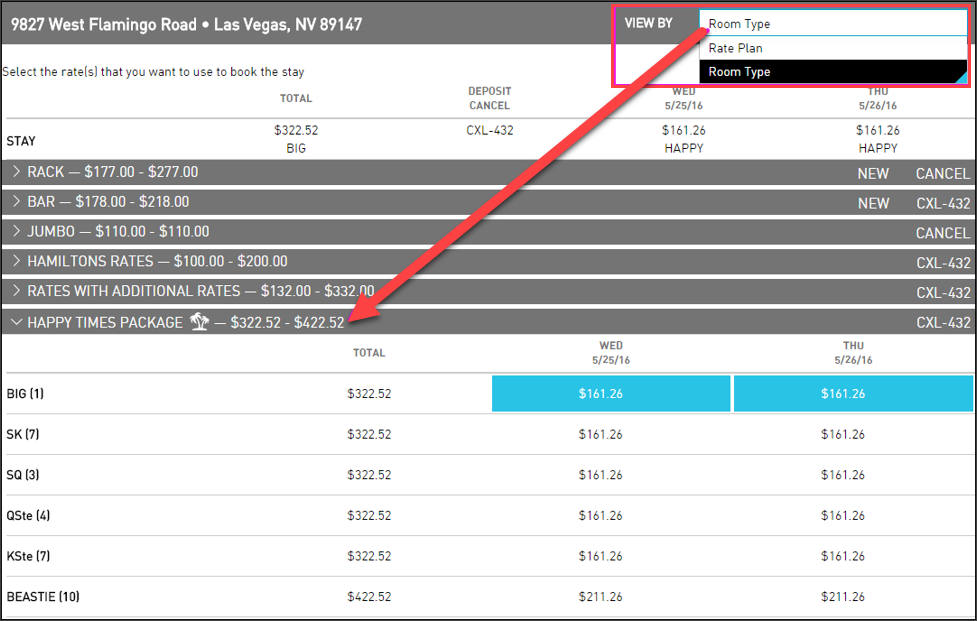
Select either Rate Plan or Room Type from the View By list.
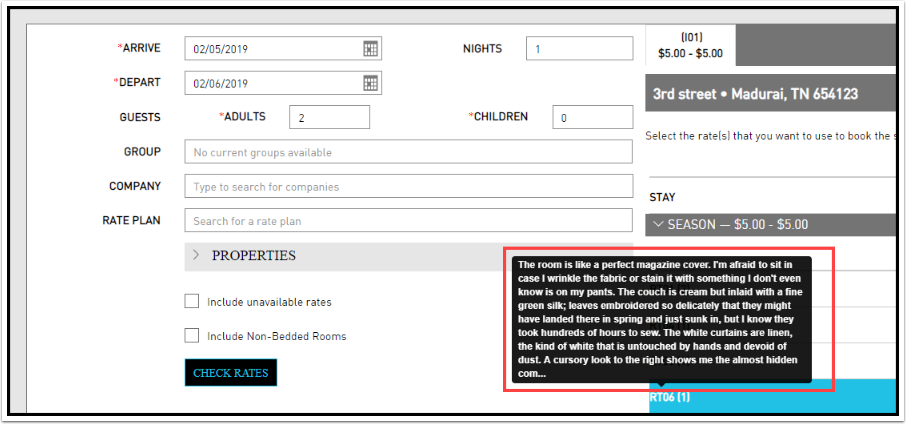
Hover the room type to check the description of the room’s features.
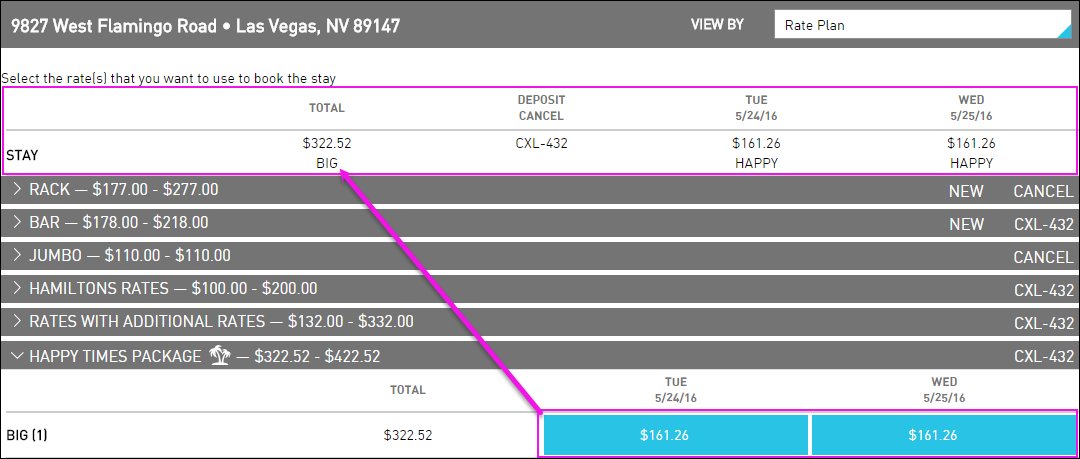
Click to expand the Rate Plan or Room Type groups to view the available rooms and rates.
Select the rates that the user wants to use for the guest's stay. The rate that the user selected is highlighted blue, and selected details appear in the Stay section.
The room type must be the same for every day of the reservation.
To view a description of the room selected. Hover near the room type to see a description of the room's features.
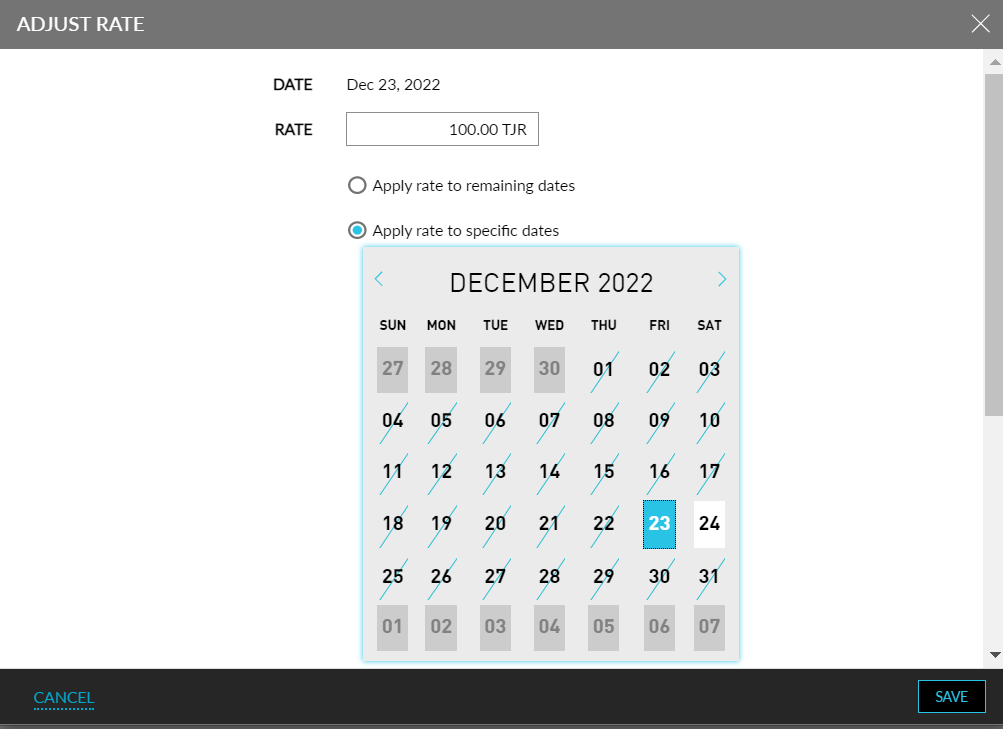
To change a rate or package rate, click an individual rate or individual package rate in the Stay section. The Adjust Rate dialog box is displayed.
Refer to the following table and fill in the fields to adjust rates:
|
Field |
Description |
|---|---|
|
Date |
The date of stay |
|
Rate |
The rates for the respective date |
|
Apply rate to remaining dates |
Select the checkbox to apply the rate to the remaining dates |
|
Apply rate to specific days |
Select the checkbox to apply the rate to specific days |
|
Override reason |
Select an override reason for rate adjustment |
|
Comment |
Add comments about the rate adjustment |
When Apply rate to remaining dates is selected, the same pricing model will apply to all dates. When Apply rate to specific days is chosen, the rate will be applied only to specific days selected by users in the calendar widget. The user must calculate and independently set room rates for each night since component prices may vary. For packages, the room rate only refers to the room rate portion of the package. It does not include the components in the package.
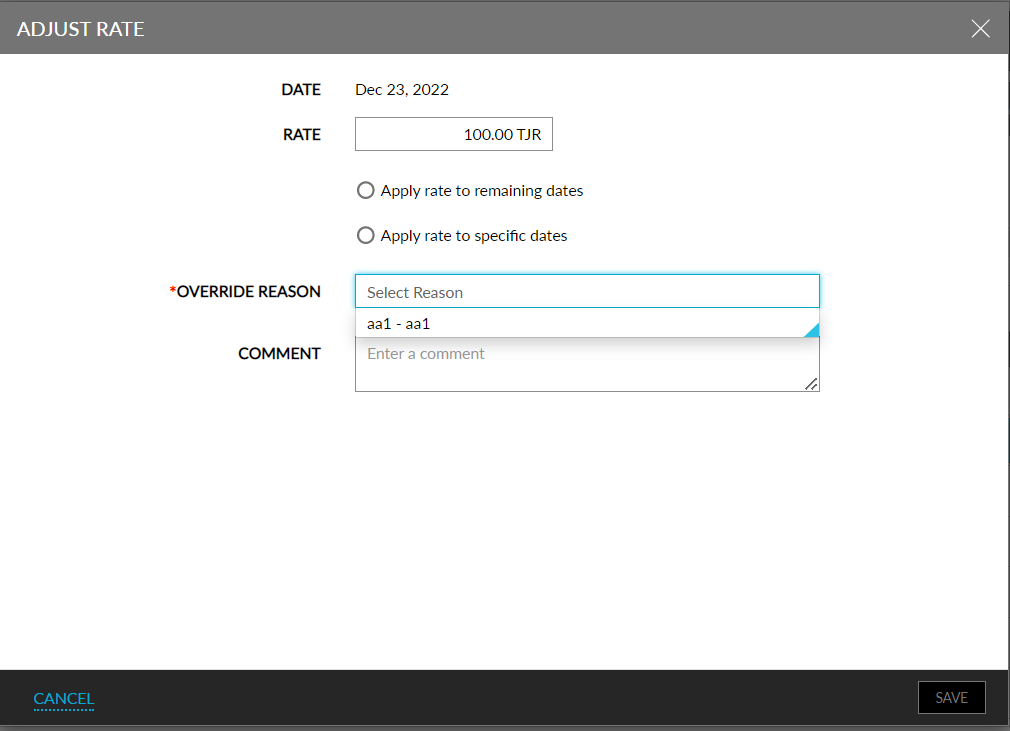
When the Rate Override Reason feature setting is enabled and override reasons are configured in the Rate Override Reason page (Settings ➜ All Settings ➜ Reservations ➜ Rate Override Reasons), users can select an override reason from the Override Reason dropdown, when adjusting the rate. If reasons are configured but no reasons are active, this field will not be displayed when users choose to override the rate.
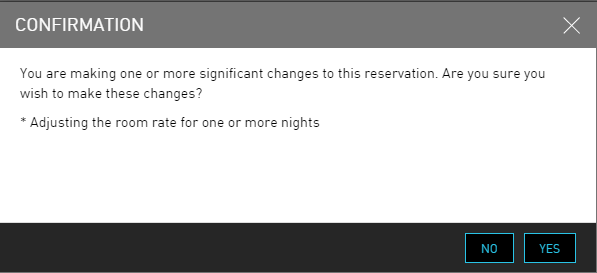
Click Save. A confirmation page is displayed.
Click Yes to confirm the rate change.
Click Add to Cart. The booking is added to cart.
Repeat the same steps to select the reservation details and add another booking to the cart.
When creating bookings for a casino patron, only one booking can be added to the cart at a time. When users create multiple bookings, the Confirmation pop-up screen appears that prompts users to confirm if the existing booking should be overridden and removed.
Observe the count of bookings added to cart in the Cart Summary icon.
Click on the Cart Summary icon to view the details of the bookings added to the cart, including the total charges for the bookings.
If a booking must be removed, click the delete icon displayed beside each booking added to cart. The Reservation Cancellation pop-up screen appears.
Click Yes to cancel the reservation.
Now, fill out the details in the following tabs to complete the booking.
Guest Information Tab
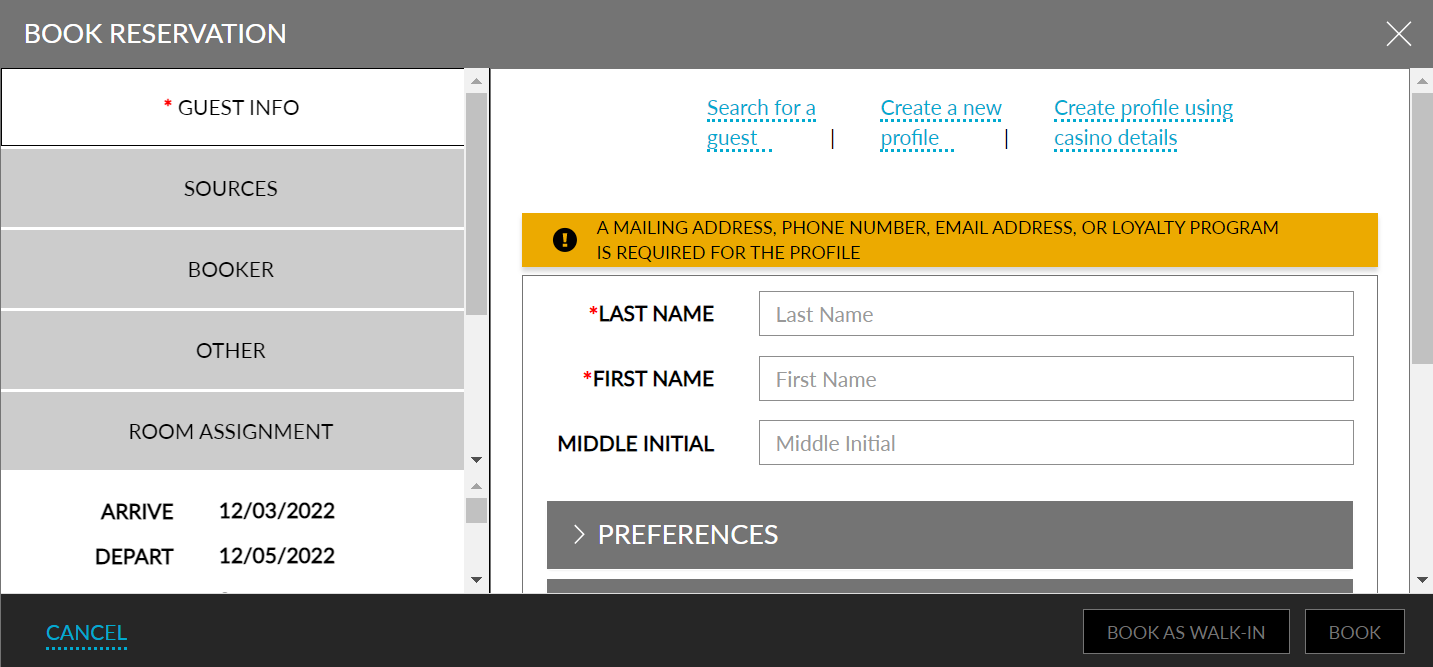
The Guest Information tab allows users to search for an existing guest profile or create a new guest profile using the following options:
-
Search for a Guest
-
Create a New Profile
-
Create Profile Using Casino Details
To search for the existing guest, enter the name of the guest in the Search field. Based on the entered details, the search results are displayed. Users can also create a new guest profile using the Create a new profile option or the Create Profile Using Casino Details option to create a new guest profile with casino details. Only a single guest profile can be selected for all the bookings added to the cart.
Guest Itinerary Tab
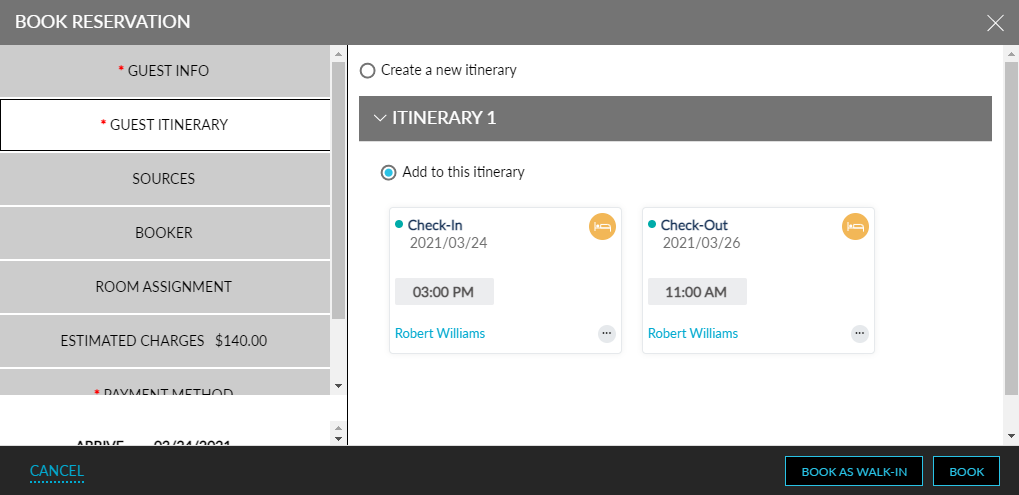
The Guest Itinerary tab allows users to create a new itinerary for a guest. All active itineraries associated with the selected guest profile will be retrieved and displayed. Users can select the preferred itinerary to which the activities of the current reservation must be added.
Itineraries from other applications like Agilysys Golf and Agilysys Spa can be added to the reservation. Contact Agilysys to enable this feature and for further support.
Sources Tab
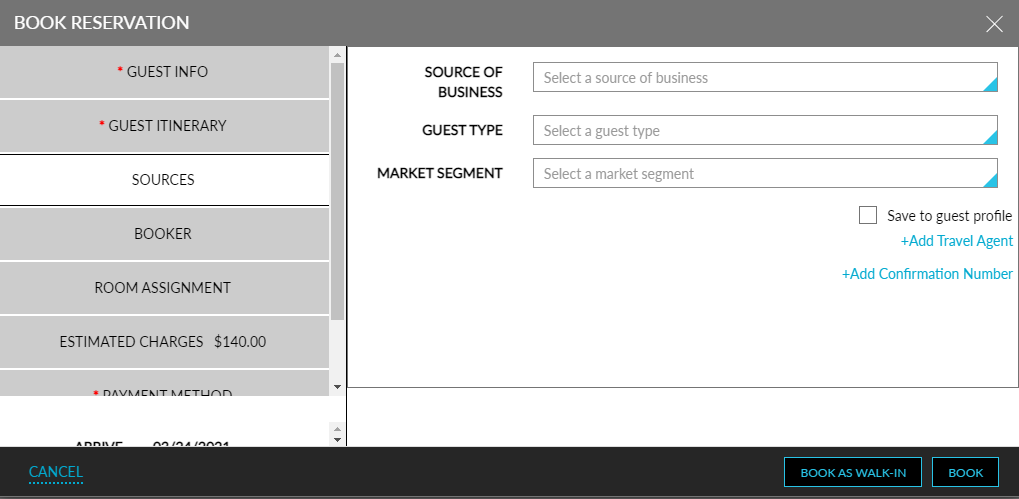
The Sources tab allows users to select values for the following fields for the bookings added to the cart. Each booking is displayed as a separate tab.
-
Source of Business
-
Market Segment
-
Travel Agent or IATA
-
Third Party Source
-
Confirmation
-
Guest Type
Refer to the following table and fill in the fields to book a reservation:
|
Field |
Description |
|---|---|
|
Source Of Business |
The source of business of the property. Sources are used to determine which markets are feeding the property's business. Use this to make decisions about inventory and rates based on the business volume generated by those sources. |
|
Guest Type |
The type of guest on the property. Guest types are used to determine the types of people who stay at the property. For example, business travelers, leisure travelers, and more. Use this to find trends in the length of stay, revenue per guest, and lead time. |
|
Market Segment |
The market segments of the guest stay. Market segments are used to identify the purpose of the guest's stay. Use this to identify trends in the length and days of stay for the property. |
|
Save to guest profile |
Select the checkbox to add the sources on the guest profile. |
|
Add Travel Agent |
Click to link a travel agent to the booking if that information applies to this reservation. |
|
Travel Agent or IATA |
Enter the travel agent name or the IATA number. |
|
Third Party Source |
Enter the third-party source for the reservation. |
|
Confirmation |
Enter the third-party confirmation number for the reservation. |
|
Add Confirmation Number |
Click to add additional third-party confirmation numbers to the reservation. |
Travel & Transport Tab
The Travel & Transport tab allows users to add travel and transport information for arrival and departure for the bookings added to the cart. Each booking is displayed as a separate tab.
Click the Add Travel Details hyperlink to add travel details for the arrival and departure of the guest.
Click the Add Transportation Details hyperlink to add transportation details for the arrival and departure of the guest.
Users can add additional travel and transportation details for both arrival and departure by clicking on the Add Travel Details and Add Transportation Details hyperlinks.
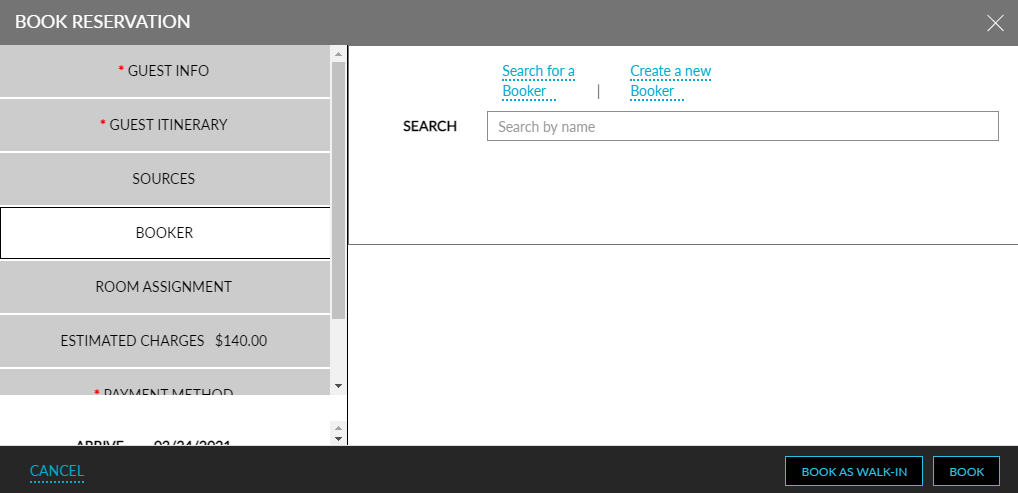
Booker Tab
The Booker tab allows users to search a booker or create a new booker to be associated with the reservation.
When any of the bookings added to cart are created through a booker, booker details may be added. Search for an existing booker profile using the Search for a Booker option or select Create a new Booker to create a new one. The same booker profile is selected for all bookings added to the cart.
Other Tab
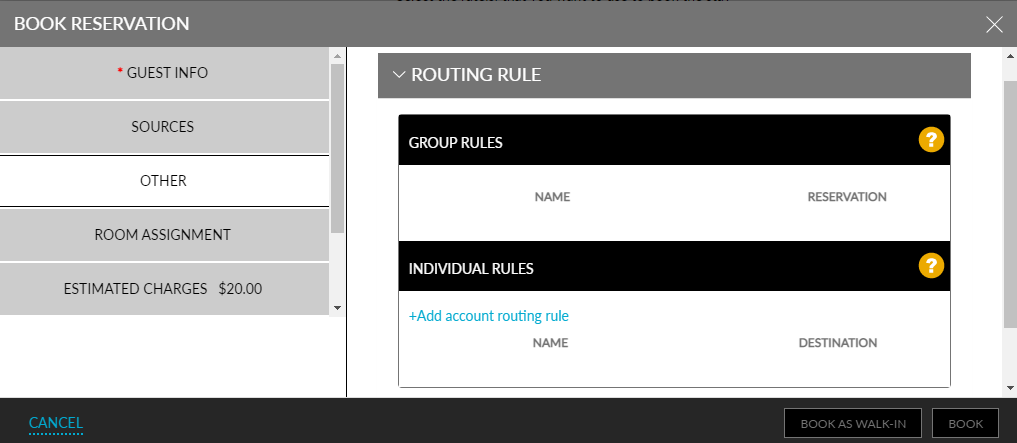
The Other tab displays the following details for each booking added to the cart. Each booking is displayed as a separate tab.
-
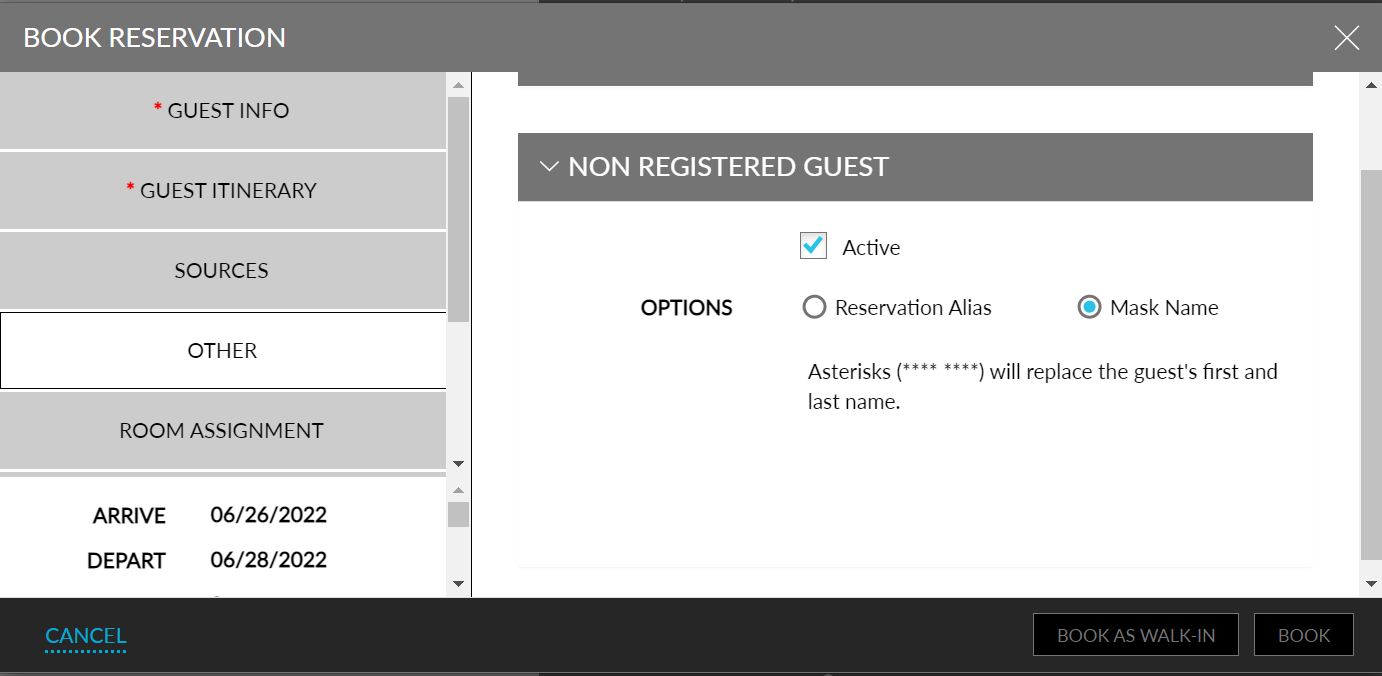
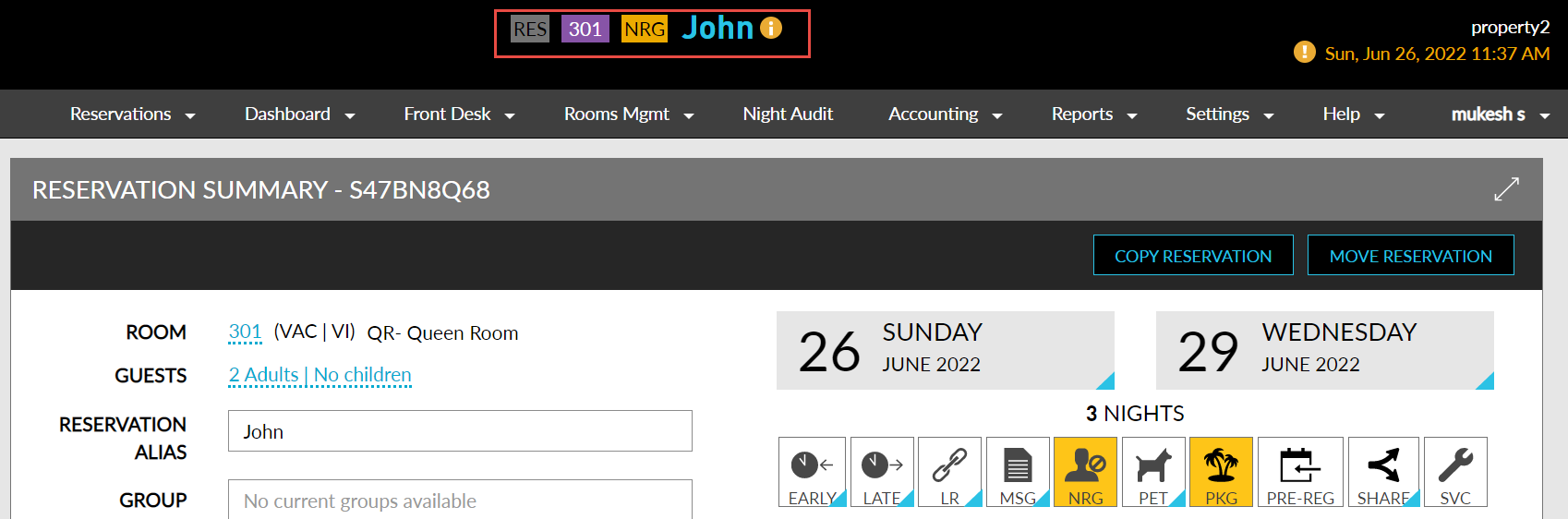
Reservation Alias
-
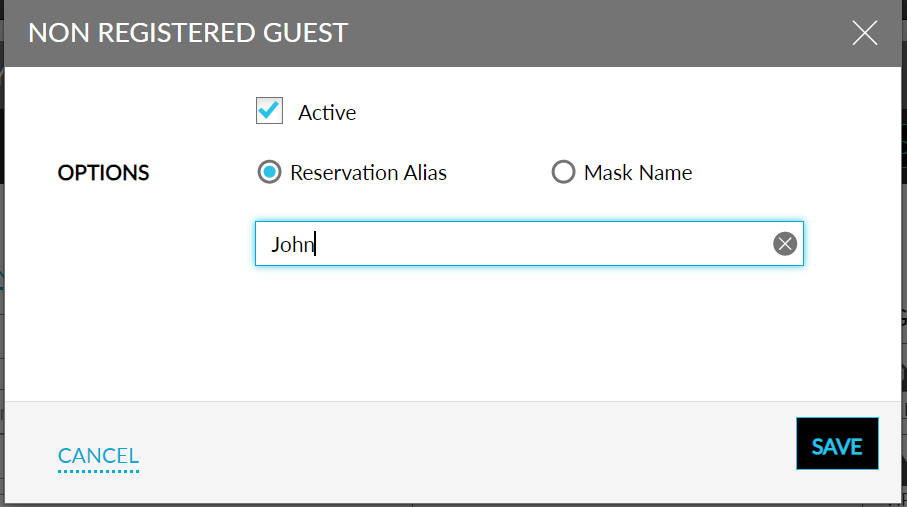
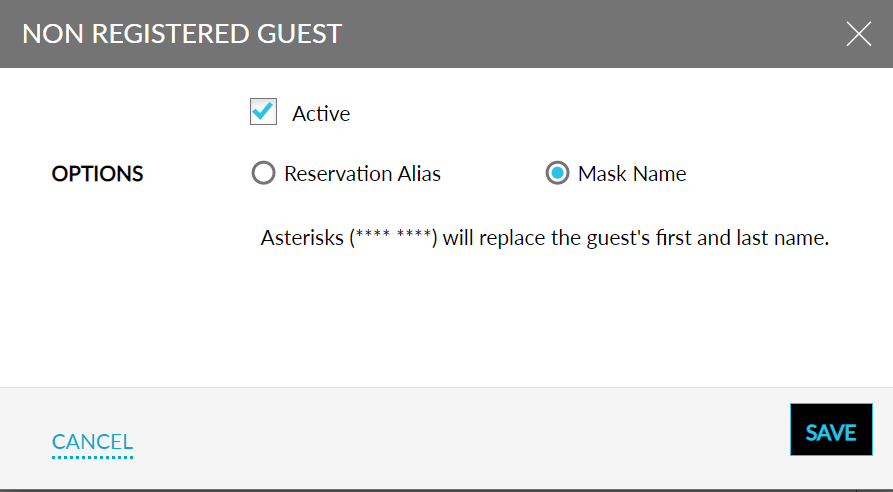
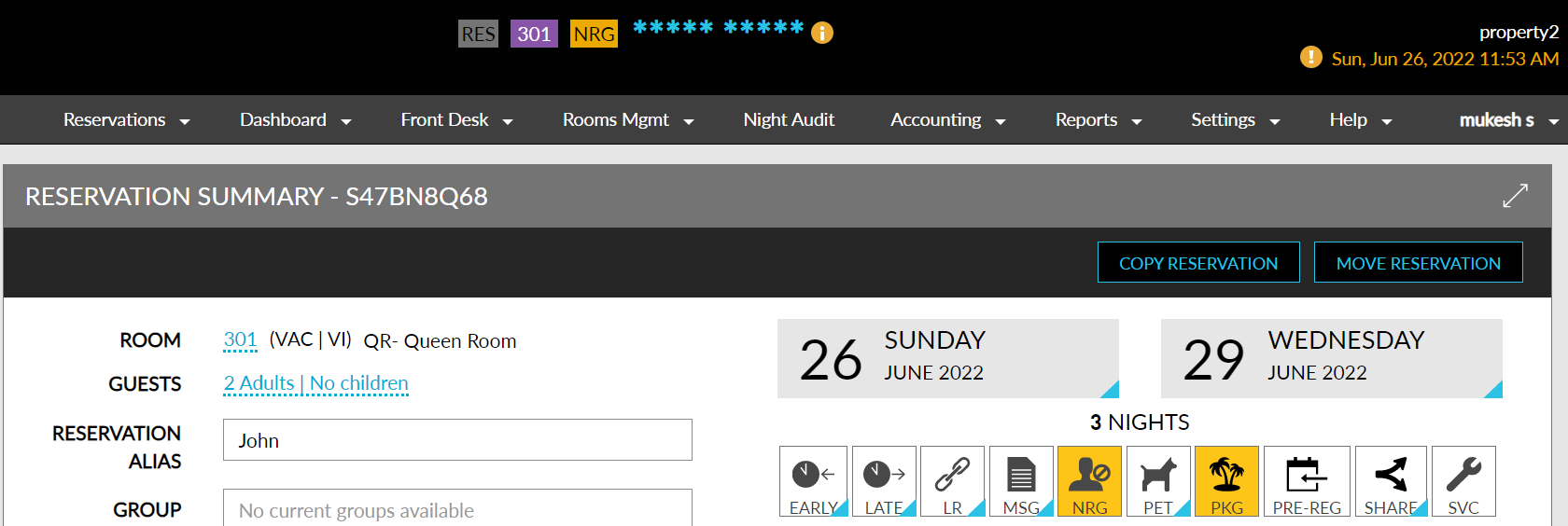
Non-Registered Guest
-
Consent Management
-
Group Rules
-
Individual Rules
Refer to the following table and configure values in each section.
|
Section |
Description |
|---|---|
|
Consent Management |
Users can update the consent policies applicable for the selected profile by entering the reason for the update in the Reason field displayed. |
|
Reservation Alias |
Users can configure an alias name for each booking. |
|
Non-Registered Guest |
When the Active flag is enabled, users can choose to configure an alias name for the guest or mask the guest’s name. |
|
Routing Rule |
For group reservations, users can select a group rule in the Group Rules section. For non-group reservations, users can select an account routing rule by clicking on the Add Account Routing Rule hyperlink in the Individual Rules section. |
Room Assignment Tab
The Room Assignment tab allows users to search and assign rooms based on the guest’s preference for each reservation added to a booking.
Users can view the list of units owned by the guests under the Owned Units section. Users can refer and select the rooms to be assigned for reservation. This feature to view owned units is controlled under the following feature settings, Profile search prior to new reservation and Owners.
Estimated Charges Tab
The Estimated Charges tab displays the Summary tab and multiple tabs for each individual booking. The Summary tab displays the summary of the total charges for all bookings added to the cart. The charges incurred for each booking are displayed in the individual booking tabs.
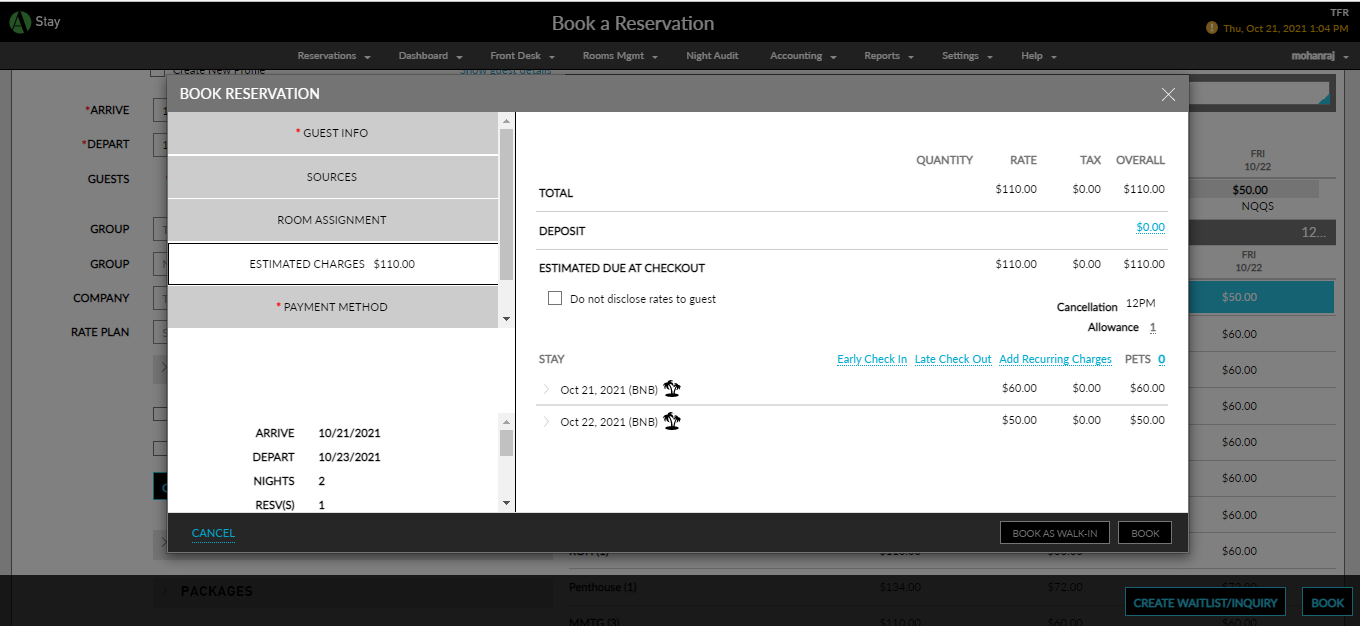
Users can add the following additional charges to each of the bookings if required, in the individual booking tabs.
-
Early check-in fee
-
Late check-out fee
-
Recurring charges
-
Pet charges
-
Add-Ons
Payment Method & Deposit Tab
The Payment Method & Deposit tab allows users to select the payment method for booking reservations and paying the deposit amount for the bookings added to cart. Only a single payment method can be selected for all the bookings added to cart. For deposits, users must select a payment method for each booking.
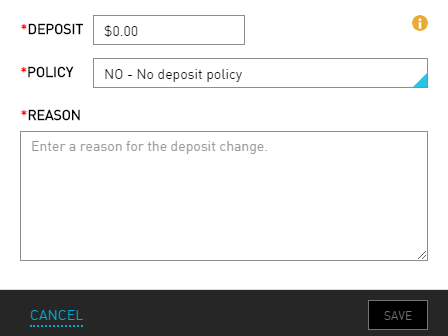
The Book and Book As Walk-In buttons will be enabled for selection only after the booking details are configured in each section.
When the Book/Book As Walk-In buttons are clicked, the booking will be completed successfully, and the confirmation details will be displayed in the Confirmation pop-up screen.
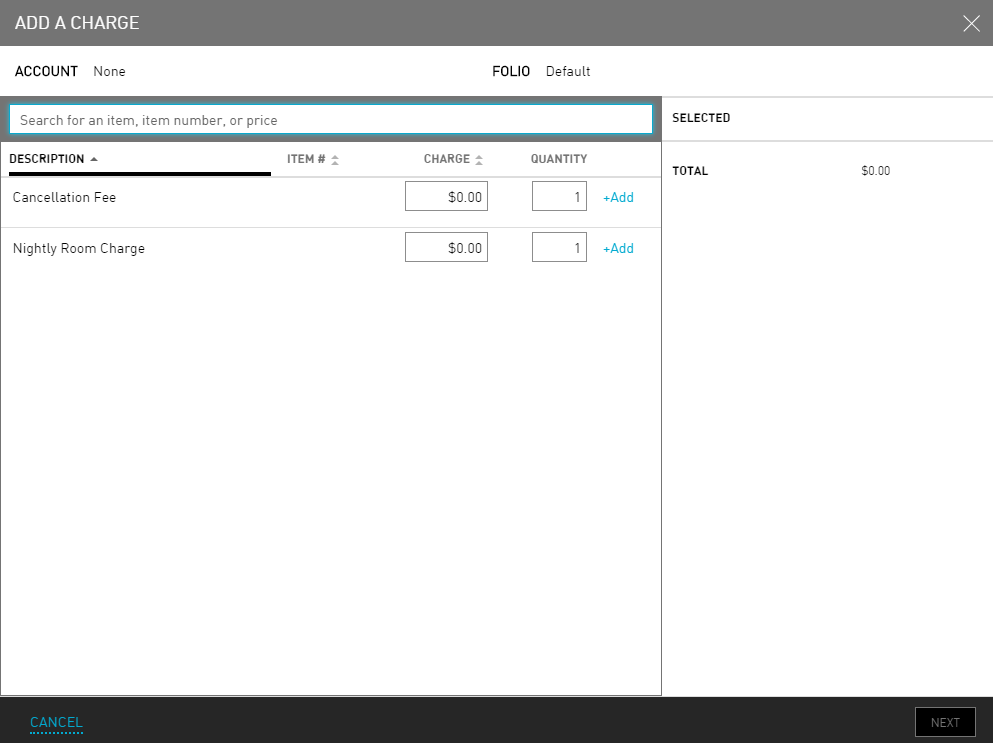
When multiple bookings are made, the booking details will be displayed for each booking as a separate section. In this case, the Go to Reservation button will not be enabled for selection.
If any of the bookings are not completed successfully, users must make the booking again as a new reservation.
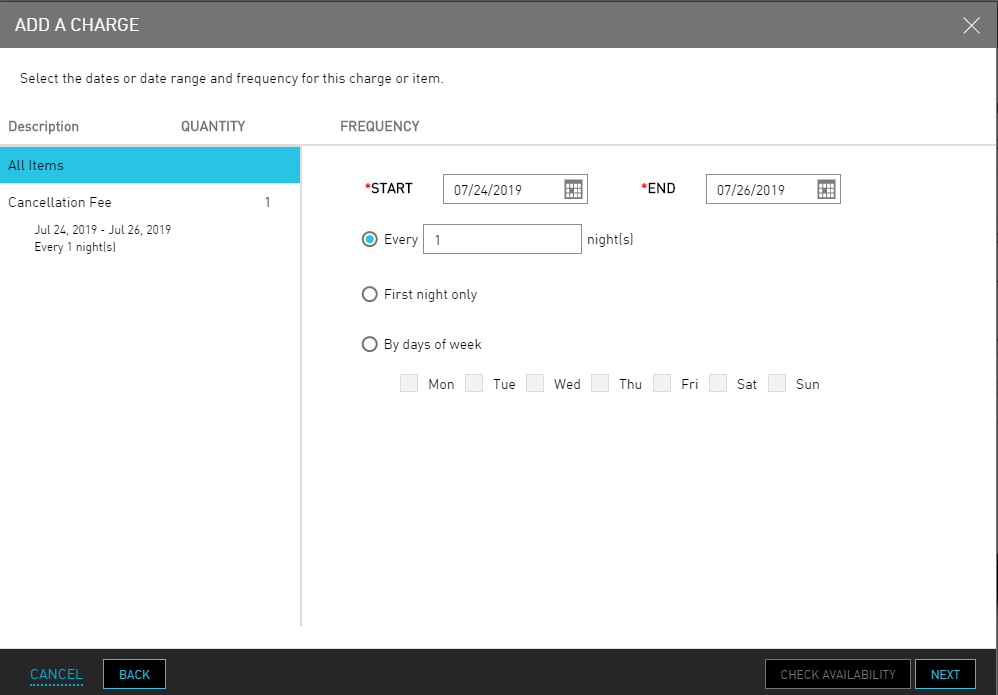
Users can proceed to create a new booking using the New Booking button or click Cancel to exit the screen.