Settling Folios of Reservations
Perform the following steps to settle folios of reservations:
Navigate to Front Desk ➜ Batch Operations.
Click the Folio tab. The list of checkouts are displayed.
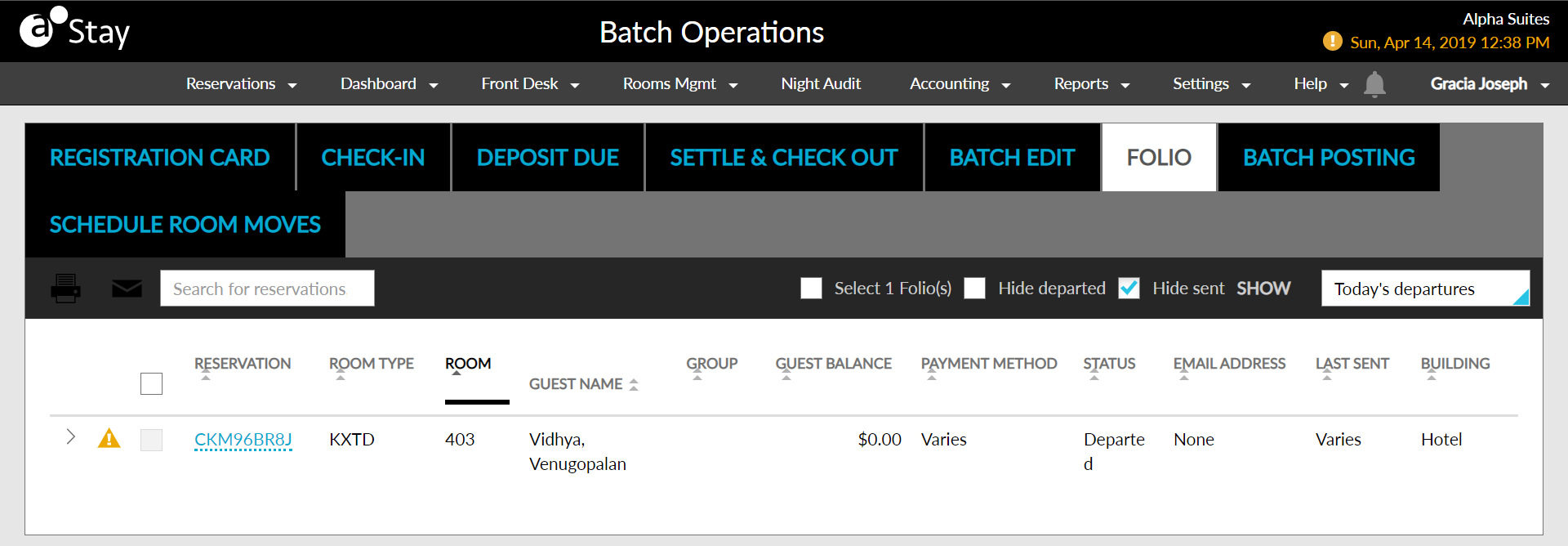
Select from one of the following options to view a list of reservations: Today’s Departures, Tomorrow’s Departures, and Yesterday’s Departures.
Click the Reservation Confirmation Number to navigate directly to the reservation and settle charges in the folio.
Select the individual reservations and click the Print icon. The Print Folios screen is displayed.
Select either Folios or VAT Invoices.
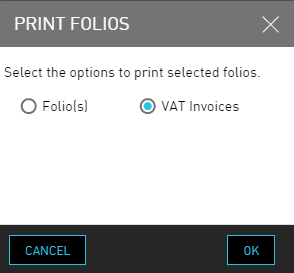
Click Ok. The folio or invoice is ready to be printed or saved as a PDF.
To email folios, click the Select All checkbox.
Click the Email icon. The Email Folios screen is displayed.
Select either Folios or VAT Invoices.
Click Ok. A confirmation screen is displayed asking the user to continue to Email.
Select either Email or Email first, print remaining.
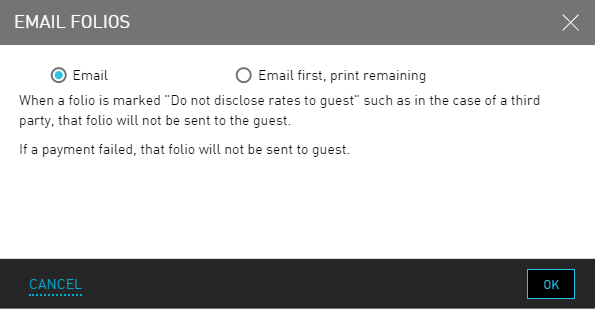
Click Ok. The folios or invoices are mailed.