Split Charges Posted to Accounts
The Split Charge option in the following screens enable users to split charges across multiple accounts.
-
A/R account ➜ Accounts Receivable ➜ Non-Invoiced Charges ➜ More ➜ Split Charge
-
Reservation ➜ Folio ➜ More ➜ Split Charge
-
Group ➜ Folio & Routing Rules ➜ More ➜ Split Charge
-
House account ➜ Folios ➜ More ➜ Split Charge
Users must select the preferred charges to be split and select the Split Charge option. When selected, the Split Charges pop-up screen appears that displays the following tabs:
-
Split By
-
Forecast
Split By Tab
Users can split charges based on the following options:
-
Accounts
-
Routing rule template
Split Charges to Accounts
By default, the Accounts option is selected, and the following columns are displayed.
|
Column |
Description |
|---|---|
|
Destination Account |
The account to split the selected charges into. By default, the current account initiating the split is displayed first. |
|
Type |
The type of account selected. |
|
Folio |
The folio of the selected account to which the split charges must be transferred. Users cannot select closed folios. This drop-down list is disabled for selection when an A/R account is selected in the Destination Account field. |
|
Percentage |
The split percentage for the posted charge. |
|
Amount |
The amount to be transferred is calculated based on the split percentage. |
|
Total |
For the selected charges, the Total is calculated as the sum of charge and tax. |
|
Remaining/Exceeds |
Based on the split percentage configured for the selected accounts, the amount remaining after the charges are split are displayed both as percentage and flat fee in the Remaining field. When the split percentage configured for an account exceeds the total amount of the charges to be split, the excess amount is displayed both as percentage and flat fee in the Exceeds field highlighted in red. |
|
Reason |
This is a mandatory single-select drop-down list that displays the split charge reasons configured at the property. The selected reason is displayed in the source and destination accounts but not when the folio is printed and emailed. |
|
Comment |
This is a mandatory field that allows users to enter a comment to be displayed in the folio for the split charges. |
|
Reference |
This is an optional field that allows users to enter a reference number for the transaction. |
|
Display in Guest Correspondence |
When this checkbox is selected, the reference number entered is displayed when the folio is printed and emailed. |
By default, the selected charges are split across two accounts with the percentage configured as 50. Users must click the +Add Account hyperlink to add an additional account. Users can add up to 10 accounts using this option. Once 10 accounts are added, the +Add Account hyperlink is no longer displayed. Only active accounts can be selected.
When users select an A/R account as the destination and the credit limit has been exceeded or the account dates are closed, the Destination Account field is highlighted in red, and the following message is displayed when hovered upon: A/R account dates are closed, or A/R account credit limit is exceeded.
Users can set the split percentage between selected accounts, with values ranging from 1 to 99%.
Users can delete an account from the split using the deleted icon. When a user deletes an account from the split, the percentage will be calculated and updated automatically for the remaining accounts. The Next button is enabled for selection only when the percentage configured for the selected accounts sums up to 100.
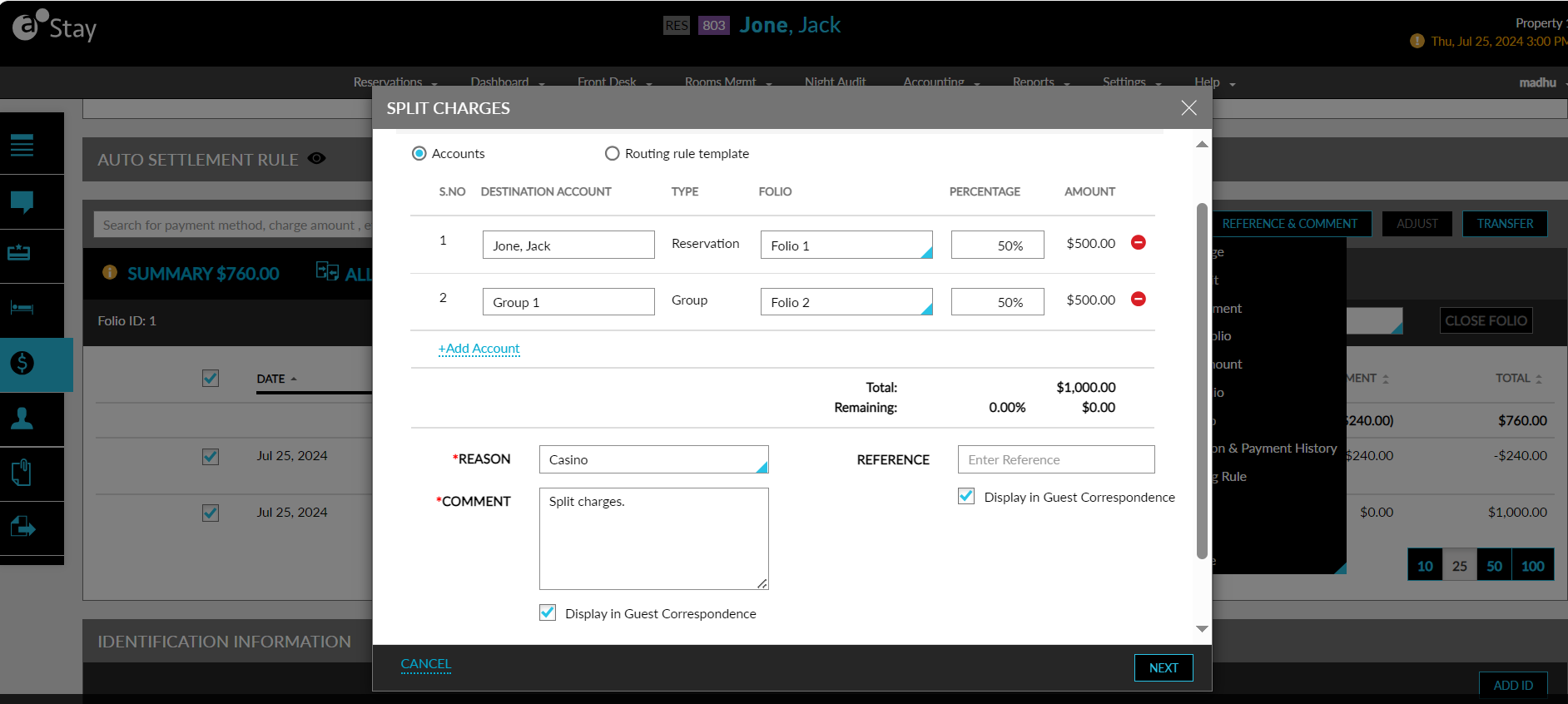
When users click Next, they will be navigated to the Forecast tab.
Split Charges Using Routing Rule Template
Users can select a routing rule template configured at the property and split charges by selecting the Routing rule template option. When this option is selected, the following fields are displayed:
|
Field |
Description |
|---|---|
|
Routing Rule |
This is a single-select drop-down list that displays the non-comp routing rules configured at the property. The routing rules configured with the Split By option selected as % will be displayed. |
|
Categories |
The guest accounting categories are applicable for the routing rule. Users can deselect a category if required. This field is disabled for selection if items were selected in the routing rule. |
|
Items |
The items selected in the routing rule. Users can deselect an item if required. This field is disabled for selection when categories were selected in the routing rule. |
|
Selected Charges |
The charges selected to be split. When the selected charge is not part of the categories/items selected in the routing rule, the following message is displayed: One or more selected items is not part of the selected routing rule. Users must select the appropriate category/item for the selected charge. |
|
Destinations |
The destinations configured in the selected routing rule template is displayed along with the percentage. When a destination is not configured, users must manually configure the destination accounts to which the split charges must be transferred. |
The Next button is enabled for selection only when the percentage configured for the selected accounts sums up to 100.
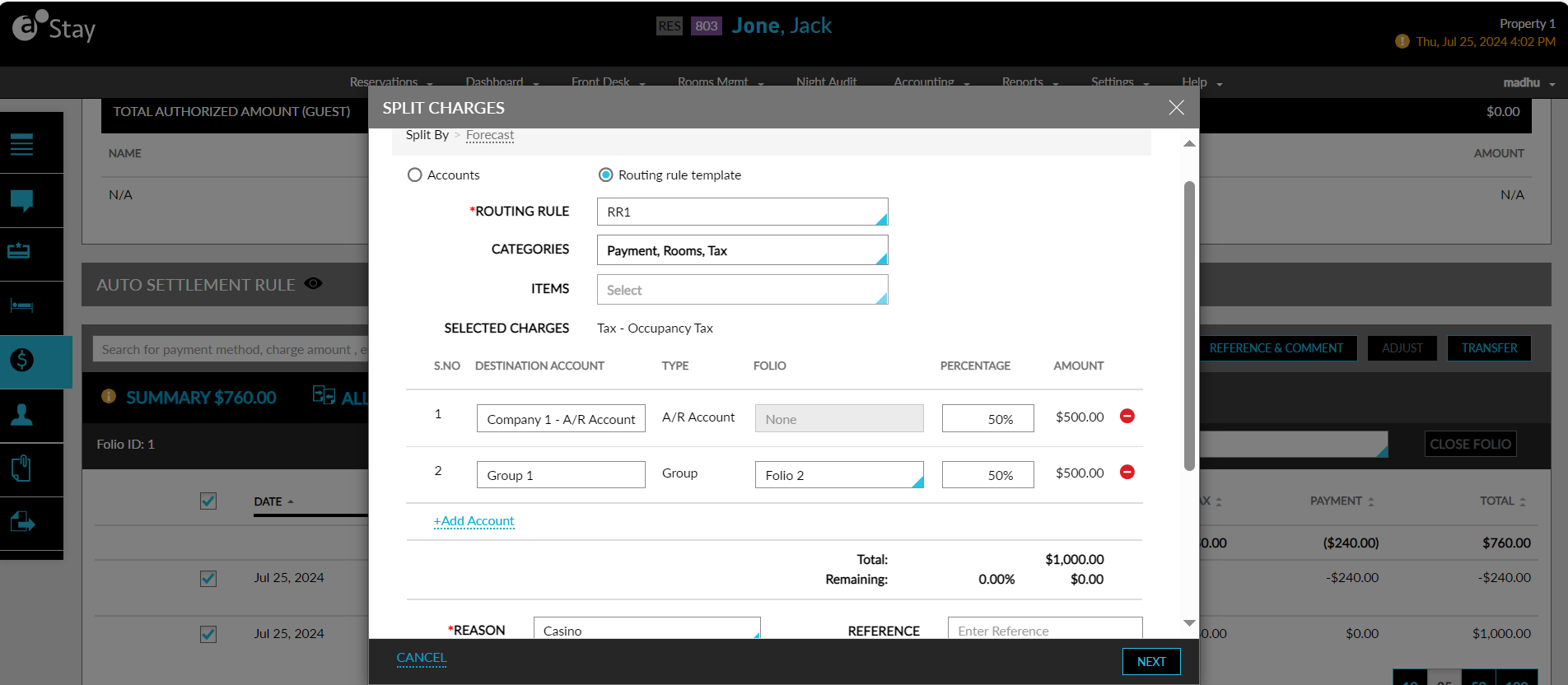
When users click Next, they are navigated to the Forecast tab. The Authorize pop-up screen is displayed when the folio of the selected destination account is closed or if the A/R account selected as the destination is discrepant. Users are prompted to enter their username and password in this pop-up screen. When users click Confirm, the credentials of the user are validated for the following permissions:
-
A/R account with past dates: When the user does not have the StayOverrideAccountsReceivablePostings permission, the following message is displayed: User <username> does not have the required permission to override A/R account closed dates.
-
A/R account with credit limit exceeded: When the user does not have the StayOverrideAccountsReceivablePostings permission, the following message is displayed: User <username> does not have the required permission to override A/R account credit limit.
-
Closed folio: When the user does not have the Stay_OverrideClosedFolio permission, the following message is displayed: User does not have the required permission to override closed folio.
-
When more than 1 condition fails: The following message is displayed when the selected destination account is an A/R account with closed dates or an account with a closed folio: User does not have the required permission to override A/R account closed dates and closed folio.
Forecast Tab
The Forecast tab displays the forecast amount for all destination accounts. All destination accounts are displayed in an accordion that collapses by default. When expanded, the details of the selected charges to be split are displayed in the following columns:
|
Column |
Description |
|---|---|
|
Destination Account |
The account to which the charge must be transferred. |
|
Folio |
The selected folio to which the charge must be transferred. |
|
Amount |
The amount to be transferred. |
|
Tax |
The tax amount configured for the item. |
|
Total |
The total amount calculated as the sum of Amount and Tax. |
|
Destination Balance |
The current balance of the account. |
|
New Balance |
The balance after the split charges is transferred. |
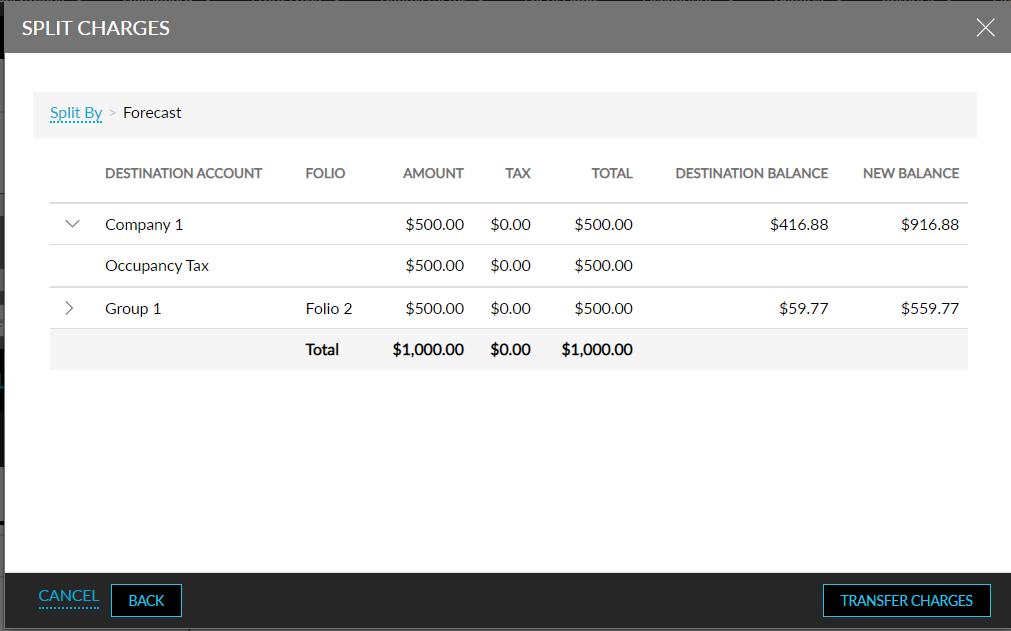
When users click the Transfer Charges option, the Transfer Progress pop-up screen appears that displays the progress of the charges transferred. When the charges are transferred successfully, the following message is displayed: Split charge(s) is completed. Users must expand the selected charge in the source account folio to view details of the accounts to which the charge is transferred.
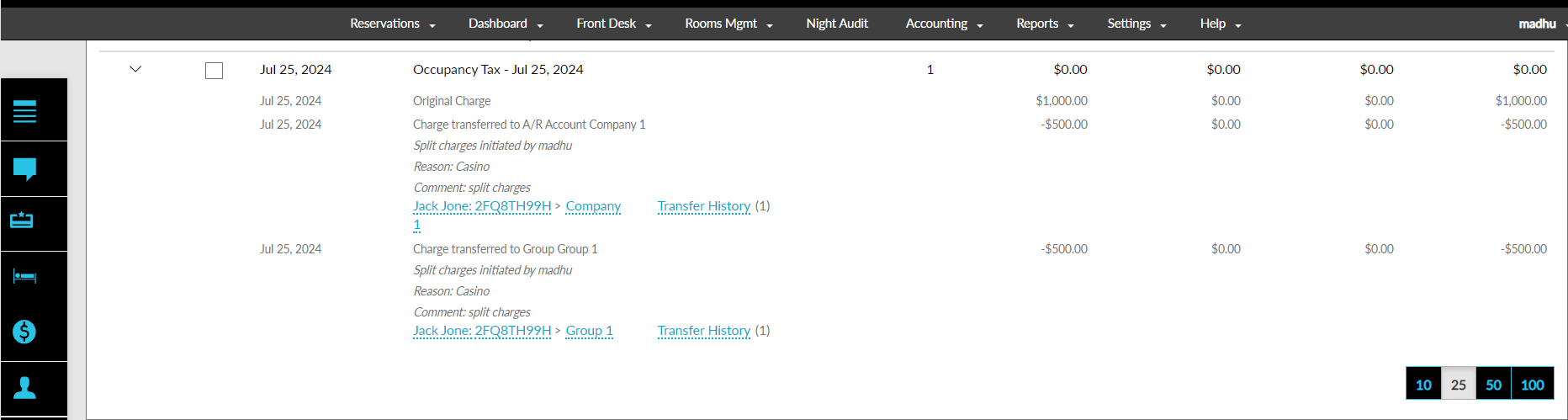
When the charge is not transferred successfully, the following message is displayed: An error occurred while transferring the charges. Please try again.