Support Excess Refunds for Payments
Stay allows users to process refunds when the amount being refunded exceeds the original payment made. With this enhancement, users will be displayed alerts when they process refunds that exceed the payment made. Users are also provided with the ability to make a single refund for the total payments made across all the folios in the reservation by a particular payment method.
Feature Setting
-
Name: Excess Refund for Payments
-
Value: Must be enabled
-
Comments: Licenses is not required
Permission
-
Stay_AllowExcessRefunds
-
Allow users to make a refund for an amount greater than the original payment.
-
Roles Assigned - This permission can be provided to the required roles based on the property’s preference.
-
Processing Excess Refunds from Make Payment Screen
Users can make refunds from the Make Payment screen by entering a negative amount for a folio. When users enter a negative amount, the system validates if the amount entered is greater than the total payments made by the payment method across all the folios in the reservation including the third-party folios. For example, if a user has used a Visa card to make a payment of $50 for folio1, another payment of $120 is made for folio 2, then the total payment made for both the folios is $170.
When the user enters an amount greater than $170, the payment field is highlighted in yellow, and the following message is displayed: Refund Amount Exceeds Total of Previous Payments. Users with the Stay_AllowExcessRefunds permission can continue processing the refund by entering the credentials and clicking on the Apply button.
If the user does not have the permission, the Authorize screen is displayed where users are prompted to authorize the credentials. If users have the permission, the refund is processed successfully. If the user does not have the permission, the message, Permission Denied, is displayed and the refund is not processed.
Users can process an excess refund for a payment from the following screens:
-
Reservation folio ➜ More ➜ Make Payment)
-
Group folio ➜ More ➜ Make Payment)
-
House account folio ➜ More -> Make Payment)
-
A/R account ➜ Invoice ➜ Make payment ➜ Issue refund
Excess refunds are not supported for A/R Unapplied Payments.
Processing a Combined Refund
Users can process a single refund for all the payments made by a particular payment method by clicking on the Refund button on the Payment Method section or the Folio section. Users can process a combined refund for the following:
-
Reservation
-
Group
-
House account
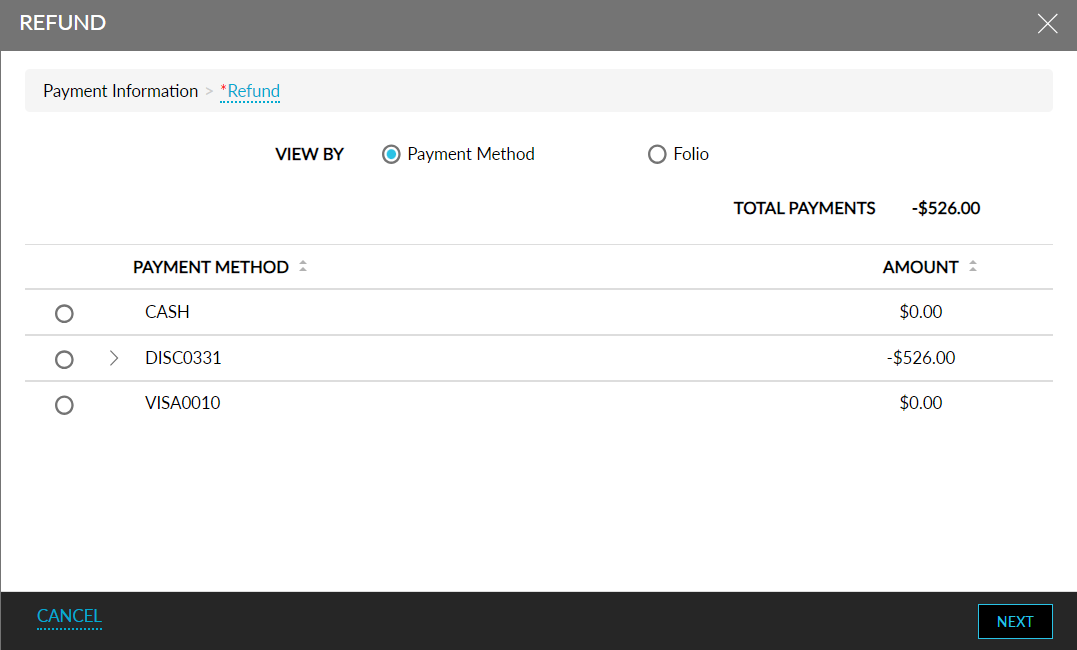
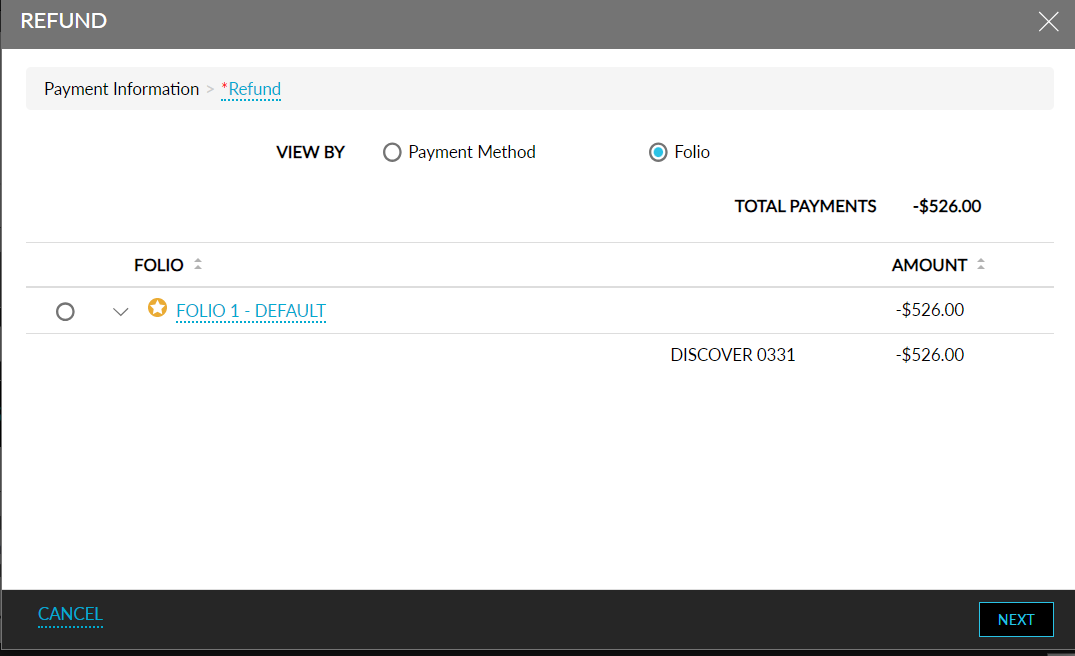
When the Refund button is clicked, the Refund screen appears that displays the following view by options:
-
Payment Method
-
Folio
When the view by payment method option is selected, the following columns are displayed:
|
Field |
Description |
|---|---|
|
Payment Method |
|
|
Amount |
Displays the amount for which the payment was made for each payment method. This column can be sorted. |
|
Total Applied Payments |
Displays the total payment made across all the folios using all the payment methods. |
When the view by folio option is selected, the following columns are displayed:
|
Field |
Description |
|---|---|
|
Folio |
|
|
Amount |
Displays the amount for which the payment was made for each folio. This column can be sorted. |
|
Total Applied Payments |
Displays the total payment made across all the folios using all the payment methods. |
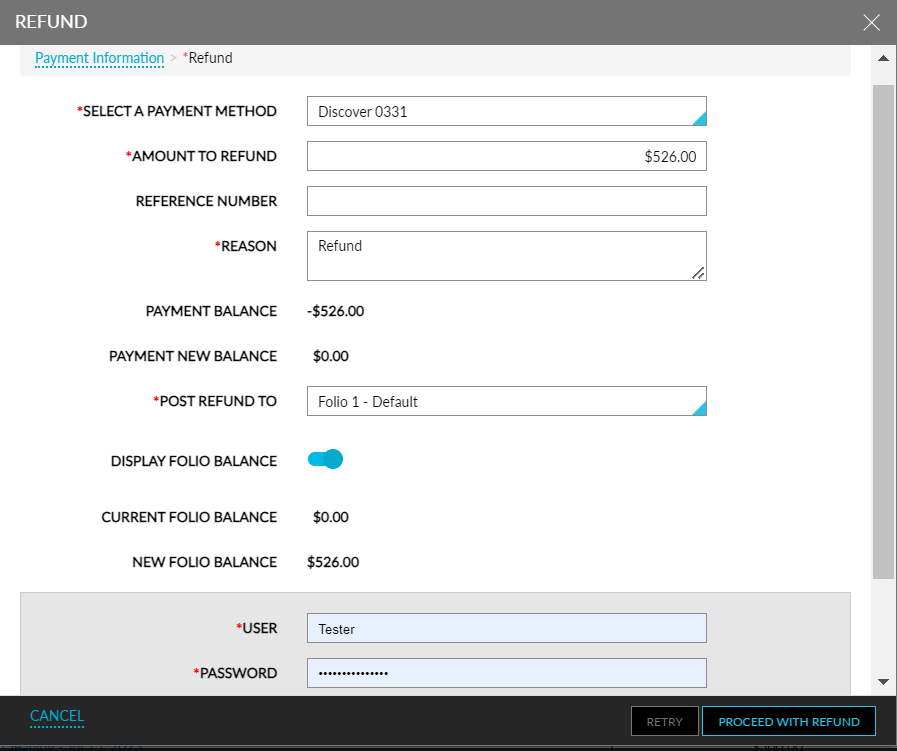
When users click Next, the following information is displayed on the Refund Details screen:
|
Field |
Description |
|---|---|
|
Refund For |
|
|
Select a Payment Method |
|
|
Amount to Refund |
|
|
Reference Number |
|
|
Payment Balance |
|
|
Payment New Balance |
|
|
Post Refund To |
|
|
Display Folio Balance |
When this flag is enabled, the following fields are displayed:
|
|
Current Folio Balance |
This is a read-only field that displays the current balance of the folio selected in the Post Refund To drop-down list. For example, if $100.00 is the folio balance of the selected folio, the balance is displayed as $100.00. |
|
New Folio Balance |
Based on the folio selected in the Post Refund To drop-down list, the new folio balance is calculated as current balance + amount to refund. For example, if $100.00 is the current folio balance and user enters the amount to refund as $150.00, the new balance is $250.00. |
When users select a payment method for which no payment was made, the following message is displayed: You are trying to refund for a payment method which has no payments collected, and the Amount to Refund field is highlighted in yellow as it is an excess refund.
Once the user enters the values for all the mandatory fields and the credentials to initiate the refund, the Proceed to Refund button is enabled for selection. When clicked, the entered details are validated, and the refund is processed.
When the amount to refund exceeds the amount paid, and if the user does not have the permission assigned, the Authorize screen is displayed where the user is prompted to reauthorize his credentials.
On successful validation of credentials, the Refund Processing screen appears that displays a spinner and the following message: Please keep this window open while the refund processes. Closing this window may result in a failed transaction.
Once the refund is processed successfully, the following message is displayed at the top of the Refund screen: Refund posted successfully. If the refund fails, the following message is displayed: Refund processing failed due to network issues. Click Retry button to try again. When users click the Retry button, the user’s credentials are validated again, and the refund is processed accordingly. A record is created in the folio for the excess refund processed in the following format: <Date, time> Excess refund authorized by <username>.
When users select a closed folio in the Post Refund To drop-down list, an info icon with the message, The selected folio is closed, is displayed. Users with the Stay_OverrideClosedFolio permission can override and process refund to the closed folio by reopening the folio. For users without this permission, the Authorize screen is displayed where the users are prompted to authenticate their credentials.
If the entered credentials do not have the Stay_OverrideClosedFolio permission, the message, User does not have permission to override closed folio, is displayed. If the user does not have the Stay_AllowExcessRefunds permission, the message, User does not have permission to make excess refund, is displayed. If the user does not have the Stay_OverrideNonRefundablePaymentsandDeposits permission, the message, User does not have permission to refund non-refundable payment, is displayed.