Supported Features
Check Gift Card Balance
A guest can walk up to the front desk and check the balance available in the gift card. The GSA can check the balance with the following steps:
Navigate to Front Desk ➜ Gift Card. The Gift Card screen opens.
Click Capture Card. In the Capture Card screen, users can either scan a card on the payment device or they can manually enter the number of the card in the Enter Card Number box.
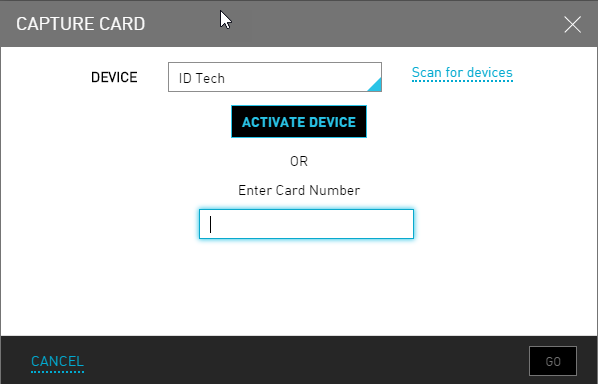
Click Go. The gift card screen displays the Card Balance and the Card Number.

Issue a Gift Card
A guest can walk up to the front desk and activate or issue a new gift card. The GSA can issue a card using following steps:
Navigate to the reservation for which an amount must be loaded.
Scroll down to the Folio.
Click More.
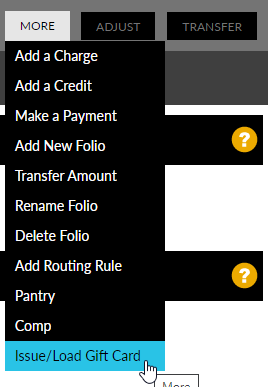
Select Issue/Load Gift Card. The Capture Gift Card screen opens.
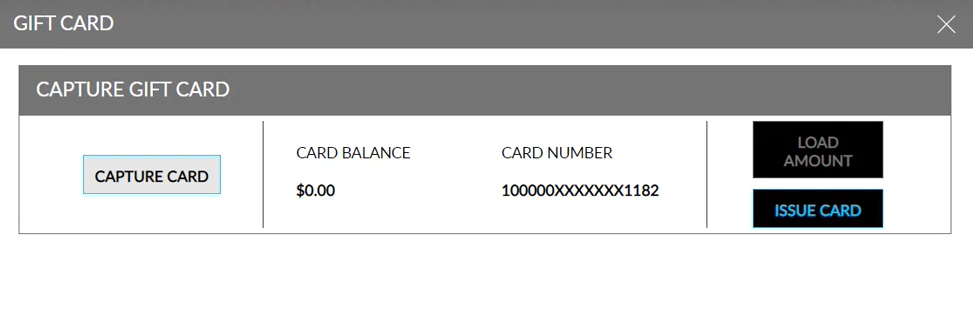
Click Issue Card.
Enter the required amount in the Enter Amount field.
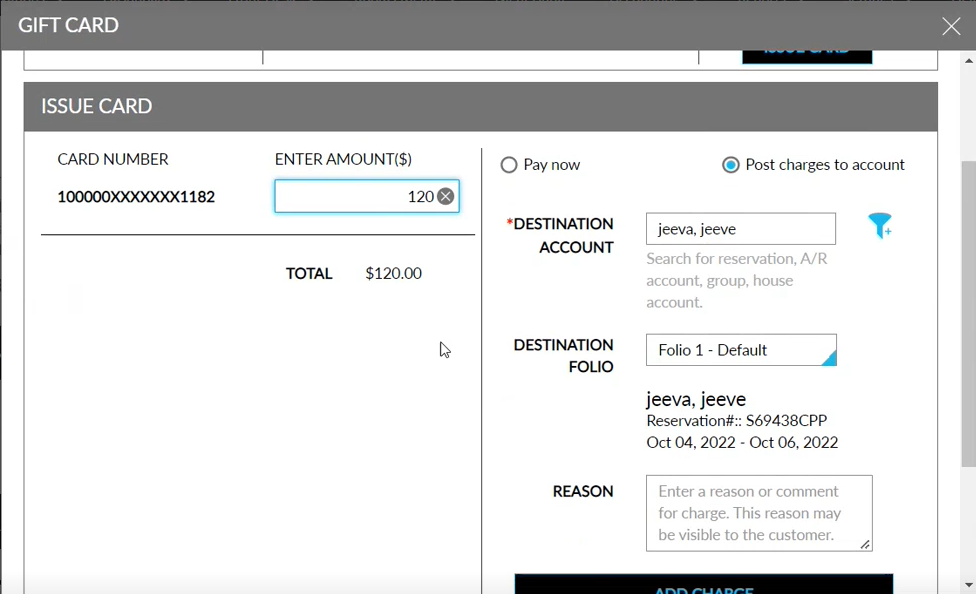
Choose one of the following payment options: Pay Now or Post Charges to Account.
Pay Now
If Pay Now is selected, perform the following steps to complete loading an amount to a gift card:
Select the Destination Account to post the amount to.
The default house account is already set up in the Gift Card Settings, the same account will be used as the default destination account.
Select the Destination Folio.
Enter a relevant reason for the charge in the Reason field.
Select the Payment Method the guest is opting to transfer the amount.
Scan the card on the payment device or manually enter the number of the card in the Enter Card Number box.
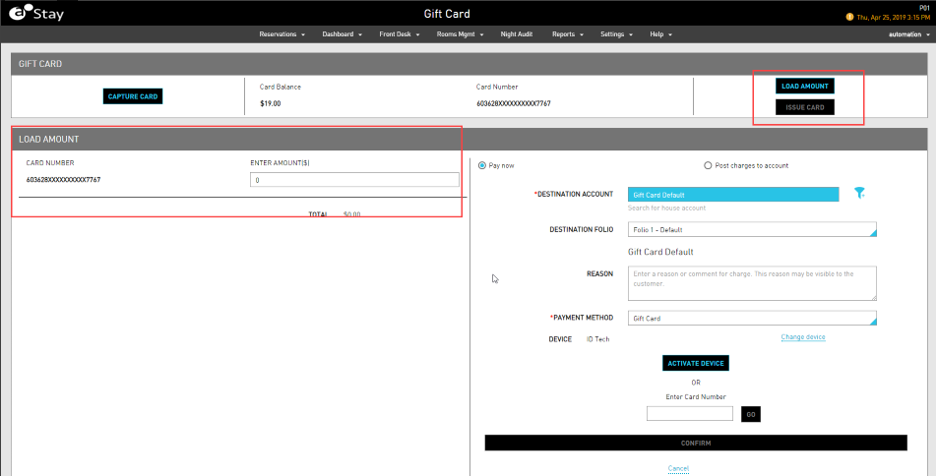
Click Confirm. The amount is successfully added to the gift card.
Post Charges to Account
If Post Charges to Account is chosen, perform the following steps to complete loading an amount to the gift card:
Select the Destination Account to post the amount to.
Search for reservation, A/R account, group, house account.
Select the Destination Folio.
Enter a relevant reason for the charge in the Reason field.
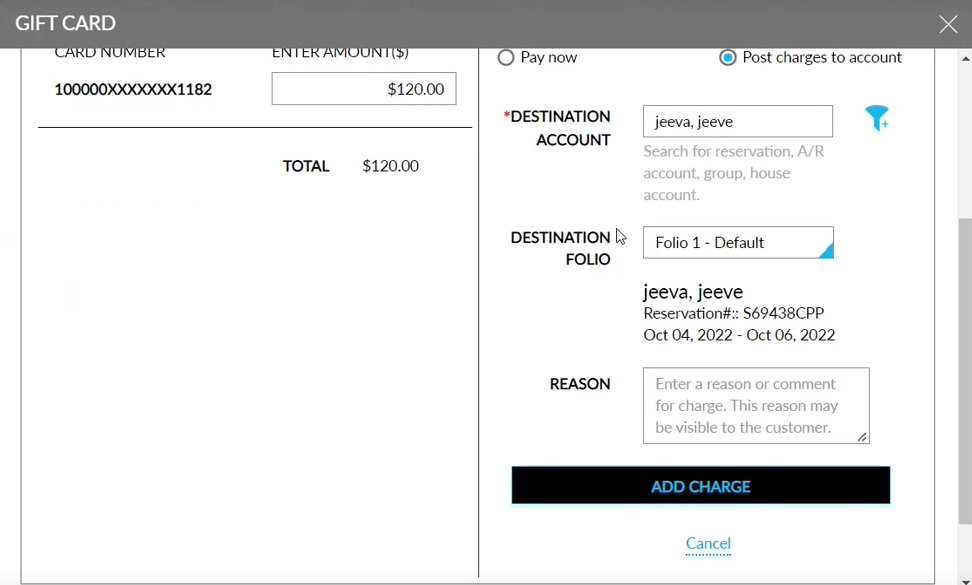
Click Add Charge. The charges are successfully posted to the account.
Load a Gift Card
If a guest wishes to add more balance to an existing gift card, the guest can approach the front desk and request the GSA to add more balance to the existing gift card. The GSA can load more balance using following steps:
Navigate to the reservation to load an amount.
Scroll down to the Folio.
Click More.
Select Issue/Load Gift Card. The Capture Gift Card screen opens.
Click Capture Card. In the Capture Card screen, users can either swipe the card on the payment device and click Activate Device or manually enter the number of the card in the Enter Card Number.
Click Go. The gift card screen displays the Card Balance and the Card Number.
Click Load Amount. The Load Amount settings are displayed.
Enter the Amount to load in the Enter Amount field.
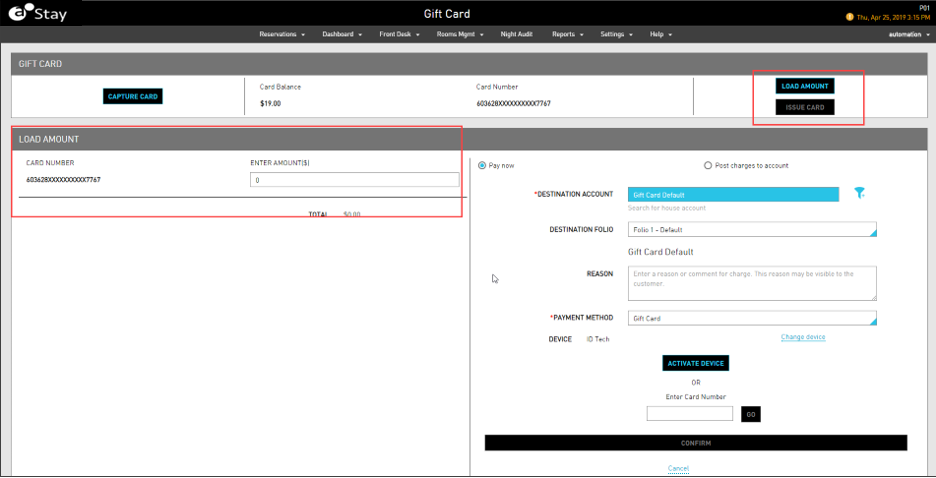
Choose one of the following payment options: Pay Now or Post Charges to Account.
If Pay Now is selected, perform the following steps to complete loading an amount to a gift card:
Select the Destination Account to post the amount to.
The default house account is already set up in the Gift Card Settings, the same account will be used as the default destination account.
Select the Destination Folio.
Enter a relevant reason for the charge in the Reason field.
Select the Payment Method the guest is opting to transfer the amount.
Scan the card on the payment device or manually enter the number of the card in the Enter Card Number box.
Click Confirm. The amount is successfully added to the gift card.
If Post Charges to Account is chosen, perform the following steps to complete loading an amount to the gift card:
Select the Destination Account to post the amount to.
Search for reservation, A/R account, group, house account.
Select the Destination Folio.
Enter a relevant reason for the charge in the Reason field.
Click Add Charge. The charges are successfully posted to the account.
Redeem Gift Card Amount
Navigate to Reservations ➜ Search.
Select the reservation for which the gift card amount must be redeemed.
Click the Payments tab.
Click the Folio Summary to expand the section.
Select the item to settle the amount with using the gift card.
Click More. Select Make a Payment.
Select the Payment Type as Gift Card.
Enter the amount to settle using the gift card.
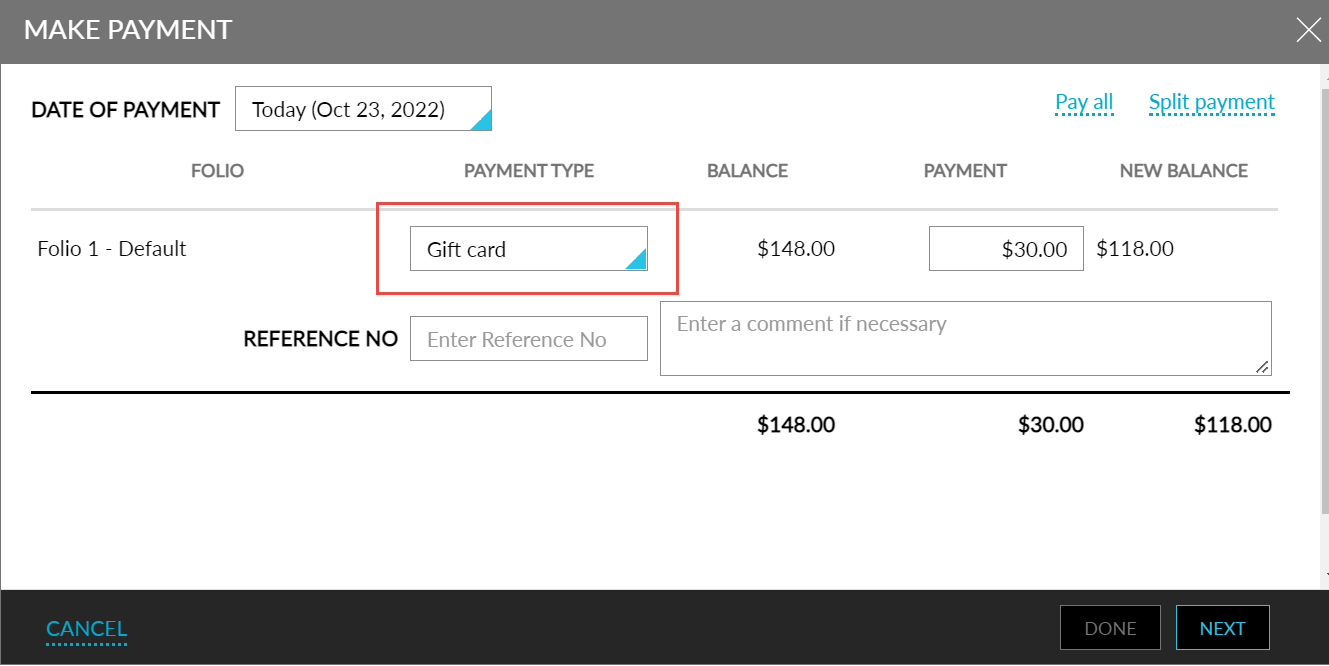
Click Next.
In the Make Payment screen, users can either scan the gift card on the payment device or they can manually enter the number of the card in the Enter Card Number box.
Click Done. The gift card amount is now successfully redeemed.
Partial Payments Using Gift Card
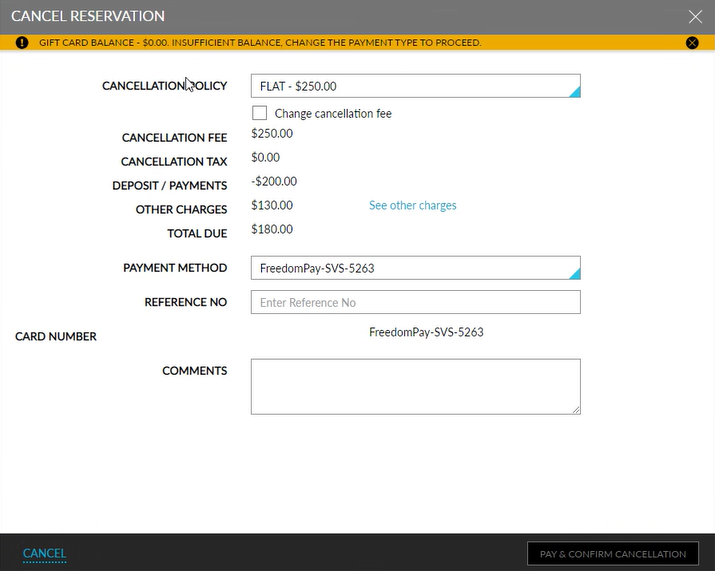
Users are displayed the gift card balance as a part of the payment workflow. They can view the current gift card balance in the info message in the Make Payment screen and the Cancel Reservation screen.
For example, A reservation folio has a charge of $100. User selects the payment type as gift card with balance of $50. Since the gift card balance is less than the folio charge, $50 is deducted from the gift card and the following info message is displayed, Partial payment - $50 collected. Gift card balance reached its limit. Pay remaining balance using a different payment type.
Users can choose to pay the remaining balance with a different payment method. Refer to the screen below.
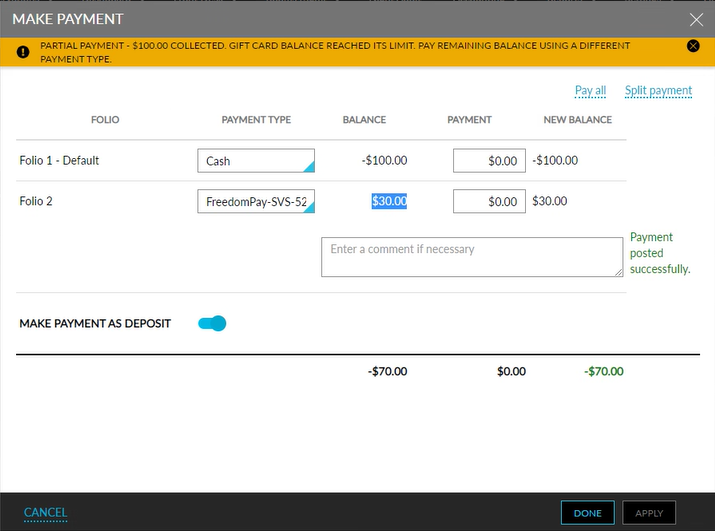
When a user tries to cancel a reservation using a gift card with insufficient balance the following message is displayed in the Cancel Reservation screen, Gift card balance - XX. Insufficient balance, change the payment type to proceed.
Users will not be able to proceed with the cancellation. The Pay & Confirm Cancellation button gets disabled. Refer to the screen below.
Reverse Redemption of Gift Card Amount
To reverse the redemption of the amount from a gift card, the same steps that are used to adjust a fee can applied and the amount can be reverted to the gift card.
Navigate to Reservations ➜ Search.
Select the reservation to redeem the gift card amount.
Click the Payments tab.
Click the Folio Summary to expand the section.
Select the checkbox next to the individual charges that was paid using the gift card.
Click Adjust. The Refund a Payment screen is displayed. Users can also directly click the hyperlink on the individual charge paid using the gift card to open the Refund a Payment screen.
Type a reason for the adjustment in the Reason field. This will make it easy to identify when reviewing a charge.
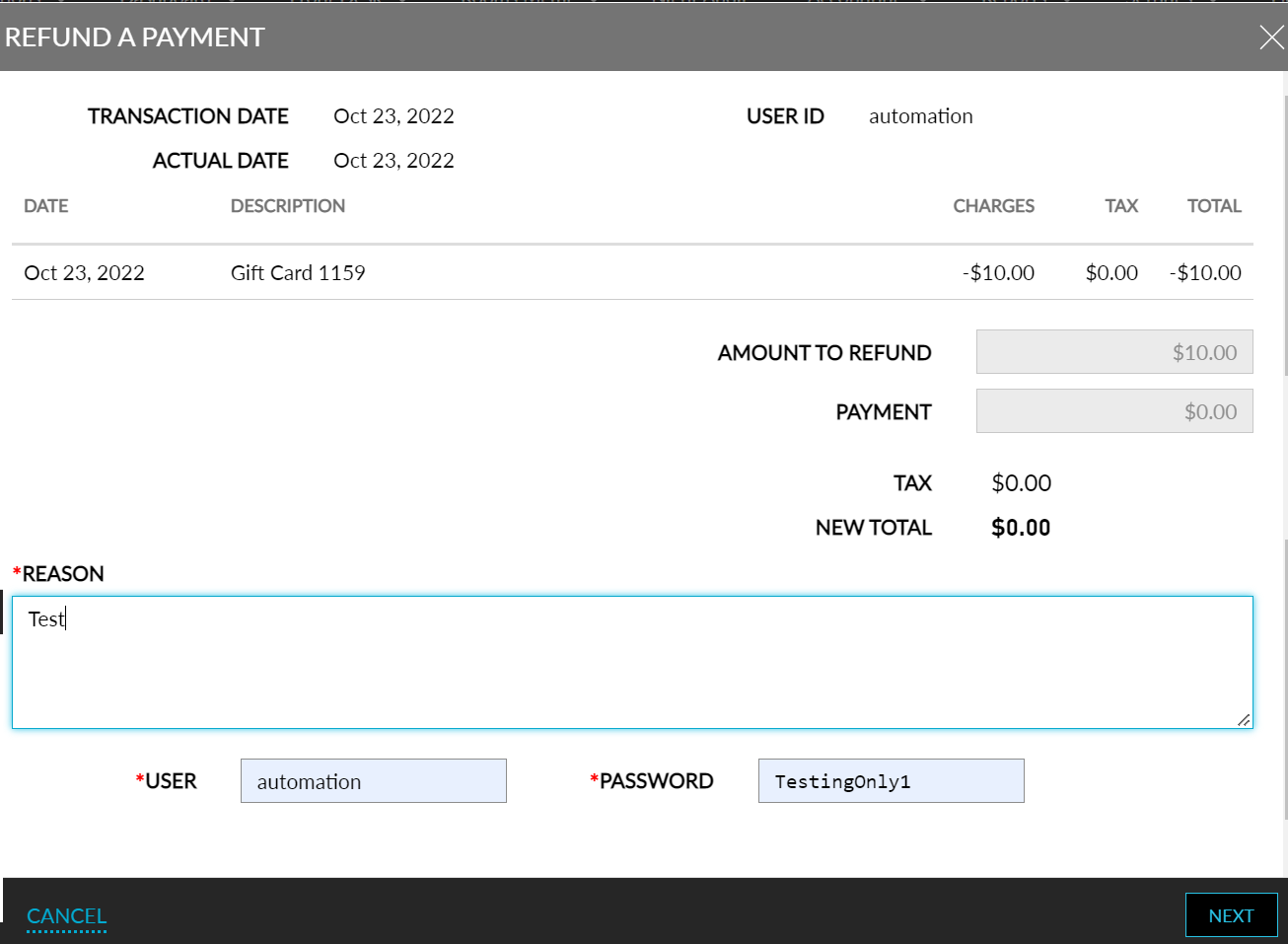
Click Next.
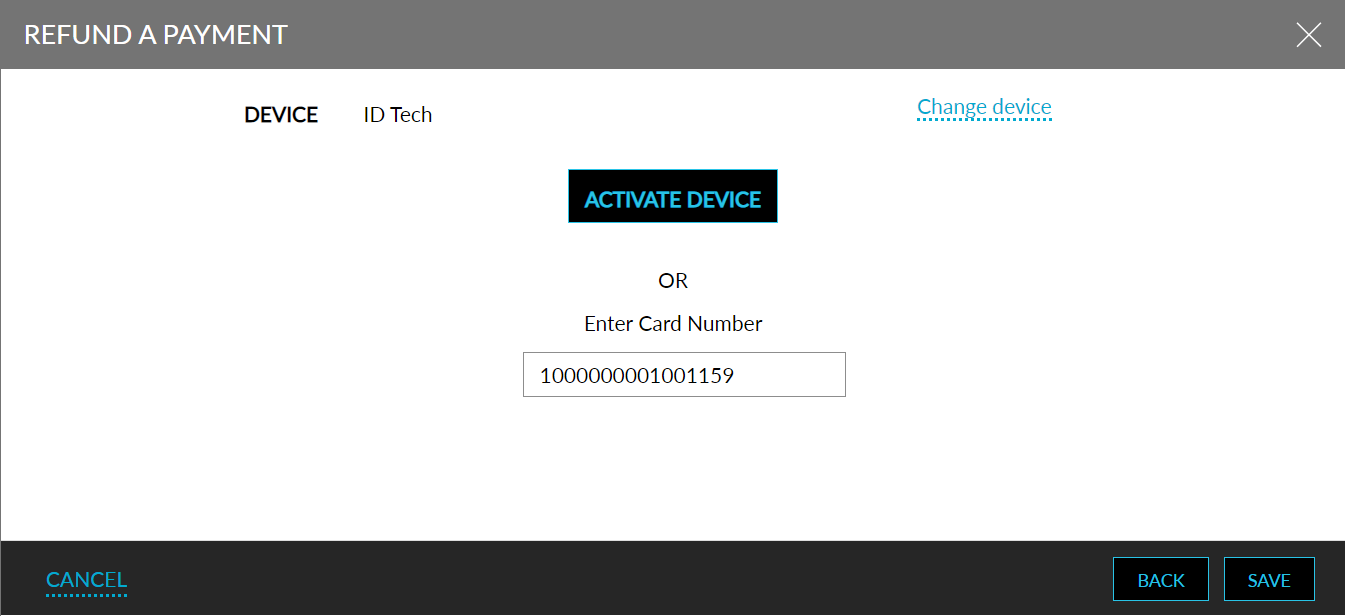
Enter the gift card number in the Enter Card Number field.
Click Save. The gift card amount is refunded.