Track Collection of Payments from Payment Provider
Stay allows users to track whether payments made by guests have been received from an integrated or electronic payment provider.
For example, when a guest makes a payment of $1000.00 using a VISA card, Stay can track if the payment is received from the bank.
This feature allows users to create a settlement reconciliation A/R account to track all payments made using various payment methods available at the property.
Contact Agilysys to enable the creation of settlement reconciliation A/R accounts for a property.
Create Settlement Reconciliation A/R Accounts
When the feature is enabled for the property, a new hyperlink, Settlement Reconciliation, will be displayed in the Summary section of the Accounts Receivable tab of a company profile when creating an A/R account.
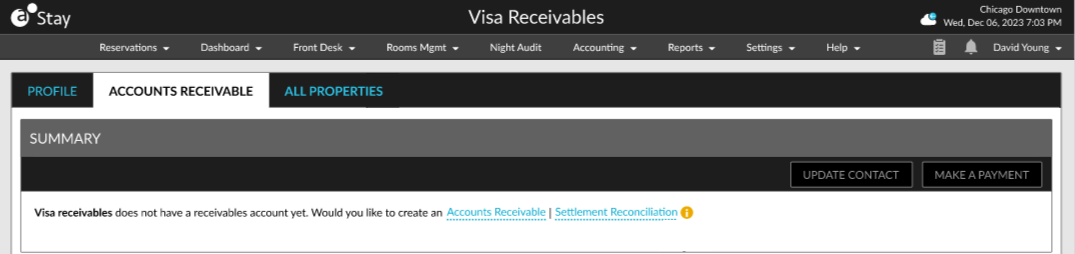
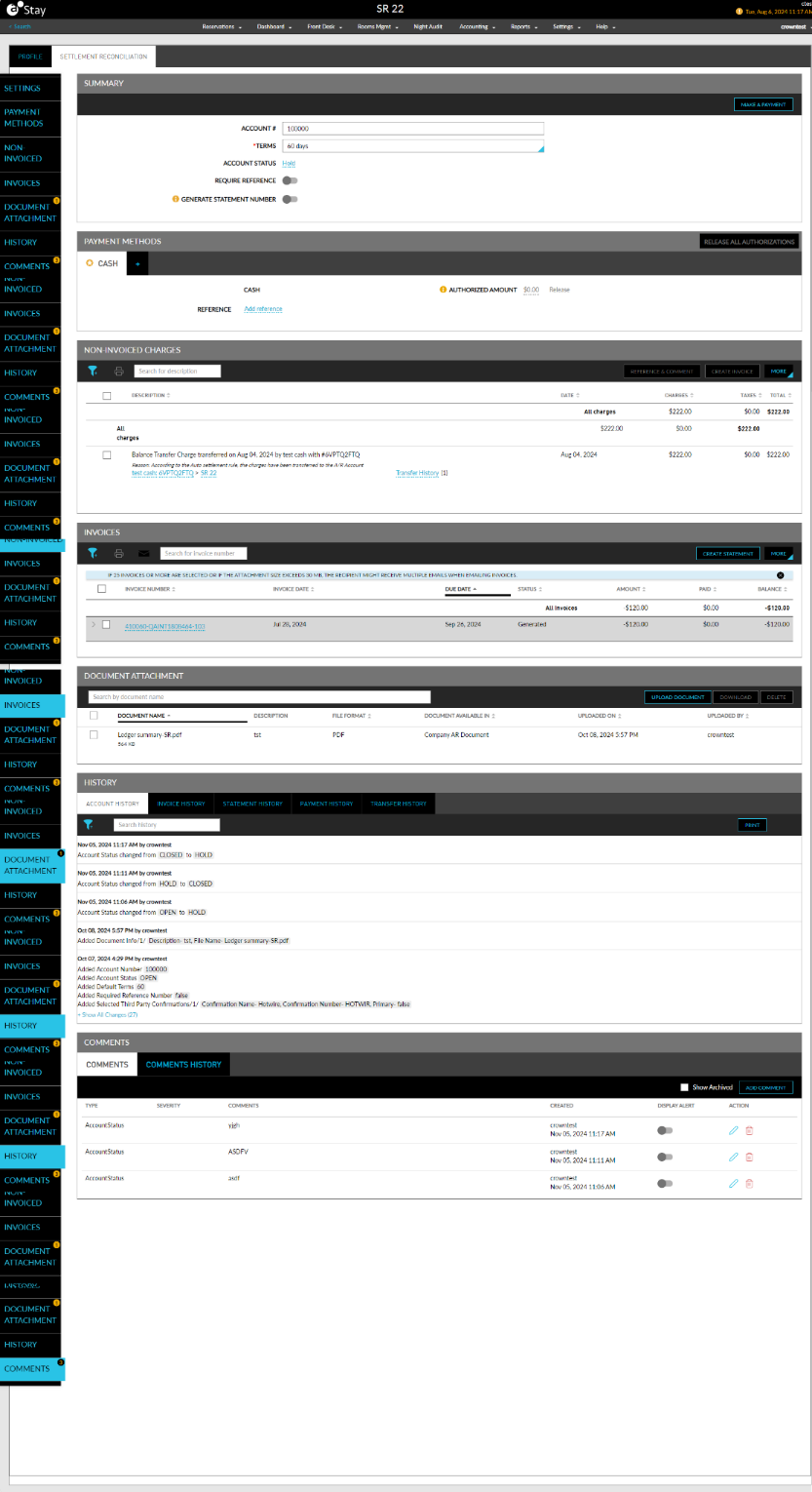
When selected, the Settlement Reconciliation tab is displayed where users can configure values for the fields in the following sections to create the settlement reconciliation A/R account:
|
Section |
Field Description |
|---|---|
|
Settings |
Users can configure values for the following fields:
|
|
Payment Methods |
Users can add payment methods for the account in this section. |
|
Non-Invoiced Charges |
This section displays the charges for which an invoice must be generated. |
|
Invoices |
This section displays the invoices generated for the charges posted to the account. |
|
Document Attachment |
This section allows users to upload documents to the account. |
|
History |
This section displays the actions performed in the account. |
|
Comments |
This section displays the comments added to the account. |
The mandatory fields configured by the property for creating A/R accounts will be overridden when a settlement reconciliation A/R account is created.
Important Points
-
The settlement reconciliation A/R account once created cannot be reverted to a regular A/R account.
-
The settlement reconciliation A/R account will be available for selection only in the Payment Method screen.
-
The Update Contact button and the Unapplied Payments section will not be available for settlement reconciliation A/R accounts.
-
Only the following options in the More menu of the Invoices section will be enabled for a settlement reconciliation A/R account:
-
Make a Payment
-
Retrieve Invoices
-
Hide Closed Invoices
-
-
To make payments to a settlement reconciliation invoice, only Cash and Other payment methods will be available for selection.
-
Users can search, email, and print invoices in the Invoices section of the account.
-
Users can filter invoices using the following options:
-
Status
-
Invoice - From and To dates
-
Due - From and To dates
-
-
Only the following buttons and options in the More menu of the Non-Invoiced Charges section will be enabled for selection:
-
Move charges(s) to existing invoice
-
Add a Charge
-
Add a Credit
-
Adjust a Charge
-
Transfer Charges
-
Reference & Comment button
-
Create Invoice button
-
-
Users can search charges in the Non-Invoiced Charges section using the transaction item name, print charges, and filter charges using the Date option.
Track Payment Method
The following steps must be performed to track payments made using payment methods configured at the property in the settlement reconciliation A/R account.
Navigate to Guest Accounting ➜ Payment Methods and select a payment method.
Enable the Settlement Reconciliation flag in the Settlement Reconciliation section.
Select the settlement reconciliation A/R account in the Destination field.
Select the transaction item using which the payment must be posted to the settlement reconciliation A/R account in the Post to AR As field.
Invoice Creation During Date Roll
The Settlement Reconciliation task is displayed in the Night Audit Process screen (Night Audit ➜ Date Roll ➜ Roll the Date). During the date roll, all payments made for the day using the settlement reconciliation A/R account will be consolidated and an equivalent charge will be posted in the A/R account as a single invoice.
Each payment collected will display the last 4 digits of the card number. The invoice created for each transaction includes details about its source in the Reason field. The invoice date is the date when the invoice is generated automatically. The due date is calculated based on the days selected in the Terms field.
When a refund is issued, a credit transaction equivalent to the refund amount will be generated during the date roll. That is, the invoice includes credits for refunds processed. When the payment transaction tracked in the settlement reconciliation A/R account is an above-property payment, an Above Property indicator will be displayed for the payment for the transaction in the Invoices section.
For all payments made using payment methods with the Settlement Reconciliation flag enabled, invoices will be created for the transactions in the settlement reconciliation A/R account only.
Error Log
When the Settlement Reconciliation task fails during the night audit, the date roll will be completed, and the errors will be captured in the Auto Date Roll Error Log tab in the Night Audit screen. A new section, Settlement Reconciliation, is displayed in this tab. Error logs are captured at the reservation, group, and house account levels. Users can retry posting charges to the settlement reconciliation A/R account using the Retry option. Retry cannot be performed once the date roll is completed. When the retry is successful, the charges will be posted to the previous day’s invoice.
Issue Refunds in Settlement Reconciliation Account
Stay allows users to issue a refund for the payment made for an invoice generated for a settlement reconciliation A/R account.
When the invoice contains a payment, the Issue Refund option (A/R account ➜ Settlement Reconciliation ➜ Invoices ➜ More ➜ Issue Refund) is enabled for selection when the invoice is selected. When selected, the Issue a Refund pop-up screen appears where users can enter the amount to be refunded.
When the amount entered is greater than the amount paid, the following message is displayed: Cannot refund more than the payment amount. Once the refund is processed successfully, a record for the refund is created in the Payments & Refunds section of the invoice.