Travel and Transport Information in Home Screen
If there are any transport requests, they are displayed in the Results section of home screen, below the reservation, in the following format.
-
Pickup: At By <Time>
-
Drop: At By <Time>
This information is displayed until the transport request is completed. If the transport request is for future dated reservation, when searching the reservation, the transport information is also be displayed.
All the scheduled transport requests for the day are displayed under the Scheduled header in the home screen. Only the first request based on the chronological order of time for the date is displayed and the number of requests are displayed in brackets +(x). When users hover over the number, the other scheduled requests are displayed. The request that has reached the threshold is displayed in red.
All the transport requests that are in progress are displayed under the In Progress header in the home screen. Only the first request based on the chronological order of time for the date is displayed and the number of requests are displayed in brackets +(x). When users hover over the number, the other requests that are in progress are displayed.
All the completed transport requests are displayed under the Completed header in the home screen. Only the first request based on the chronological order of time for the date is displayed and the number of requests are displayed in brackets +(x). When users hover over the number, the other completed requests are displayed.
Details added/updated in the travel/transportation Information section of a reservation is displayed with username, date, and time in the Reservation History section of the reservation.
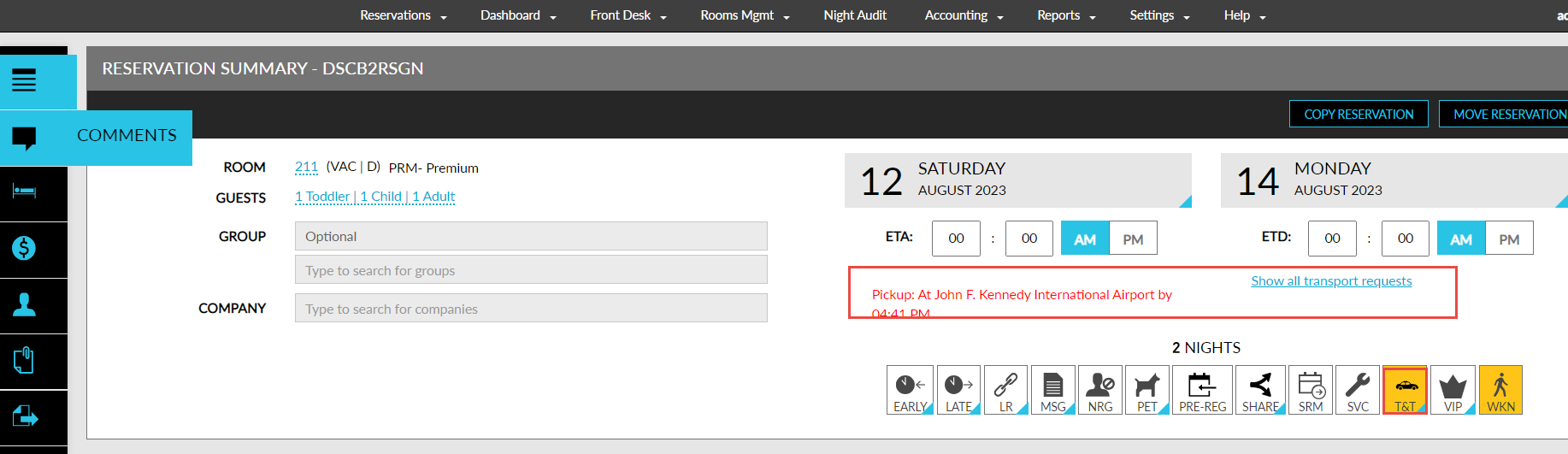
When there are more than 3 arrival and departure transport requests for the day, the first 3 requests are displayed based on the chronological order of time and the remaining requests can be viewed by clicking the Show all transport requests hyperlink. When clicked, the Transport Information screen appears that lists the arrival and departure transport requests in a day wise manner.
The requests are displayed in the following colour codes depending on the status of the transport request:
|
Status of the Request |
Colour Code |
|---|---|
|
Scheduled |
Purple |
|
In Progress |
Orange |
|
Completed |
Green |
Based on the date range selected in the Home screen, all the transport requests in Scheduled, In Progress, and Completed statuses are displayed for the reservations. Only the first scheduled request based on the chronological order of time for the date is displayed and the number of other requests are displayed as +(x). When users hover on the number, the other scheduled requests are displayed.
The following filters are available in the Transportation section:
-
Scheduled
-
In Progress
-
Completed
-
Alert