Update Red-Eye Reservations from Batch Operations Screen
Users can update/modify reservations to Red-Eye reservations from the Red-Eye tab on the Batch Operations screen. Users can retrieve the Red-Eye reservations by selecting the date range using the date pickers. The start and end date pickers display the current property date by default. Users can select any current or future dates.
The following details are displayed for the selected reservations on the Red-Eye tab:
|
Field |
Description |
|---|---|
|
Confirmation |
Displays the confirmation number of the reservation as a hyperlink. When clicked, the user is navigated to the Reservation screen. Users can search for a record using this field. |
|
Guest Name |
|
|
Rate Plan |
Displays the name of the rate plan used for booking the first night of the reservation. |
|
Group |
|
|
Company |
|
|
Room Type |
|
|
Room # Building |
Displays the room number assigned to the reservation along with the name of the building in the following format: Room Number-Building. Users can search for a record using this field. |
|
Arrival Date |
Displays the arrival date of the reservation. This column can be sorted. |
|
Guest Arrival Date |
|
|
Departure Date |
Displays the departure date of the reservation. This column can be sorted. |
|
ETA |
|
|
Guest Arrival Status |
|
|
Status |
|
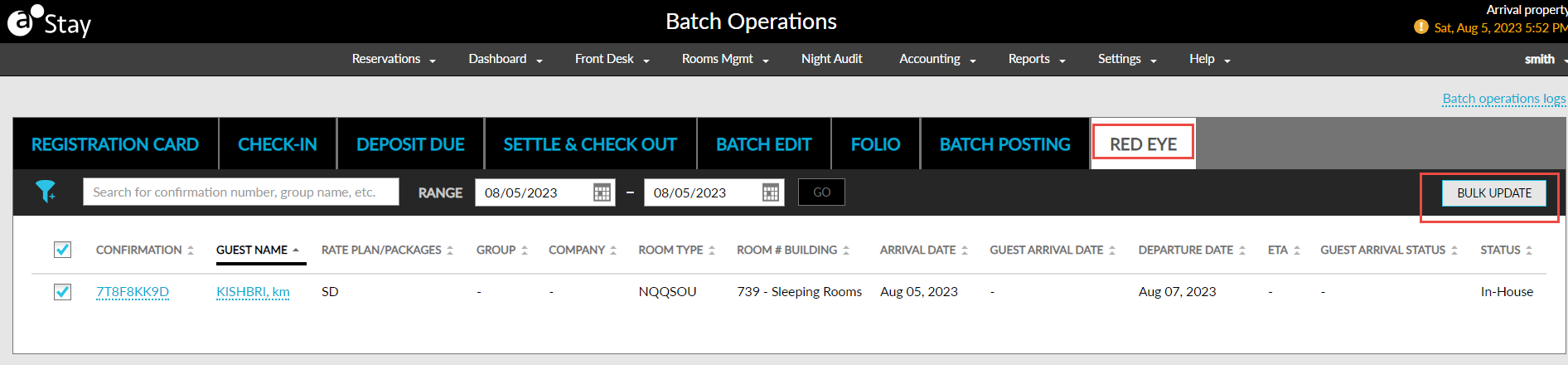
Users can select the reservations using the checkbox provided. When users click the Bulk Update button, the Update Red-Eye Arrival pop-up screen appears where users can modify the ETA or the Guest Arrival Status of the reservations.
The updates made to the reservations from the Red-Eye tab are tracked in the Batch Operations Logs screen.