Validate Group Rooming List
Stay validates the details provided by the users in the Excel file used for importing the rooming list for groups. This enhancement validates the details provided for import with the format compatible for each field. This helps in the creation of staged data with appropriate values that can be used for booking reservations for groups.
Importing a Rooming List
Perform the following steps to import a rooming list and create staged data for groups.
Navigate to Groups ➜ Reservations ➜ Staging.
Download the template to configure staged data using the Download Template button. The Download Template pop-up screen appears.
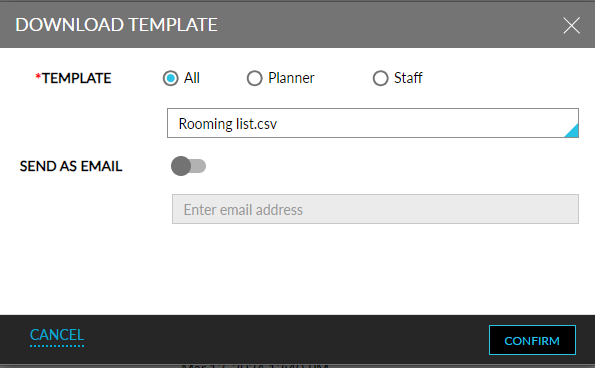
Select the template in the Template field and click Confirm. The CSV file will be downloaded.
Launch the CSV file and enter values for the following fields:
|
Field |
Description |
|---|---|
|
Title |
The title for the guest. |
|
First Name |
The first name of the guest. |
|
Last Name |
The last name of the guest. |
|
Arrive |
The arrival date of the reservation. |
|
Depart |
The departure date of the reservation. |
|
Room Type |
The room type used for the reservation. |
|
Adults |
The count of adults included in the reservation. |
|
Children |
The count of children included in the reservation. |
|
Street |
The street name. |
|
City |
The city name. |
|
State/Province |
The state/province name. |
|
Zip |
The zip code. |
|
Country/Region |
The country/region name. |
|
Phone |
The phone number of the guest. |
|
|
The email address of the guest. |
|
Source |
The source of business for the reservation. |
|
Guest Type |
The guest type for the reservation. |
|
Segment |
The market segment for the reservation. |
|
Adult Names |
The names of adults included in the reservation. |
|
Children Names |
The names of children included in the reservation. |
|
Override Room Rate |
The overridden room rate for the reservation. |
|
Rate Change Comment |
The comment for the change in room rate. |
|
Comp Category |
The comp category to be applied when the room rate is modified below the comp threshold. |
|
Loyalty Programs |
The loyalty programs associated with the reservation. |
|
Comment |
The comment configured for the reservation. |
|
Certificate |
The comp certificate number. |
|
Confirmation Code |
The confirmation code of the reservation. |
|
Room Rate |
The room rate of the reservation. |
|
Travel Agent or IATA |
The IATA number of the travel agent profile associated with the reservation. |
Click the Import Rooming List button to import the rooming list and create staged data for the group.
The values entered for the fields are mapped and displayed in the Rooming list field mapping tab of the Import Rooming List pop-up screen.
Validation of Rooming List
The following fields and columns in the Excel file are validated during the import of the rooming list (Groups ➜ Reservations ➜ Staging ➜ Import Rooming List):
|
Column |
Description |
|---|---|
|
Title |
If the entered title is in an invalid format, the following message is displayed: Invalid title: <entered value>. |
|
First_Name_Field |
This field supports letters, numbers, and special characters and does not impose restrictions on the number of characters to be entered. When this field is left empty, the following message is displayed: First name is empty. |
|
Last_Name_Field |
This field supports letters, numbers, and special characters and does not impose restrictions on the number of characters to be entered. When this field is left empty, the following message is displayed: Last name is empty. |
|
Arrival Date |
|
|
Departure Date |
|
|
Room Type |
When the room type code entered does not exist in Stay, the file is imported, and the following message is displayed: Invalid room type: <entered value>. |
|
Source Code |
When an invalid source code is entered, the file is imported, and the following message is displayed: Invalid source code: <entered value>. |
|
Market Segment |
When an invalid market segment code is entered, the file is imported, and the following message is displayed: Invalid segment code: <entered value>. |
|
Guest Type |
When an invalid guest type code is entered, the file is imported, and the following message is displayed: Invalid guest type: <entered value>. |
|
Loyalty Programs |
When an invalid loyalty program name is entered, the file is imported, and the following message is displayed: Invalid loyalty program(s). |
|
Override Room Rate |
When users enter a negative value for the room rate, the file will be imported, and the following message is displayed: Override room rate cannot be negative value. When decimal values are entered, the following message is displayed: Character is neither a decimal digit number, decimal point, nor empty notation exponential mark. |
|
Rate Change Comment |
When users do not enter a value for the Override Room Rate column but enter a value in the Rate Change Comment column, the file is imported, and the following message is displayed: Override room rate is required for rate change comment. When a value is entered in the Override Room Rate column, but the Rate Change Comment column is left blank, the following message is displayed: Rate change comment is required. |
|
Comp Category |
When an invalid comp category is entered, the file is imported, and the following message is displayed: Invalid comp category: <entered value>. |
|
Comp Certificate |
When users enter an invalid comp certificate details with non-alphanumeric characters, the file is imported, and the following message is displayed: Certificate should be alphanumeric. |
|
Country |
When users enter the country name in invalid format, the following message is displayed: Invalid country: <entered value>. |
|
State |
When users enter the state name in invalid format, the following message is displayed: Invalid state code: <entered value>. |
|
Adult & Children |
When the count of adult/children entered is greater than the count of the maximum guest count allowed for the room type, the following message is displayed: Maximum count exceeded. |
When users import the Excel file in the Upload XLS or XLSX or CSV section of the Import Rooming List pop-up screen and click Next, they are navigated to the Rooming list field mapping section where the details entered in the file are mapped against the corresponding fields.
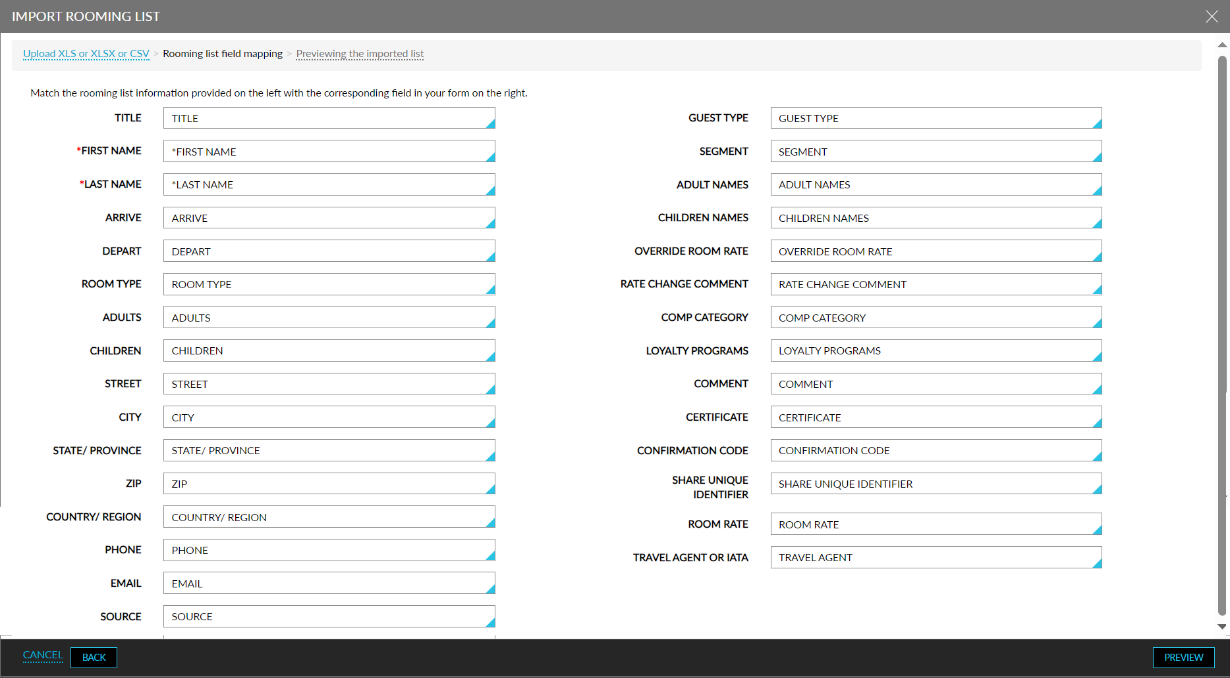
Users must select the preferred values for the fields and click Preview. When clicked, the Group Reservation Import pop-up screen appears that displays the details of the fields processed:
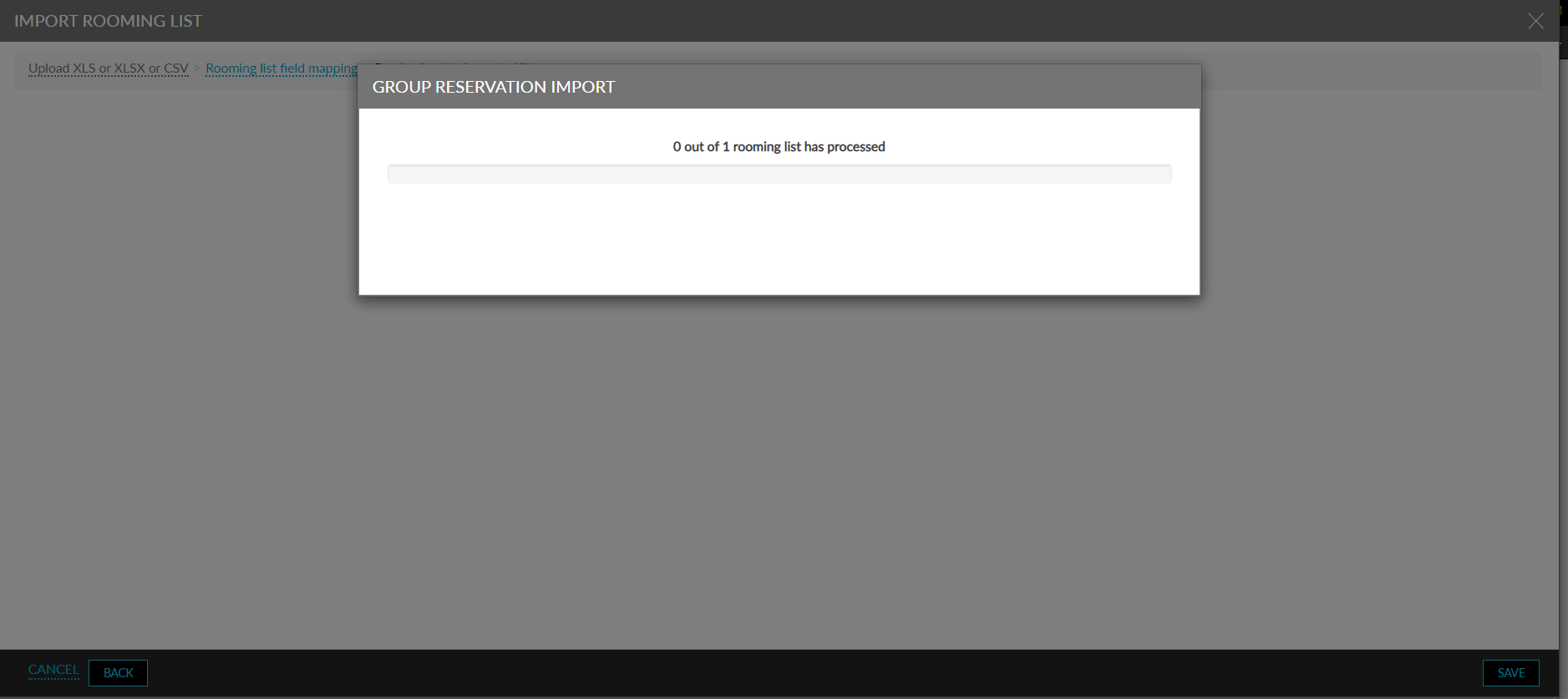
Once the details are processed, users are navigated to the Previewing the imported list section where the entered details are validated. The fields with incorrect values are highlighted in red. When users hover over the field, the reason for the highlight is displayed.
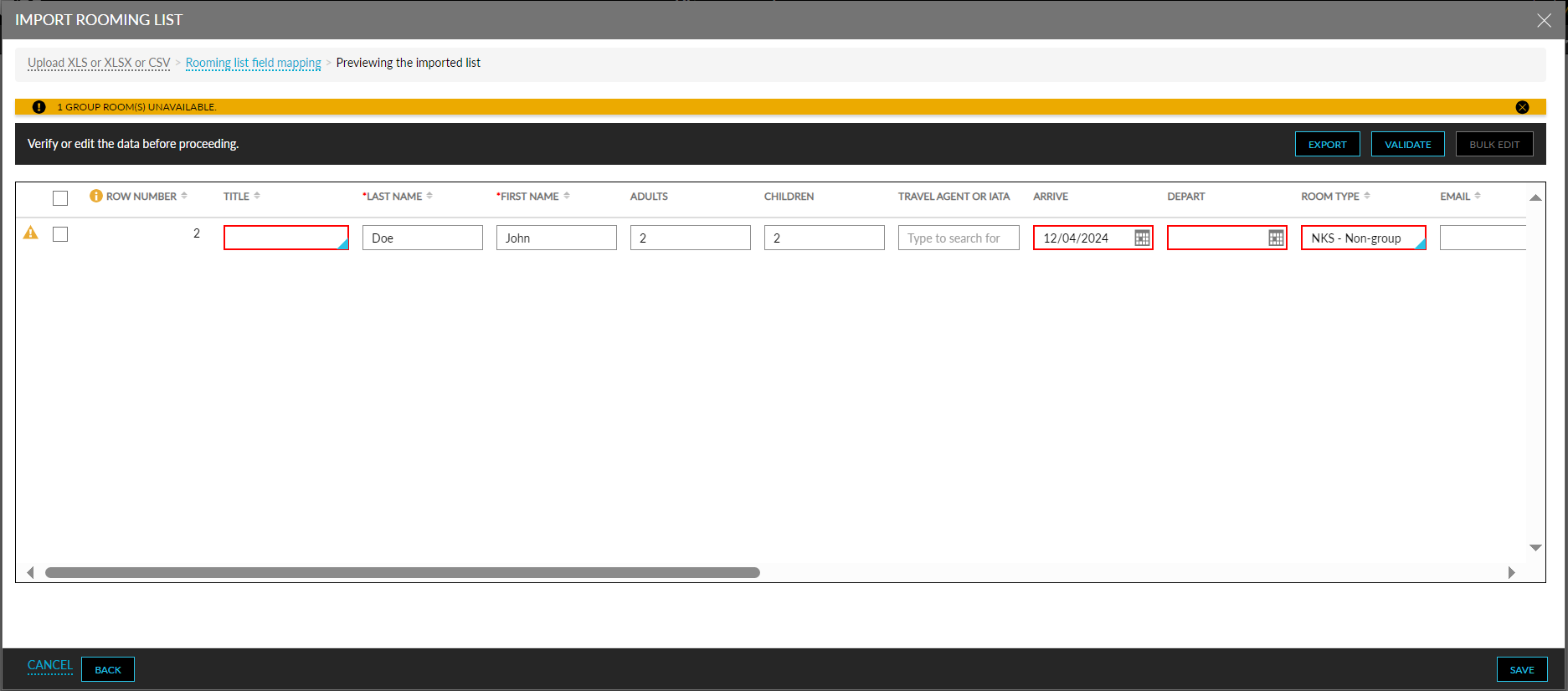
Users can modify the values of the highlighted fields in this section. When there is more than one record, users can modify the field values for multiple records using the Bulk Edit option. When the value of a field is modified, users must validate the modified value using the Validate option. The values of the fields along with the messages can be exported as an .xlsx file using the Export option. Users can also continue to import files with incorrect values.
When users click Save, the Confirmation pop-up screen appears that prompts users to confirm if the import must be completed. When users click Yes, the import will be completed successfully, and the values will be populated against the corresponding fields in the Staging section of the Reservations tab.
Select/Deselect Columns from the Column Settings Screen
When users access the Column Settings screen (Groups ➜ Reservations ➜ Column Settings), all the columns imported from the Excel file will be displayed. The columns for which values were validated in the Previewing the imported list section of the Import Rooming List pop-up screen cannot be deselected. These columns will be disabled for selection.