Ability to Configure Rate Override Reasons
Stay is enhanced to allow properties to enforce users to select a reason before overriding a rate. For example, when a user is creating a reservation for a VIP guest and chooses to override the rate, an override reason must be selected before proceeding.
Override reasons can be created at the customer level and property level. Reasons created at the customer level are made available for all properties and can be made active or inactive based on the property’s preference.
Rate override reasons can be applied while overriding the rate for a reservation from any of the following sections:
-
Check Rates screen
-
Book Reservations pop-up screen
-
Reservation Details ➜ Estimated Charges
-
Modify Stay pop-up screen
-
Reservation Details
-
Tape Chart
-
Share Reservations ➜ Bulk Modify
-
The override reason selected will be displayed in the Estimated Charges section of the reservation.
The following changes have been made to support this feature:
-
A new feature setting, Rate Override Reason, is added. When enabled, users can access the Rate Override Reason page (Settings ➜ All Settings ➜ Reservations ➜ Rate Override Reasons), where the rate override reasons can be configured. This is applicable only when users have the two new permissions, StayWriteTenantRateOverrideReasons and StayWritePropertyRateOverrideReasons, added to their roles. The new permissions are added to the following roles:
-
System Administrator
-
Department Manager
-
Hotel Manager
-
-
A new drop-down list, Override Reason, is displayed when users choose to override the rate in any of the above-mentioned screens. Any one of the configured override reasons can be selected.
If reasons are configured but no reasons are active, this field will not be displayed when users choose to override the rate.
A new field, Rate Override Reason, is added to the Estimated Charges section of the reservation that displays the reason selected while overriding.
Perform the following steps to configure customer level override reasons.
Click Configure For Tenant in the Rate Override Reasons screen.
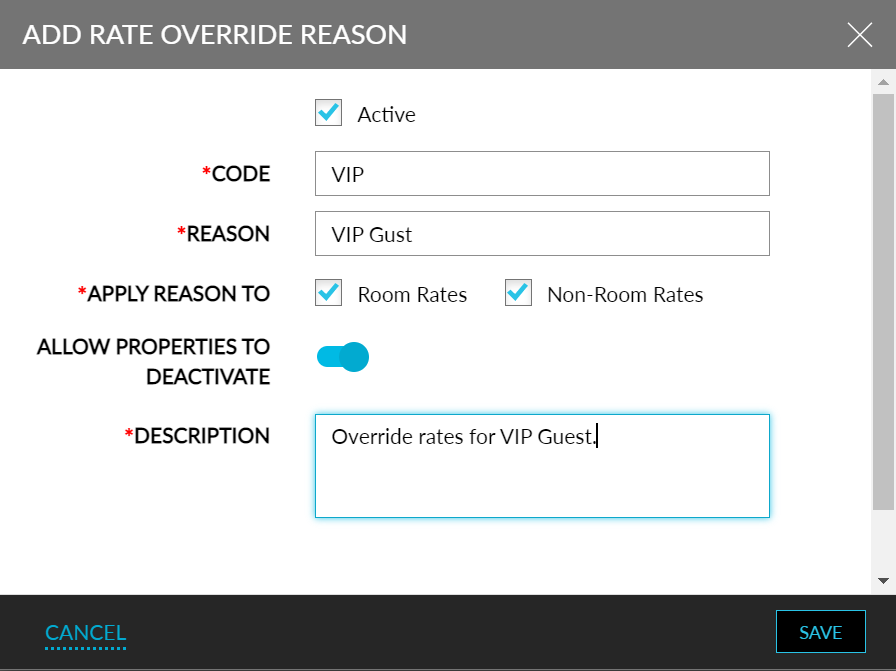
Click Add. The Add Rate Override Reason screen will be displayed.
Refer to the table below and enter the values for the fields:
|
|
|---|---|
|
|
|
|
|
|
|
|
|
|
|
|
Click Save.
The Rate Override Reasons can also be configured via the Stay Property Setup Tool. A new sheet, RateOverrideReasons, is added to the property import sheet. Refer to the following table to enter the values for the fields:
|
|
|---|---|
|
|
|
|
|
|
|
|
|
|
|
|
|
|
|
|
Users can import the sheet via the Stay Property Setup Tool (Settings ➜ All Settings ➜ General ➜ Property Import/Export), to import the override reasons to Stay.