Ability to Deactivate Room Types
Stay is enhanced to allow users to deactivate room types configured at a property. A room type can be deactivated only when the following conditions are satisfied:
-
The room type to be deactivated must not be associated with active reservations.
-
The room type to be deactivated must not be associated with scheduled room moves.
-
The room type to be deactivated must not be associated with active room blocks of groups.
To deactivate a room type, users must deselect the Active checkbox in the Edit or Add pop-up screens that appear when users modify or create a new room type (All Settings ➜ General ➜ Rooms & Room Types ➜ Room Types ➜ Add/Edit). When users deselect the checkbox and click Save, the room type will be deactivated successfully when the mentioned conditions are satisfied.
When any of the mentioned conditions are not satisfied, the following message will be displayed in the Edit or Add pop-up screens: Cannot be made inactive as this room type has active reservations. Click here to select another type to convert these associations in the room type conversion. When users click the Click here hyperlink, they will be navigated to the Room Type Conversion tab where the reservations associated with the room type to be deactivated can be converted to a different room type. Once the room type conversion is completed, users can deactivate the room type by deselecting the Active checkbox.
Once deactivated, the room types will not be displayed in the following areas:
-
Daily Rates (Settings ➜Rates ➜Daily Rates)
-
Configuring calendar restrictions (Settings ➜Rates ➜Calendar)
-
Rate plans
-
Packages
-
Auto Recurring Fee (ARF) rules
-
Configuring authorization rules (Settings ➜Guest Accounting ➜Credit Cards ➜Add)
-
Yielding rules (Settings ➜Rates ➜Yielding)
When rooms are assigned to reservations, the room types with ranks lower than the deactivated room types are updated and assigned next in the order of priority to reservations.
General Availability Dashboard
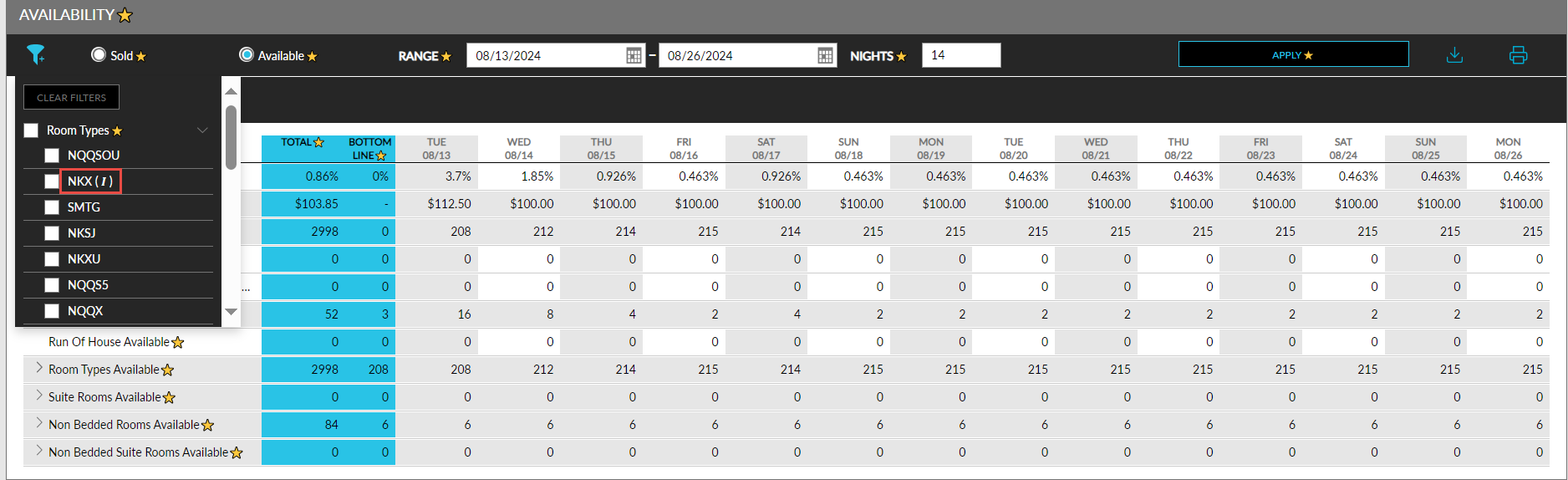
When users click on the filter icon in the General Availability dashboard, an indicator, (I), will be displayed next to the deactivated room types. When a deactivated room type is selected in the filter, the availability details of the room type will be displayed for the dates when the room type was in the Active status only. The details will not be displayed for the dates the room type was deactivated.
For example, let us consider that there are 5 rooms available in January for the King room type and the room type is deactivated in February. When users select a date range in the General Availability dashboard that includes dates in January, the availability details will be displayed.
When users select dates in February, the availability details will not be displayed. The deactivated room types will not be displayed in the dashboard, but the count of the deactivated room types will be included for calculating the Room Types Available field. That is, the count of the deactivated room types will be subtracted from the count of available room types.
Room Availability Dashboard
When users access the Room Availability dashboard, an indicator, (I), is displayed in the dashboard next to the deactivated room types. The availability details of the room type are displayed for the dates the room type was in the Active status only.
When users select dates for which the room type was deactivated, the availability will be displayed as negative values.
System Changes
A new checkbox, Active, has been added to the Edit or Add pop-up screens that appear when users modify or create a new room type (All Settings ➜ General ➜ Rooms & Room Types ➜ Room Types ➜ Add/Edit).