Ability to Unassign Rooms Assigned to Reservations
Stay is enhanced to allow users to revert the batch room assignments made to reservations from the following screens:
-
Batch Operations ➜ Check-In
-
Batch Operations ➜ Batch Edit
-
Tape Chart
For example, in a property with multiple buildings, users can use this feature to unassign room allocations from a specific building, or to clear room assignments for reservations associated with a group.
Previously, users could not revert the batch room assignments made from these screens. Users had to navigate to each reservation individually and remove the room assigned.
Permission
The following new permission has been introduced as part of this feature.
-
Stay_BatchUnassignOverride: Users with this permission assigned can perform a retry when the room assignment could not be reverted at the first attempt. Users without this permission must provide valid credentials to perform a retry.
This permission is assigned to the following roles by default:
-
System Administrator
-
Stay Hotel Manager
-
Department Manager
-
Stay Hotel Supervisor
-
GSA Supervisor
-
Stay Housekeeping Supervisor
-
HK Supervisor
To support this enhancement, a new option, Unassign Room, has been added to the following screens:
-
Batch Operations ➜ Check-In ➜ More ➜ Unassign Room
-
Batch Operations ➜ Batch Edit ➜ More ➜ Unassign Room
-
Tape Chart ➜ Room block ➜ Unassign Room
-
Group ➜ Reservations tab ➜ Reservations section ➜ More ➜ Unassign Room
Batch Operations Screen
When users select the reservations displayed in the Check-In tab and the Batch Edit tab of the Batch Operations screen and click on the Unassign Room option, a Confirmation pop-up screen appears that informs users that unassigning the room might change the auto recurring fee rule applied to the reservation.
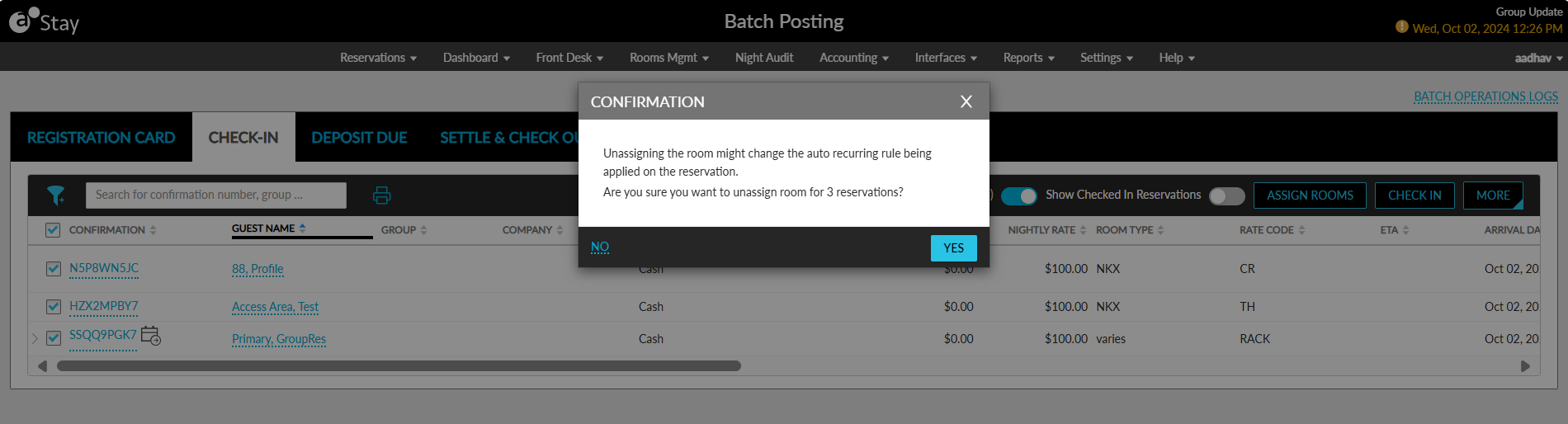
When users click Yes, the following message is displayed as a banner: “Unassign Room” is in progress. Click here for the status.
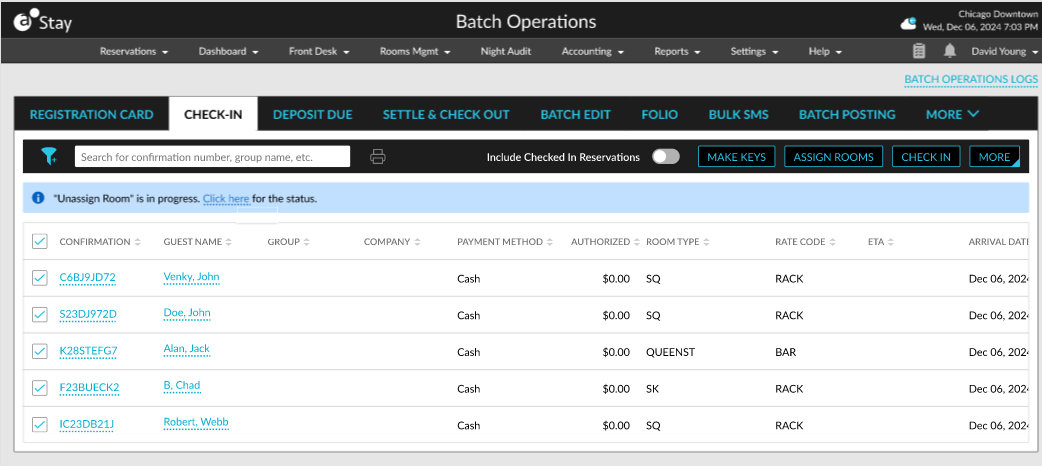
When users click the Click here hyperlink, the Unassign Room Process pop-up screen appears that displays a progress bar that indicates the count of reservations for which rooms are unassigned.
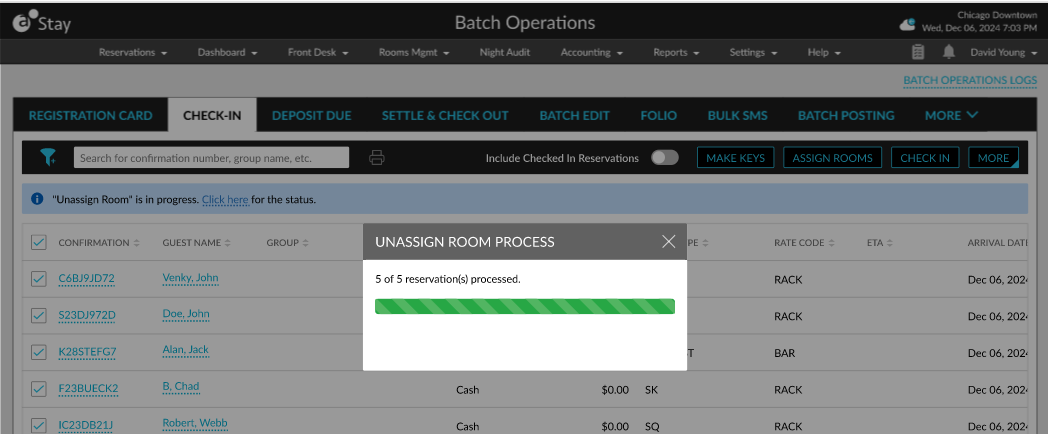
When the selected reservations do not have a room assigned, the reservations will not be processed. In this case, only the count of reservations with rooms assigned will be displayed in the progress bar. The Unassign Room option will be enabled for selection only when at least one of the selected reservations has a room assigned.
Once the process is completed, the count of reservations processed successfully and failed are displayed as a banner.
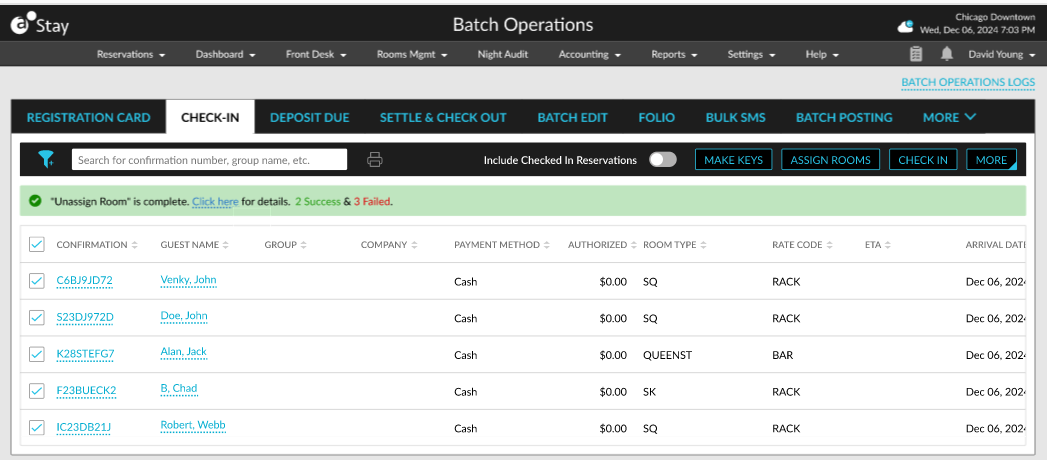
When users click on the Click here hyperlink, the Results pop-up screen appears that displays the count of reservations that were processed successfully and failed. The results are displayed in the following sections:
-
Failed
-
Success
For the reservations in the Check-In tab and the Batch Edit tab of the Batch Operations screen, the following details of reservations are displayed in both the sections.
|
Section |
Tab |
Description |
|---|---|---|
|
Success |
Check-In |
Displays the list of reservations for which the rooms are successfully unassigned. The rooms are successfully unassigned for reservations in the following statuses:
|
|
Failed |
Check-In |
Displays the list of following reservations for which the rooms were not unassigned successfully:
|
|
Failed |
Batch Edit |
Displays the list of following reservations for which the rooms were not unassigned successfully:
|
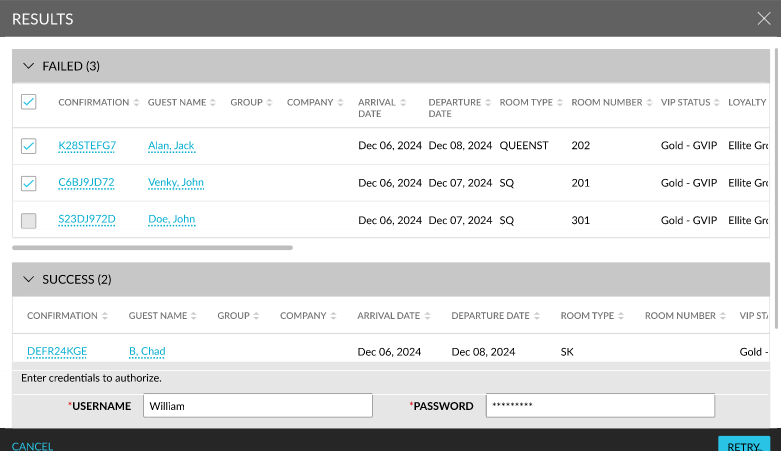
The reservations details are displayed in the following columns in these sections:
-
Confirmation
-
Guest Name
-
Group
-
Company
-
Arrival Date
-
Departure Date
-
Room Type
-
Status
-
Room number
-
Loyalty Program
-
VIP Status
-
Reason for Failure
Users perform a retry for reservations for which the rooms were not unassigned successfully. Retry cannot be performed for the following:
-
Checked in reservations
-
Checked out reservations
-
Cancelled reservations
-
No-Show reservations
-
Shared reservations
For these reservations, the checkbox will be disabled by default in the Failed section and cannot be selected.
Users can perform a retry by selecting the failed reservations and clicking on Retry. When the Stay_BatchUnassignOverride permission is not assigned, users will be prompted to enter their credentials to proceed with the retry. Once the retry is initiated, users can view the status of the reservations processed in the progress bar displayed in the Unassign Room Process pop-up screen and the results of the retry in the Results pop-up screen. When the user is not authorized to perform a retry, the following message is displayed in the Results pop-up screen: User does not have the required permission to unassign room.

A new column, Floor, has been added to the Check-In and Batch Edit tabs. The floor in which the room is present is displayed in this column. A new filter option, Floor, has also been added to these tabs. All the floors available in the property are displayed in this option. A new option, None, has been added to the VIP Status and Loyalty Program filter options. When this option is selected, the reservations that are not associated with a VIP status and loyalty program are not displayed. A new filter option, VIP Status, has been added to the Batch Edit tab that allows users to filter reservations associated with a VIP status.
Groups
Users can unassign the rooms assigned to reservations created for a group by selecting the reservations in the Reservations section (Group ➜ Reservations tab ➜ Reservations section) and clicking on More ➜ Unassign Room. Two new columns, Building and Floor have been added to this section that displays the building and floor details of the room assigned to the reservations.
When the Unassign Room option is clicked, the Confirmation pop-up screen appears that informs users that unassigning the room might change the auto recurring fee rule applied to the reservation.
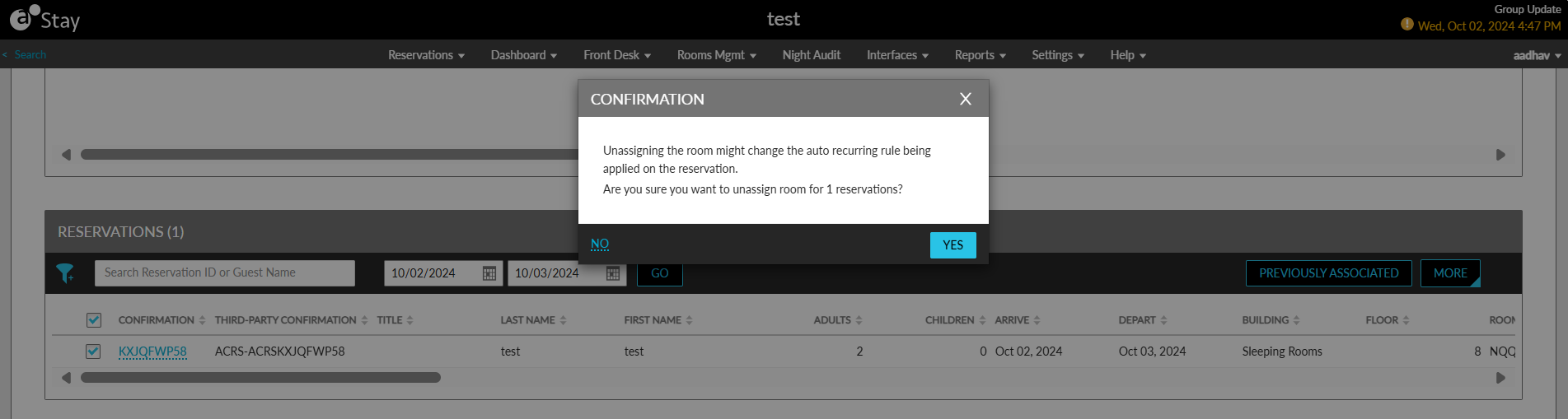
When users click Yes, the following message is displayed as a banner: “Unassign Room” is in progress. Click here for the status.
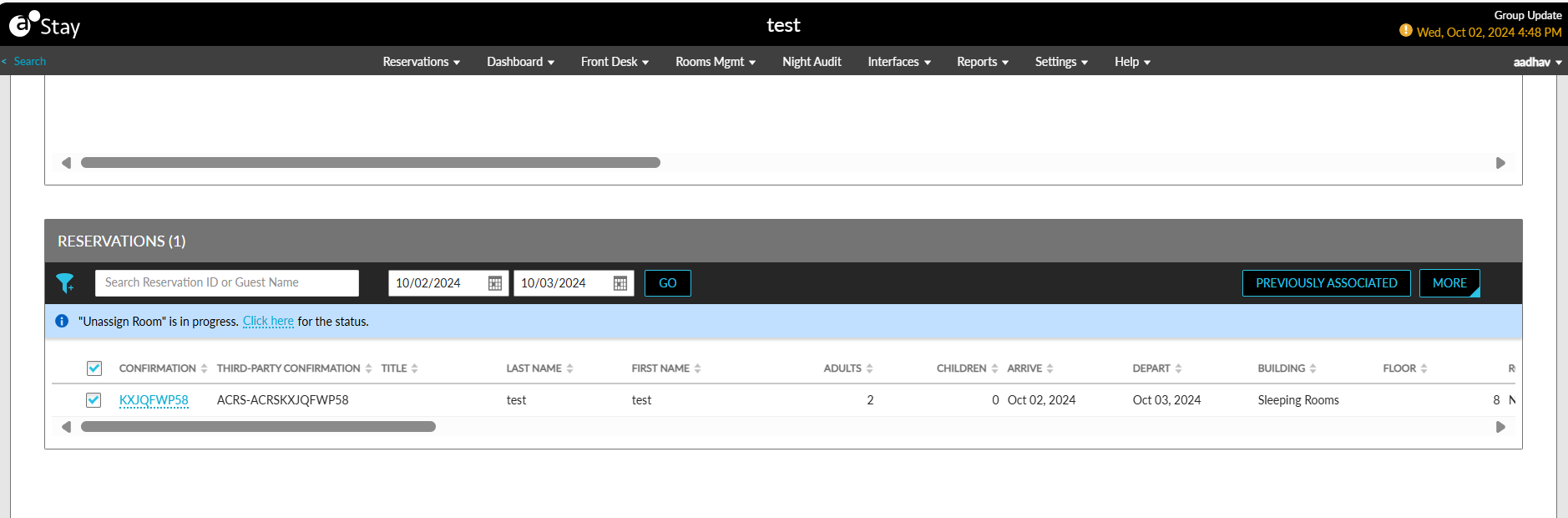
When users click the Click here hyperlink, the Unassign Room Process pop-up screen appears that displays a progress bar that indicates the count of reservations for which rooms are unassigned.
Once the process is completed, the count of reservations processed successfully and failed are displayed as a banner.
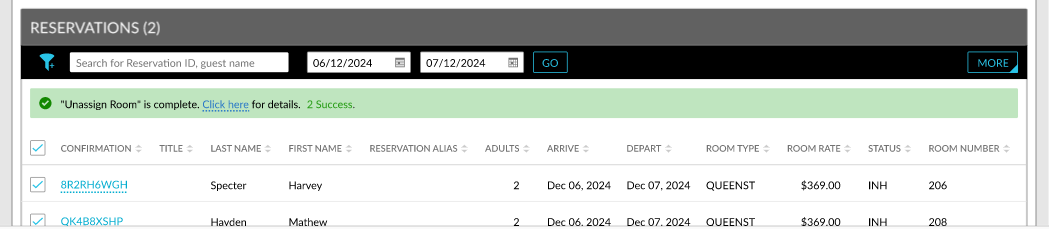
When users click on the Click here hyperlink, the Results pop-up screen appears that displays the count of reservations that were processed successfully and failed.
|
Section |
Description |
|---|---|
|
Success |
Displays the list of reservations for which the rooms are successfully unassigned. The rooms are successfully unassigned for reservations in the following statuses:
|
|
Failed |
Displays the list of following reservations for which the rooms were not unassigned successfully:
|
Users can perform a retry for the failed reservations using the Retry option.
Tape Chart
Users can unassign the room assigned to a reservation from the Tape Chart screen by clicking on the reservation block and selecting the Unassign Room option.
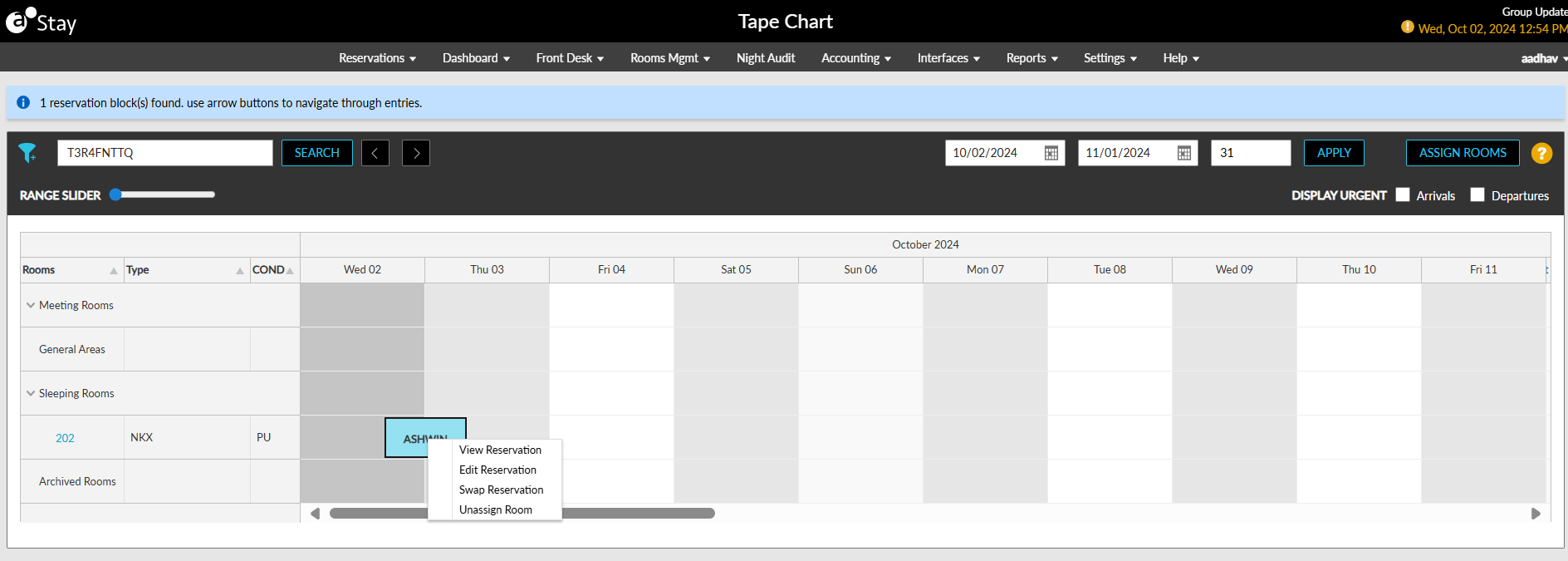
When selected, a Confirmation pop-up screen appears that informs users that unassigning the room might change the auto recurring fee rule applied to the reservation.
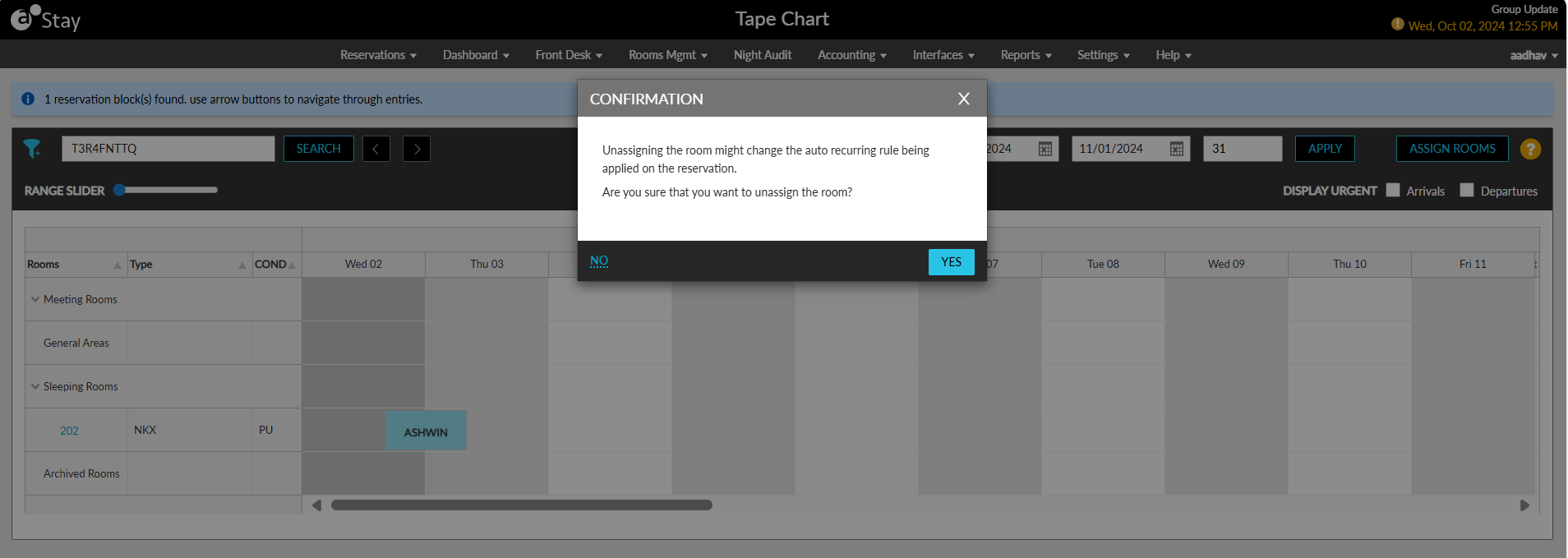
When users click Yes, the room will be unassigned, and the reservation will be removed from the Tape Chart screen.
The Unassign Room option will be displayed only for reservations in the following statuses:
-
Arriving
-
Reserved
The Unassign Room option will not be displayed for shared reservations. When the reservation is marked as Do Not Move and the user is not assigned the Stay_BatchUnassignOverride permission, users will be prompted to enter their credentials to proceed. When the credentials are authorized successfully, the room is unassigned from the reservation. If the entered credentials are invalid, the following message is displayed in the Confirmation pop-up screen: User does not have the required permission to unassign room.
Records Created
A record is created in the Batch Operations Log screen (Front Desk ➜ Batch Operations ➜ Batch Operations Log) whenever a room is unassigned from a reservation from the Check-In and Batch Edit tabs. A new option, Unassign Rooms, has been added to the Action drop-down list in this screen.
A record is also created in the Audit Log screen (Reports ➜ Audit Log) whenever a room assigned to a reservation is unassigned.
Videos