Add Notes for Reservations
Stay is enhanced to allow users to add notes for reservations. Any information that a user requires to be easily visible and accessible to the other users at the property can be added to the reservation as a note. For example, Guest has requested for a mini bar, can be added as a note. The notes added to a reservation are displayed to the users in the following screens:
-
Search
-
Batch Operations: Check-In, Settle & Check-Out tabs
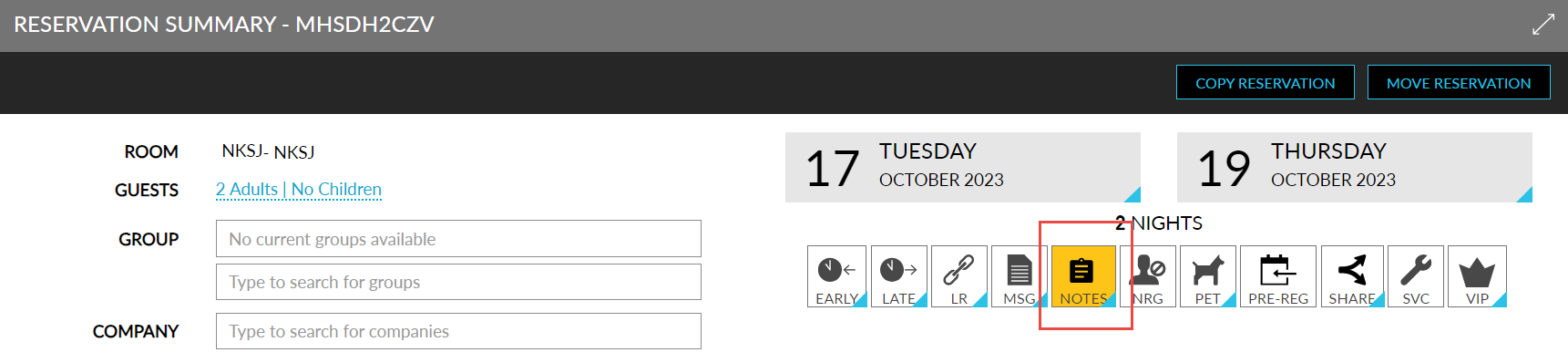
Users can add a note for a reservation by clicking on the Notes badge in the Reservation Summary section of the reservation. When clicked, the Reservation Notes pop-up screen appears that allows users to enter the required information. Users can enter a maximum of 150 alphanumeric and special characters. When users try to enter more than 150 characters, the following message is displayed: Exceeds 150 characters.
Once users enter the information and click Save, the Notes badge on the reservation is turned-on. This badge is turned-off by default. Users can remove the note by clicking on the badge, deleting the information, and clicking Save. Once the note is removed, the badge will no longer be highlighted.
The entered notes are displayed along with the Notes icon on the mentioned screens.
To support this enhancement, the following changes have been made:
-
A new badge, Notes, has been added to the Reservation Summary section of the reservation. When clicked, users can enter the notes in the Reservation Notes pop-up screen.
-
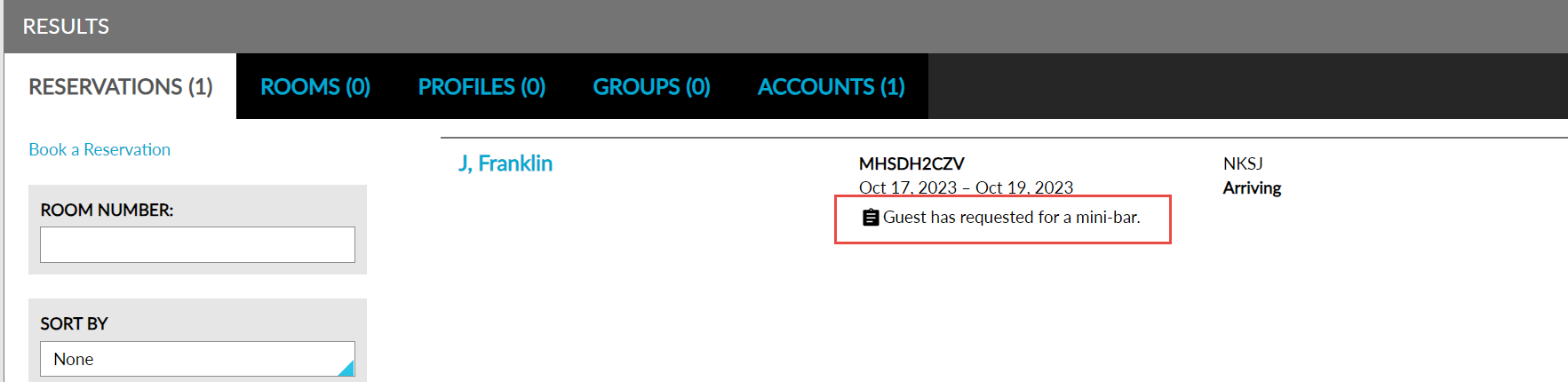
The notes added to a reservation are displayed with the Notes icon on the Reservation tab of the Search screen.
-
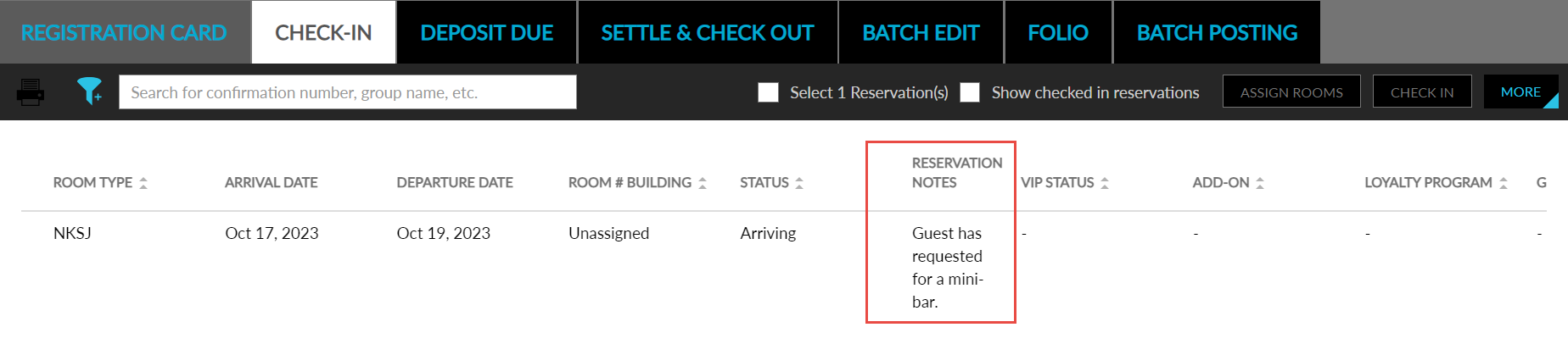
A new column, Reservation Notes, has been added to the following tabs of the Batch Operations screen that displays the notes added to the reservations:
-
Check-In
-
Settle & Check-Out
-
This column cannot be sorted or filtered, and users cannot search for a record using this column. This column has been added as an option in the Set Column Preference screen (Batch Operations ➜ Settle & Check-Out ➜ More ➜ Set Column Preference).
-
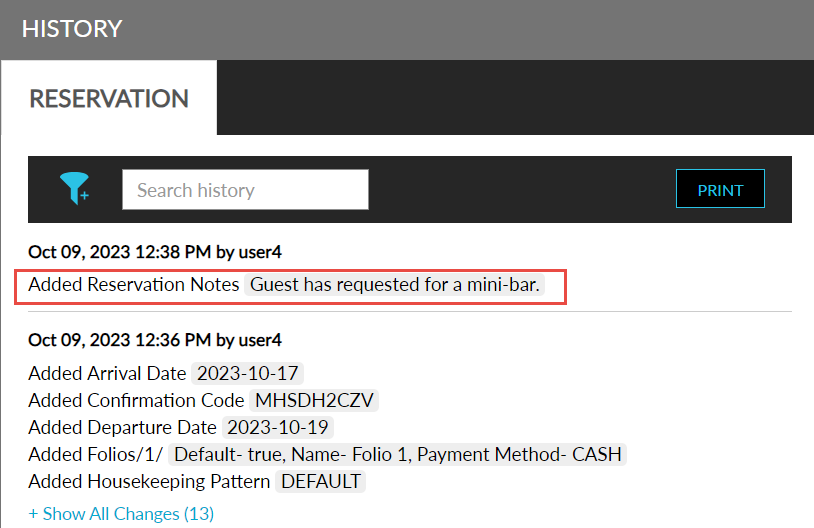
A record for the notes that are added/modified/deleted is created in the Reservation History section of the reservation and in the Audit Log screen.