Add-Ons for Groups
Stay is enhanced to allow groups to purchase the Add-Ons available at the property. Users can provide the Add-Ons at a discounted price or for the default price configured for the Add-On. For example, if the default price of an Add-On, Breakfast, is $100.00, users can choose to provide the Add-On for a discounted price of $50.00. The Add-Ons configured for a group will be inherited by all reservations created for the group.
Previously, users could not configure Add-Ons for groups.
Feature Setting
The Enhanced Add-Ons feature setting must be enabled to use this feature.
Add-Ons Tab in Groups
When the Enhanced Add-Ons feature setting is enabled, a new tab, Add-Ons, is displayed in the Room Blocks tab of groups. Users can select Add-Ons for a group using the Choose Add-Ons option. When selected, the existing Choose Add-Ons pop-up screen appears. All active Add-Ons and individual transaction items configured at the property whose validity falls between the arrival and departure dates of the group are available for selection in this screen.
The Choose Add-Ons pop-up screen displays the following tabs:
-
Add Charges
-
Frequency
-
Summary
The Applicable For tab is not displayed when users configure Add-Ons for groups. When adding individual Add-Ons, the Applicable For option is defaulted to Per Room.
Add Charges Tab
This tab allows users to select the individual transaction items and Add-Ons for the group as per the existing functionality. Users can search for an item using the item name, item number, or price. The Add-Ons can be filtered using the following options:
-
Group By: This option is selected by default. When selected, the package and individual Add-Ons are grouped separately and displayed. When this option is not selected, both package and individual Add-Ons will be displayed in alphabetical order.
-
Package Add-Ons: When selected, only package Add-Ons are displayed.
-
Individual Add-Ons: When selected, only individual Add-Ons are displayed.
Users can modify the default price configured for an Add-On. When package Add-Ons are selected, the Type column displays the type for each component in the package. For individual Add-Ons, the Type is displayed as Fixed for all transaction and inventory items.
The package and individual Add-Ons selected are displayed in the Selected section. Additionally, users can configure fixed components and allowances using the Add Allowance and Add Fixed Components options.
Frequency Tab
When users select the Add-Ons and click Next, they are navigated to the Frequency tab. This tab allows users to select the frequency at which the charges for the selected individual and package Add-Ons must be posted for the group.
Summary Tab
When users select the frequency for the Add-Ons and click Next, they will be navigated to the Summary tab. This tab allows users to review the Add-Ons selected and the total amount to be charged.
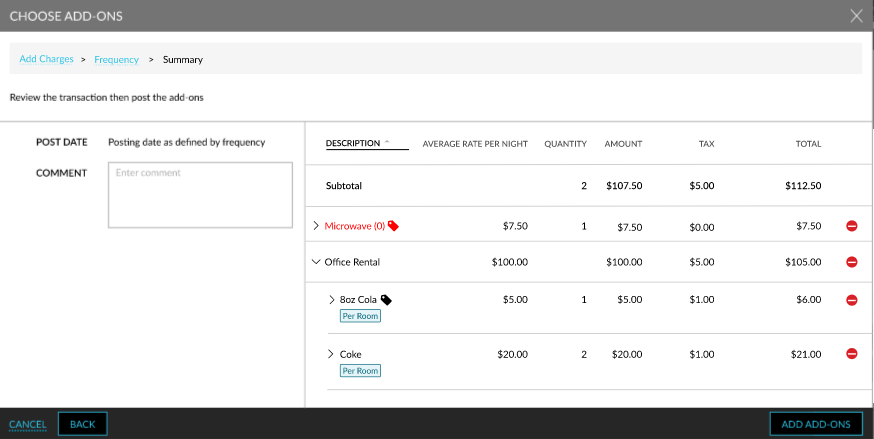
When users click the Add Add-Ons button, the Apply Add-Ons pop-up screen appears that prompts users to confirm if the Add-Ons must be applied to in-house reservations and existing future reservations. When users enter their credentials and click Yes, the selected Add-Ons will be applied to the group and the group’s reservations and displayed in the Add-Ons tab of the group. This tab displays the following columns:
|
Column |
Description |
|---|---|
|
Type |
Displays the type of each component (fixed or allowance). |
|
Description |
The Add-On name with an accordion that displays the Add-On components when expanded. A discount indicator is displayed when the default price of the Add-On is decreased when adding to the group. The inventory count is displayed for inventory items added as an Add-On component. |
|
Item |
The UPC value configured for the item. This column is left blank when no UPC value is configured. |
|
Charge |
The charge configured for each component. |
|
Quantity |
The quantity of each selected Add-On. For package Add-Ons, the quantity will always be displayed as 1. |
|
Amount |
The amount is calculated as the sum of the charges of each component of an Add-On. |
|
Optional |
This flag is disabled by default. Users must enable this flag to configure an Add-On as optional for a group. Add-Ons configured as optional are indicated by an optional indicator and are not added to the reservations created for the group by default. When this flag is disabled, the Add-Ons are inherited by the reservations automatically. |
|
Action |
This column displays the delete icon that allows users to delete an Add-On selected for a group. |
A discount indicator is displayed for the Add-Ons configured for a group at a discounted price. When users hover over the icon, the amount reduced from the original amount is displayed: Discounted Amount <Discounted Amount>.
Important Points
-
Add-Ons configured for a group can be copied.
-
Add-Ons configured for a group will be applied to reservations created for the group’s shoulder dates.
-
When a non-group reservation is linked to a group, the group Add-Ons will be applied to the non-group reservation.
-
Add-Ons are not applicable for event-only groups.
-
Add-Ons are considered as part of group deposit and cancellation policies.
-
When users delete an Add-On configured for a group, the Add-On will be removed from the Estimated Charges section of the in-house and existing future reservations created for the group.
-
Add-Ons are not applicable for groups created through integrations and reservations import sheet.
Booking Group Reservations with Add-Ons
When users book reservations for a group, the Add-Ons configured for the group will be displayed in the Estimated Charges section of the Book Reservation pop-up screen. The Add-Ons configured as optional are not added by default. Users must select them using the Choose Add-Ons option. When clicked, the Choose Add-Ons pop-up screen appears that allows users to choose additional and optional Add-Ons.
When the Add-Ons added to the reservation are not available due to unavailability of inventory or inventory restriction, the following message is displayed as a banner in the reservation: One or more Add-Ons are not authorized. Kindly override the restrictions in Estimated Charges section. When users click on the item, the Authorize Action pop-up screen appears. Users must select the item for which the restriction must be overridden and enter their username and password.
Once the credentials are authenticated successfully, the restrictions are overridden, and the message is no longer displayed
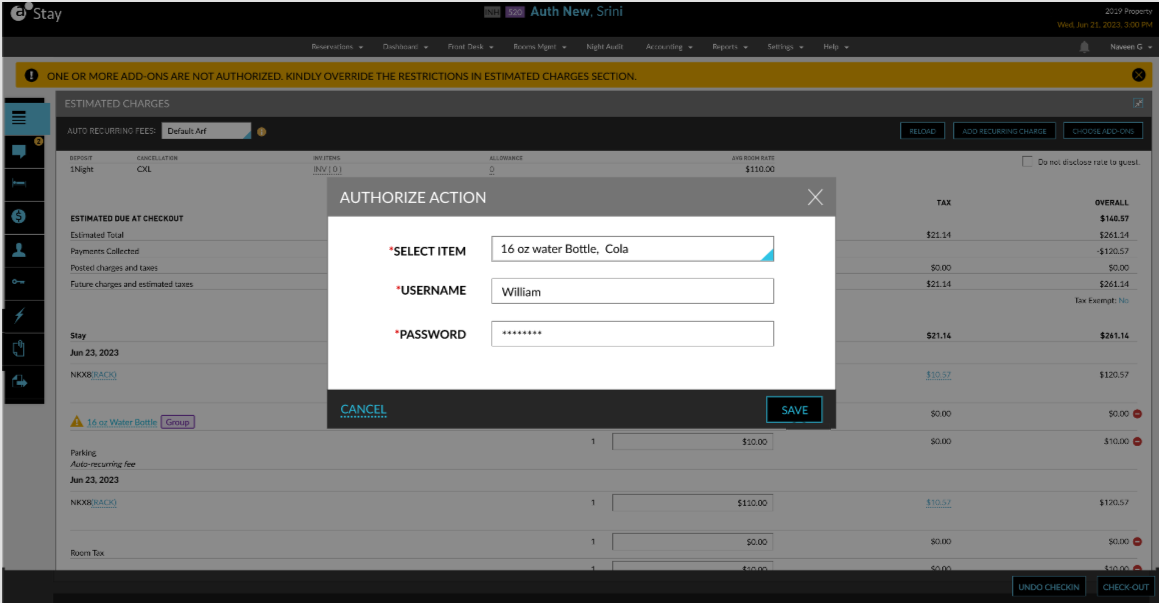
Users can also override restrictions when booking a reservation in the Estimated Charges of the Book Reservation pop-up screen.