Additional Validations to Add, Remove, or Modify Direct Bill Payment Method
New permissions have been introduced in Stay to validate and allow only authenticated users to perform the following operations:
-
Add a Direct Bill payment method to reservations and groups
-
Modify the Direct Bill payment method added to reservations and groups
-
Modify the payment method of a folio to Direct Bill
-
Select the destination of a routing rule as a Direct Bill account
-
Add a preconfigured routing rule template with the destination account selected as Direct Bill to reservations and groups.
-
Make payments for A/R invoices that contain transferred charges.
Previously, all users were allowed to perform the mentioned operations.
Permissions
The following new permissions have been introduced to enable users to perform the mentioned operations:
-
Stay_DirectBill_Payment
-
Stay_AR_Payment
This permission is assigned by default to all system defined roles and custom roles with the AddPaymentMethod permission.
Add a Direct Bill Payment Method to Reservations and Groups
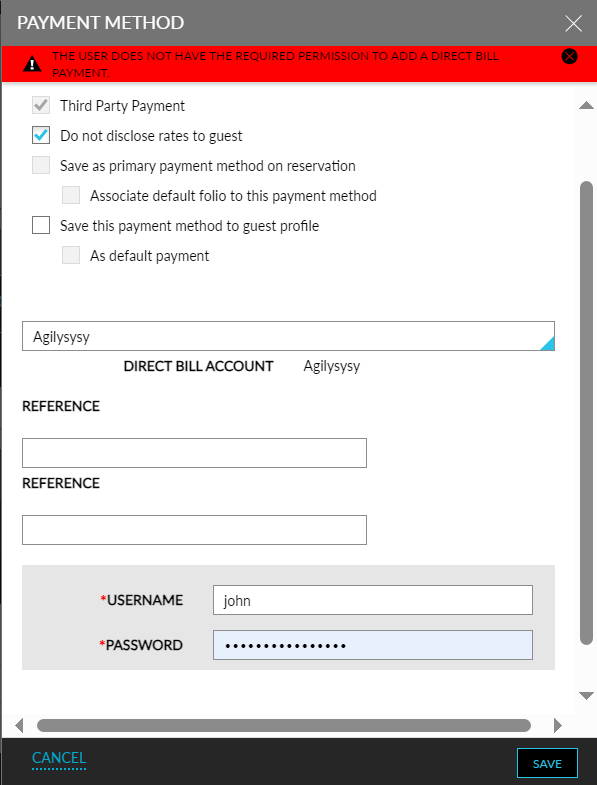
Only users with the Stay_DirectBill_Payment permission can successfully add a Direct Bill payment method to reservations and groups. Users without this permission are prompted to enter their credentials in the Payment Method pop-up screen (Reservation/Group ➜ Payment Methods ➜ Add). The entered credentials are validated and if the user does not have the permission assigned, the following message will be displayed, and the payment method will not be added successfully: The user does not have the required permission to add a direct bill payment.
Modify a Direct Bill Payment Method
Only users with the Stay_DirectBill_Payment permission can successfully modify a Direct Bill payment method added to reservations and groups. When users without the new permission select a different account in the Payment Method pop-up screen (Reservation/Group ➜ Payment Methods ➜ Add), they will be prompted to enter their credentials. The entered credentials are validated and if the user does not have the new permission assigned, the following message will be displayed, and the selected account will not be updated: The user does not have the required permission to add a direct bill payment.
Modify the Payment Method of a Folio
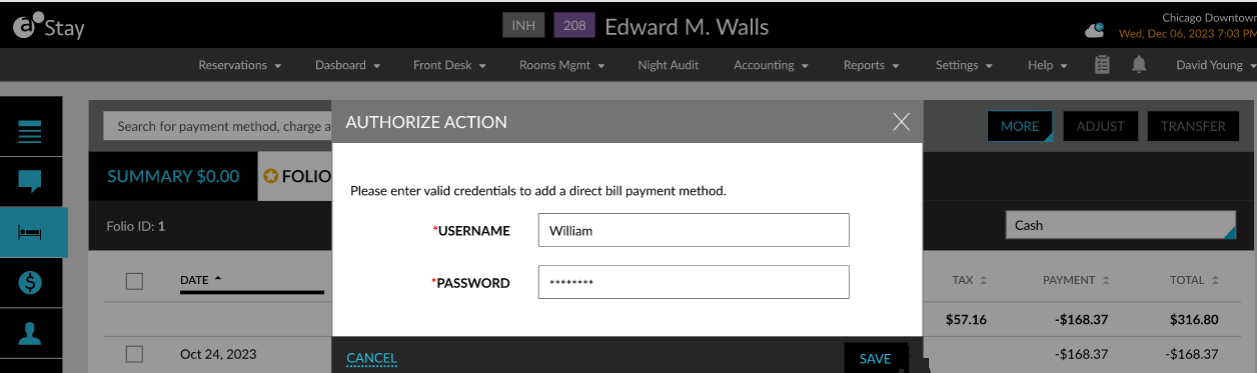
Only users with the Stay_DirectBill_Payment permission can successfully modify the payment method of a reservation or group folio to the Direct Bill payment method. When users without the required permissions modify the payment method, the Authorize Action pop-up screen appears that prompts users to enter their credentials. The credentials are validated and if the user does not have the required permission assigned, the following message will be displayed: The user does not have the required permission.
Add a Direct Bill Account to a Routing Rule
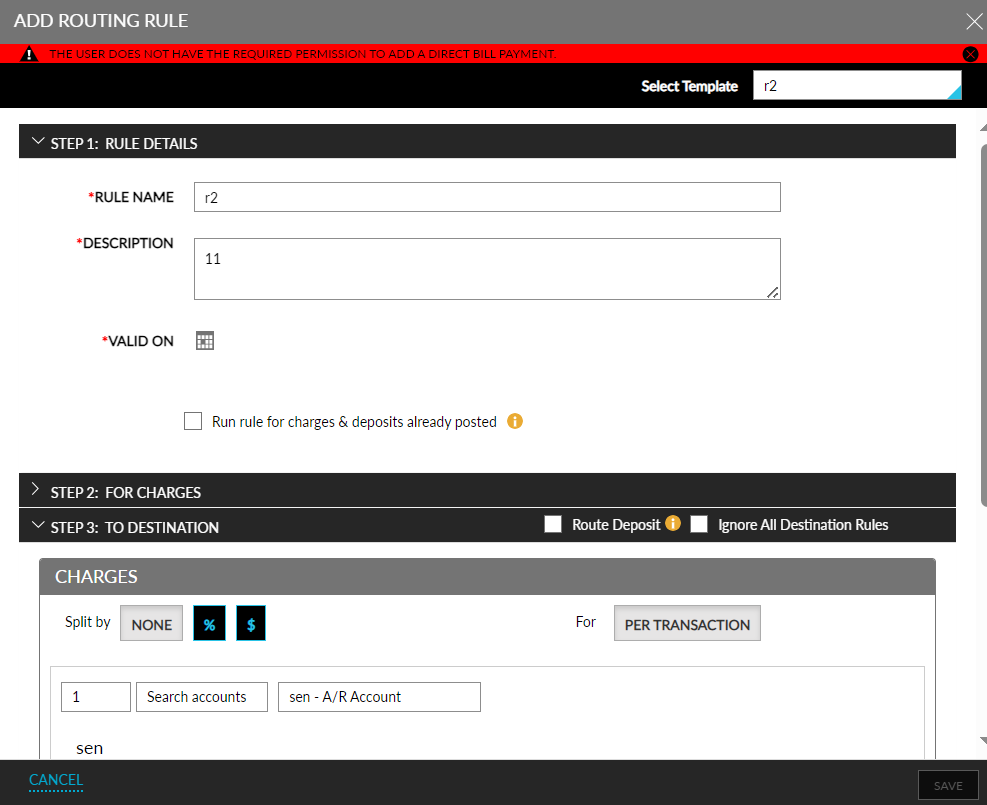
Only users with the Stay_DirectBill_Payment permission can successfully add a new routing rule with the destination account selected as Direct Bill for a reservation or group. When users without the new permission select the destination account for routing charges or deposits as a Direct Bill account in the Add Routing Rule pop-up screen (Reservation/Group ➜ Folio ➜ Add account routing rule), they will be prompted to enter their credentials. The entered credentials are validated and if the user does not have the new permission assigned, the following message will be displayed, and the routing rule will not be added: The user does not have the required permission to add a direct bill payment.
Similarly, when users without the new permission select a routing rule template with the destination account selected as Direct Bill from the Select Template drop-down list in the Add Routing Rule pop-up screen, they will be prompted to enter their credentials. The entered credentials are validated and if the user does not have the new permission assigned, the following message will be displayed, and the routing rule will not be added: The user does not have the required permission to add a direct bill payment.
Add a Direct Bill Payment Method to Rate Plans
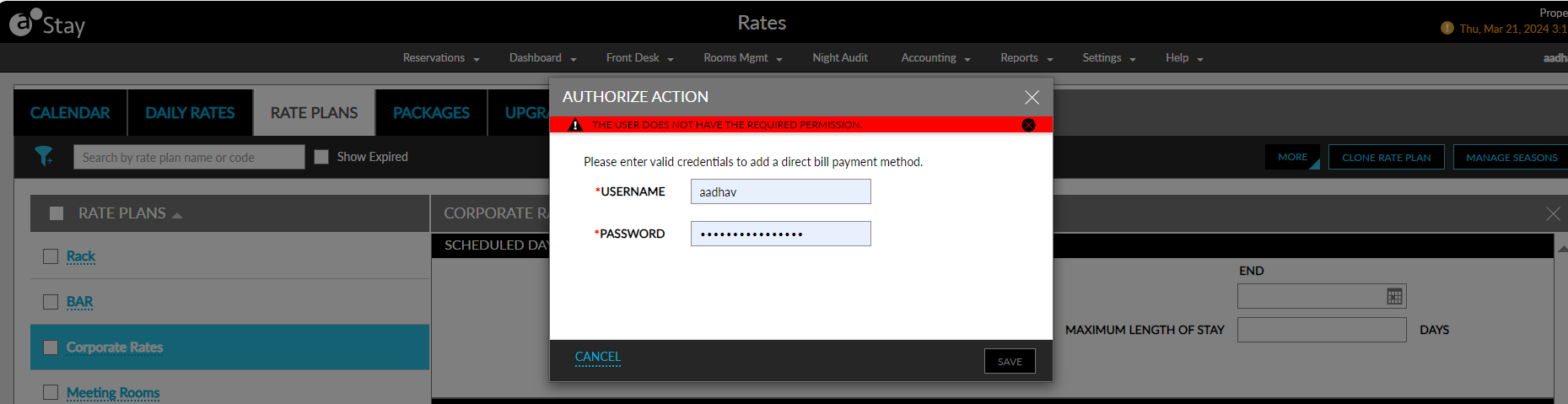
Only users with the Stay_DirectBill_Payment permission can successfully add a Direct Bill account in the Destination Account field in the Payment Defaults section of a rate plan (Rate Plan ➜ Payment Defaults ➜Destination Account). For users without the new permission, the Authorize Action pop-up screen will appear that prompts users to enter their credentials. The entered credentials are validated and if the user does not have the new permission assigned, the following message will be displayed, and the destination account will not be added successfully: The user does not have the required permission.
Transfer Charges to A/R Account
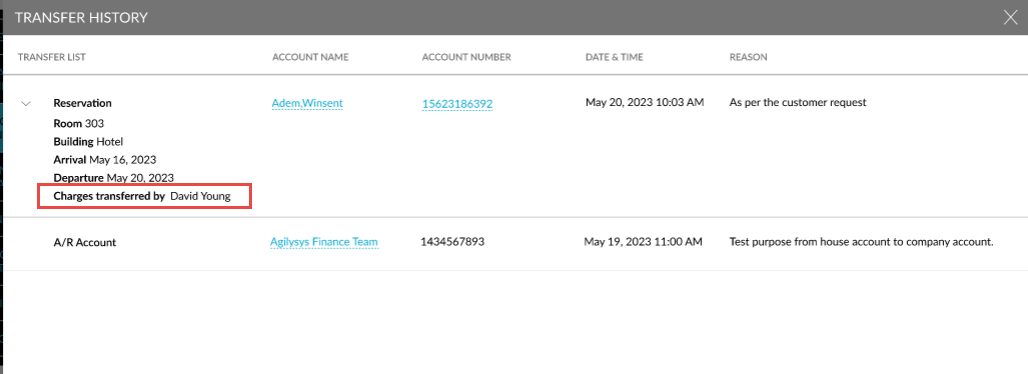
When users transfer charges from any account to an A/R account, the username of the user who performed the transfer will be displayed in the Transfer History pop-up screen that appears when users click on the Transfer History hyperlink for the transferred charge in the Non-Invoiced Charges section of the A/R account.
Make Payment for A/R Invoices
Only users with the Stay_AR_Payment permission can make a payment for an A/R invoice that contains transferred charges. When users without this permission make a payment for an A/R invoice, they will be prompted to enter their credentials in the Make Payment pop-up screen (A/R account ➜ Invoices ➜ Make a Payment). The entered credentials are validated and if the user does not have the new permission assigned, the following message will be displayed, and the payment will not be completed successfully: The user does not have the required permission to make a payment.
Records for Payments
A record for the payment made for an A/R invoice is created in the Audit Log screen. This record displays the details of the user who initiated and approved the payment. A record is also created in the Payment History section of the A/R account.
A new Dynamic report, Direct Bill Override, has been introduced to track the details of the payments made for an A/R invoice that contains transferred charges.