Alert Users of Conflicting Reservations and Inventory Blocks
Stay is enhanced to alert users when a room with the following conflicts is assigned to a reservation from the Change Room pop-up screen (Reservation ➜ Currently Selected Room ➜ Change Room Number):
-
The selected room is already assigned to a different reservation
-
The selected room has an Inventory Block for the reservation’s duration of stay
The details of the conflicts for the selected room are displayed on this screen. This helps users resolve conflicts and assign the selected room to the reservation.
Assign Rooms Blocked for Another Reservation(s)
When users enter a room number that is already assigned to a different reservation or to shared reservations in the Change Room pop-up screen, the following alert is displayed in the Change Room pop-up screen: This room cannot be assigned as it is already assigned to another reservation. Please see below for details.
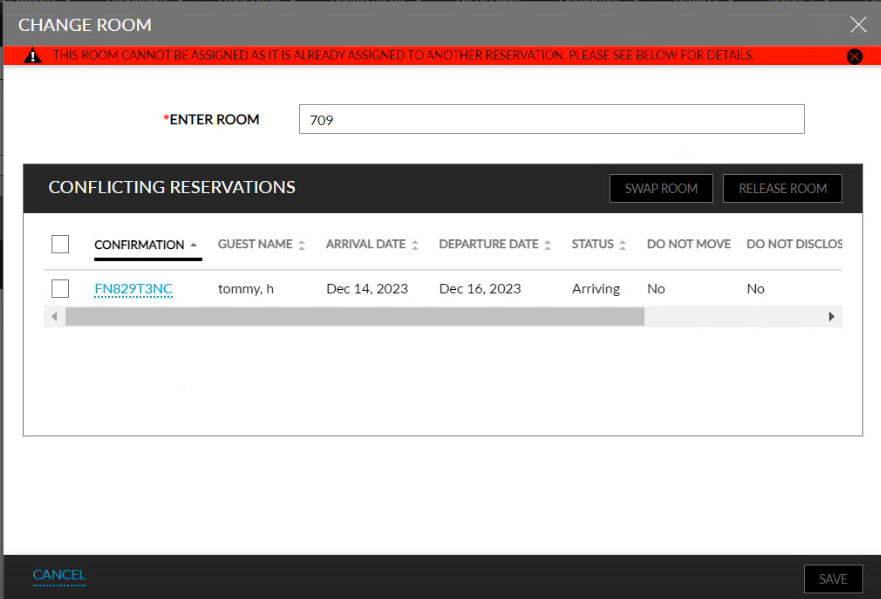
When users select the conflicting reservations, the Swap Room and Release Room options will be enabled for selection.
The following table lists the various scenarios in which the rooms can be swapped between the current and conflicting reservations when the Swap Room option is selected:
|
Scenario |
Description |
|---|---|
|
When a room is not assigned to the current reservation. |
The room is released from the conflicting reservation and assigned to the current reservation. When the selected room is from a different room type as the current reservation, the Room Type Swap pop-up screen appears that prompts users to confirm if the room type must be changed. When users click Yes, the Swap Rooms pop-up screen appears where users can select either the Modify Rates or Keep current rates option.
When the selected room is from the same room type as the current reservation, the Room Type Swap pop-up screen does not appear, and the room is assigned to the current reservation for the existing rate plan. |
|
When a room is assigned to the current reservation. |
The rooms are swapped between the current and the conflicting reservation. When the selected room is from a different room type as the current reservation, the Room Type Swap pop-up screen appears that prompts users to confirm if the room type must be changed. When users click Yes, the Swap Rooms pop-up screen appears where users can select either the Modify Rates or Keep current rates option.
When the selected room is from the same room type as the current reservation, the Room Type Swap pop-up screen does not appear, and the room is assigned to the current reservation for the existing rate plan. |
The following table lists the various scenarios in which the room can be released from the conflicting reservations and assigned to the current reservation when the Release Room option is selected:
|
Scenario |
Description |
|---|---|
|
When the selected room is from the same room type as the current reservation. |
|
|
When the selected room is from a different room type as the current reservation |
|
Assign Rooms with Inventory Blocks
When users enter a room number in the Change Room pop-up screen for a room that has an Inventory Block (Out of Order, Off the Market, On Hold) created for the reservation’s duration of stay, the following alerts are displayed in the Change Room pop-up screen:
-
This room is currently On Hold. Please see below for more information.
-
This room is currently Out of Order. Please see below for more information.
-
This room is currently Off the Market. Please see below for more information.
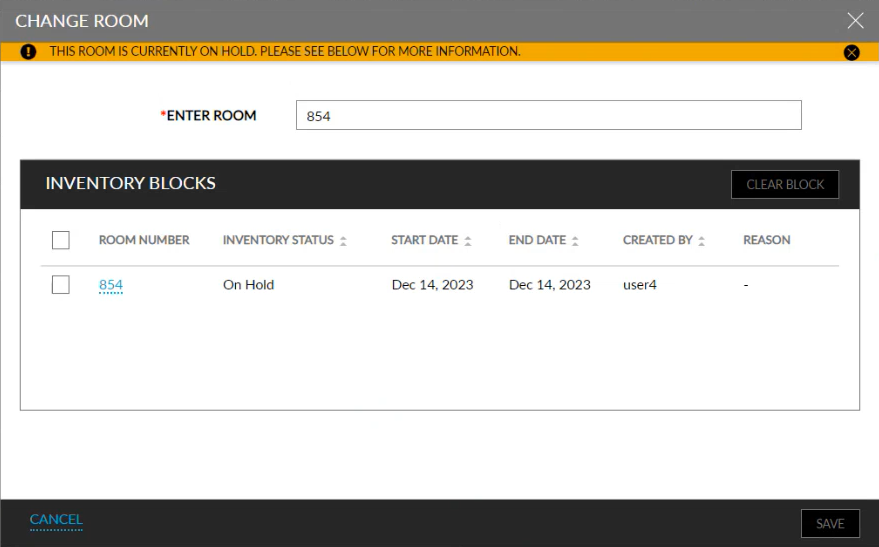
When the room number is selected, the Clear Block option will be enabled. When clicked, the Clear Inventory Blocks pop-up screen appears that prompts users to confirm if the block must be cleared for the selected room.
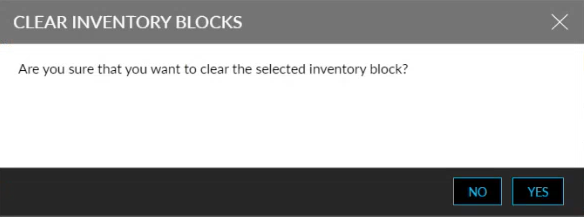
When the selected room is from the same room type as the current reservation and has an On Hold inventory block, the block is cleared, and the room is assigned to the current reservation.
When the selected room is from a different room type as the current reservation and the user clicks Yes, the Modify Stay screen appears. When users select a new rate plan with which the room type is associated, the selected room is assigned to the current reservation.
The Off the Market (OTM) and Out of Order (OOO) inventory blocks cannot be cleared using the Clear Block option.
Assign a Room that is Already Assigned and Blocked from the Inventory
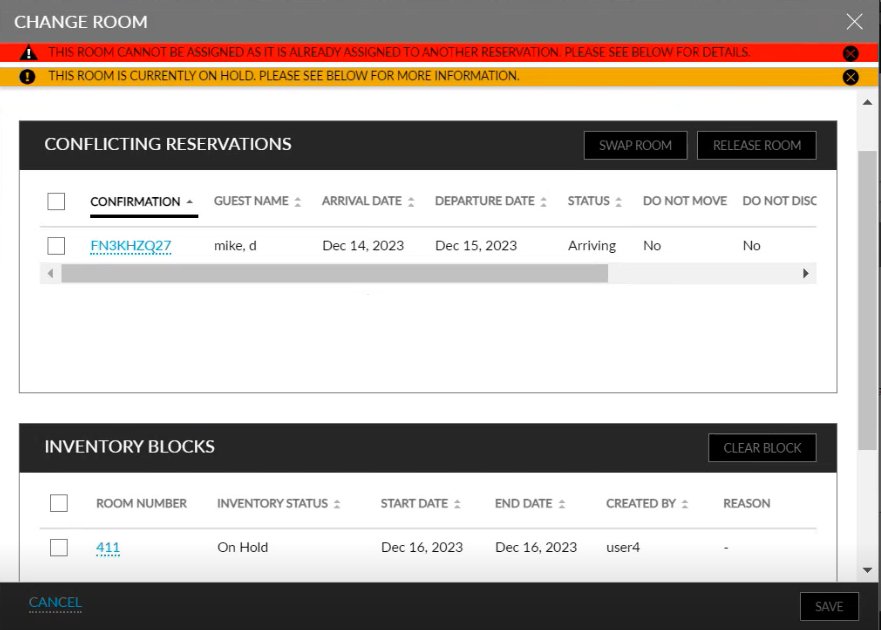
When users enter a room number, in the Change Room pop-up screen, for a room that has an Inventory Block (Out of Order, Off the Market, On Hold) created for the reservation’s duration of stay and is assigned to a different reservation, the Change Room pop-up screen displays the details of both the conflicting reservations and the inventory blocks created for the selected room.
Users must either clear the On Hold inventory block and then release/swap rooms for the reservations or vice versa.
Scenarios Where the Selected Room Cannot be Assigned
The following are the various scenarios in which the selected room cannot be assigned to the current reservation:
-
When the guest has already checked in to the selected room
-
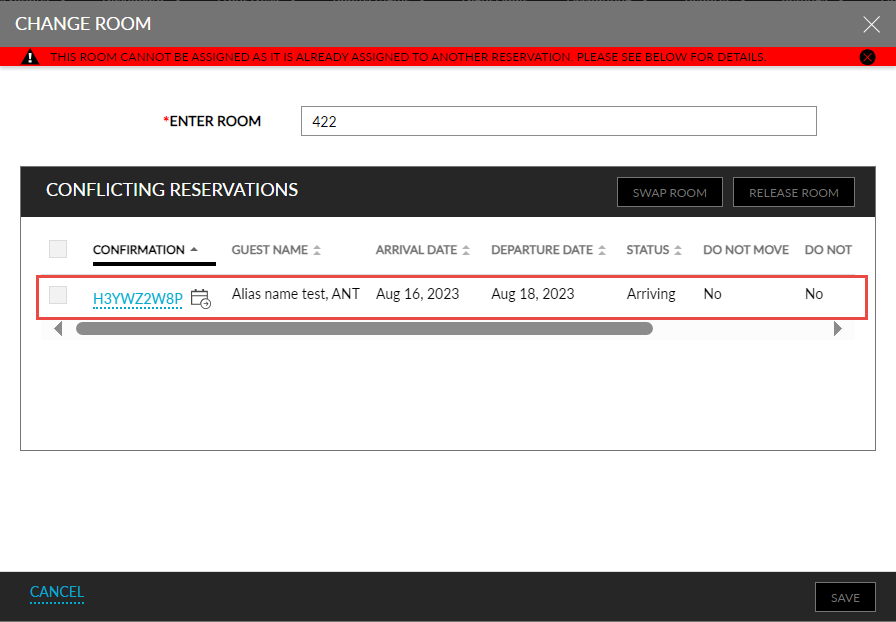
When the selected room is part of the Scheduled Room Move (SRM) for a reservation. In this case, the Scheduled Room Move icon is displayed for the conflicting reservation in the Change Room pop-up screen and the checkbox to select the reservation is greyed out.
-
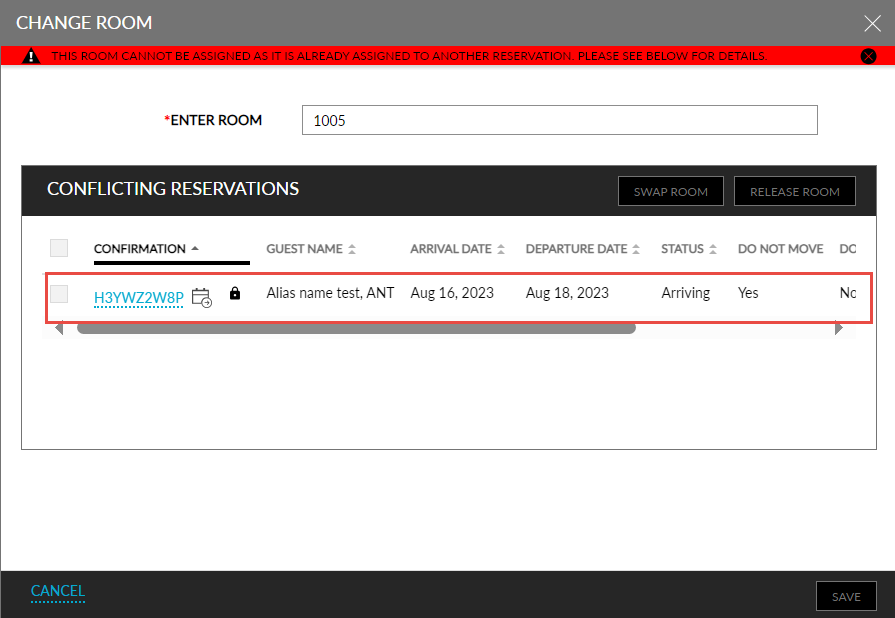
When the selected room is marked as Do not move guest. In this case, the Do not move guest icon is displayed for the conflicting reservation in the Change Room pop-up screen and the checkbox to select the reservation is greyed out.
System Changes
To support this feature, the following changes have been made:
-
The label of the Change button in the Currently Selected Room section of the reservation has been modified to Change Room Number.
-
A new button, Change Room Type, has been added to the Currently Selected Room section. Previously, this option was displayed as a hyperlink.
-
The Change Room pop-up screen is enhanced to display an alert and the details of the conflicting reservations and inventory blocks for the selected room.