Apply Guest Consent Policy Based on the Guest’s Primary Country of Residence
Stay is enhanced to allow users to apply a Guest Consent Policy based on the country associated with the primary address of the guest profile.
Users can select the country/region for the Guest Consent Policy from the Applicable Country /Region drop-down list in the Add/Edit Guest Consent Policy screen (All Settings ➜ General ➜ Data Retention Management ➜ Guest Consent Policy ➜ Add/Edit). This is an optional field that displays a list of all the countries.
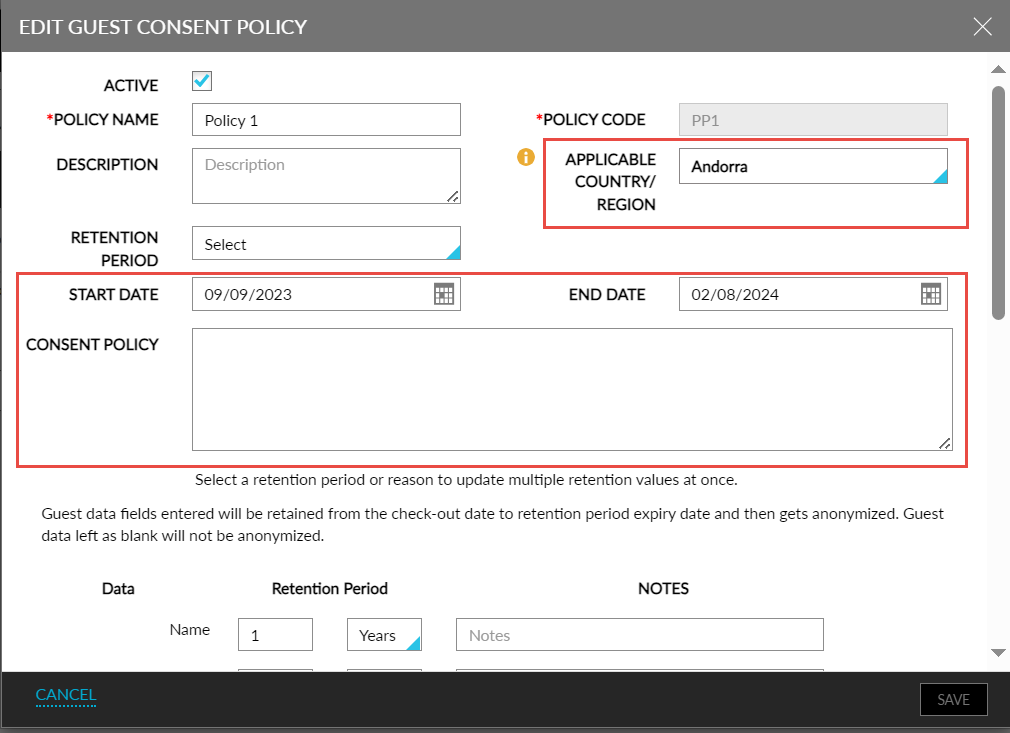
Users can define the start and end dates for the policy in the Start Date and End Date fields and enter the description for the policy in the Consent Policy description box. The country/countries selected in the policy is displayed under the Applicable Country/Region column in the Guest Consent Policy tab of the Data Retention Management screen.
Display Guest Consent Policies During Check-In
When a reservation is checked in, the guest consent policies that are applicable for the guest are displayed in the Check-In pop-up screen based on the following conditions:
-
The current property date must be equal to or greater than the start date of the policy and less than or equal to the end date of the policy (provided the end date is configured).
-
The country associated with the primary address of the guest profile matches the countries selected in the consent policy.
The countries associated with the policy are displayed under the Applicable Country/Region column. Users can select the preferred policies to be applied.
Display Guest Consent Policies in Guest Profile
The consent policies that are applicable for a guest are displayed in the Consent Management section of the guest profile. The countries associated with the policy are displayed under the Applicable Country/Region column. The Renew button for a previously applied policy is disabled if the policy is modified and is no longer applicable for the guest profile.
Display Guest Consent Policies When Creating Reservations
The consent policies that are applicable for a guest are displayed in the Consent Management section in the Other tab of the Book Reservation screen. The countries associated with the policy are displayed under the Applicable Country/Region column.
Display Guest Consent Policies When Moving Reservations
When reservations are moved to a new property, users can view the consent policies that are available in the destination property by clicking the Update Consent Policy hyperlink present in the Consent Management section in the Others tab of the Move Reservation screen. When clicked, the Updated Consent Policy pop-up screen appears that displays the guest consent policies.
The consent policies are displayed in the Book Reservation and Move Reservation screens based on the following conditions:
-
The country associated with the primary address of the guest profile matches the countries selected in the consent policy.
-
All the consent policies that do not have a country associated with them are displayed.
-
When a country is not associated with the guest profile, all the available consent policies are displayed.
-
When a guest profile is not selected in the Book Reservation screen, all the available consent policies are displayed.
Display Guest Consent Policies in Digital Registration Cards
Users can choose to display the guest consent policy when the digital registration card is viewed in tablets by enabling the Display Guest Consent Policy in tablets checkbox in the Digital Registration Card tab of the Registration Card Setup screen (All Settings ➜ Templates ➜ Registration Card ➜ Digital Registration Card ➜ Guest Consent Policy). When enabled, the guest consent policies that are applied to the guest profile are displayed after the Terms and Conditions section when the digital registration cards are generated.
Users can also customize the message that appears next to the I Agree checkbox in the digital registration card by configuring the preferred message in the text box field. A maximum of 1000 alphanumeric and special characters can be entered.
A header for the guest consent policy can be configured in the Header text field. By default, the header is displayed as GUEST CONSENT POLICY. This is a mandatory field that allows users to enter a maximum of 250 alphanumeric and special characters.
Display Guest Consent Policies in Registration Cards
Users can choose to display the guest consent policies when the registration cards for the reservations are printed by enabling the Display Guest Consent Policy checkbox in the Registration Card Message tab of the Registration Card Setup screen (All Settings ➜ Templates ➜ Registration Card ➜ Registration Card Message).
To support this enhancement, the following changes have been made:
-
The following new fields have been added to the Add/Edit Guest Consent Policy screen (All Settings ➜General ➜Data Retention Management ➜Guest Consent Policy ➜Add/Edit).
-
Applicable Country /Region drop-down list.
-
Start Field and End Field date pickers.
-
Consent Policy description box.
-
-
A new column, Applicable Country /Region, has been added to the following screens:
-
The Guest Consent Policy tab of the Data Retention Management screen.
-
The Check-In pop-up screen that appears when users check in a reservation.
-
The Consent Management section of the guest profile.
-
Book Reservation screen ➜Other ➜Consent Management.
-
Move Reservation screen ➜Others ➜Update Consent Policy hyperlink.
-