July 2024
Release 24.2.1
Associate Comp Routing Rules with Groups
Stay is enhanced to allow users to associate comp routing rules when selecting a reservation routing rule for groups. The charges posted to the group reservations are routed to the Comp folio based on the comp routing rule selected. Previously, users could associate a comp routing rule only when selecting an account routing rule for groups.
The comp postings performed in groups are tracked in the Comp Postings Report (Dynamic) and the Comp Postings by Authorizer report (Legacy).
System Changes
To support this enhancement, the following changes have been made:
-
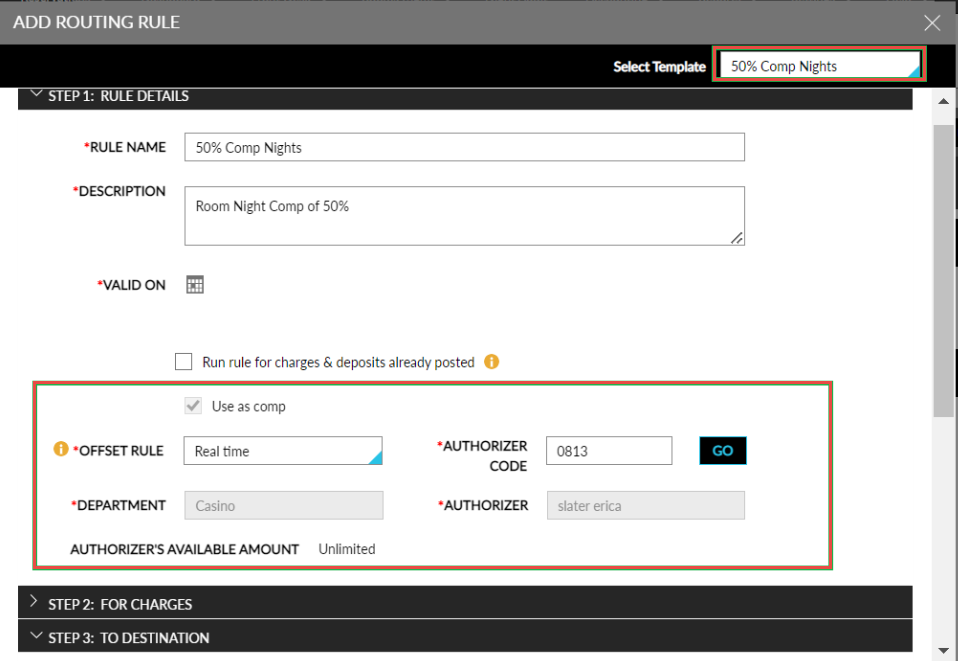
When users click on the +Add a reservation routing rule hyperlink in the Group Reservation Rules section in the Folio & Routing Rules tab of groups (Groups ➜ Folio & Routing Rules ➜ Summary ➜ Group Reservation Rules), the Select Template drop-down list on the Add Routing Rule screen displays a list of all active comp routing rule templates available. Users can select the required template to be associated with the group. The following changes are made to the selected template by default:
-
The Use as Comp option is selected and greyed out. Users cannot disable this option.
-
The rule in the Offset Rule drop-down list is pre-selected. However, users can change the rule if required.
-
The following fields are displayed when users enter the Authorizer Code and click the Go button:
-
The Department field is pre-filled and greyed out. Users cannot modify the selected value.
-
The Authorizer field is pre-filled and greyed out. Users cannot modify the selected value.
-
The Destination for the rule is automatically selected as Comp Folio.
-
-
Feature Configuration
Navigate to Group ➜ Folio & Routing Rules ➜ Summary ➜ Group Reservation Rules ➜ Add Reservation Routing Rule. The Add Routing Rule pop-up screen appears.
Click on the Select Template drop-down list and select a comp routing rule from the list of available templates.
Click Save.