Capture Travel and Transportation Information in Reservation
Stay is enhanced to allow users to capture the guest's travel information for both estimating the time of arrival and departure, thereby, arranging transportation for the guest.
Feature Setting
-
Name: Travel and Transport Information
-
Value: Enabled
-
Comments: License is not required.
Permissions
The following new permission has been added that will enable users to override and update the charge configured for a vehicle type:
-
StayTransportRateOverride
This permission can be provided to the following roles by default:
-
System Administrator
-
Stay Hotel Manager
-
Department Manager
Capturing Travel and Transportation Information when Booking a Reservation
When the feature settings and property level settings are enabled for this feature, a new section, Travel & Transportation is displayed in the Book Reservation screen. Clicking this option displays the following two sections: Arrival Information and Departure Information.
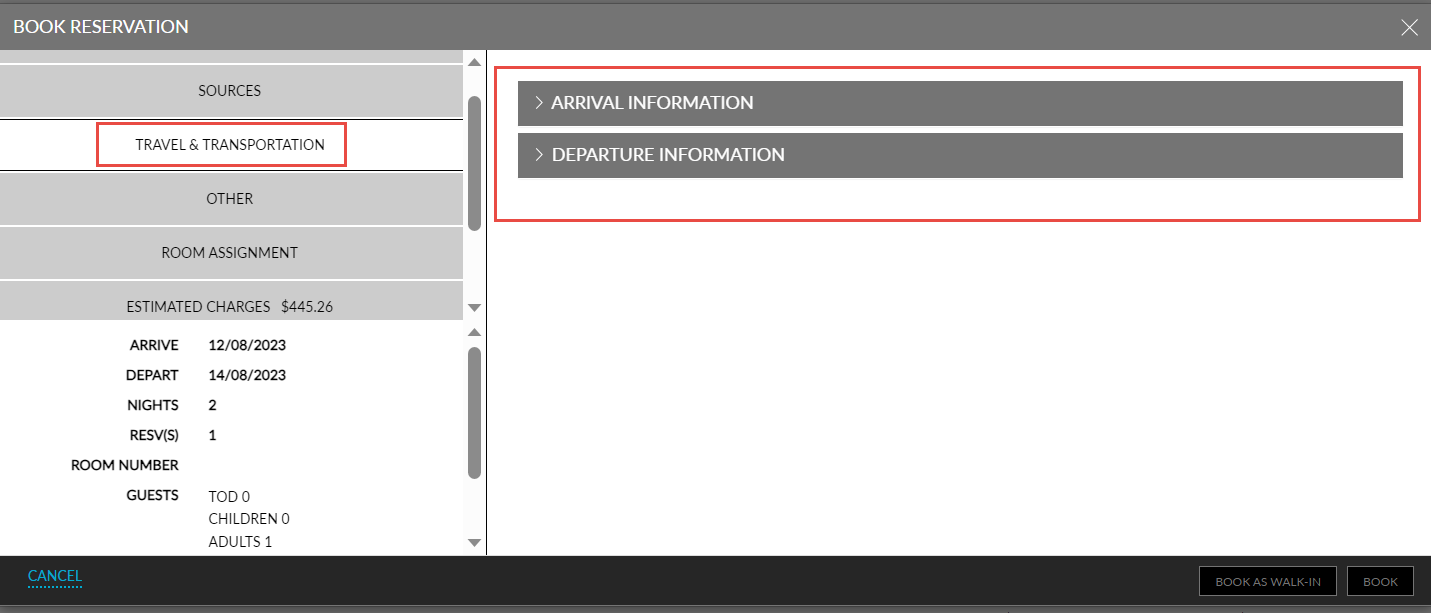
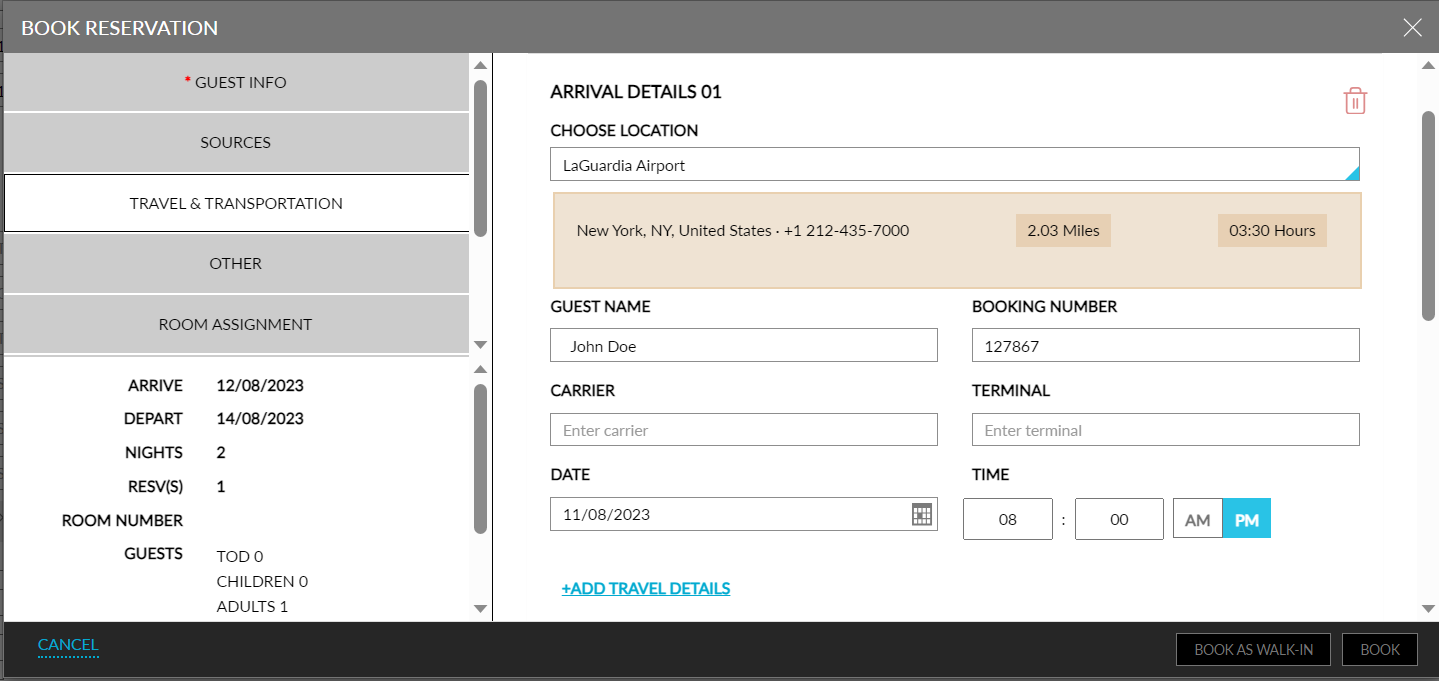
The Arrival Information and Departure Information sections consists of the following two hyperlinks:
|
Field |
Description |
||||||||||
|---|---|---|---|---|---|---|---|---|---|---|---|
|
Add Travel Details This link will be displayed only if the Collect Guest Travel information flag is enabled in the Travel Information set up. Users can add any number of travel detail records for arrivals and departures by clicking this link. All fields in the section are not mandatory. Users can delete a travel record by clicking the delete icon. As records are added, they are titled as Arrival Details 01, Arrival Details 02, or Departure Details 01, Departure Details 02 and so on. |
|||||||||||
|
Choose Location |
Select a location of arrival from the drop-down list. Once selected, the address of the location, distance, and the estimated travel time between the location and the property in the HH:MM format is displayed below the Choose Location field. |
||||||||||
|
Guest Name |
The name of the guest who is traveling. The guest's name is auto populated if a profile is associated with the reservation. |
||||||||||
|
Booking Number |
The booking number for the travel detail record. |
||||||||||
|
Carrier |
The name of the carrier for the travel type. |
||||||||||
|
Terminal |
The terminal of arrival. |
||||||||||
|
Date |
The date of arrival. |
||||||||||
|
Time |
The time of arrival. |
||||||||||
|
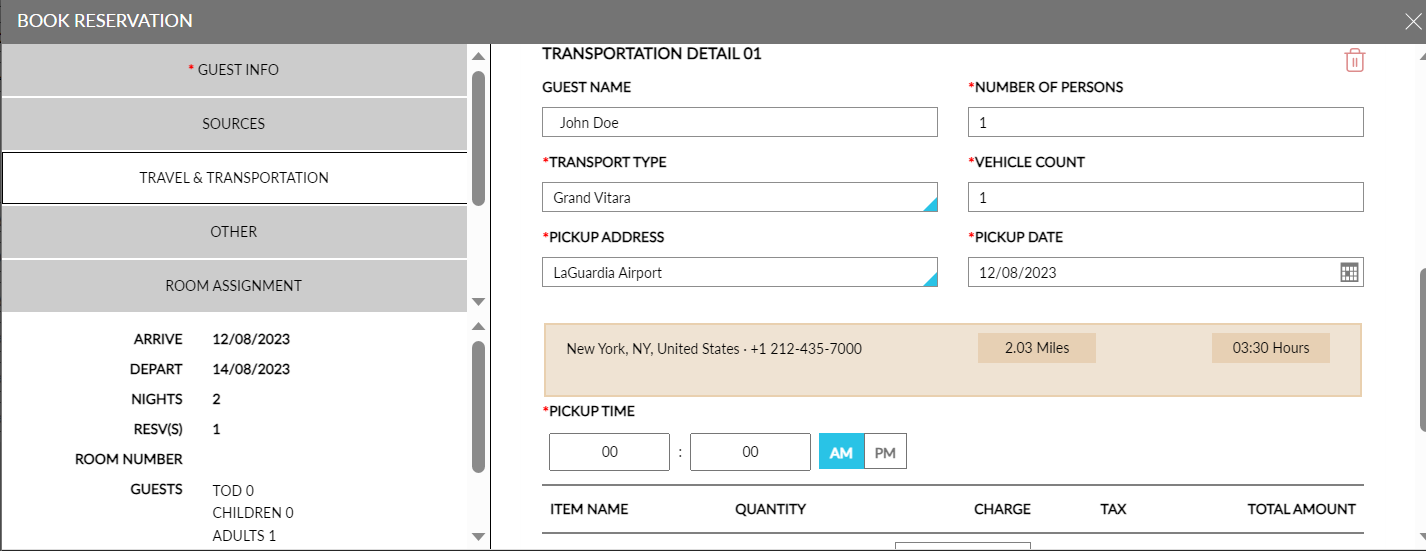
Add Transportation Details This link will be displayed only if the Provide Guest Transportation Service flag is enabled in the Transportation Information set up. Users can add any number of transport detail records for arrivals by clicking this link. Transport details can be added even if the reservation is checked-in. Users can delete a transport record by clicking the delete icon. As records get added, they are titled as Transportation Detail 01, Transportation Detail 02, and so on. |
|||||||||||
|
Guest Name |
The name of the guest who is travelling. The guest's name is auto-populated if a profile is associated with the reservation. |
||||||||||
|
Number of persons |
The number of people that need transportation.
|
||||||||||
|
Transport Type |
Select a transport type from the drop-down list.
|
||||||||||
|
Vehicle Count |
The number of vehicles needed for the selected transport type. By default, 1 is displayed. |
||||||||||
|
Pick Up Address |
Select the address to pick-up the guest from the locations defined. On selection, the address of the location, distance, and estimated travel hours are displayed below the Pick Up Address field. |
||||||||||
|
Pick Up Date |
Select the date to pick up the guest from the date picker. |
||||||||||
|
Pick Up Time |
Select the time to pick up the guest. |
||||||||||
|
Charge |
Transportation charge for the requested transport will be displayed based on the Transport Type selected. Once selected the following fields are displayed:
Charge should be displayed in the below formatted under each transport request in booking modal. |
||||||||||
Travel and Transportation Information in Reservations
A new badge, T & T, is introduced in reservations. The badge will be turned on if travel or transportation information is present for arrival, departure, or both.
-
Clicking this badge displays the Travel & Transportation screen and any travel and transport information that was added during the time of booking is also displayed on this screen.
-
Users can also add new travel/ transport requests or modify/delete any existing travel and transport information.
-
The badge will be enabled even after all the transport requests are completed.
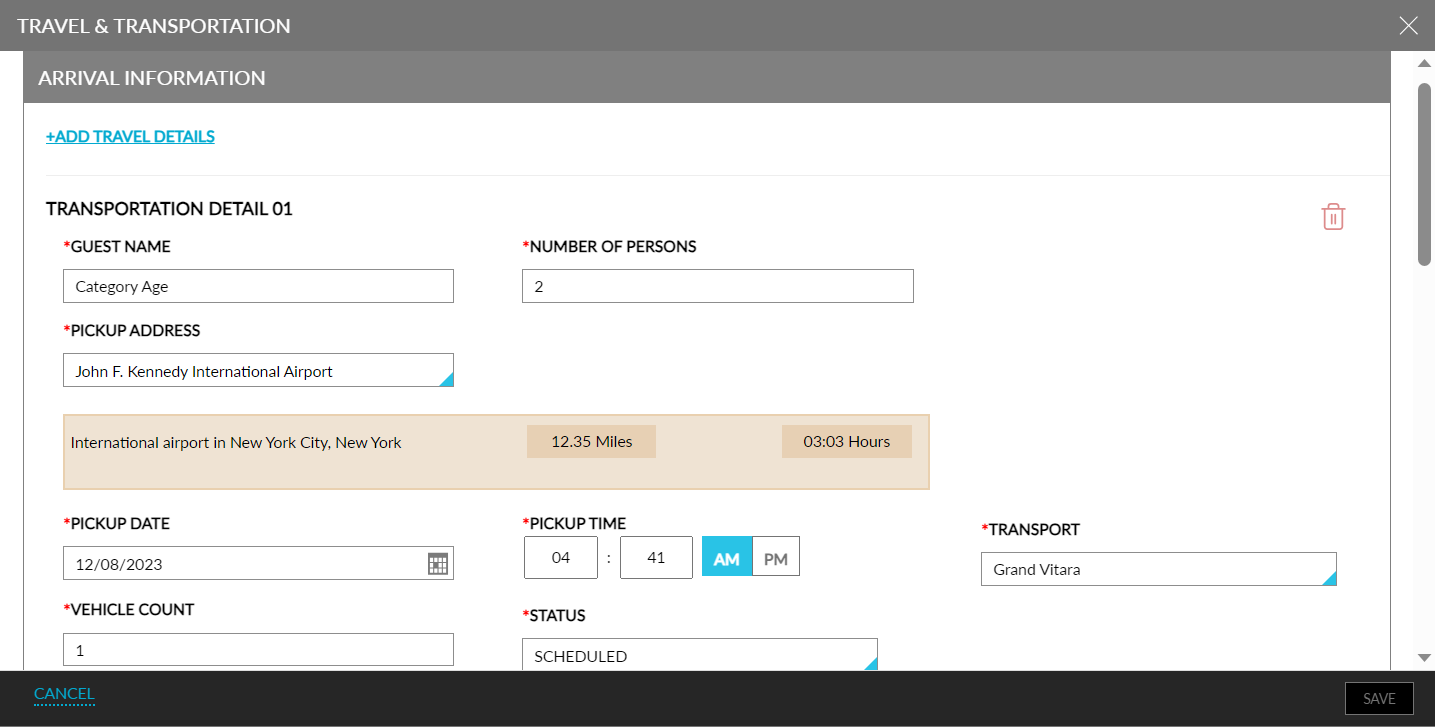
Once the reservation is checked out, the information displayed on the badge cannot be modified. When travel/transport requests were created but the reservation was cancelled or marked as No Show, the information displayed on the badge cannot be modified.
For existing transport requests, the Status field is displayed below each transport request in the Travel & Transportation screen on clicking the badge. This is a single select drop-down list with the following options:
-
Scheduled: Once a transportation request is created, the status of the request will be displayed as Scheduled.
-
In Progress: When the transportation request is being carried out, the user must change the status of the request to In-Progress.
-
Completed: When the transportation request is completed, the user must change the status to Completed.
If the property has configured a link for a location, then this link is displayed along with the location address, distance, and time. Clicking the link will redirect users to the respective page in a separate browser tab.
When users modify the arrival/departure date or the guest count of the reservation for which travel/transport requests have been created, the following message is displayed: Please review the travel and transportation information as the reservation dates/guest count have changed. Click here to update.
When users click the Click here to update hyperlink, the Travel & Transportation screen appears. The message is continued to be displayed until the user clicks the Click here to update hyperlink and the T&T badge is highlighted in red. The message is not displayed when users dismiss the message. Once the user clicks the hyperlink, the color of the T&T badge is changed to yellow.
When a transportation charge is added for an arrival/departure transport request and when the user overrides the charge, the reason and comments for the override is captured. When users update the vehicle count, transport request date, or delete the charge, the charge that is configured in the set-up is considered and not the overridden price. The override reason and comment are removed in such cases.
When users request for transport on the day of departure or any day after the departure, the transport charge is posted to the folio directly. Users cannot edit the charge amount, vehicle count, or the transport date once posted to the folio. Users can delete the transport request and the posted charges must be adjusted manually.
Travel and Transport Information in Home Screen
If there are any transport requests, they are displayed in the Results section of the home screen, below the reservation, in the following format.
-
Pickup: At By <Time>
-
Drop: At By <Time>
This information is displayed until the transport request is completed. If the transport request is for future dated reservation, when searching the reservation, the transport information is also be displayed.
All the scheduled transport requests for the day are displayed under the Scheduled header in the home screen. Only the first request based on the chronological order of time for the date is displayed and the number of requests are displayed in brackets +(x). When users hover over the number, the other scheduled requests are displayed. The request that has reached the threshold is displayed in red.
All the transport requests that are in progress are displayed under the In Progress header in the home screen. Only the first request based on the chronological order of time for the date is displayed and the number of requests are displayed in brackets +(x). When users hover over the number, the other requests that are in progress are displayed.
All the completed transport requests are displayed under the Completed header in the home screen. Only the first request based on the chronological order of time for the date is displayed and the number of requests are displayed in brackets +(x). When users hover over the number, the other completed requests are displayed.
Details added/updated in the travel/transportation Information section of a reservation is displayed with username, date, and time in the Reservation History section of the reservation.
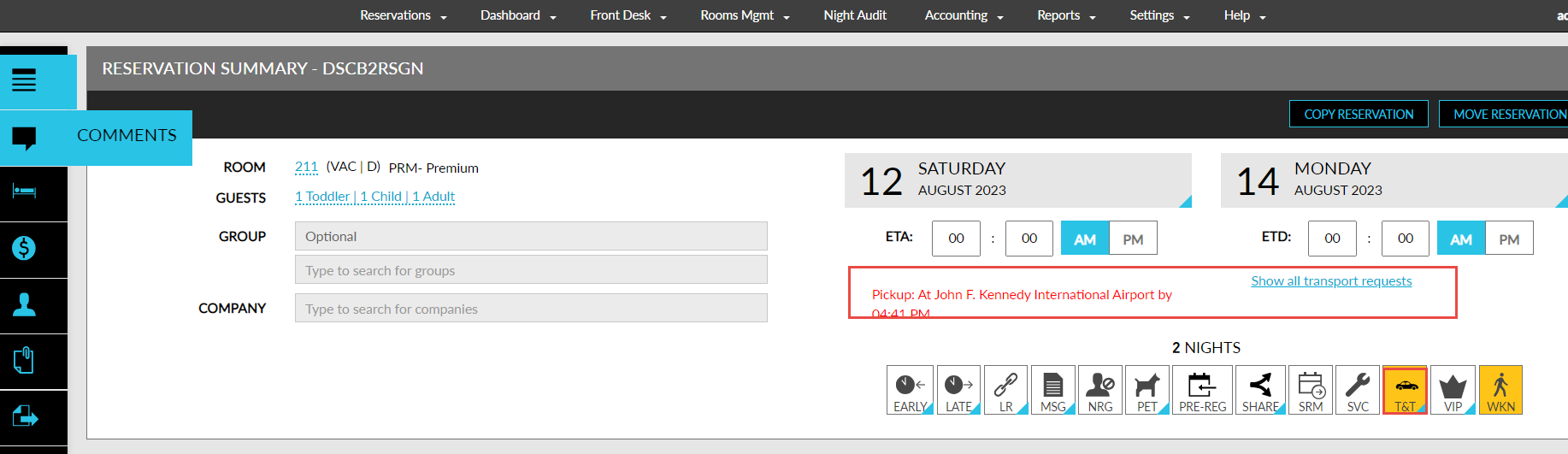
When there are more than 3 arrival and departure transport requests for the day, the first 3 requests are displayed based on the chronological order of time and the remaining requests can be viewed by clicking the Show all transport requests hyperlink. When clicked, the Transport Information screen appears that lists the arrival and departure transport requests in a day wise manner.
The requests are displayed in the following colour codes depending on the status of the transport request:
|
Status of the Request |
Colour Code |
|---|---|
|
Scheduled |
Purple |
|
In Progress |
Orange |
|
Completed |
Green |
Based on the date range selected in the Home screen, all the transport requests in Scheduled, In Progress, and Completed statuses are displayed for the reservations. Only the first scheduled request based on the chronological order of time for the date is displayed and the number of other requests are displayed as +(x). When users hover on the number, the other scheduled requests are displayed.
A new set of filters for transportation is displayed on the Home screen. The filters are displayed in a section called Transportation. The following filters are available:
-
Scheduled
-
In Progress
-
Completed
-
Alert
The travel and transport information is not copied when the reservation is moved to another property. If the Travel and Transport Information feature setting is enabled in the destination property and if either the Collect Guest Travel information flag is enabled in the Travel Information set up or the Provide Guest Transportation Service flag is enabled in the Transport Information set up, then the Travel and Transportation section is displayed in the Move Reservation screen after the Others section. Users can configure the travel and transport details for the reservation in the destination property.
If both the Provide Guest Transportation Service flag and the Collect Guest Travel information flag is disabled, the Travel and Transport Information section is not displayed in the Move Reservation screen. The status of the transport request remains enabled even if the reservation is checked out, as there could be an ongoing transport request for a departed reservation.
Alerts for Travel/Transportation Requests
Alerts for travel and transport requests are triggered based on the recommended and warning time configured in the settings.
-
Recommended time for arrivals is the time requested to be picked up by the transportation.
-
Recommended time for departures is the drop time.
-
Based on the alert time configured in the Settings section (Transportation Information ➜ General), an alert is displayed to users to indicate that there is a pick-up or drop at this time. For example, the alert time in the Settings section is defined as 30mins. If a pick-up is scheduled for 9AM, then the alert (Pick up: At <Location name> By 9 am) will be displayed from 8:30AM till the transport request is picked up in red for the reservation.
If transport was requested at 5PM and the time to reach the location is one hour, then the alert (Drop at <Location name>) is displayed in red from 4:30 PM till the transport request is picked up.
Travel Information and Transportation Information Setup
Once the feature setting is enabled, users can access the setup in the Settings sections (Settings ➜ All Settings ➜ Reservations).
-
Clicking the Travel Information hyperlink will allow users to configure the mode of travel, locations like airports or train stations, and basic information like the distance from the property and the estimated travel time.
-
Clicking the Transport Information hyperlink will allow users to configure the types of transportation the property offers, number of seats a transport can accommodate, charges applicable and so on. Properties can also set up a threshold alert timer when transportation is arranged for reservations.
-
The Audit Logs section is enhanced to include travel and transportation information. Details added/updated in the Travel Information or Transportation Information set up are captured with username, date, and time.
Setting Up Travel Information
This setup has the following three tabs:
-
General
-
Travel Type
-
Locations
Configuring General Settings
This section allows users to configure general settings that enable the travel information setup.
Refer to the following table to configure general settings:
|
Field |
Description |
|---|---|
|
Collect Guest Travel information |
When enabled the flag allows users to collect arrival and departure travel information from guests during reservation creation or for a reservation that is already created. |
|
Display Distance In |
Select the measure by which distance must be measured:
|
Click Save.
Configuring Travel Type
This section allows users to define the modes of travel.
Click Add.
Refer to the following table to configure travel type settings:
|
Field |
Description |
|---|---|
|
Active |
When enabled, the mode of travel gets activated. |
|
Name |
The name for the mode of travel. For example: Airways, Railways. |
|
Code |
A unique code to identify the mode of travel. |
Click Save.
To modify a travel type record, click the name of the travel type that is hyperlinked.
To view inactive travel type records, select the Show Inactive checkbox. Inactive records can also be modified.
To search for a travel type record, enter the name or code of the travel type in the search box.
Configuring Locations
This section allows users to define the locations where each mode of travel operates.
Click Add.
Refer to the following table to configure locations:
|
Field |
Description |
|---|---|
|
Name |
The name for the location. For example: Dallas International Airport. |
|
Code |
A unique code to identify the location. |
|
Travel Type |
Select the relevant mode of travel associated to this location. |
|
Address |
The address of the location. |
|
Enter Distance |
The distance between the location and the property. |
|
Estimated Travel Time |
The estimated travel time between the location and the property in the HH:MM format. |
|
Directions |
The directions to navigate to the location. |
|
Link |
A URL relevant to the location. For example, the webpage of the airport, or a map link to view real time directions/traffic and so on. |
Click Save.
To modify a location, click the name of the location that is hyperlinked.
To search for a location, enter the name or code of the location in the search box.
To filter locations, use the filter options: Location, Travel Type.
Setting Up Transportation Information
This setup has the following two tabs:
-
General
-
Transport
Configuring General Settings
This section allows users to configure general settings that enable the transportation information setup.
Refer to the following table to configure general settings:
|
Field |
Description |
|---|---|
|
Provide Guest Transportation Service |
When enabled, the flag allows users to collect arrival and departure transport requests from guests during reservation creation or for a reservation that is already created. |
|
Post Charge As |
Select the transaction item to post transportation charges from this drop-down list. Charges will be posted during date roll on the day the transportation is used. If the date of transportation is the departure date, the charges will be posted during the date roll of the previous day. |
|
Alert Before |
The time before which users must be alerted in the HH:MM format. Once the set time is reached, an alert is displayed in a red colour on the reservation and search screens to let users know of the scheduled transportation requirement of the guest. |
Click Save.
Configuring Transport Settings
This section allows users to configure the types of transportation the property offers, number of seats a transport can accommodate, and charges for each transport type. Properties can also set up the threshold before which users must be alerted for reservations that need transportation arrangements to be made.
Click Add.
Refer to the following table to configure transport settings:
|
Field |
Description |
|---|---|
|
Active |
When enabled, the transport type becomes active. |
|
Transport Type |
The name of the transport type. For example, Limousine. This field is mandatory. Transport types can be sorted in the Transport Information screen. |
|
Code |
A unique code to identify the transport type. This field is mandatory. Transport type codes can be sorted in the Transport Information screen. |
|
Capacity |
The number of people the transport type can accommodate. This field is mandatory. Transport type codes can be sorted in the Transport Information screen. |
|
Base Price |
The base price to be charged for utilizing the transport type. |
|
Price Override |
Select an option to override the price:
|
Click Save.
To modify a transport type record, click the name of the transport type that is hyperlinked.
To view inactive transport type records, select the Show Inactive checkbox. Inactive records can also be modified.
To search for a transport type record, enter the name or code of the travel type in the search box.
Records can be filtered by transport type and by price override types.
The transport requests created for arrival are picked up a day prior to the arrival date of the reservation. The transport requests can be deleted based on the following conditions:
-
If the request is not picked up or completed
-
If the transportation fee is not posted to the folio
Users cannot delete the transportation fee from the Estimated Charges section of the reservation. The travel and transport requests cannot be copied when users copy reservations.
Updates to Reservations Report for Travel and Transportation Information
The Reservations report (Dynamic) is enhanced for the following changes:
-
The existing columns in the report are grouped under a section Reservation Details.
-
When the feature setting for travel and transport information is turned on, a new checkbox Include Travel Information is displayed in the reporting parameters. By default, the checkbox remains unchecked. When the user selects the checkbox and generates the report, the following new sections are displayed that capture travel information for arrival and departures of reservations.
-
Travel Details
-
Date
-
Guest
-
Type
-
Travel Type
-
Location
-
Time
-
Carrier
-
Booking Number
-
-
-
The following columns can be sorted:
-
Travel Type
-
Type
-
Location
-
Time
-
Carrier
-
Booking Number
-
-
All the new columns are displayed in the print format.
-
All the new columns can be saved.
-
All the new columns can be exported.
-
The following columns are not displayed by default under the Travel Details section and must be selected in the Column Setting screens when the feature setting is enabled:
-
Date
-
Type
-
Travel Type
-
Location
-
Time
-
Carrier
-
Booking Number
-
-
Users can filter records using the Type column. All the columns except Date can be sorted. All the new columns can be saved, printed, and exported in CSV and PDF formats.
The Reservations report (Legacy) is enhanced for the following changes:
When the feature setting for travel and transport information is turned on, a new checkbox Include Travel Information is displayed in the reporting parameters. By default, the checkbox remains unchecked. When the user selects the checkbox and generates the report, a new section, Travel Information, is displayed. Arrival and/or departure is displayed for each record. If there are multiple arrival/departure requests, records are displayed based on the chronological order of date. The following new columns are displayed in the report:
-
Travel Information
-
Date
-
Guest
-
Type
-
Location
-
Time
-
Carrier
-
Booking Number