Comp Routing Rule Enhancements
Stay is enhanced to allow users to select and configure multiple departments when creating a comp routing rule template (All Settings ➜ Templates ➜ Routing Rule Templates ➜ Add). Users can now assign multiple departments (for example, F&B, Spa, Housekeeping) within a single comp routing rule template. Each selected department within the rule can have its own authorizer and code.
Contact Agilysys to enable this feature for a property.
Previously, users could select only one department for a comp routing rule along with its associated authorizer.
Select Multiple Departments
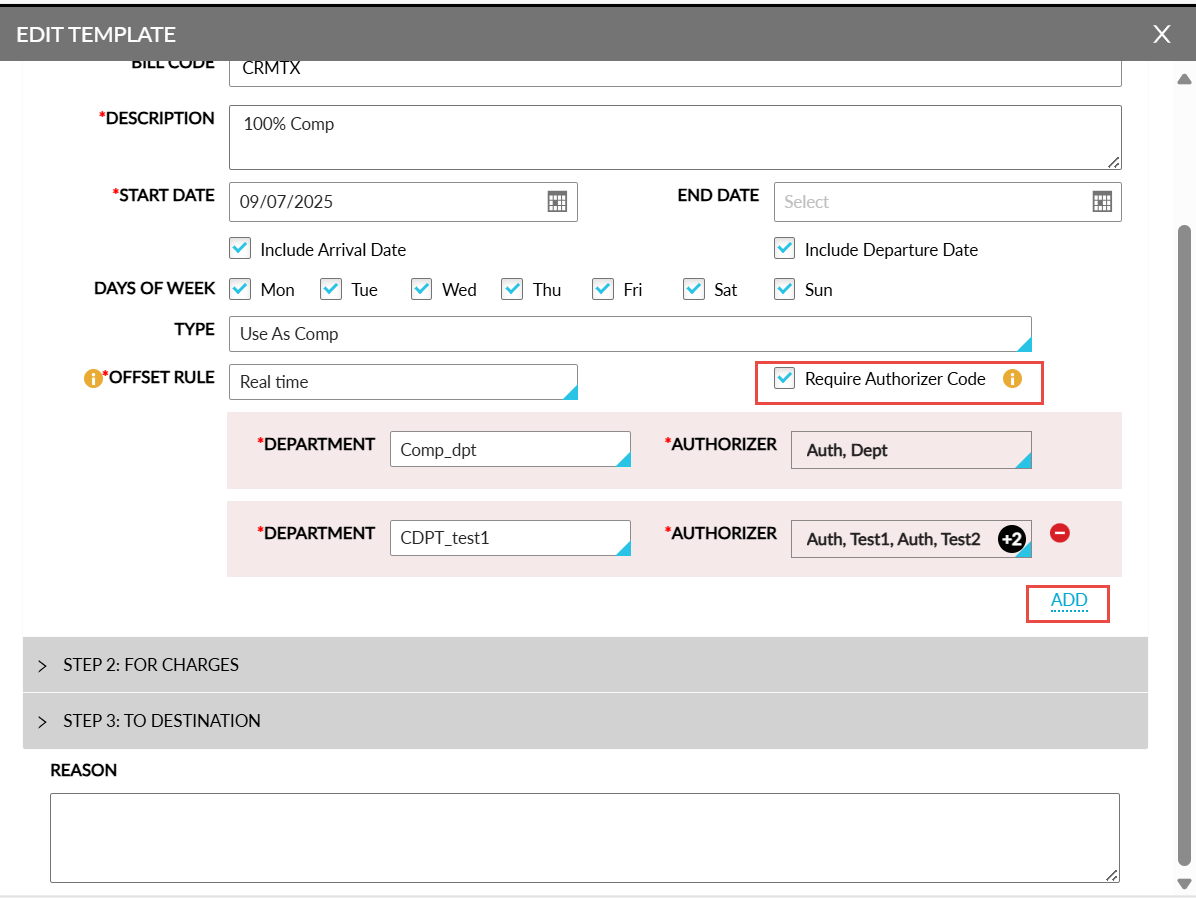
Users can select multiple departments and associate it with an authorizer when creating a comp routing rule. To support this enhancement, a new hyperlink, Add, has been added to the Add New Template pop-up screen (All Settings ➜ Templates ➜ Routing Rule Templates ➜ Add). When clicked, additional Department and Authorizer fields are displayed in a new row.
The departments previously selected are excluded and the remaining options are displayed in the Department drop-down list. Based on the department selected, the associated authorizers are displayed in the Authorizer drop-down list. The Add option will be displayed for selection until all departments available at the property are selected. The option will not be displayed once all available departments are selected.
Users can delete the departments and authorizers added to a routing rule by clicking on the delete icon (-). The modifications made to a routing rule are applied to the future reservations to which the rule is added.
Once the routing rule is saved, the list of departments associated with the rule are displayed in the Department column in the Routing Rule Templates screen. The name of the first department selected is displayed followed by (+X), where X denotes the count of additional departments. When users hover over the count (+X), the names of the additional departments are displayed.
Configure Entry of Authorizer Code as Mandatory/Optional
Users can configure whether the entry of an authorizer code is mandatory or optional when adding a comp routing rule to a reservation (Reservation ➜ Folios section ➜ Summary tab ➜ + Add account routing rule).
To support this enhancement, the Authorizer Code checkbox in the Add New Template pop-up screen (All Settings ➜ Templates ➜ Routing Rule Templates ➜ Add) has been renamed as Require Authorizer Code. An information icon added next to this checkbox displays the following message when hovered upon: When enabled the system mandates the entry of an authorizer code in the reservation’s routing rule.
-
When the Require Authorizer Code checkbox is selected for a comp routing rule template and when the rule is added to a reservation, users will be prompted to enter the authorizer code mandatorily in the Add Routing Rule pop-up screen. Once users enter the authorizer code in the Authorizer Code field and click Go, the entered code is validated, and the associated departments and authorizers are displayed in the Department and Authorizer fields.
-
When the Require Authorizer Code checkbox is not selected, the Authorizer Code field will not be displayed in the Add Routing Rule pop-up screen. All active departments and authorizers are displayed in the Department and Authorizer fields.