Configure Dynamic Parking Charges for Vehicles
Stay is enhanced to allow users to configure the parking charges for vehicles at a property dynamically based on the selected dates/days of the week. Previously, users could configure only fixed parking charges for each vehicle type for all dates.
When users configure parking charges for a vehicle type in the Post Charge pop-up screen (All Settings ➜ Reservations ➜ Vehicles Setup ➜ Select a vehicle type ➜ Post Charge), a new section, Pricing, will be displayed once users click the Next button after selecting a frequency for posting the charge. This section allows users to configure dynamic parking charges to be applied based on dates and days of the week. A hyperlink, Add, is displayed in this section.
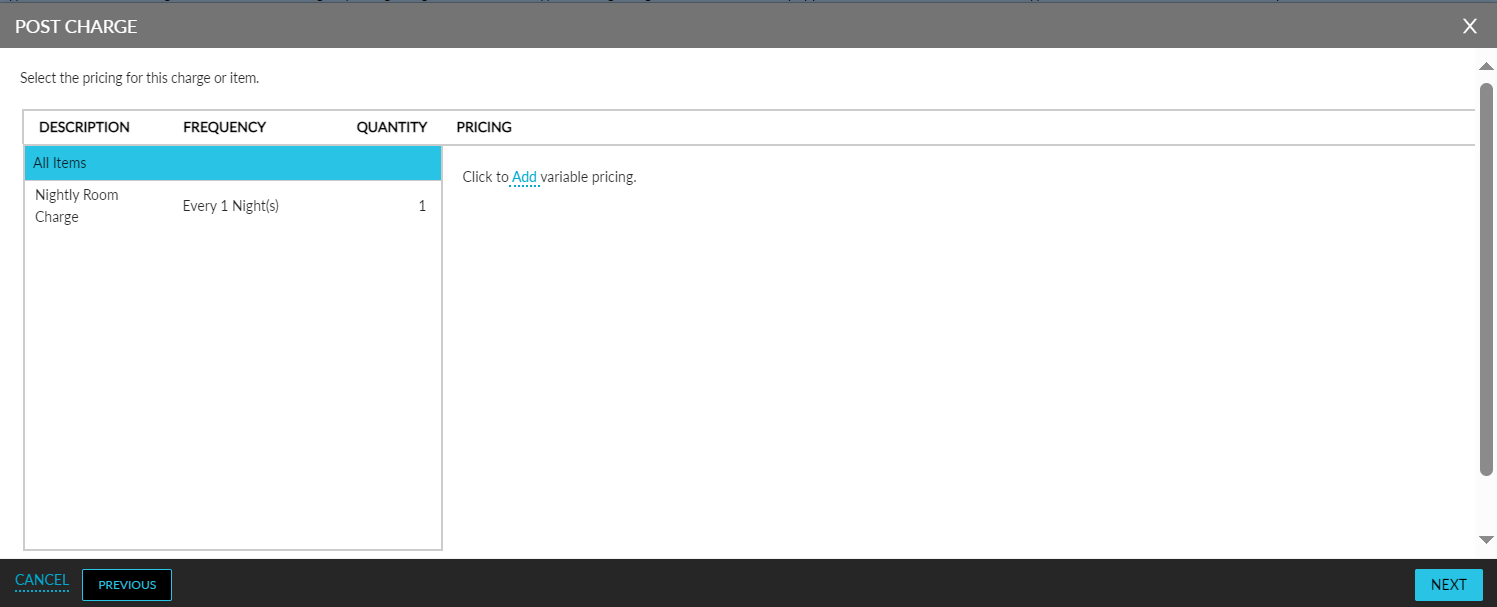
When selected, the following fields are displayed:
|
Field |
Description |
|---|---|
|
Start Date |
This is a mandatory field that allows users to select the start date from which the charge must be applied. By default, the current property date is displayed. Past dates cannot be selected. |
|
End Date |
This is a mandatory field that allows users to select the end date up for the configured charge. By default, the current property date is displayed. Past dates cannot be selected. |
|
By Days of Week |
This is a mandatory multi-select drop-down list that displays the days of the week applicable for the selected date range. |
|
Amount |
This is a mandatory field that allows users to configure the amount to be charged as a parking fee for the selected dates. |
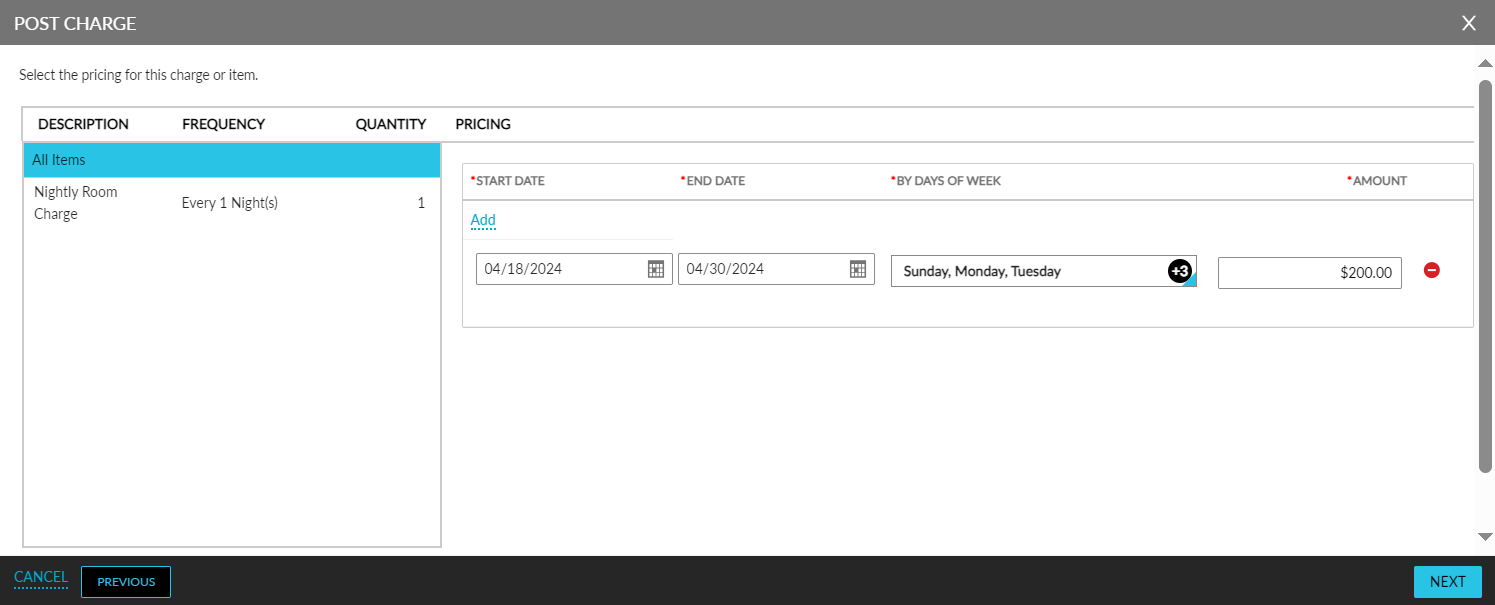
Users can configure additional rates by clicking on the Add hyperlink.
Users can delete a configured rate using the delete icon (-).
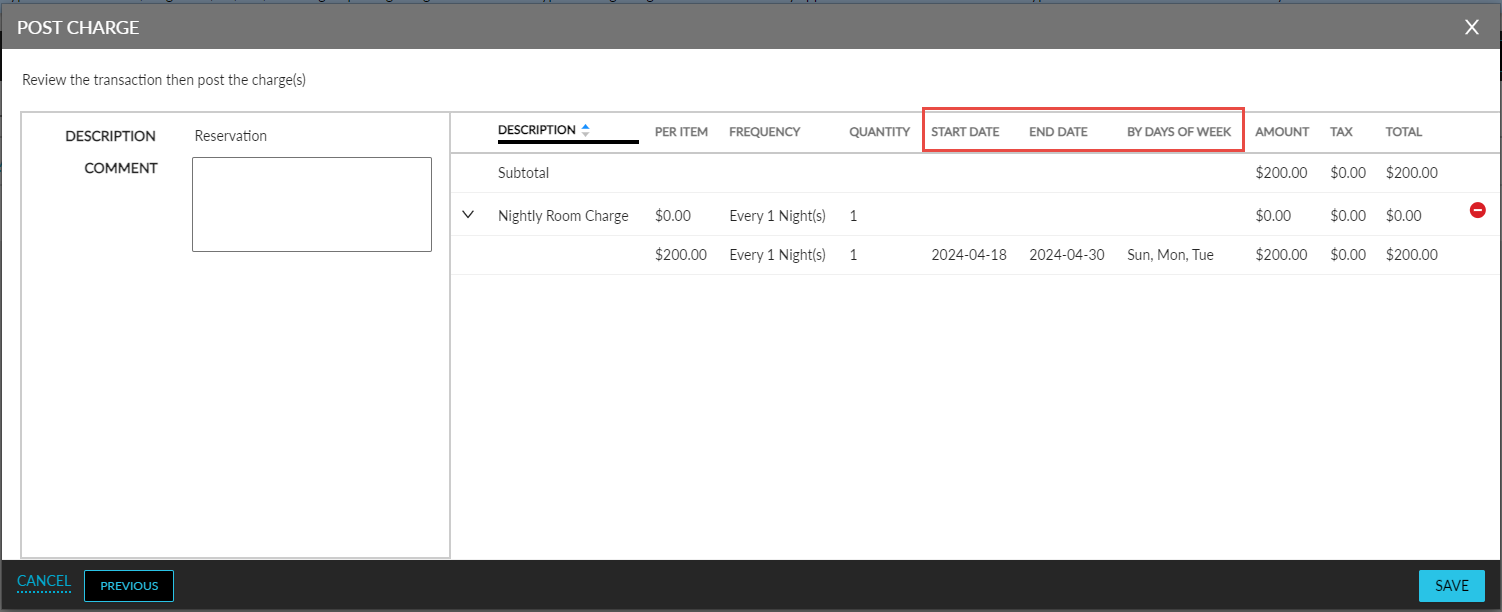
The Next button will be enabled for selection only when values are configured for the mandatory fields. When clicked, the following new columns added to the Summary section display the dynamic prices configured:
-
Start Date
-
End Date
-
By Days of Week
When users add a parking fee to a reservation, the amount in the Vehicle Details pop-up screen will be displayed based on the stay dates of the reservation. A new column, Date, added to this screen displays the amount for each stay date.