Configure End Time for On-Hold Inventory Blocks
Stay is enhanced to allow users to configure an end time when creating on-hold inventory blocks for rooms using the Tape Chart screen, Inventory Blocks section of the Housekeeping screen, and Service Request creation screen.
The On-Hold rooms will be automatically released at the configured end time on the selected end date. When no end time is selected, the On-Hold inventory blocks for the rooms will be released during the date roll of the end date.
Earlier, users could not assign an On-Hold room to a reservation. Now, these rooms can be assigned to a reservation during both manual and auto assignment of rooms when the following condition is met:
-
On-Hold room is scheduled to be released on the guest's date of arrival, that is. On hold room’s end date/time = guest’s arrival date.
When an on-hold room is manually assigned to a reservation, first, the on hold release time is compared with the reservation’s ETA. If the ETA is not specified, the on-hold release time is compared with the property’s check in time and the following messages are displayed based on the scenario:
-
If no end time is configured for On-Hold rooms, the following message: The room is currently on hold is displayed.
-
If end time is configured for On-Hold rooms and ETA is specified for the reservation:
-
If ETA is greater than or equal to the on-hold release time (for example, ETA is 4 PM and on hold release time is 2 PM), no message is displayed.
-
If ETA is less than the on-hold release time (for example, ETA is 4 PM and on hold release time is 5 PM), the message is displayed in the following format: The room is currently on hold and will be released at <on hold release time>. The reservation’s ETA is <ETA>.
-
-
If ETA is not specified for the reservation, the property’s check in time is compared with the on hold release time:
-
If property check in time is greater than or equal to the on-hold release time (for example, property check in time is 4 PM and on hold release time is 2 PM), no message is displayed.
-
If property check in time is less than on hold release time (for example, property check in time is 4 PM and on hold release time is 5 PM), the message is displayed in the following format: The room is currently on hold and will be released at <on hold release time>. The Property’s Check-in time is <Property Check-in time>.
-
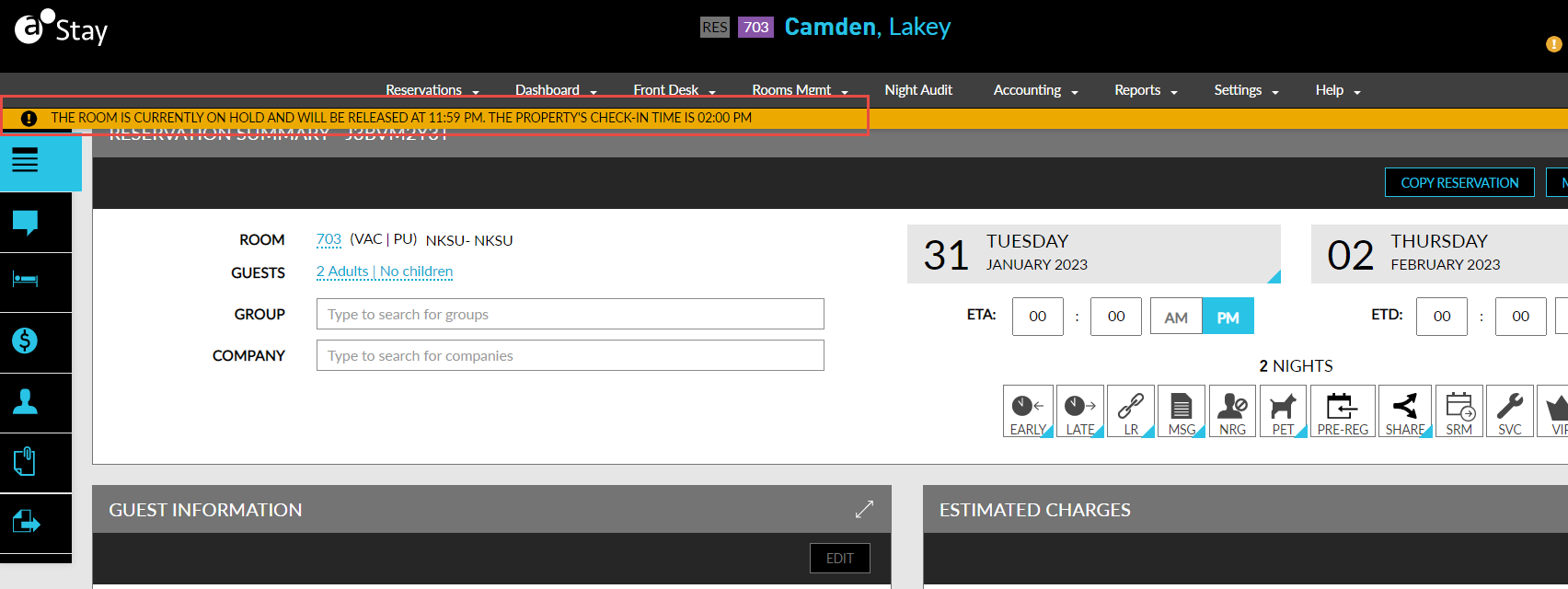
These messages are displayed when a user tries to change the reservation’s ETA or tries to assign on hold rooms from the following screens:
-
Book Reservation screen ➜ Room Assignment tab
-
Change Room pop-up screen in the reservation.
-
Other Matching Rooms section in the reservation.
-
Modify Stay screen in the reservation.
These messages are not displayed during auto assignment of rooms (Batch Operations ➜ Check In ➜ Auto Assign).
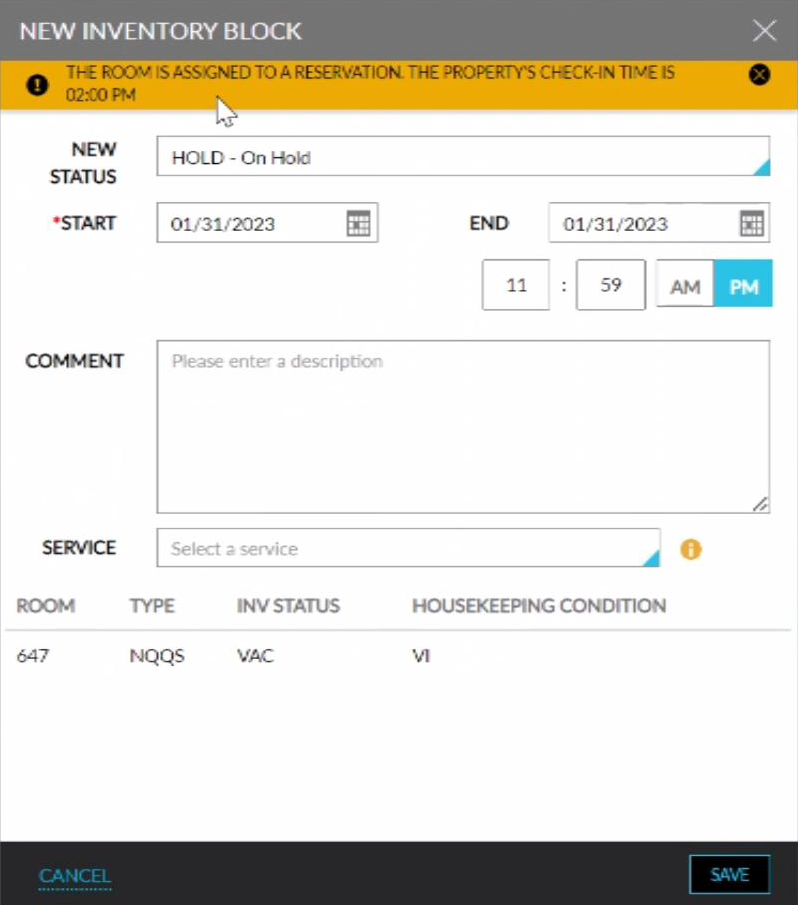
The following messages are displayed when user tries to create an inventory block or tries to modify the existing inventory block for a room that is already assigned to a reservation:
-
If no end time is configured for On-Hold rooms, the following message: The room is currently on hold is displayed.
-
If end time is configured for On-Hold rooms and ETA is specified for the reservation:
-
If ETA is greater than or equal to the on hold release time (for example, ETA is 4 PM and on hold release time is 2 PM), no message is displayed.
-
If ETA is less than the on-hold release time (for example, ETA is 4 PM and on hold release time is 5 PM), the message is displayed in the following format: The room is assigned to a reservation. The Property’s Check-in time is <Property Check-in time>.
-

-
If ETA is not specified for the reservation, the property’s check in time is compared with the on-hold release time:
-
If property check in time is greater than or equal to the on-hold release time (for example, property check in time is 4 PM and on hold release time is 2 PM), no message is displayed.
-
If property check in time is less than on hold release time (for example, property check in time is 4 PM and on hold release time is 5 PM), the message is displayed in the following format: The room is assigned to a reservation. The Property’s Check-in time is <Property Check-in time>.
-
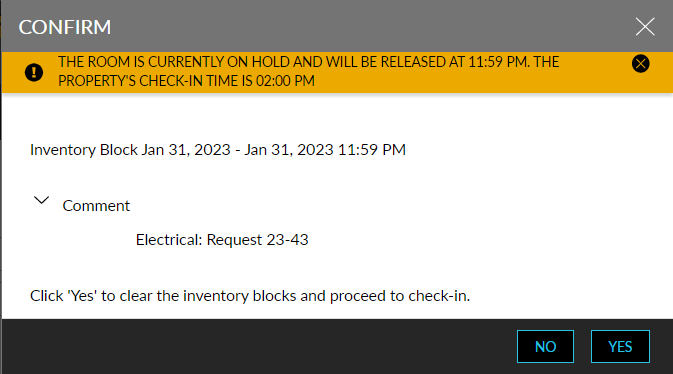
When users try to check in reservations to rooms that are on hold via the Reservation screen, the Confirm pop-up screen is displayed. Users can choose to clear the inventory blocks and check in or close the pop-up screen without checking in the reservation.
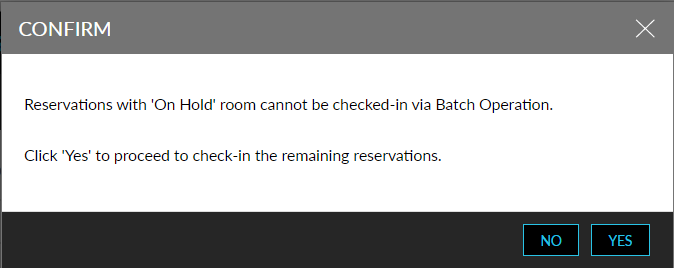
When users try to check in reservations to rooms that are on hold via the Batch Operations screen, the Confirm pop-up screen is displayed. Users can choose to check in remaining reservations and ignore reservations with On-Hold rooms assigned or close the pop-up screen without checking in the reservations.
Users can continue to check in via Agilysys Express as they are web check in/soft check in and not physical check in. Users cannot check in reservations with On-Hold rooms via Stay Self Service. The following message is displayed we are sorry. We were unable to process your request. Please get in touch with our front desk team for assistance. Users can choose to clear the inventory blocks and check in the reservation, in which case, the settling must be handled manually by the property.
During the auto date roll process, the inventory blocks are cleared and reservations are checked in. The Out of Order Rooms Report (Dynamic) is enhanced to display the start date and end date details for the on-hold inventory blocks.
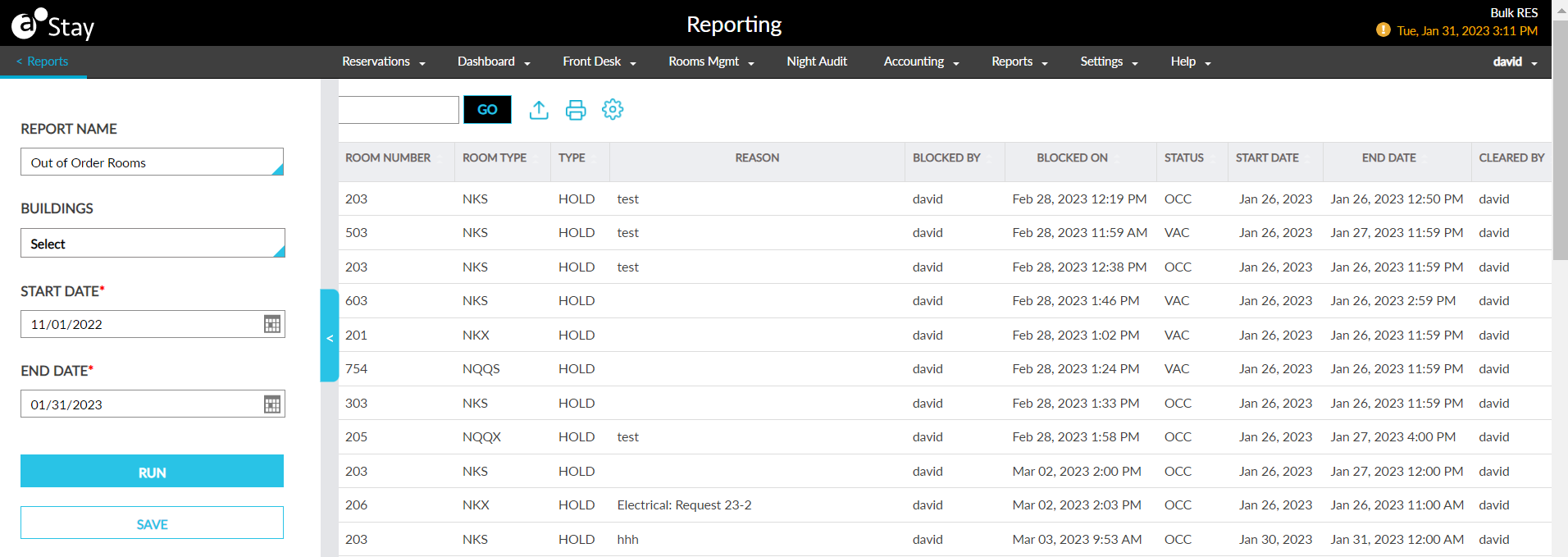
To support this feature, the following changes have been made:
-
A new section, Inventory Blocks, is added to the Housekeeping Setup screen.
-
Two new checkboxes, Assign on hold rooms for reservations, and Require end time for on hold status are added to the Inventory Blocks section.
-
Assign on hold rooms for reservations: When enabled, allows rooms on hold to be manually or auto assigned to reservations on the on-hold release date.
-
Require end time for on hold status: this flag can be enabled only when the Assign on hold rooms for reservations flag is enabled. When enabled, users can configure an end time for the on-hold inventory blocks.
-
Users with access to the housekeeping setup screen can enable or disable these flags.
-