Configure Fields/Sections of Guest Profiles to be Viewed by the Users
Stay is enhanced to allow properties to configure the preferred fields and sections of a guest profile to be displayed to all users in the property. The details of these fields and sections of a guest profile are hidden, and only users with the appropriate permission can unhide and view the details.
The selected fields and sections are hidden only in the guest profiles. The details of the hidden fields will continue to be displayed for the guest profile, or the reservations associated with the guest profile, in all the Reports, in the following screens, and in all the other areas in Stay where the information is to be displayed:
-
Search (Reservations ➜ Search)
-
Batch Operations (Front Desk ➜ Batch Operations)
-
Tape Chart (dashboard ➜ Tape Chart)
-
Book a Reservation (Reservations ➜ Book a Reservation)
Permission
The following new permission is introduced to allow users to view the hidden fields and sections in a guest profile.
-
Stay_ViewHiddenGuestProfileFields
This permission is added to the following system-defined roles by default:
-
System Administrator
-
Stay Hotel Manager
-
Department Manager
-
Stay Hotel Supervisor
-
GSA Supervisor
-
Accounts Receivable Manager
This permission should be manually added to the users with custom roles.
To support this enhancement, the following changes have been made:
-
The following fields and sections are available for selection in the Profile Settings screen (Settings ➜ All Settings ➜ General ➜ Profile Settings ➜ Guest Profiles):
-
Personal Details
-
Alias
-
Pronounced
-
Gender
-
Date of Birth
-
Anniversary
-
Company Name
-
Company Title
-
Legacy Profile ID
-
-
Guest Stay History
-
Groups
-
Profile History
-
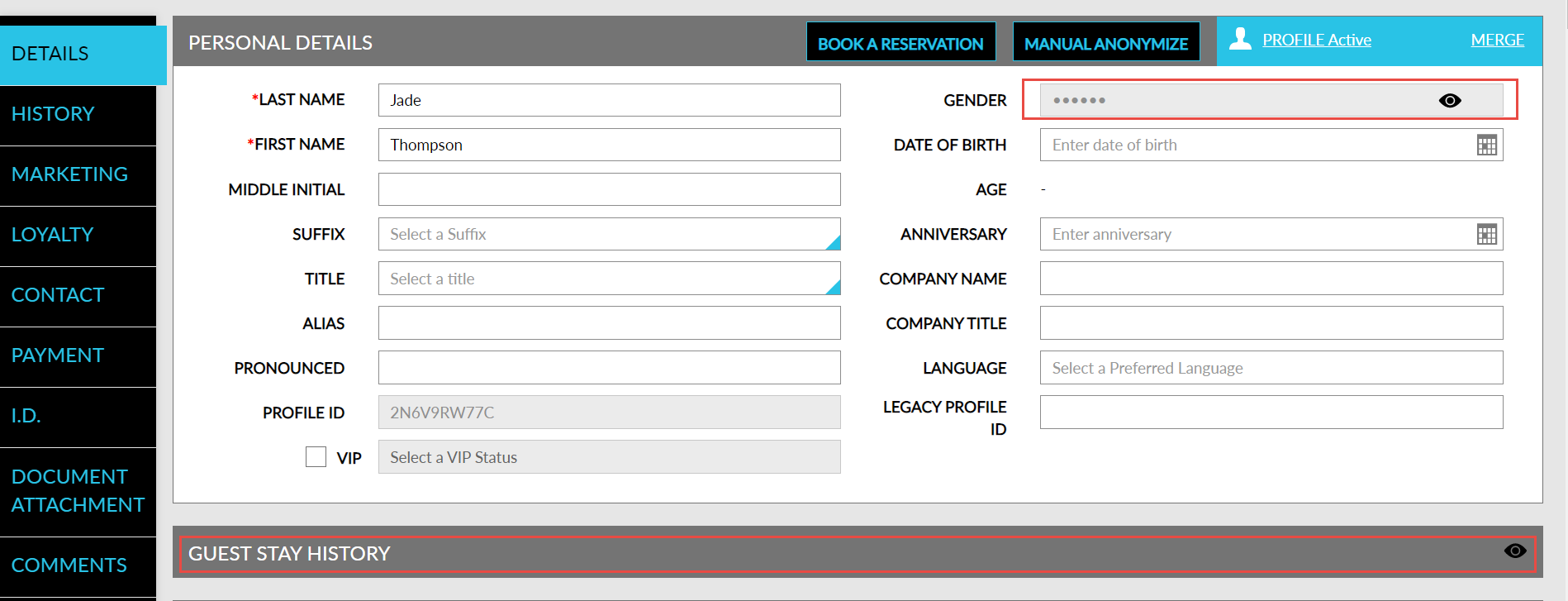
An eye icon is placed alongside the fields chosen to be hidden. The icon will be disabled to users without the new permission.
Users with the new permission can click the eye icon to unhide and view the details of the fields and modify them. Clicking the eye icon again will hide the details of the fields. The eye icon is displayed only when the selected fields contain values. When users refresh the screen, the fields are hidden again from the user’s view.
The sections chosen to be hidden are collapsed by default. When users with the new permission click the eye icon at the right corner of the section, the hidden sections are expanded and displayed.