Configure Restrictions for Offers
Stay is enhanced to allow users to configure various restrictions when creating offers for a property. Users can also configure comments for offers to be added to all reservations to which the offer is applied.
Configure Restrictions
To support this enhancement, a new section, Restrictions, has been added to the Add pop-up screen (All Settings ➜ Comp Accounting Configuration ➜ Offers Setup ➜ Offer Management ➜ Offers ➜ Add). The existing Maximum Nights Allowed field has been moved to this section.
The following additional fields are displayed:
|
Field |
Description |
|---|---|
|
Advance Purchase |
This is an optional numeric input field that allows users to define the minimum and maximum number of days in advance a reservation must be booked by a guest to be eligible for the offer. Users can configure the values for the following fields:
Users cannot enter 0 or any negative values in these fields. |
|
Excluded Days |
This is an optional multi-select drop-down list that allows users to select the days of the week when the offer will not be available for redemption. The offer will be displayed as N/A for the selected days in the Book a Reservation and Modify Stay screens. |
|
Excluded Dates |
This is an optional field that allows users to define the date range for which the offer will not be available for redemption. Users can define multiple date ranges by clicking on the Add hyperlink. Users can define the date range in the following fields that appear when the Add hyperlink is clicked:
|
|
Booking Allowed |
This is an optional field that allows users to select the start and end dates during which an offer can be redeemed. Users can select the dates in the date pickers displayed. |
|
Latest Arrival Date |
This is an optional field that allows users to select the last date on which a reservation must arrive to redeem the offer. The arrival date of a reservation must be on or before the selected date to redeem the offer. |
|
Length of Stay |
This is an optional field that allows users to define the minimum and maximum length of a reservation to be eligible to redeem the offer. Users cannot enter 0 or any negative values in these fields. |
|
Arrival Days |
This is an optional multi-select drop-down list that allows users to select the days of the week on which the arrival day of a reservation must match to be eligible to redeem the offer. When the arrival day does not match, the offer will not be displayed in the Book a Reservation screen. |
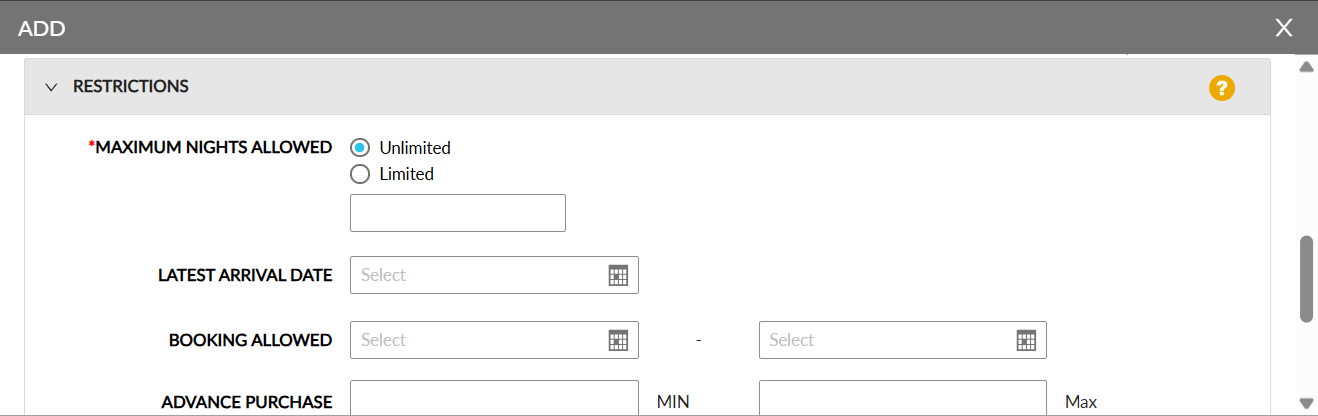
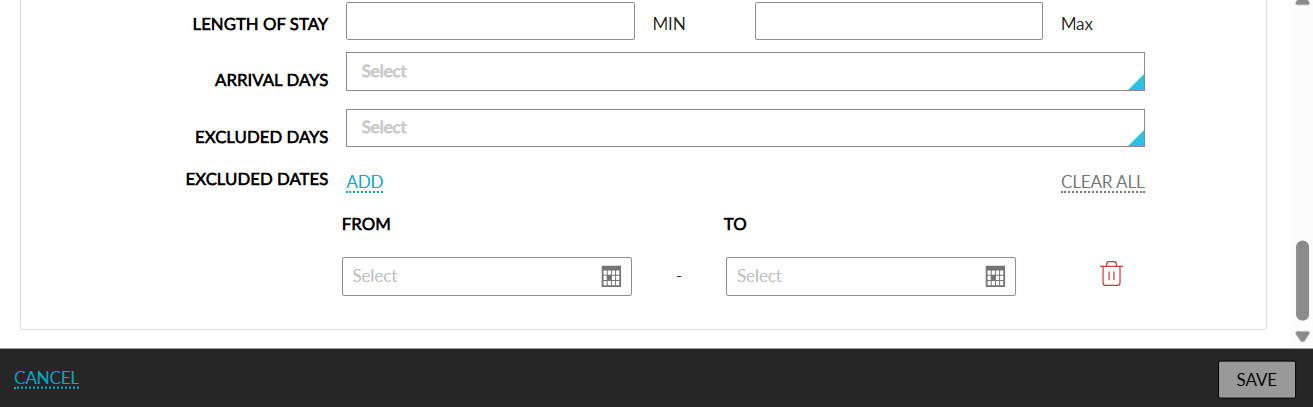
A legend has been added to the Restrictions section that displays the following details when clicked:
NOTE
-
Maximum Nights Allowed - Define the maximum number of complimentary (comped) nights included with this offer.
-
Latest Arrival Date - Define the last date on which the arrival is allowed.
-
Booking Allowed - Define the start date and end date from which the offer can be sold.
-
Advance Purchase - Define the minimum and maximum number of days in advance a guest must book to be eligible for this offer.
-
Length of Stay - Define the minimum and maximum stay nights allowed.
-
Arrival Days - Define the arrival days of the week that the offer is valid.
-
Excluded Days - Define the days of the week on which the offer is not available.
-
Excluded Dates - Define specific dates and/or date ranges on which the offer is not available.
When users modify the reservations with an offer applied and when the modified dates do not match the original booked dates, the offer applied for the original booked dates will be removed. Revalidation will be performed for the modified dates based on the restrictions configured for the offer. Once the revalidation is successful, the offer will be displayed for the modified dates in the Modify Stay screen. All offers which comply with user-modified dates and the restrictions configured in the offer set-up will be listed.
Users must manually select and apply the offer for the modified dates. When the revalidation is not successful, the offer will be displayed as N/A for the modified dates in the Modify Stay screen.
Sample Scenario 1
Consider the following reservation with an offer applied.
|
Arrival |
Departure |
||||
|---|---|---|---|---|---|
|
Date |
Jan 06, 2025 |
Jan 07, 2025 |
Jan 08, 2025 |
Jan 09, 2025 |
Jan 10, 2025 |
|
Day |
Monday |
Tuesday |
Wednesday |
Thursday |
Friday |
|
Offer 1 |
$50 |
$50 |
$50 |
$50 |
When the duration of the reservation is modified from 8th Jan to 12th Jan, in this case, 8th and 9th Jan match with the original booked dates. Hence revalidation is performed between the modified dates (8th Jan to 12th Jan) and the following restrictions are configured for the applied offer:
-
Length of Stay Min
-
Length of Stay Max
-
Arrival Days
-
Latest Arrival Date
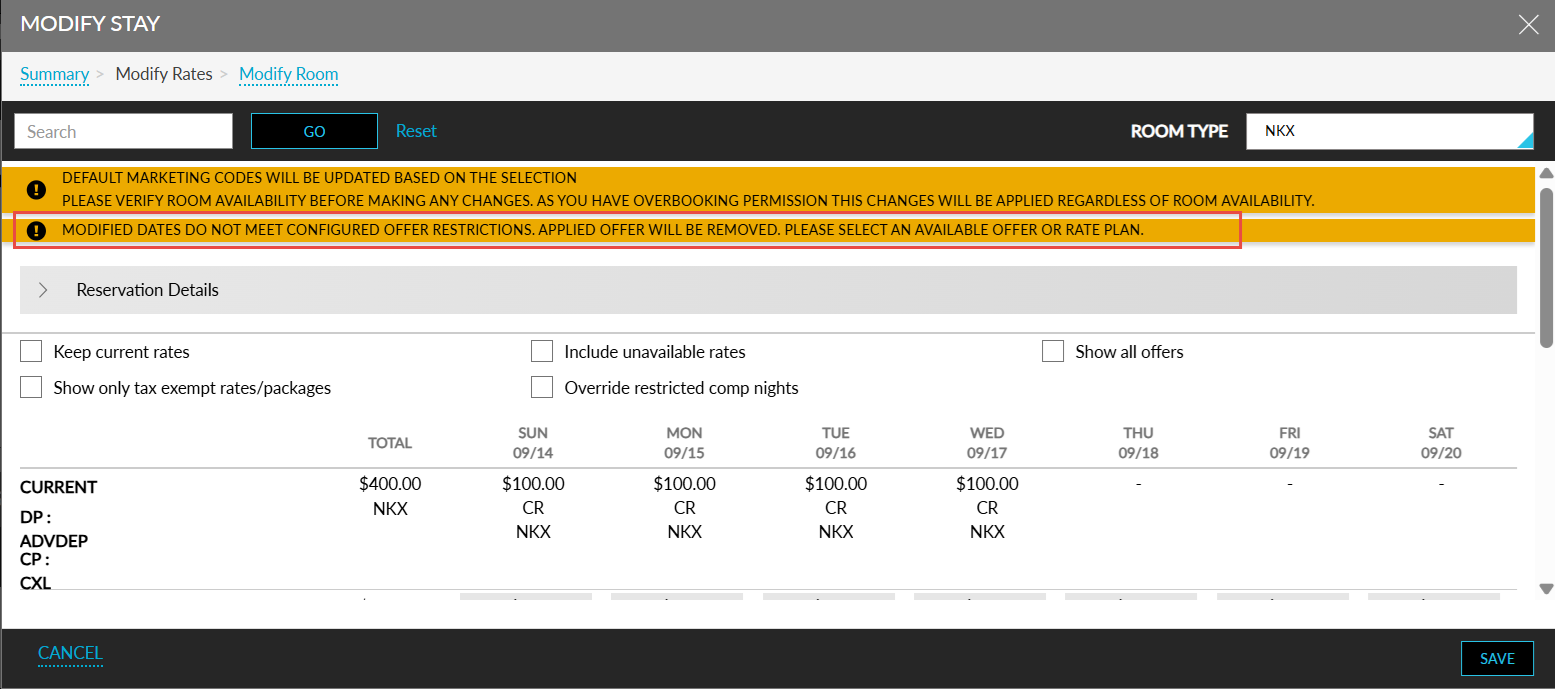
When the value for Arrival Days is selected as Monday for the offer, this criterion is not satisfied with the modified dates and hence the offer will not be displayed in the Modify Stay screen. The applied offer will be removed for the original booked dates (6th Jan, 7th Jan, 8th Jan, and 9th Jan) and the following message is displayed in the Modify Stay screen: Modified dates do not meet configured offer restrictions. Applied offer will be removed. Please select an available offer or rate plan.
Once the date roll is completed, the applied offer cannot be removed or modified.
-
When the modified dates of a reservation match the original booked dates, revalidation is performed for the modified dates and the restrictions configured for the offer.
-
When the modified dates do not comply with the start and end dates of the routing rule, the offer will be displayed as N/A in the Modify Stay screen.
A record is created in the Reservation History section and the Audit Log screen (Reports ➜ Audit Log) when reservations with an offer applied are modified.
Configure Comments
Users can configure comments when creating offers. The configured comment is added to all reservations to which the offer is applied. To support this enhancement, a new field, Comments, has been added to the Add pop-up screen (All Settings ➜ Comp Accounting Configuration ➜ Offers Setup ➜ Offer Management ➜ Offers ➜ Add). Users can add comments with a maximum length of 1200 characters. This field also accepts alphanumeric and special characters.
When a comment previously configured for an offer is modified or deleted, the updated comments will be applied only to future reservations to which the offer is applied.
When an offer configured with a comment is added to a reservation, the comment is added to the reservation and displayed in the Comments section (Reservation ➜ Comments). Users cannot modify or delete the comments added as part of the offer. The following hardcoded values are displayed for the offer:
-
Type - Offer
-
Severity - Medium
-
Comments - The text entered in the COMMENT field is displayed in the offer setup.
-
Created - The username of the user who added the comment and date and time is displayed.
-
Display Alert - OFF
When more than one offer is applied to a reservation, the comment will be added and displayed individually in the Comments section. When an offer is removed from the reservation, the associated comment will also be removed. A record is also created in the Comments History section when a comment is added or removed.