Configure Validity Period for Allowance Components Added to Packages
Stay is enhanced to allow users to configure the validity period for the allowance components added to a package. Users can configure the start date, end date, and the days when the allowance components should be available for the package. For example, users can choose to allow the allowance component, Breakfast, on weekdays and not on weekends as part of the package, Holiday.
This feature is not applicable to the add-ons configured at the property.
Feature Setting
The following new feature setting has been added to enable users to configure validity periods for the allowance components when creating a new package or updating an existing one:
-
Name: Package Allowance Validity Period Configuration
-
Value: Must be enabled
-
Comments: License is not required
Permissions
The following existing permissions are required to enable users to modify the allowance components of existing packages:
-
Stay_ OverridePackageAllowanceComponent
-
Stay_ Override Inventory
Configure Validity Periods
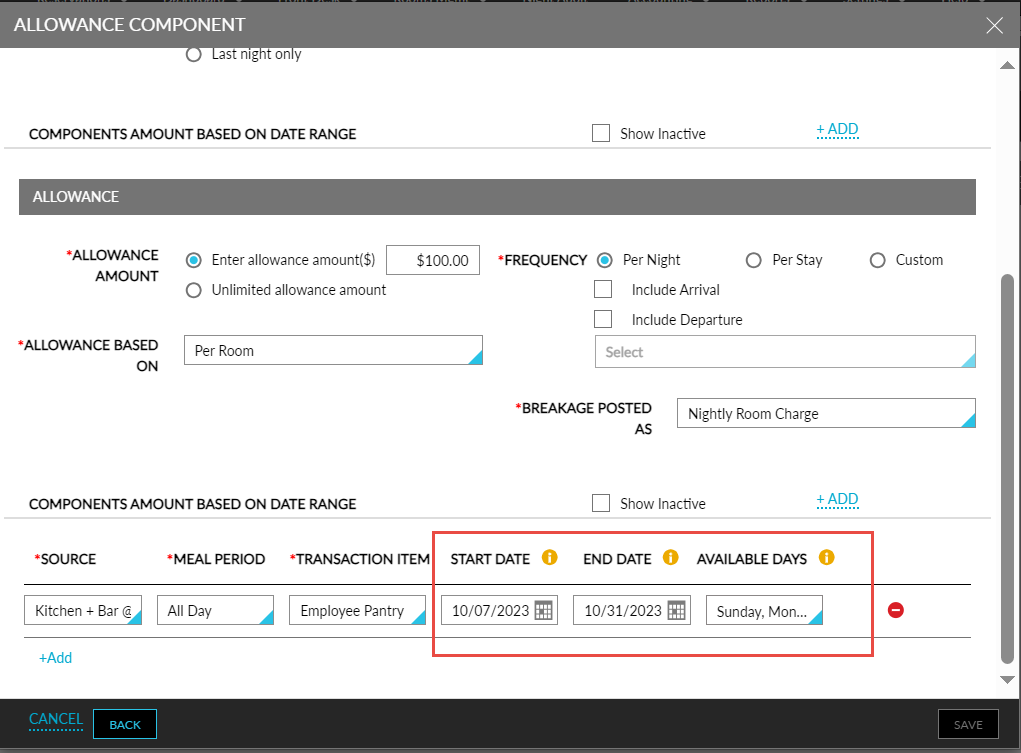
When the new feature setting is enabled, users can configure the Start Date, End Date, and the Available Days for the allowance components for each Source and Meal Period on the Allowance Component screen (Settings ➜ Rates ➜ Package ➜ New/Edit Package).
-
The Start Date field allows users to select a date from which the allowance component must be available for the package. Users can select the date that is the maximum among the current property date and the start date of the package. For example, if the current property date is Feb 09, 2024, and the stat date of the package is Feb 20, 2024, the start date of the allowance component must be selected as Feb 20, 2024.
-
The End Date field allows users to select the date up to which the allowance must be available. Users cannot select a date that is beyond the end date of the package.
-
The Available Days drop-down list displays the days of the week. This is a multi-select drop-down list that allows users to select the days when the allowance component must be available.
When users do not select a start date, the allowance component will be available from the start date of the package and when end date is not selected, the allowance component will be available till the end date of the package or infinitely available if the end date is not configured for the package.
When the validity periods for two allowance transaction items with the same outlet/meal period and transaction item combinations overlap, the message, This package contains a similar meal period allowance item with the same validity period. Please select a different date range, is displayed.
Modify Validity Periods
Users with the Stay_OverridePackageAllowanceComponent and Stay_Override Inventory permissions can add or modify the validity period of an allowance component or add/remove allowance component items for an existing package. When users perform any modification, the Component Updates Confirmation pop-up screen appears that prompts users to select if the changes should be applied to the in-house reservations or future reservations.
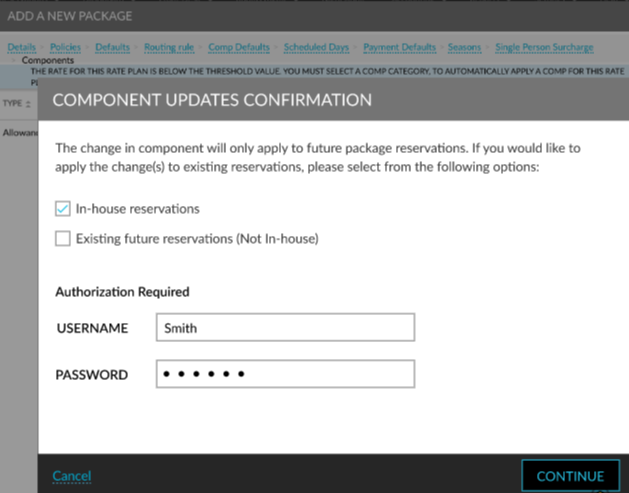
Users must select the preferred option and click Continue. The message, Package reservations update in progress. Click here for status, message is displayed as a banner in the Packages tab.
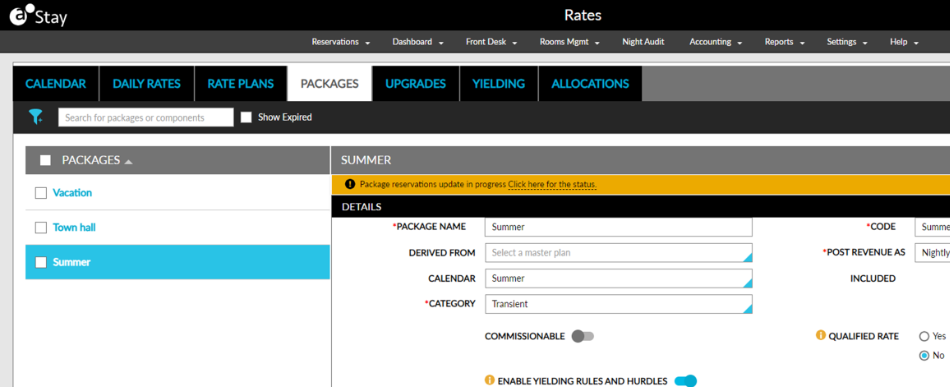
When users click the Click here for status hyperlink, the Bulk Update Process screen appears that displays the count of reservations that are being updated.
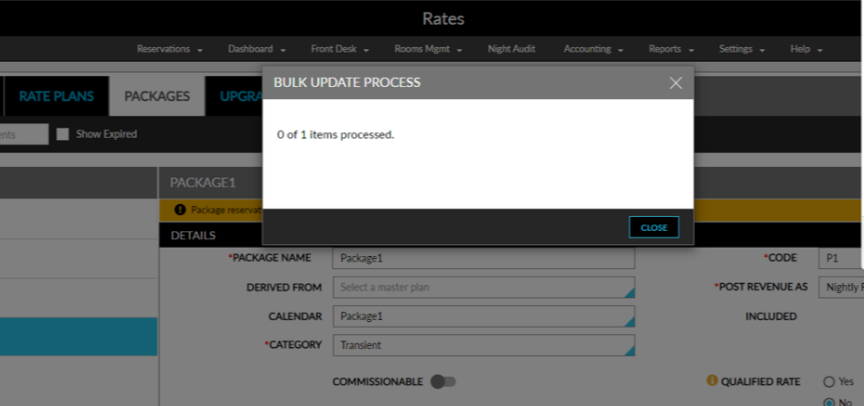
Once the selected reservations are updated successfully, the message, Update reservation has successfully completed. Click here for details, is displayed as a banner.
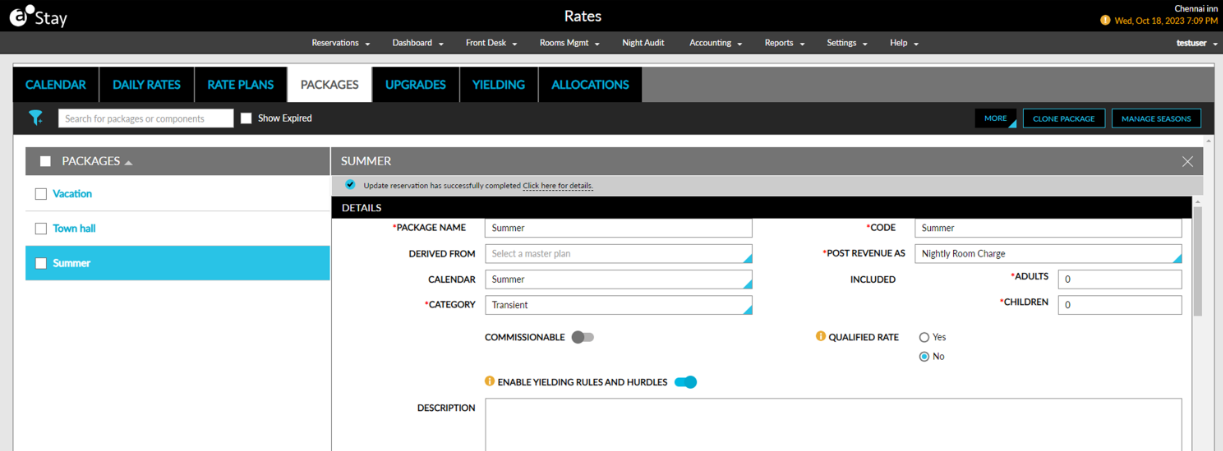
When users click the Click here for details hyperlink, the Bulk Update Result pop-up screen appears that displays the status of the reservations that are updated.
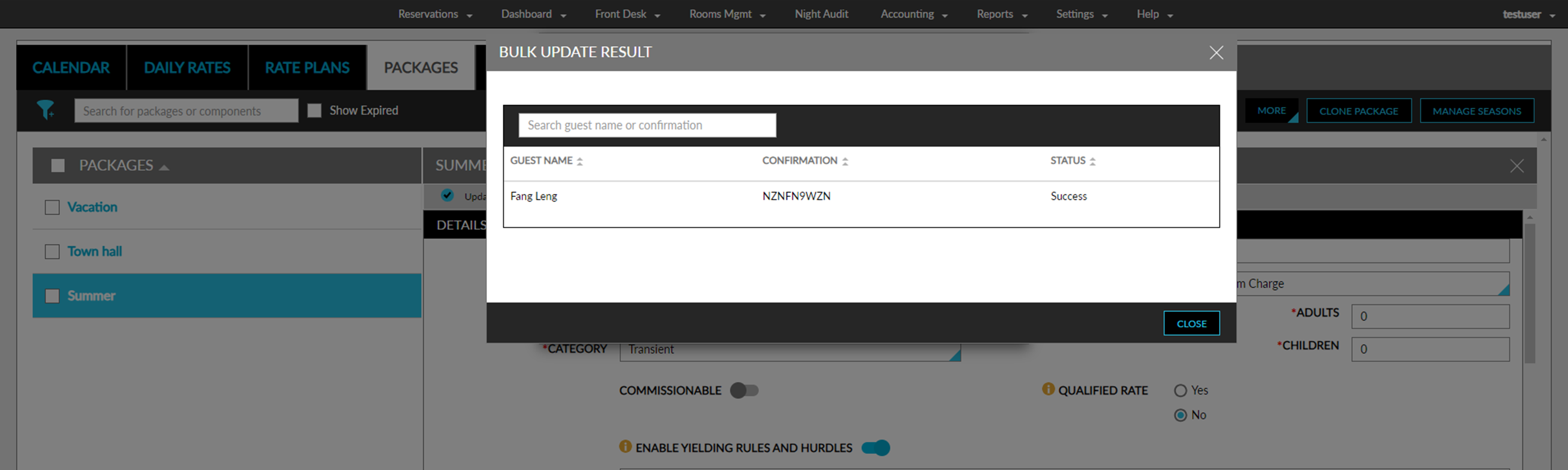
When users do not have the required permissions, the message, User does not have permission, is displayed. When users enter incorrect credentials, the following message is displayed: Username or password is invalid. Users can view the results of the bulk update on the Bulk Update Result screen.
The following messages are displayed when there are no reservations available for the options selected in the Component Updates Confirmation pop-up screen:
-
When users choose to update the in-house reservations, and if there are no in-house reservations available at the property, the following message is displayed: No in-house package reservations exist for the property.
-
When users choose to update future reservations, and when no package reservations are available, the following message is displayed: No package reservations exist for the property.
When the changes are applied to the available in-house and future reservations, the following message is displayed on the Estimated Charges section of the impacted reservations: The package contains updated allowance components.
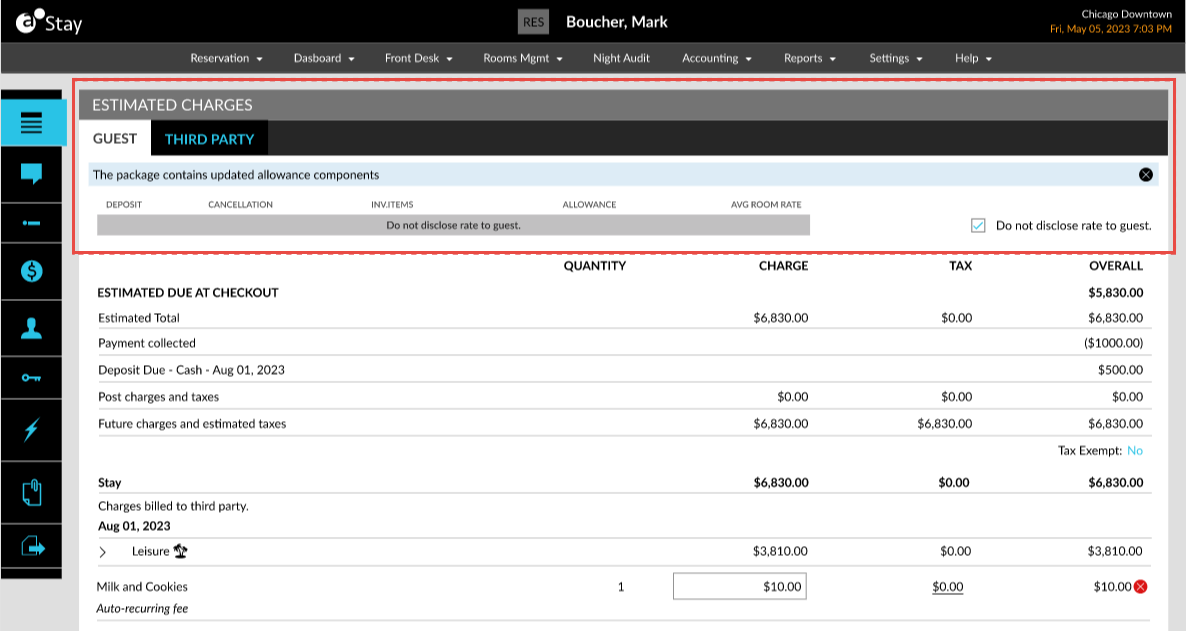
When users uncheck the previously selected days in the Available Days drop-down list in the Allowance Component screen, the allowance component will be made available to the reservations based on the available days.
When users modify the effective start date/end date of the package and if the package contains an allowance component whose validity date falls between the dates that are being bypassed because of the postponement, the following message is displayed: Valid allowance component(s) are impacted by the change to package validity period. Please verify.
To support this enhancement, the following changes have been made:
-
The following new fields have been added to the Allowance Component screen (Settings ➜Rates ➜Package ➜New/Edit Package) to allow users to configure the validity period for the allowance components:
-
Start Date
-
End Date
-
Available Days
-