Create Housekeeping Teams
Stay is enhanced to provide users the ability to group multiple housekeeping staff on duty into teams, to enable the staff to share assignments amongst them. The configured housekeeping teams are displayed in the following screens:
-
Housekeeping Dashboard
-
Staff On Duty section in the Staff tab
-
Assigned Service Requests in the Assign tab
-
Assigned Services section in the Print tab
The housekeeping teams can be assigned only to the housekeeping service requests. This feature is not applicable to the maintenance service requests and the housekeeping guest service requests created in Stay and via Staff Mobility.
Permissions
The following new permissions are introduced to enable users to view, create and modify the housekeeping teams:
-
Stay_ReadHKTeamsSetup: Users with this permission can view the Teams section in the Housekeeping Setup screen. This section is not displayed to users without this permission. This permission is provided to all system defined roles with the existing ReadHousekeeping permission.
-
Stay_WriteHKTeamsSetup: Users with this permission can enable or disable the Housekeeping Team checkbox in the Teams section of the Housekeeping Setup screen. This permission is provided to all system defined roles with the existing WriteHousekeeping permission.
Create Housekeeping Teams
Users can create multiple housekeeping teams and assign staff to them. Only the housekeeping staff on duty who has the new permissions can create teams.
The following changes have been made to enable users to create teams:
-
A new tab, Team, is added to the Housekeeping Setup screen that displays the new checkbox, HousekeepingTeam. Users with the new Stay_WriteHKTeamsSetup permission can enable this checkbox.
-
A new button, More, is added to the Staff On Duty section in the Staff tab of the Housekeeping screen that displays the following new options:
-
Create Team - When clicked, the Create Team screen appears.
-
Add members to team
-
-
A new filter option, Team, is added to the filter icon in the Staff On Duty and the Staff Off Duty sections.
Create Team Screen
The Create Team screen displays the following fields:
|
|
|---|---|
|
|
|
|
|
|
|
|
Override the Capacity of the Teams
Users can override the capacity of the teams in the following ways using the Capacity field of the Create Team screen:
-
Increase team capacity more than the sum of the individual staff capacity
-
Decrease team capacity less than the capacity of one staff in the team
Increase team capacity more than the sum of the individual staff capacity
Consider a team formed by selecting two staff members, each with an individual capacity of 7 points. Now, the Capacity field is auto filled with the value 14. Let us assume that the user overrides the capacity to a larger value, say 20. Now, when the user unselects staff 1 from the team, the capacity value decreased to 13 (capacity of staff 1 is subtracted). When the user adds staff 1 back to the team, the latest capacity of the team changes to 20. At any point, the capacity of the team cannot be less than 0. When the capacity of the team is overridden, the Modified indicator is displayed for the Capacity field.
Decrease team capacity less than the capacity of one staff in the team
Consider a team formed by selecting two staff members, each with an individual capacity of 7 points. Now, the Capacity field is auto filled with the value 14. Let us assume that the user overrides the capacity to a smaller value, say 5. Now, when the user unselects staff 1 from the team, the capacity value decreases to 0 (capacity of staff 1 is subtracted). Since the capacity value cannot be negative, the value becomes 0. When the user adds staff 1 back to the team, the latest capacity of the team changes to 7.
View Created Teams
The following changes are made to the Staff On Duty section in the Staff tab of the Housekeeping screen to view the details of the created teams:
-
Staff/Team: This column is enhanced to display the team name. When the team name is expanded, the list of staff is displayed. When users click on the team name, the Edit Team screen is displayed.
-
Assigned: This column displays the total number of service requests assigned to the team.
-
Capacity: Displays the team capacity.
-
Priority: Displays the priority set for the team.
-
Role/Staff: Displays the number of staff in the team and their role. Users can change the role of the staff if required.
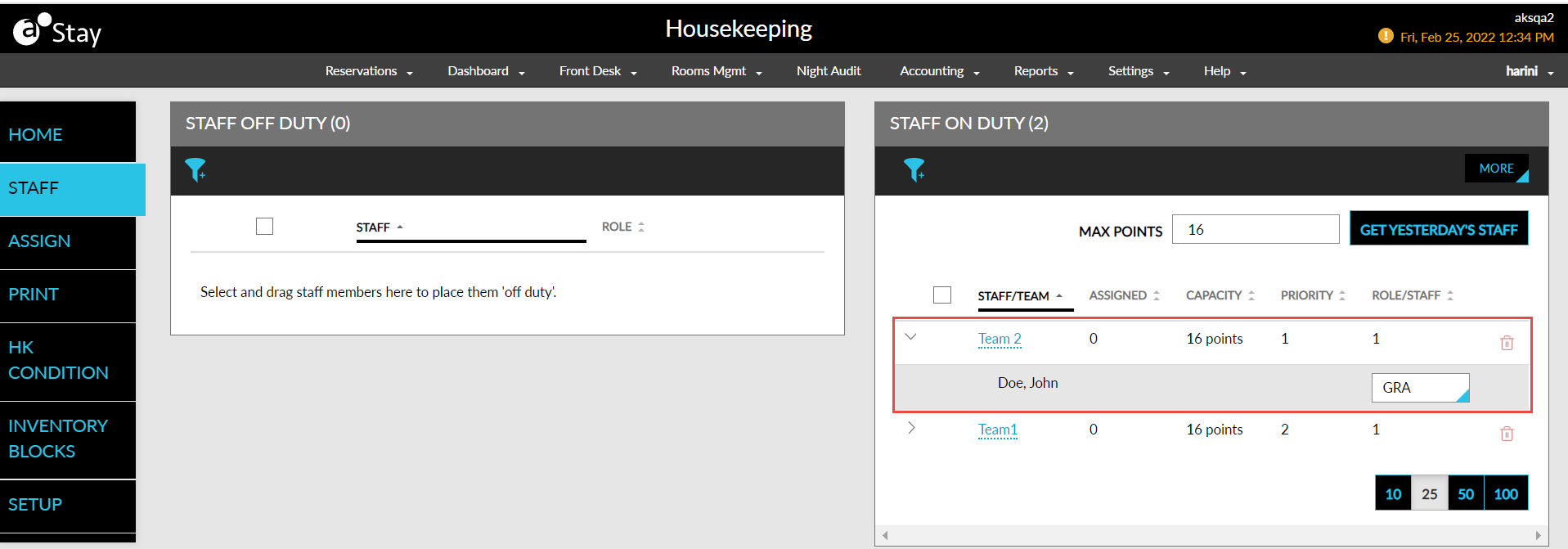
Modify Details of a Team
When users click on the team name in the Staff On Duty section, the Edit Team screen is displayed, where users can modify the following team details: team name, capacity, priority, add/remove staff.
Users can modify the details only if no service requests are assigned to the team. The team name is disabled when service requests are assigned. When users hover over the disabled team name, the following message is displayed: Team has service requests. Cannot modify team details.
Delete the Created Teams
Users can delete the housekeeping teams based on the following conditions:
-
When No Service Requests Are Assigned: When users click on the delete icon in the Staff On Duty section, the Delete Team screen appears that displays the following message: Team has staff members. Click ‘Yes’ to Delete the team and disassociate the staff. Clicking on Yes deletes the team and disassociates the staff from the team and they will act as individual staff.
-
When the Service Requests Assigned are in New Status: When users click on the delete icon, the Delete Team screen appears that displays the following message: There are service requests assigned to team. Click ‘Yes’ to clear the assignments and delete the team. Clicking on Yes deletes the team, disassociates the staff, and unassigns the service requests.
-
When the Service Requests Assigned are in InProgress, Completed Status: When users click on the delete icon, the Delete Team screen appears that displays the following message: Cannot delete team with service requests in progress/completed.
Add Staff to Existing Teams
Users can add staff to an existing team by selecting the staff and clicking on More ➜ Add members to team option in the Staff On Duty section. The Include Teams screen appears that displays the following fields:
-
Selected Staff: Displays the list of selected staff.
-
Select Teams: It is a drop-down list that displays the list of housekeeping teams. Users can select the team to which the staff should be added.
Assign Service Requests to Team Manually
Users can assign service requests to a team manually by selecting the unassigned requests from the Unassigned Service Requests and, dragging, and dropping them to the respective team in the Assigned Service Requests in the Assign tab of the Housekeeping screen.
Auto Assignment of Service Requests to a Team
The service requests are auto assigned to a team based on the team’s capacity. When assigning the service requests, the system checks the team’s capacity and not the individual capacity within a team. For example, consider a team formed with three staff, staff 1, staff 2 and staff 3 with an individual capacity of 7 points each. The total capacity of the team is 21 points. If there is a service request capacity of 17, the service request is assigned to this team, even though the individual staff capacity within the team is less than the capacity of the service request. If there is a service request capacity of 25, it will not be assigned to this team.
Changes made to Accommodate this Feature
Assigned Service Requests Section
The following changes are made to the Assigned Service Requests section in the Assign tab of the Housekeeping screen:
-
By default, users can view the service requests assigned to an individual staff and a team.
-
Two new filter options, Staff, and Team are added to the filter icon, to view the service requests assigned to the staff or a team alone.
-
The following columns are removed from the default view and added to the expanded view that is displayed when users expand the staff name:
-
Staff/Team: Displays the name of the staff or team to which a service request is assigned.
-
Assigned: Displays the total number of service requests assigned to a staff or a team.
-
Capacity: Displays the <Total assigned service requests capacity> of <Total Capacity>
-
Total assigned service requests capacity: Sum of the assigned service request capacity assigned to a staff or a team.
-
Total capacity: Displays the staff capacity or the team capacity.
-
-
Role: Displays the role of the staff to whom the request is assigned. For teams, NA is displayed.
-
-
The following columns are added additionally when users expand the staff name:
-
Area/Room: Displays the room number or general area for which the request was created.
-
Service Code: When users click on the service code, the Edit Service screen appears that allows users to assign the service request to a different staff, team, or unassign them. Users can key in the team name in the Assign field and assign the service request to the team.
-
Severity: Displays the severity of the service requests.
-
Status: Displays the status of the service requests.
-
Service Capacity: Displays the service capacity of the requests.
-
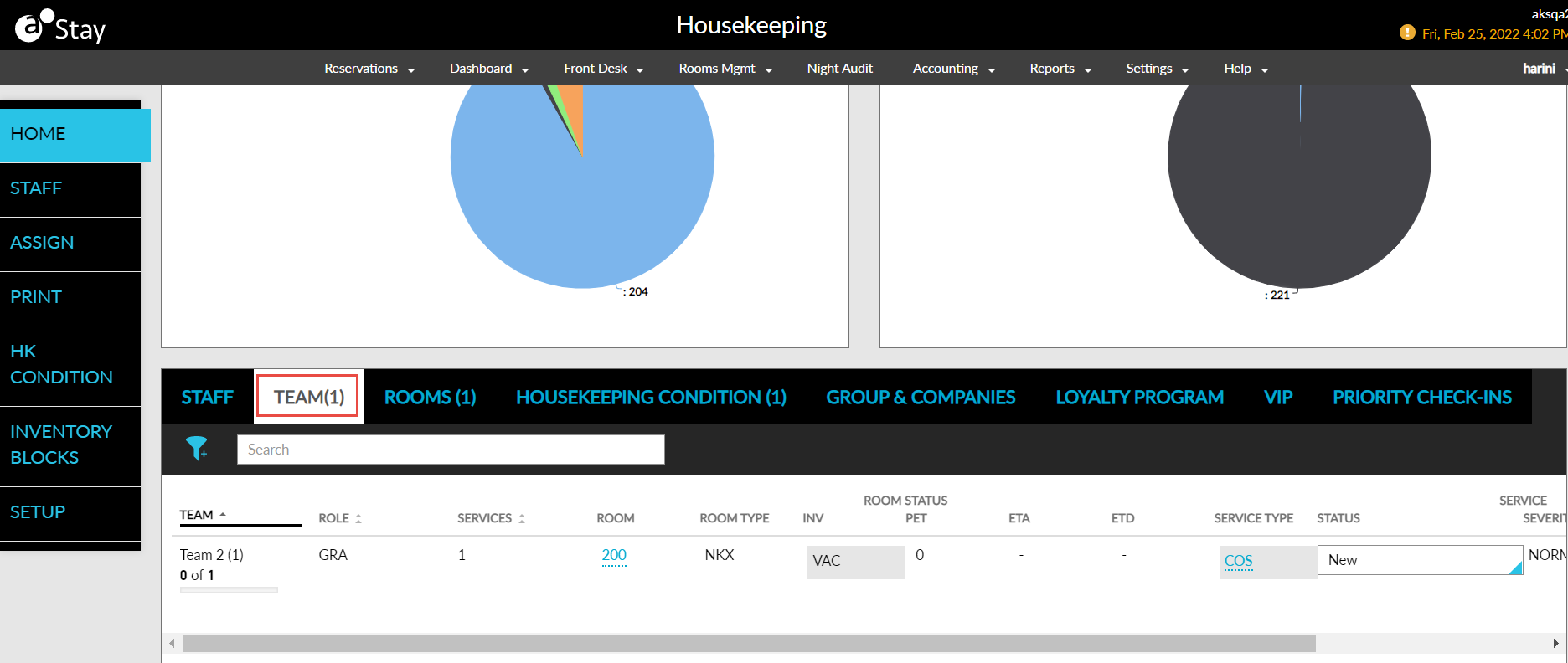
Housekeeping Dashboard
A new tab, Team, is added to the housekeeping dashboard. This tab is displayed, when Housekeeping Teams is enabled for the property. The Team tab displays the following columns:
|
|
|---|---|
|
|
|
|
|
|
|
|
|
|
|
|
|
|
|
|
|
|
|
|
|
|
|
|
|
|
|
|
|
|
|
|
Assigned Services Section in the Print Tab
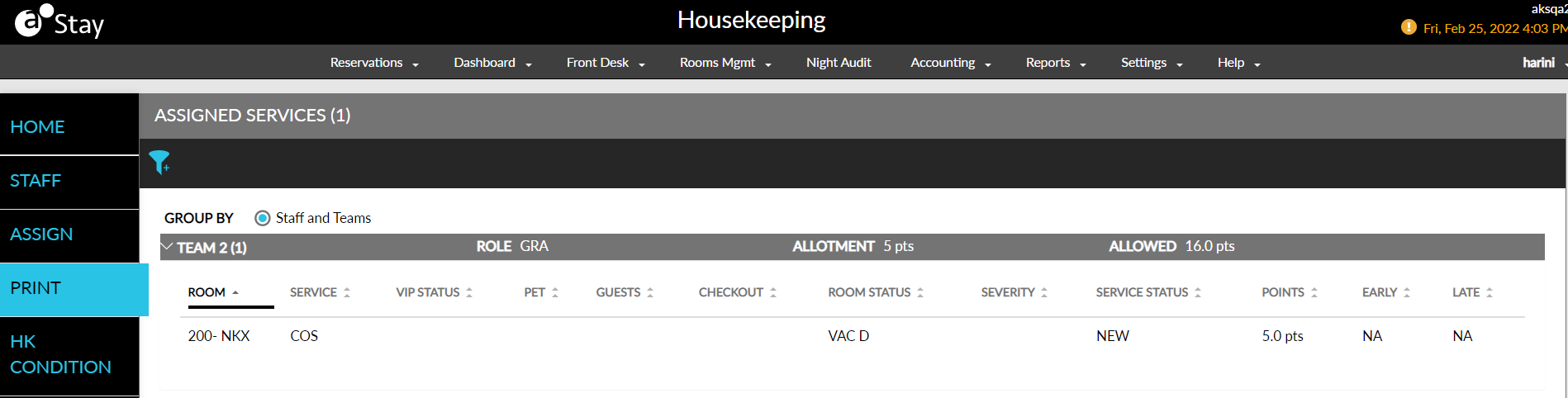
The following changes are made to the Assigned Services section in the Print tab of the Housekeeping screen:
-
The following Group By options are displayed:
-
Staff and Teams: Displayed when Housekeeping Teams is enabled for the property.
-
Staff: Displayed when Housekeeping Teams is not enabled for the property.
-
Board
-
-
When the Group By option is selected as Staff and Teams, users can view a list of both staff and teams to which the service requests are assigned.
-
Users can view the following details when the Team’s accordion header:
|
|
|---|---|
|
|
|
|
|
|
|
|
|
|
-
The following columns are displayed when the accordion is expanded for a team or a staff:
-
Room
-
Service
-
VIP Status
-
Pet
-
Guests
-
Checkout
-
Room Status
-
Severity
-
Service Status
-
Points or Time (based on property setup)
-
ETA
-
Pre-Reg
-
Early
-
ETD
-
Late
-
Print Screen
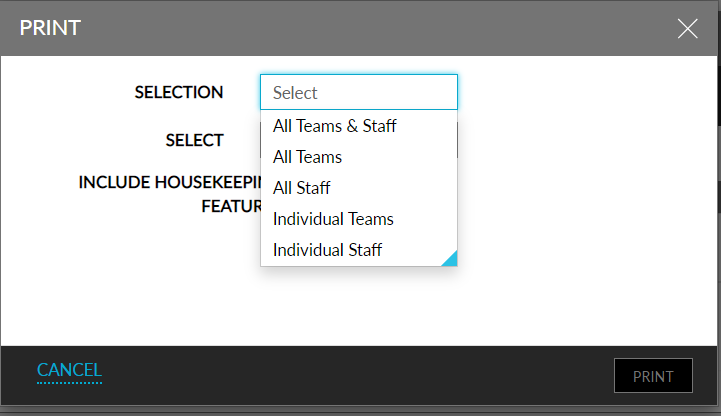
The following options are added to the Selection drop-down list of the Print screen:
-
All Teams & Staff: When selected, the system prints the housekeeping service requests that are assigned to each team and staff who are not part of any team.
-
All Teams: When selected, the system prints the housekeeping service requests that are assigned to each team.
-
All Staff: When selected, the system prints the housekeeping service requests that are assigned to each staff.
-
Individual Team: When selected, the Select drop-down list displays the list of team names in the property. The system prints the housekeeping service requests that are assigned to the selected team.
-
Individual Staff: When selected, the Select drop-down list displays the list of staff who are not part of any team. The system prints the housekeeping service requests that are assigned to the selected staff.
Housekeeping Assignment Sheet
Users can view the following new details in the Assignment sheet:
|
|
|---|---|
|
|
|
|
|
|
|
|
|
|
Reports
When service requests are assigned to a team, the Assigned To column in the Housekeeping Checkoff Report (Legacy), and Housekeeping Supervisor Report (Legacy), displays the team name.