Display Notifications in Housekeeping Screen
Stay is enhanced to display a notification in the Housekeeping screen for the following:
-
When a guest checks out from the property.
-
When a room assignment is modified from one on-duty housekeeping staff to another on-duty housekeeping staff.
-
When the housekeeping service requests assigned for a room are modified.
Property Setting
The Housekeeping notifications checkbox must be checked in the Notifications tab present in the Configurations section of the Housekeeping Setup screen (Rooms Mgmt ➜ Housekeeping ➜ Setup ➜ Configurations ➜ Notifications). When this checkbox is selected, a Notifications widget is displayed in the Housekeeping screen that displays notifications for the mentioned actions.
Permissions
The following new permissions have been introduced that allow users to select/deselect the Housekeeping notifications checkbox:
-
Stay_ReadHKNotificationsSetup: Users with this permission can view the Notifications tab and the details displayed in the tab.
-
Stay_WriteHKNotificationsSetup: Users with this permission can view and modify the details displayed in the Notifications tab.
The following new permission has been introduced to allow users to view the Modified Assignment card in the Notifications widget of the Housekeeping screen.
-
Stay_ReadHKRoomAssigmentUpdate
The following new permission has been introduced to allow users to view the Modified Service card in the Notifications widget of the Housekeeping screen.
-
Stay_ReadHKServiceRequestUpdate
These permissions are provided to the following roles by default:
-
System Administrator
-
Stay Hotel Manager
-
Department Manager
-
Stay Hotel Supervisor
-
Stay Housekeeping Supervisor
-
HK Supervisor
For users without these permissions, the Notifications tab will not be displayed in the Configurations section of the Housekeeping Setup screen.
Display Notifications for Check-Outs
The Check-Out card in the Notifications widget of the Housekeeping screen displays the count of rooms that have checked out on the current property date. Users with the Stay_ReadHKCheckOutStatus permission can view this card.
When a new check-out is performed, the color of the Check-out card that displays the count of rooms that have checked out turns green.
When a single room is checked out, the following notification is displayed in the Notifications widget: Room X is checked out. In case a consecutive check out for a room Y happens after room X is checked out, the toast message, Room X is checked out, is automatically updated as Multiple rooms are checked out.
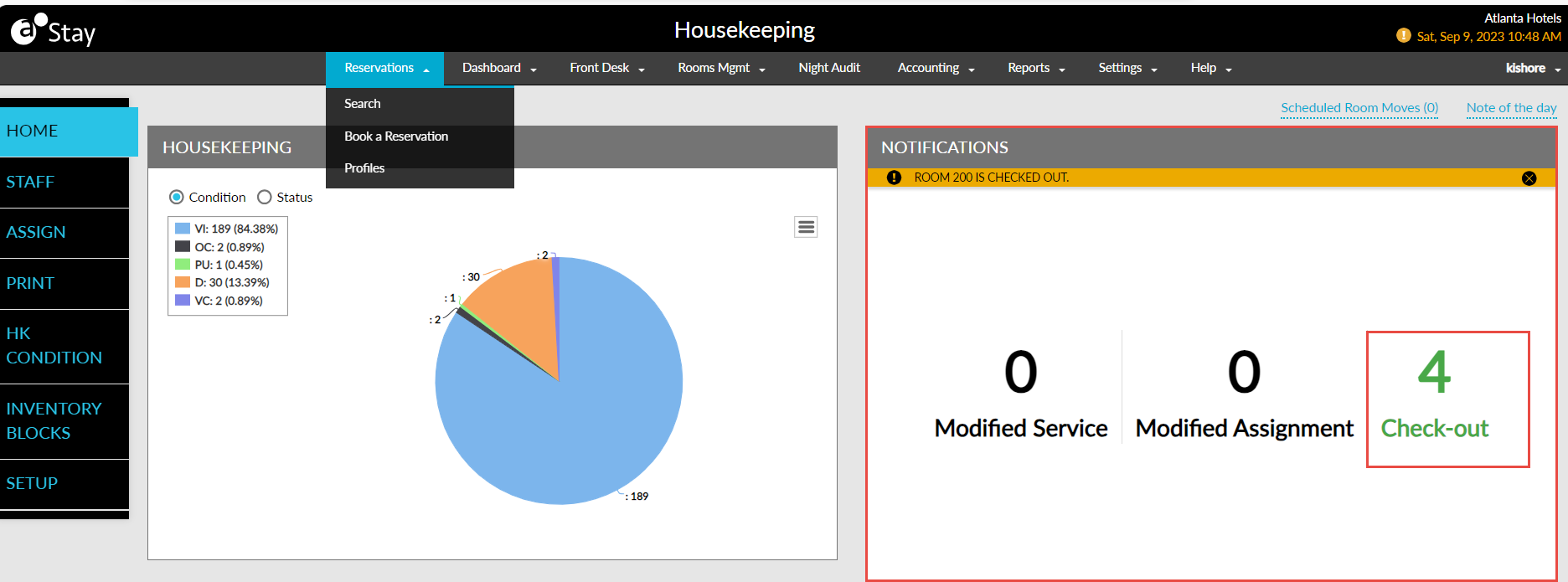
When multiple rooms are checked out from the Batch Operations screen, the following notification is displayed: Multiple rooms are checked out.
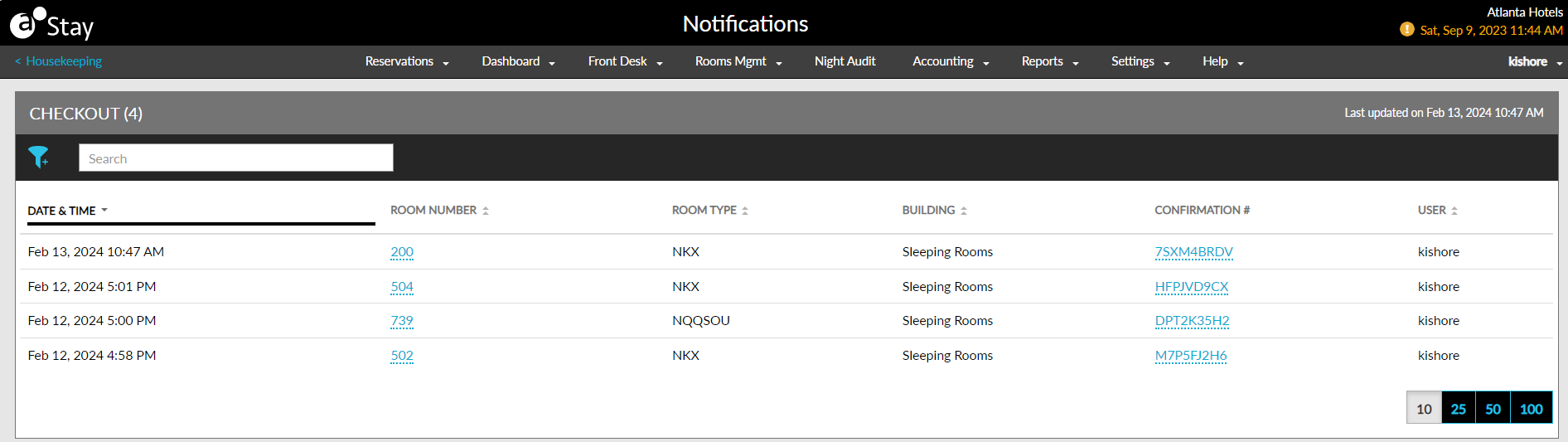
When users click the Check-Out card in the Notifications widget and opens the Checkout grid, the following columns are displayed:
|
Column |
Description |
|---|---|
|
Date & Time |
The date and time the check-out was performed. |
|
Room Number |
|
|
Room Type |
|
|
Building |
|
|
Confirmation # |
|
|
User |
|
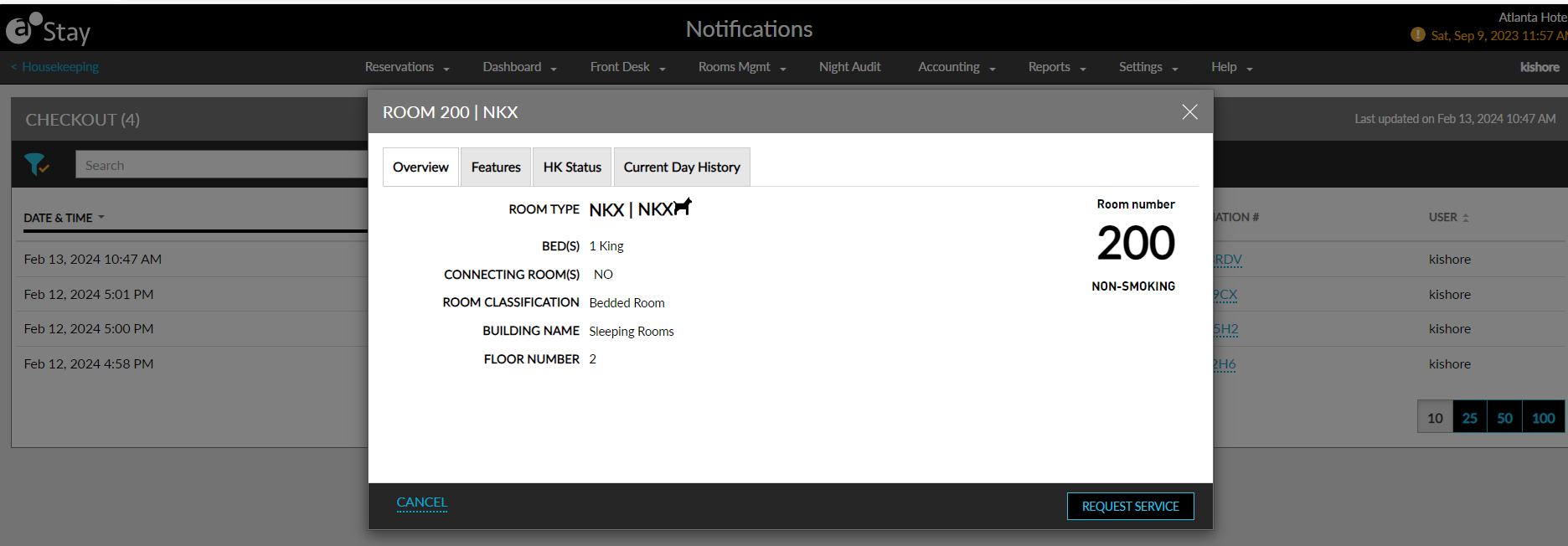
The count of the checked-out room is removed from the Check-Out card in the Notifications widget for the following conditions:
-
When an Undo-Checkout is performed for the room.
-
The housekeeping condition/HK status of the checked-out room is changed to a condition that is ready for check-in.
Display Notifications for Modification of Assignments
The Modified Assignment card in the Notifications widget of the Housekeeping screen displays the count for each update of the room assignment from one on-duty housekeeping attendant to another on-duty housekeeping attendant for the current property date. Users with the Stay_ReadHKRoomAssigmentUpdate permission can view this card.
The count is incremented each time the housekeeping staff assigned to a service request is modified in the Edit Services screen that appears when users click the service code that is displayed in the Service Type column in the following tabs and in the Assigned Service Requests section in the Housekeeping screen:
-
Staff
-
Team
-
Rooms
-
Housekeeping condition
-
Group & Companies
-
Loyalty Program
-
VIP
-
Priority Check-ins
When the staff assigned to a request is modified, the color of the count of each update of the room assignment is displayed in green on the Modified Assignment card to notify the hotel users.
When users click the Modified Assignment card and open the Modified Assignment grid, the following columns are displayed:
|
Column |
Description |
|---|---|
|
Date & Time |
The date and time when the room assignment of a housekeeping service was changed from one housekeeping staff to another. |
|
Room Number |
|
|
Room Type |
|
|
Previous Attendant |
|
|
Current Attendant |
|
|
Assigned By |
|
The latest reassignment of the housekeeping attendant for a room is displayed at the top. The count of the reassignment of the housekeeping staff is removed from the Modified Assignment card when the status of the housekeeping service request is changed from New to other status.
Display Notifications for Modification of Service Request
The Modified Service card in the Notifications widget of the Housekeeping screen displays the count of each update made to the housekeeping service requests assigned to a room. Users with the Stay_ReadHKServiceRequestUpdate permission can view this card.
The count is incremented when users modify the housekeeping service assigned to a room from the Service drop-down list in the Edit Services screen that is displayed when users click the service code that is displayed under the Service Type column in the following tabs and in the Unassigned/Assigned Service Requests section in the Housekeeping screen:
-
Staff
-
Team
-
Rooms
-
Housekeeping condition
-
Group & Companies
-
Loyalty Program
-
VIP
-
Priority Check-ins
When the housekeeping service assigned to a room is modified, the color of the card and the count of each update is displayed in green on the Modified Service card to notify the hotel users.
When users click the Modified Service card and open the Modified Service grid, the following columns are displayed:
|
Column |
Description |
|---|---|
|
Date & Time |
The date and time when the housekeeping service request assigned to a room was modified. |
|
Room Number |
|
|
Room Type |
|
|
Cancelled Service |
|
|
Added Service |
|
|
Assigned Attendant |
|
|
Assigned By |
|
The latest modification of the housekeeping service assigned to a room is displayed at the top. The count of the updates made to the housekeeping service assigned to a room is removed from the Modified Service card when the status of the housekeeping service request is changed from New to other status.
System Changes
To support this enhancement, the following changes have been made:
-
A new tab, Notifications, has been added to the Configurations section of the Housekeeping Setup screen (Settings ➜Housekeeping ➜Configurations).
-
This tab consists of the Housekeeping notifications checkbox.
-
When this checkbox is checked, the Notifications widget is displayed in the Housekeeping screen that displays notifications to users.
-
-
The following new radio buttons have been added to the Housekeeping widget on the Housekeeping screen to allow users to view the housekeeping condition and housekeeping status when the Housekeeping notifications checkbox is checked.
-
Condition
-
Status
-