Display Rate Plan Details in Reservations
Stay is enhanced to display the details of the rate plans/packages used in the Reservation Summary section of the created reservations. Previously, users had to expand the Estimated Charges section to view the rate plan/package used for each night of stay.
The Rate Plan/Package Code field in the Reservation Summary section of the reservations displays the rate plan/package code used for the first night of stay. When users click the expander, the rate plan/package code used for the remaining nights of stay is displayed.
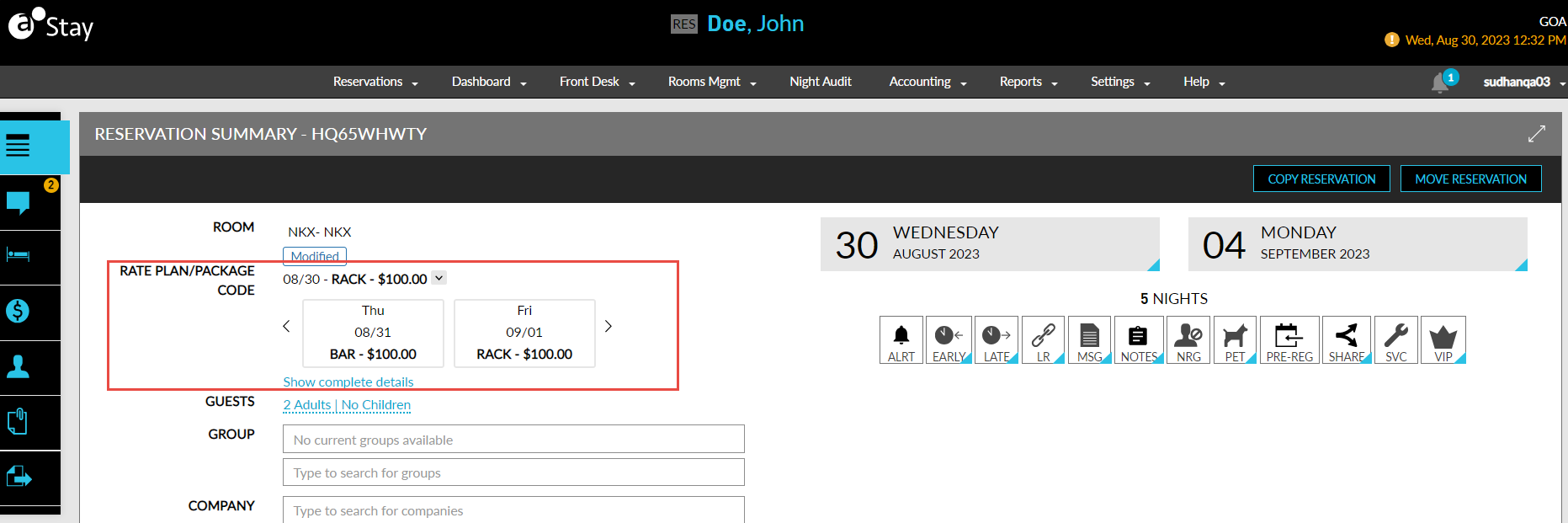
Users can view a detailed description of the rate plans/packages used for each night of stay by clicking the Show complete details hyperlink. When clicked, the Rate & Package Details pop-up screen appears that displays the following columns:
|
Column |
Description |
|---|---|
|
Date |
The date range associated with the reservation. |
|
Rate/Package Name |
The rate plan/package name associated with the reservation. Users can search for a record using the name. |
|
Rate/Package Code |
The rate plan/package code associated with the reservation. Icons tagged to the package used for the reservation. Users can search for a record using the code. |
|
Description |
The description provided for the rate plan/package used. Users can search for a record using the description. |
|
Add-On Name |
The Add-On/NRP name associated with the reservation. If package add-ons are added to the reservation, PA icon is displayed. Users can search for a record using the add-on name. |
For single day reservations, the same date range is displayed in the Date column. When a single rate plan/package is used for the entire reservation, the name of the rate plan/package used is displayed for the entire date range of the reservation.
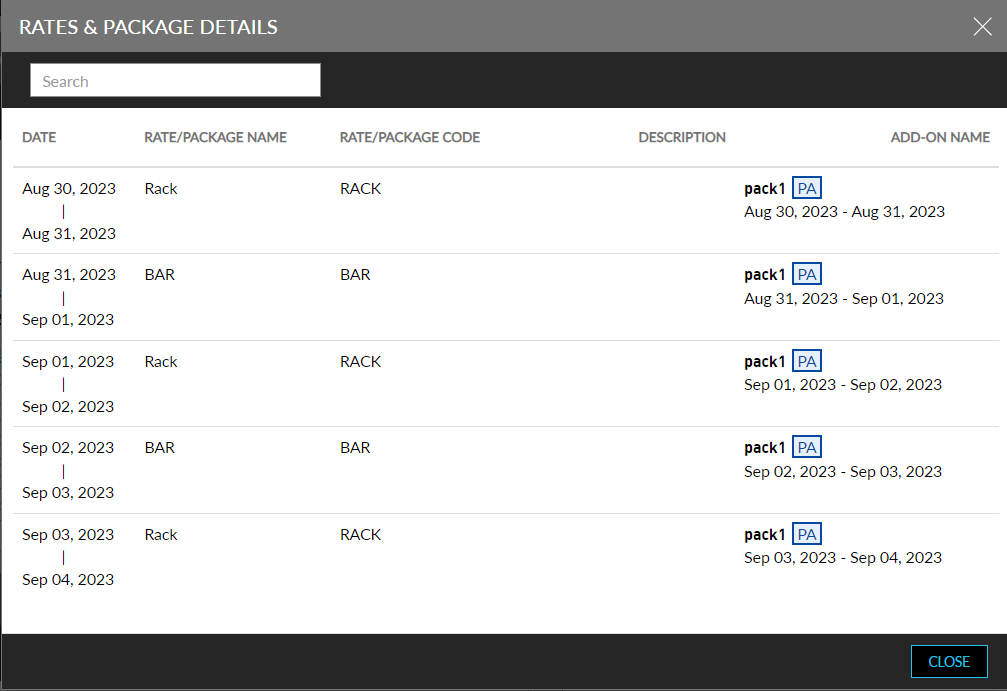
When a single rate plan/package is used for the entire reservation, but add-ons are added for different dates, the name of the rate plan/package used is displayed for the entire date range of the reservation and the name of the add-ons are displayed in different rows and the corresponding date range is displayed under the add-ons name.
For a reservation with different rate plans and add-ons added for different dates, the Date column displays the date range and the rate plan/package used for the date range. The name of the add-ons is displayed in different rows and the corresponding date range is displayed under the add-ons name.
Map Tags to Rate Plans and Packages
The Tags drop-down list in the Add a New Rate Plan/Package and Edit Rate Plan/Package screens allows users to select a tag for each rate plan and package. The following are the examples of the tags that can be mapped to a rate plan or package:
-
Discounted
-
Friends & Family
-
Employee
-
Points eligible
-
Points not eligible
The following color indicators have been introduced to help users identify the tags assigned to rate plans and packages:
|
Tag |
Colour Indicator |
|---|---|
|
Discounted |
Brown |
|
Friends & Family |
Red |
|
Employee |
Purple |
|
Points Eligible |
Orange |
|
Points not Eligible |
Green |
System Changes
To support this enhancement, the following changes have been made:
-
A new field, Rate Plan/Package Code, has been added to the Reservation Summary section of the reservations.
-
A new hyperlink, Show complete details, has been added to the Reservation Summary section of the reservations. When clicked, the Rate & Package Details pop-up screen appears.
-
A new drop-down list, Tags, has been added Add a New Rate Plan/Package and Edit Rate Plan/Package screens.