Enhancement of Package Rate Plans to Support Add-Ons
Stay is enhanced to allow users to include add-ons in package rate plans. Previously, users could include only fixed and allowance components in package rate plans.
When reservations are booked using package rate plans configured with add-ons, the add-ons are added to the reservations booked using the package rate plan.
Configure Add-Ons in a Package
To support this enhancement, the Add Fixed Components option in the Add and Edit pop-up screens (Settings ➜ Rates ➜ Packages ➜ Add/Edit option in Components section of a package) has been renamed as Add Charge. When clicked, the Add pop-up screen appears that displays all the individual transaction items, inventory items, and add-ons available at the property.
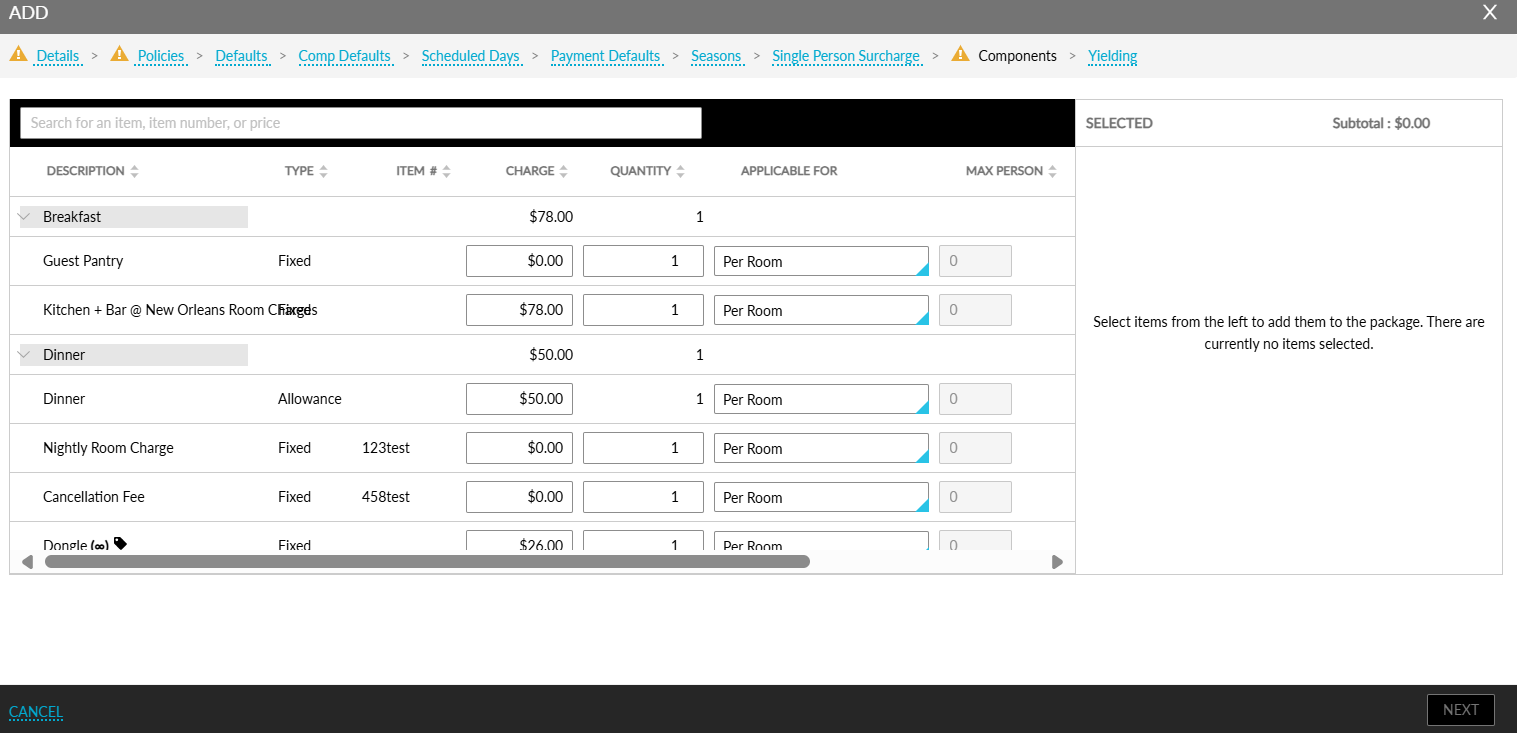
The add-ons are displayed based on the following conditions:
-
The System Configuration Only checkbox must be selected when creating the add-on (Settings ➜ Rates ➜ Add-Ons ➜ Add).
-
The validity of the add-ons should match the effective dates of the package.
The add-ons whose validity does not match the effective dates of the package are not displayed for selection. For example, when a package rate plan is created with effective dates from January 01, 2025, to January 30, 2025, the add-ons whose validity ends prior to Jan 1st will not be displayed for selection.
The following additional details are displayed for the add-ons and transaction/inventory items in the Add/Edit pop-up screen:
|
Column |
Description |
|---|---|
|
Description |
The name of the add-on or the transaction item or inventory item name. An accordion is displayed next to the add-on name displayed in this column. When the accordion is expanded, the list of components available for the add-on are displayed. The inventory item indicator and the inventory count are displayed for the inventory items available both for add-ons and individual items. |
|
Type |
The type of the component. When the accordion of an add-on is expanded, for each component in the add-on, the type is displayed as either Fixed or Allowance.
|
|
Item |
The UPC value defined for each item in Guest Accounting. |
|
Quantity |
The quantity of the add-on/component in the add-on. The quantity at the add-on level is displayed as 1 and cannot be edited.
|
|
Applicable For |
The Applicable For option selected. When users expand the accordion for an add-on, the following Applicable For options can be selected for each component of an add-on and the individual transaction and inventory items:
|
|
Max Person |
The count defined in the package for add-on components and fixed components when the Per Person or Per Age Category options are selected are displayed. |
|
Charge |
For add-ons, the charge configured at the time of creation is displayed. The sum of the charges of all components in an add-on is displayed at the add-on level and cannot be modified. When the accordion is expanded, the charge of each component is displayed and can be modified. For individual transaction and inventory items, the default rate configured for the item is displayed and can be modified. When the item’s charge exceeds the threshold limit configured, the field is highlighted in red with an information icon that displays the following message when hovered upon: Amount entered exceeds default threshold amount allowed. |
|
Post Charge |
When the accordion for an add-on is expanded, users can select from the following Post Charge options for each component of an add-on and for the individual transaction and inventory items:
|
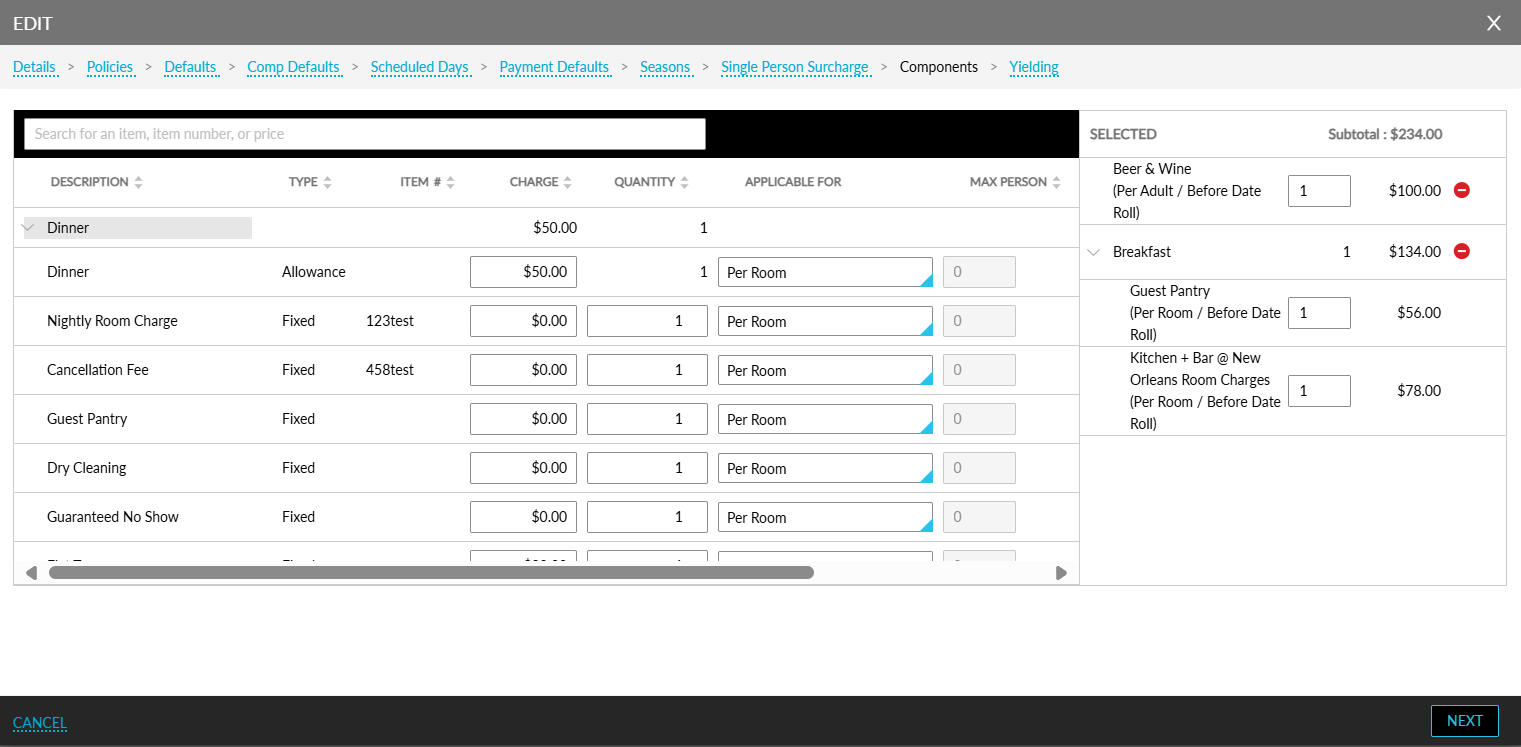
Users can add the preferred add-ons to the package by clicking on the Add hyperlink. Each add-on can be selected only once as part of the package. Once an add-on is added, it is no longer displayed for selection again.
The selected add-ons are displayed in the Selected section of the Add/Edit pop-up screens. When the accordion for the add-on is expanded, the list of components is displayed along with the amount split-up. The total amount of each add-on is displayed without tax.
Users can remove an add-on at the add-on level only and not the components within the add-on.
When users click Next, they are navigated to the Frequency section. The add-ons selected for the package are displayed in this section. Users can select the frequency for each component in an add-on.
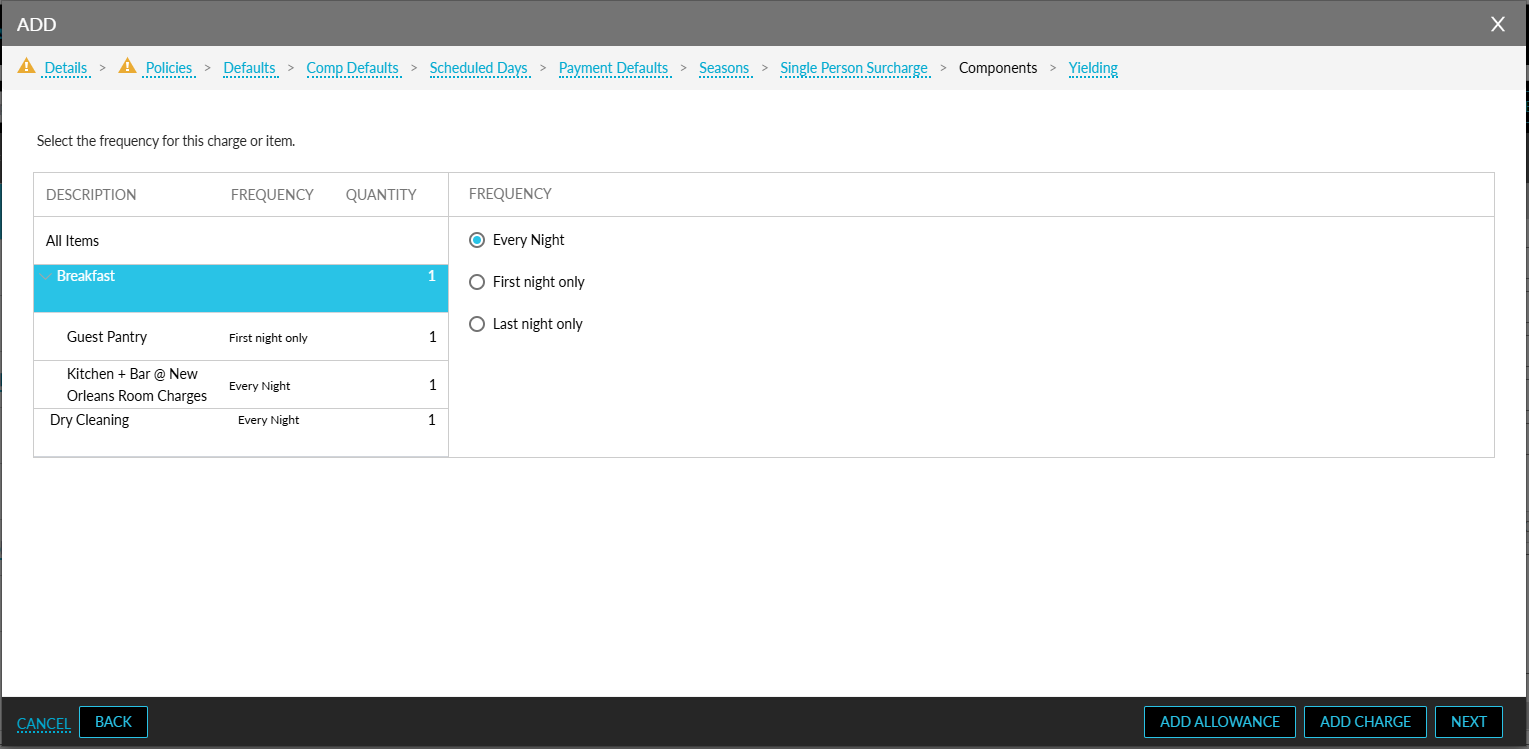
To select a common frequency for both the add-ons and individual transaction and inventory items, users must select All Items and choose the preferred frequency.
When users click Next, they are navigated to the Summary section.
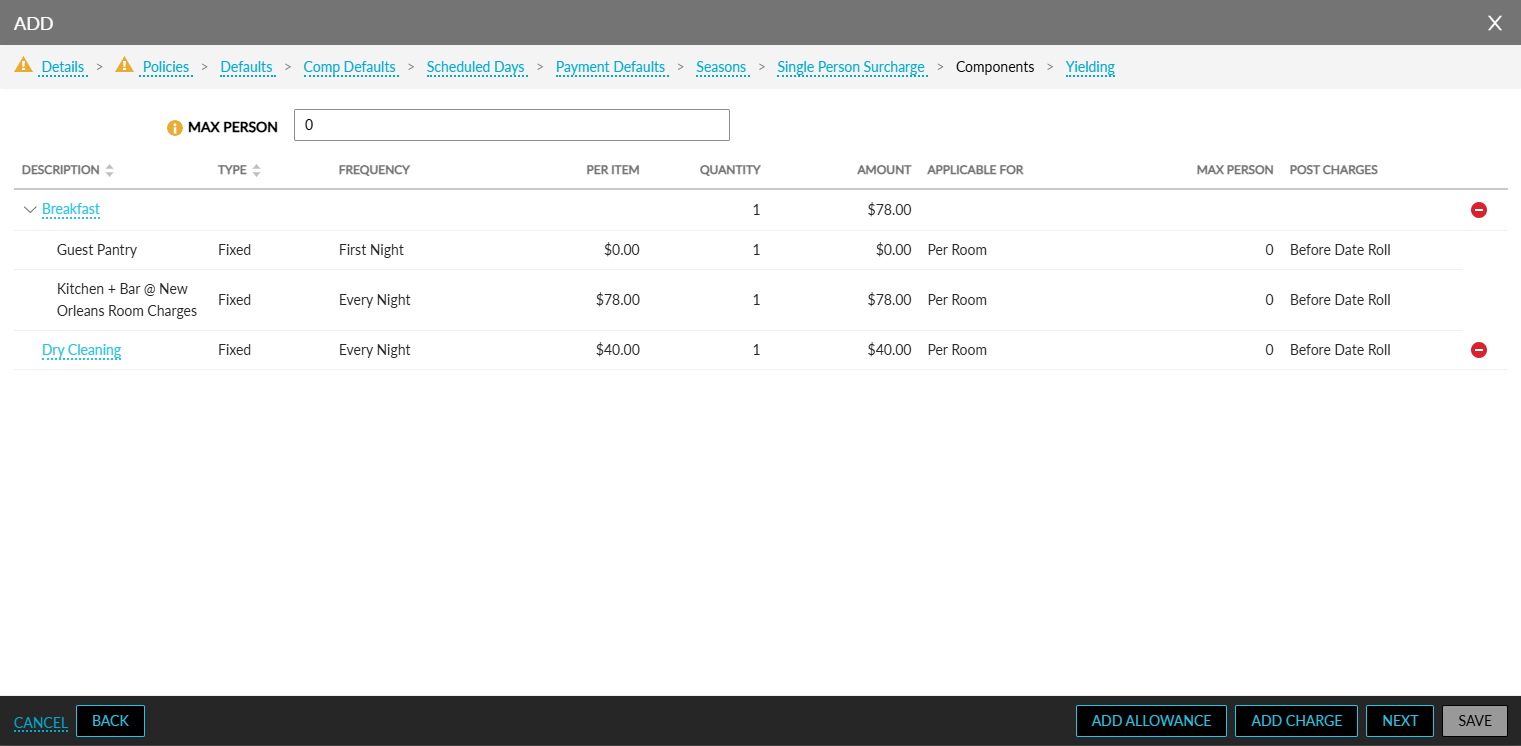
When the accordion for an add-on is expanded, the list of add-on components is displayed. Users can also modify the selected items by clicking on the item name displayed as a hyperlink. When clicked, users are navigated to the item selection screen where users can select a different item.
Users can remove an add-on or individual transaction and inventory items if required by clicking on the remove icon. The package rate plan can be created successfully only when at least one component is selected.
Display Package Rates in Book a Reservation Screen
When users select the stay dates for a reservation and click the Check Rates button in the Book a Reservation screen, the total rate of the package that includes the nightly room rate and component rates is displayed.
When a package rate plan, configured with add-ons, is selected for booking a reservation, the add-ons are displayed in the Estimated Charges section of the Book a Reservation screen. When the accordion for the add-on is expanded, the components are displayed. The components are applied to the reservation based on the frequency, applicable for, quantity, and rates defined in the package.
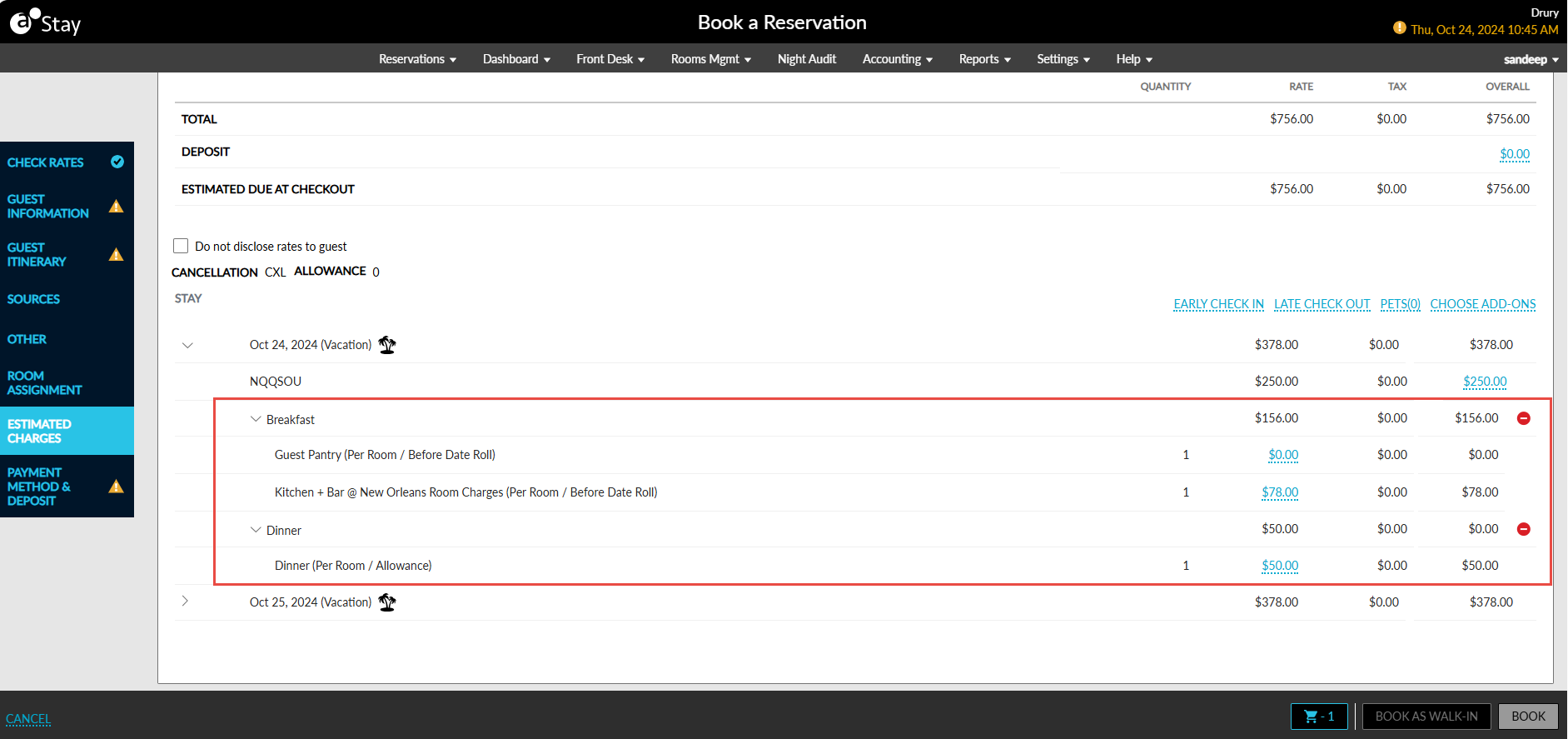
When calculating the deposit amount, no show fees, cancellation fees, and early departure fees for the reservation, the entire rate of the package, which includes the nightly room rate and component rates are considered.
Package Reservations with Add-Ons
Reservation Summary Section
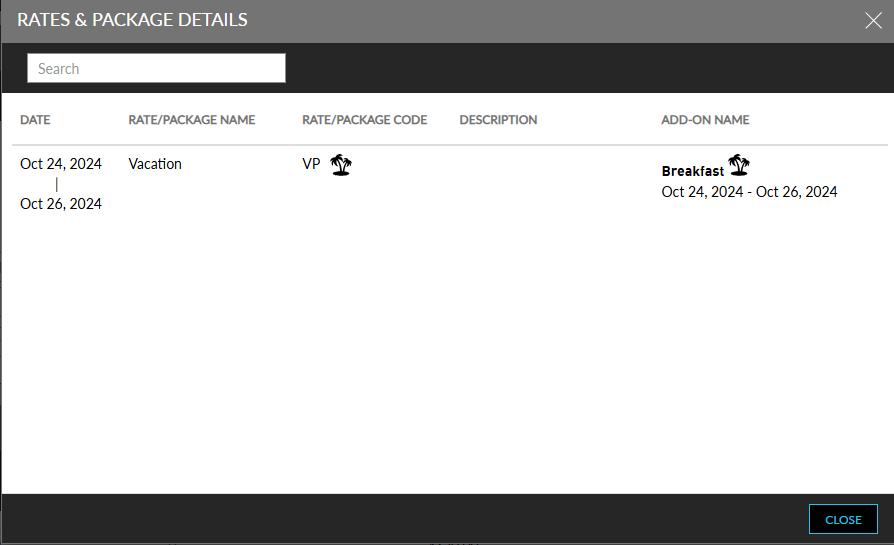
Once a package reservation is booked with add-ons included, the AON badge is enabled in the Reservation Summary section of the reservation and the count of the add-ons applied is displayed on the badge.
When users click on the Show complete details hyperlink, details of the add-ons applied to the reservation are displayed in the Rates & Package Details pop-up screen.
Estimated Charges Section
The package rate plan selected is displayed along with the add-ons and their components in the Estimated Charges section of the reservation. The nightly room rate and the rate of the package components are displayed with tax. Users can remove the add-ons added as part of a package by clicking on the remove icon if required. Users cannot modify the quantity of add-ons added to the reservation as part of the package.
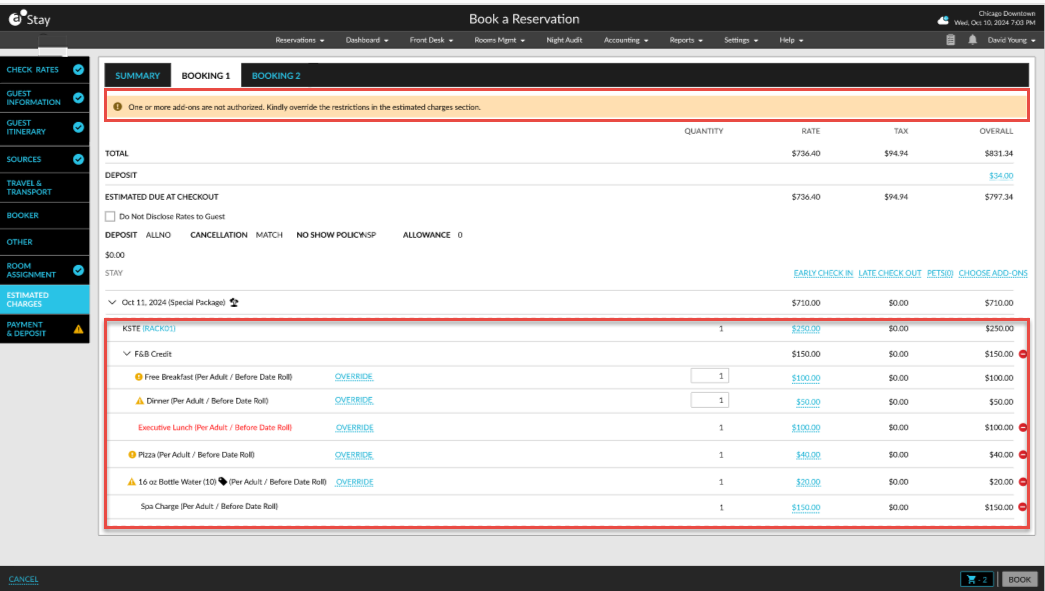
The following restrictions are displayed in the Estimated Charges section for the package components:
-
Inventory Unavailable
-
Amount exceeds threshold
An Override option is displayed for the components with restrictions for the user to authorize and the following message is displayed in the Booking tabs: One or more add-ons/components are not authorized. Kindly override the restrictions in the estimated charges. Users with the OverrideInventory permission assigned can click on the Override option and authorize the restrictions.
Users can continue to apply routing rules to package reservations with add-ons included as per the existing functionality.
Other Impacts on Reservations
Modify Reservation
When a package reservation with add-ons is modified, the package rate that includes the nightly room rate and the components rate is displayed in the Modify Stay screen. The add-ons added as part of the package are considered when reservations are modified.
Group Reservation
When a group reservation is booked using a package rate plan, the add-ons added as part of the package are added to the reservation.
Enhancements to Reports
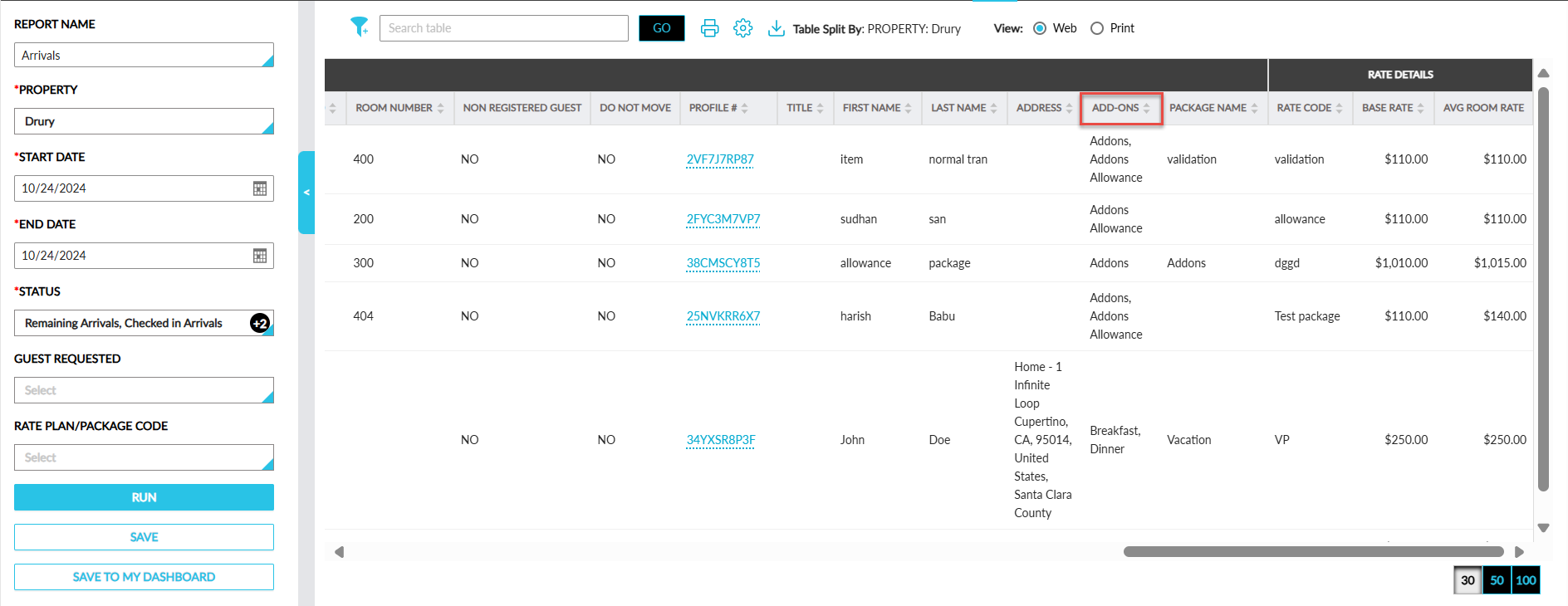
The following Dynamic reports in Stay have been enhanced to track the add-ons added to reservations as part of a package:
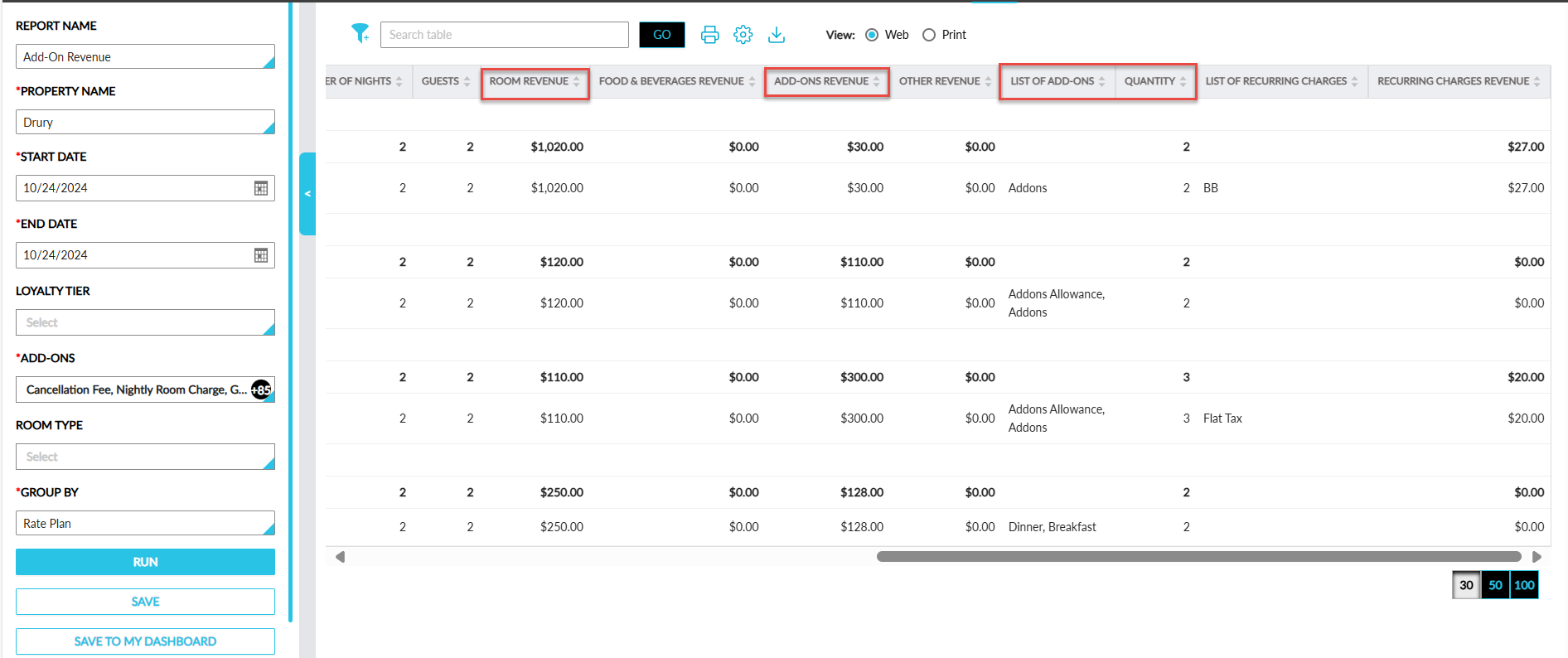
Add-On Revenue Report
The following columns have been enhanced:
|
Field |
Description |
|---|---|
|
Room Revenue |
The revenue generated from the package components that are marked as Room Revenue are tracked in this column. |
|
Add-Ons Revenue |
The revenue generated from the add-ons added to a reservation are tracked in this column. |
|
List of Add-Ons |
The add-ons added to a reservation as part of a package are displayed in this column. |
|
Quantity |
The count of add-ons added to a reservation as part of a package are displayed in this column. |
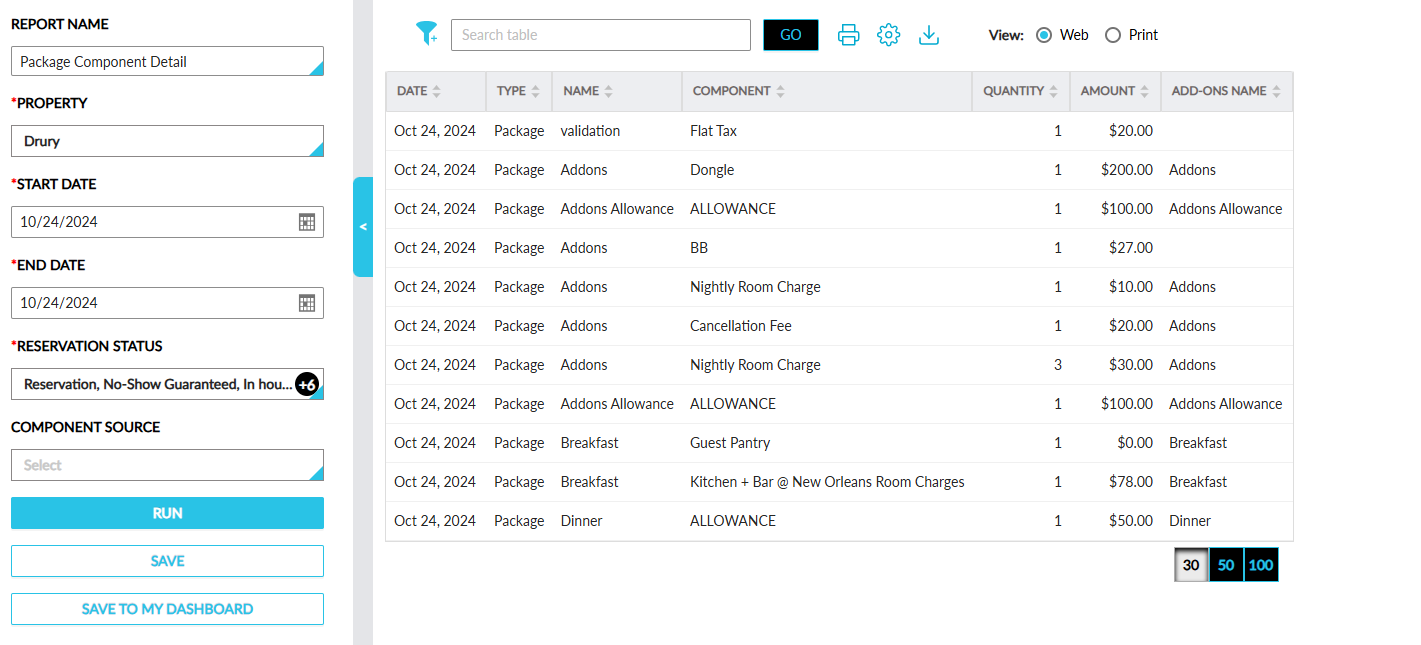
Package Component Details
The following columns have been enhanced:
|
Field |
Description |
|---|---|
|
Type |
When add-ons are included as components in a package, the type is displayed as Package. |
|
Add-Ons Name |
The name of the add-ons added to a package are displayed. |
|
Component |
The name of the components in an add-on. |
|
Quantity |
The quantity of the add-ons added to a package. |
|
Amount |
The amount of the add-on components added to the package. |
Arrivals Report
The following column has been enhanced:
|
Field |
Description |
|---|---|
|
Add-Ons |
The add-ons added as part of a package are displayed in this column. |