Flag Reservations as Red-Eye Reservations
Stay is enhanced to allow users to flag reservations as Red-Eye reservations prior to the date of check-in. With this feature, users can flag the reservations that are set to arrive on the business date following the scheduled arrival date as Red-Eye reservations. For example, if a reservation’s arrival date is July 13,2023, and if the guest has informed the property that he would arrive on July 14,2023, the user can flag the reservation as Red-Eye.
Feature Setting
-
Name: Red-Eye Arrival
-
Value: Must be enabled
-
Comments: License is not required
Permission
The following new permission has been introduced to allow users to flag a reservation as Red-Eye:
-
Stay_UpdateRedEyeArrivals
This permission is provided to users with access to the following roles by default:
-
System Administrator
-
Stay Hotel Manager
-
Department Manager
-
Guest Service Agent
-
Stay Front Desk
-
Stay Hotel Supervisor
-
GSA Supervisor
-
Stay Night Audit
Flagging a Reservation as Red-Eye
Users can flag only the reservations with the following status as Red-Eye:
-
Reserved
-
Arriving
-
In-House
When the Red-Eye Arrival feature setting is enabled, users with the Stay_UpdateRedEyeArrivals permission can flag the reservation as Red-Eye by clicking on the Red-Eye badge on the Reservation Summary section on the Reservation screen. When clicked, the Update Red-Eye Arrival pop-up screen appears that displays the following details:
|
Field |
Description |
|---|---|
|
Guest Arrival Date |
Displays the date following the scheduled arrival date by default. Users cannot modify the date. |
|
ETA |
Allows users to enter the estimated time of arrival for the reservation. |
|
Update Guest Arrival Status |
Allows users to select the status of the Red-Eye reservations. Users can select from the following options:
|
|
Username |
Username of the user who is flagging the reservation as Red-Eye. |
|
Password |
Password of the user. |
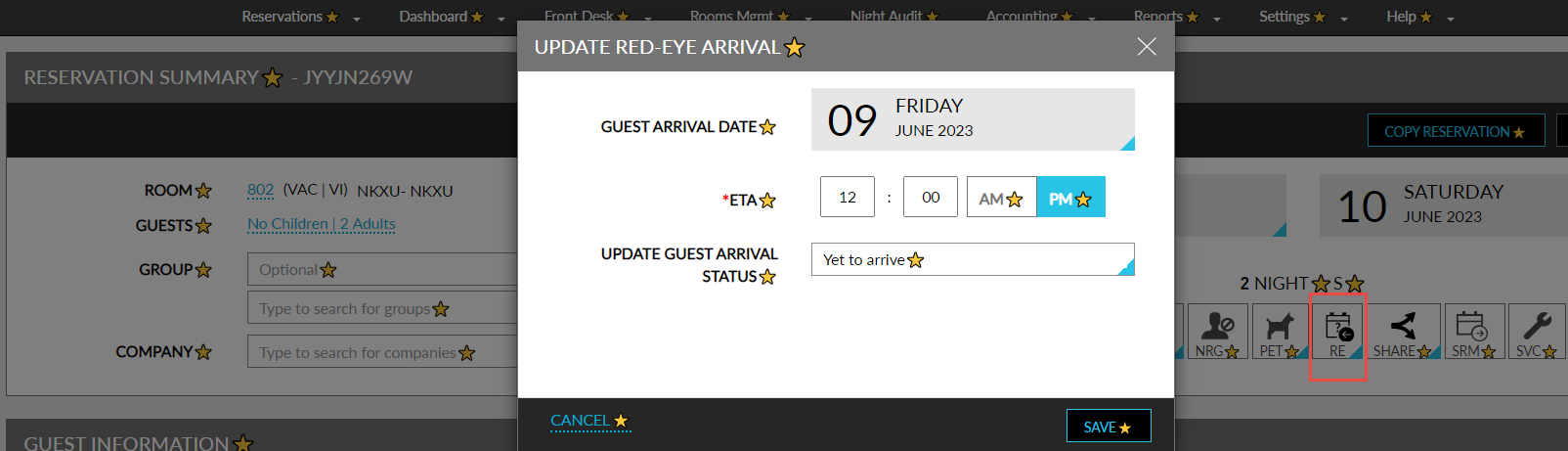
When users click Save, the reservation is successfully flagged as Red-Eye and the Red-Eye badge is enabled on the Reservation Summary section. When users hover over the bade, the Red-Eye status of the reservation is displayed in the following format: Red-Eye (Status). For example, Red-Eye (Yet to arrive).
Users can update the ETA and the Guest Arrival Status of the Red-Eye reservations whenever required by clicking on the Red-Eye badge.
Users cannot flag a reservation for which no room is assigned as Red-Eye. When users try to release the room assigned to a Red-Eye reservation, the Release Room pop-up screen appears that displays the following message: Room assignment is mandatory for red-eye reservation. The room can be released only when the Red-Eye badge is removed from the reservation manually.
Update Red-Eye Reservations from Batch Operations Screen
Users can update/modify reservations to Red-Eye reservations from the Red-Eye tab on the Batch Operations screen. Users can retrieve the Red-Eye reservations by selecting the date range using the date pickers. The start and end date pickers display the current property date by default. Users can select any current or future dates.
The following details are displayed for the selected reservations on the Red-Eye tab:
|
Field |
Description |
|---|---|
|
Confirmation |
Displays the confirmation number of the reservation as a hyperlink. When clicked, the user is navigated to the Reservation screen. Users can search for a record using this field. |
|
Guest Name |
|
|
Rate Plan |
Displays the name of the rate plan used for booking the first night of the reservation. |
|
Group |
|
|
Company |
|
|
Room Type |
|
|
Room # Building |
Displays the room number assigned to the reservation along with the name of the building in the following format: Room Number-Building. Users can search for a record using this field. |
|
Arrival Date |
Displays the arrival date of the reservation. This column can be sorted. |
|
Guest Arrival Date |
|
|
Departure Date |
Displays the departure date of the reservation. This column can be sorted. |
|
ETA |
|
|
Guest Arrival Status |
|
|
Status |
|
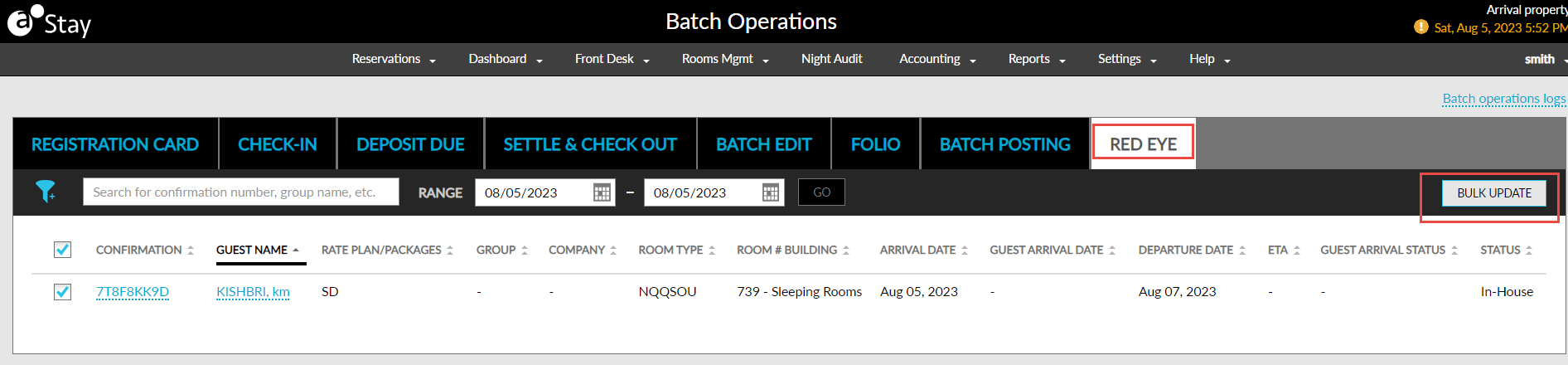
Users can select the reservations using the checkbox provided. Only the reservations for which a room number is assigned can be selected. When users click the Bulk Update button, the Update Red-Eye Arrival pop-up screen appears where users can modify the ETA or the Guest Arrival Status of the reservations. Users cannot remove the Red-Eye badge for the reservations from the Batch Operations screen.
The updates made to the reservations from the Red-Eye tab are tracked in the Batch Operations Logs screen.
Display Red-Eye Icon for Reservations
The Red-Eye icon for the reservations that are flagged as Red-Eye with the Guest Arrival Status Yet to arrive is displayed on the following screens:
-
Search
-
Batch Operations ➜ Check-In
-
Tape Chart
-
Night Audit ➜ Date Roll
The Red-Eye icon is also displayed on the following reports:
-
Arrivals Report (Dynamic)
-
Reservations Report (Dynamic)
The Red-Eye icon is removed automatically when the reservation is marked as Cancelled or No-Show. For the reservations that are checked-in, the icon is removed only when the user updates the Guest Arrival Status as Cancelled or Remove Red Eye. When users modify the arrival date of a reservation after the Red-Eye badge is enabled, the following message is displayed in the Modify Stay screen: Red-eye arrival has been removed, please update if required. After the dates are modified, the Red-Eye badge is removed from the reservation and users can update the status of the reservation as preferred.
The Red-Eye icon is not displayed when reservations are copied, moved, swapped, and shared. The Red-Eye badge can be enabled for any reservation irrespective of the reservation’s payment method. Users can set the ETA for the reservations flagged as Red-Eye even when the ETA for the property is not configured.
Changes Made to Support the Feature
To support this enhancement, the following changes have been made:
-
A new column, Red-Eye Status, has been added next to the Status column on the Arrivals Report (Dynamic) and Reservations Report (Dynamic). This column displays the Guest Arrival Status of the reservations that are flagged as Red-Eye.
-
A new report generation parameter, Red-Eye Status, has been added below the Status parameter. It is a multi-select drop-down list that allows users to select the Guest Arrival Status of the red-eye reservations.
-
-
A new option, Red-Eye Arrivals, has been added to the Status drop-down list on the Batch Operations Logs screen. When selected, the changes made to the red-eye reservations on the Red-Eye tab on the Batch Operations screen is displayed.
-
A new filter, Red-Eye Arrivals, has been added to the Search screen, Check-In tab on the Batch Operations screen, and Tape Chart screen. This is a multi-select filter that allows users to select from the following options:
-
Yet to arrive
-
Arrived
-
Cancelled
-
Remove Red-Eye
-
When selected, the reservations tagged as Red-Eye with the selected status is displayed.
-
A new option, Check-in red-eye arrivals, has been added to the Expected Arrivals section when users select the Cancel/No Show option on the Auto Date Roll tab on the Night Audit screen. This option checks-in all the red-eye reservations during auto date roll. When selected, the following sub-options are displayed:
-
Continue Auto Date Roll on check-in with CC Auth failure: When selected, during check-in if the credit card authorization fails the auto date roll proceeds and does not stop.
-
Stop Auto Date Roll on check-in with CC Auth failure: When selected, during check-in if the credit card authorization fails the auto date roll stops.
-
-
A new tab, Red-Eye, has been added to the Batch Operations screen. This tab allows users to perform bulk updates to the red-eye reservations.
-
A new option, Red-Eye Arrival, has been added to the Action drop-down list in the Batch Operations Logs screen. When selected users can retrieve the modifications performed to the reservations that are tagged as Red-Eye. The Action column displays the value as Red-Eye Arrival and the Exception Details column displays the reason for the failure of the update.