Guest Self Service - Upgrades and Upsells
Stay Self Service is enhanced to allow guests to upgrade their room and select add-ons for their stay. Two new screens, Upgrade Your Stay and Add-Ons, are added to Stay Self Service, where guests can select the required upgrades and Add-ons for their stay during the check-in process.
To support this, a new tab, Upgrades & Upsells, has been added to the Guest Self Service Setup page (Setting ➜ All Settings) that allows users to set up the Upgrade Your Stay screen and Add-Ons screen in Stay Self Service.
|
|
|---|---|
|
Upgrades |
|
|
|
|
|
|
Add-Ons |
|
|
|
|
|
|
|
|
Upgrades & Upsells Defaults |
|
|
|
|
|
|
|
Sample Scenario
Perform the following actions to upgrade your room and select add-ons via Guest Self Service.
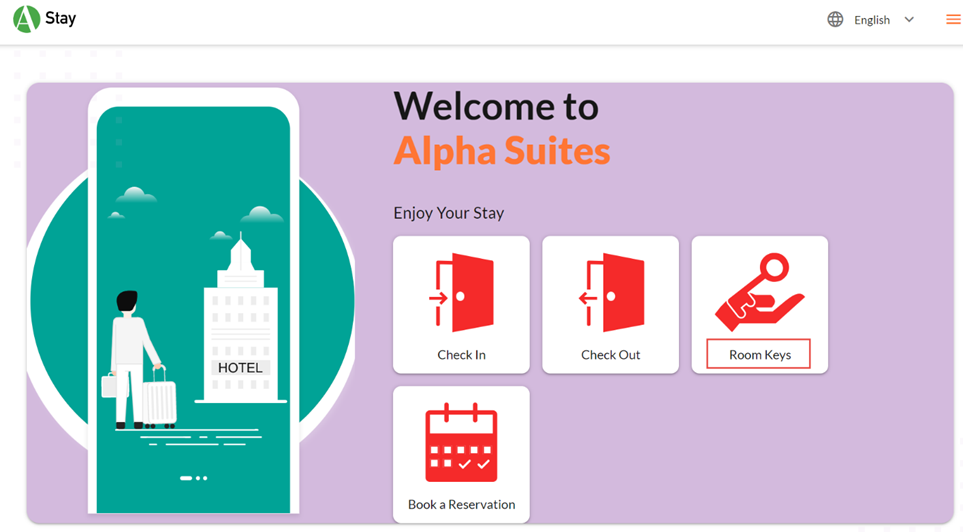
Click Check In on home screen.
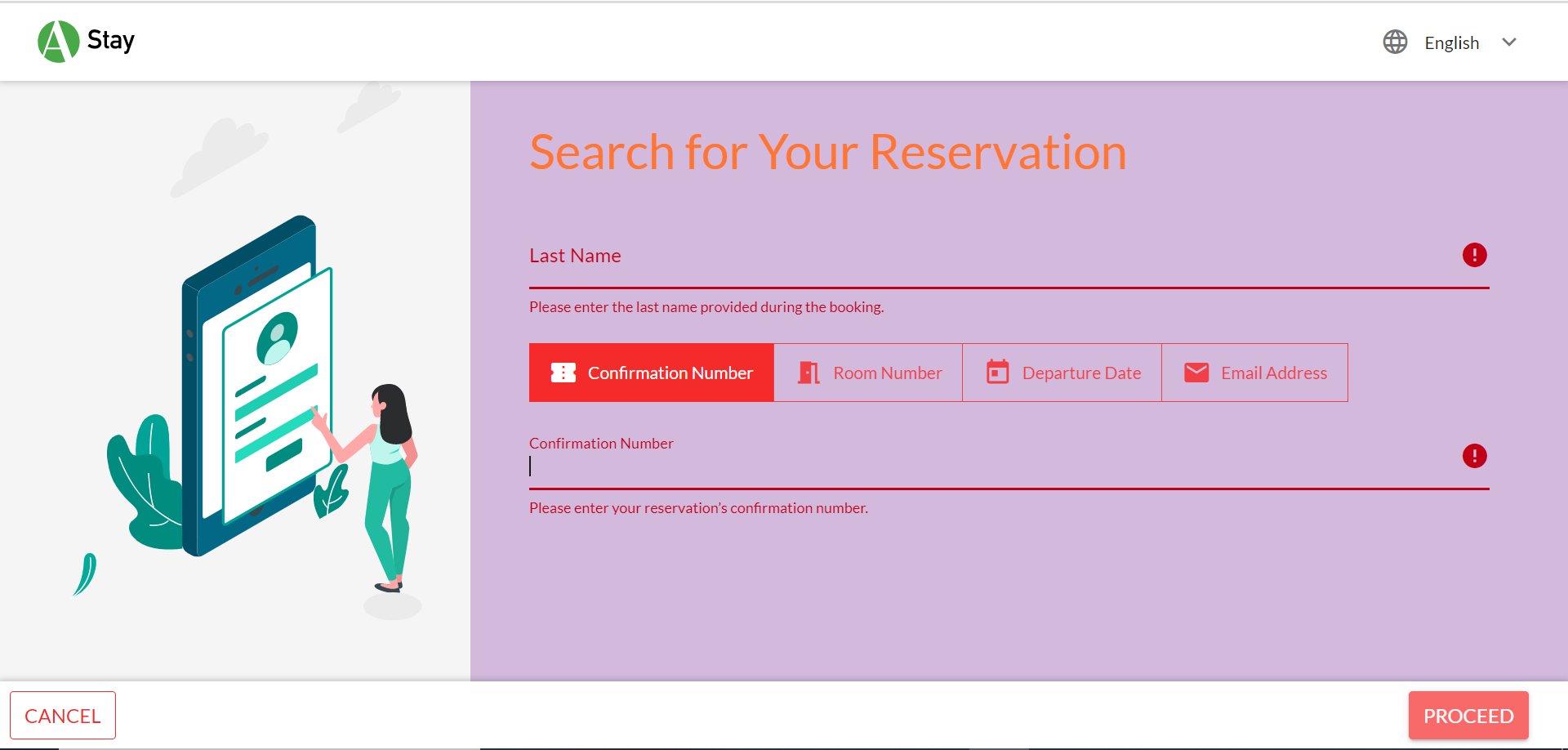
Enter the last name and select any of the following options.
-
Room Number - Enter the room number.
-
Confirmation Number - Enter the confirmation number.
-
Departure Date - Enter the departure date.
-
Email Address - Enter the guest email address.
Click Proceed. Your reservation summary is displayed.
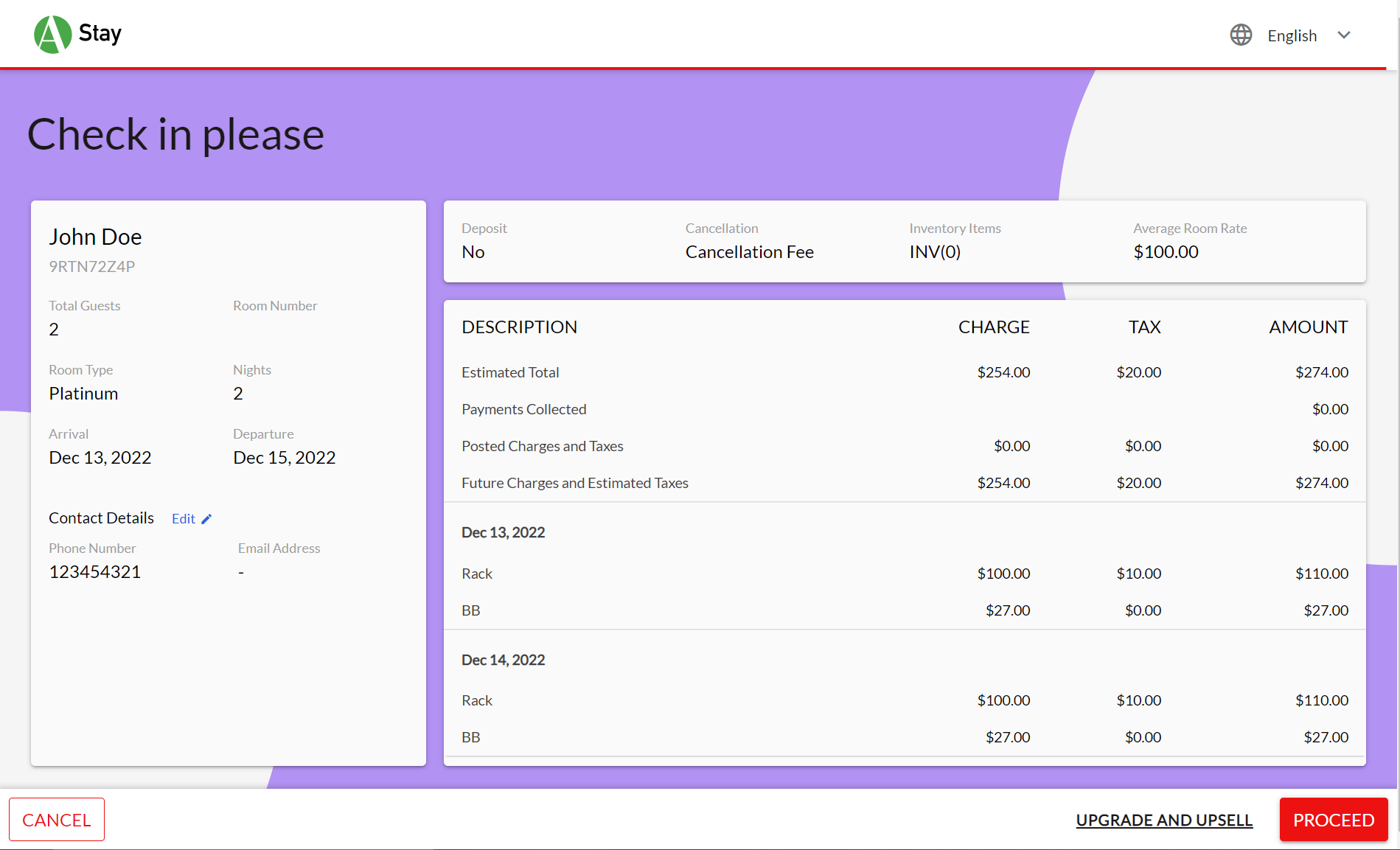
Click Proceed. The Your Room Upgrades Options screen is displayed.
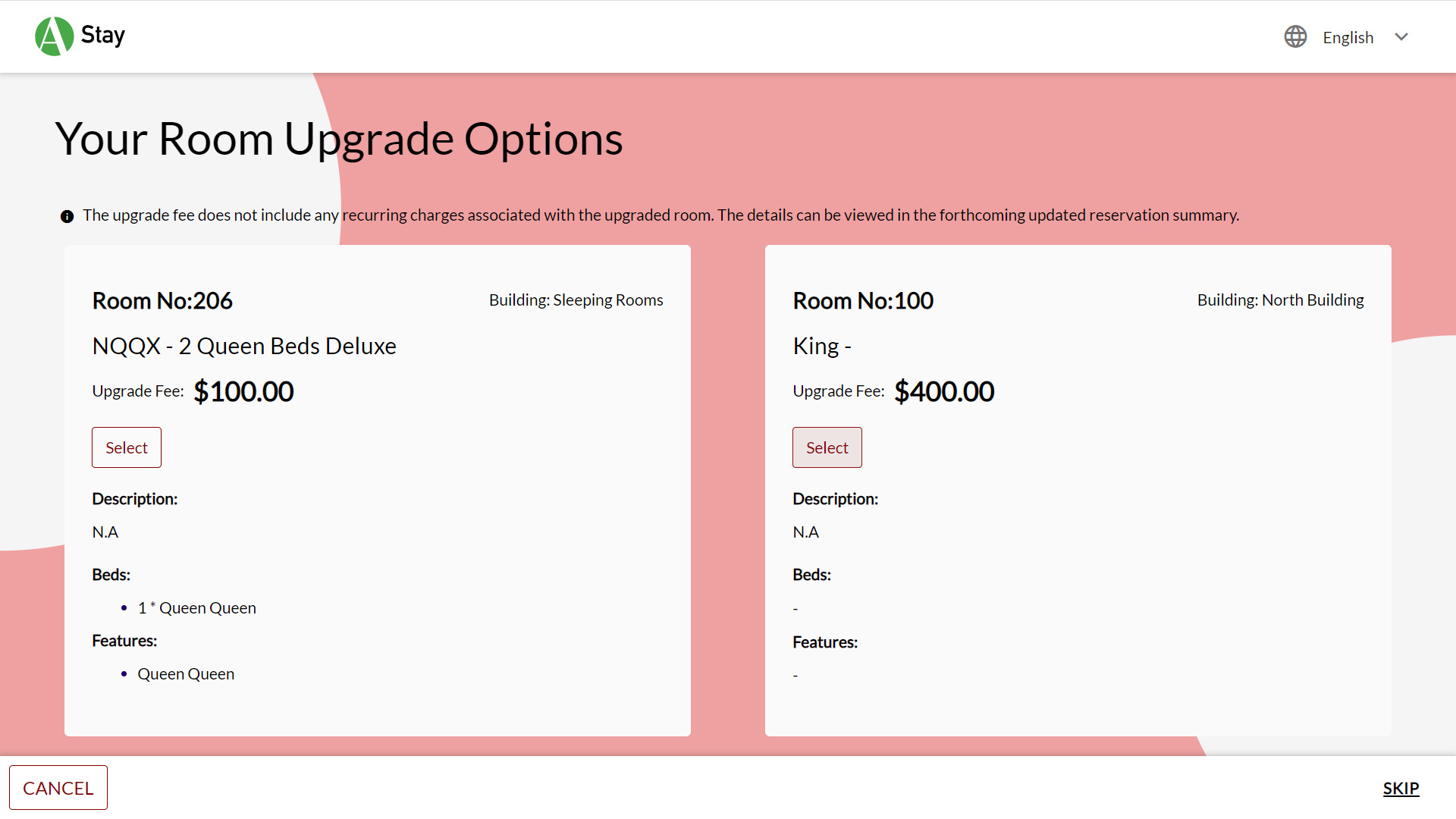
This screen is displayed as a part of the check in process only if the Mandatory During Check In toggle under Upgrades & Upsells Defaults is turned on. Users can also access the upgrades screen by clicking the hyperlink button next to Proceed.
Select the upgrades required for the reservation. A maximum of one upgrade can be selected.
Click Save. A Room Upgrade Confirmation pop-up is displayed.
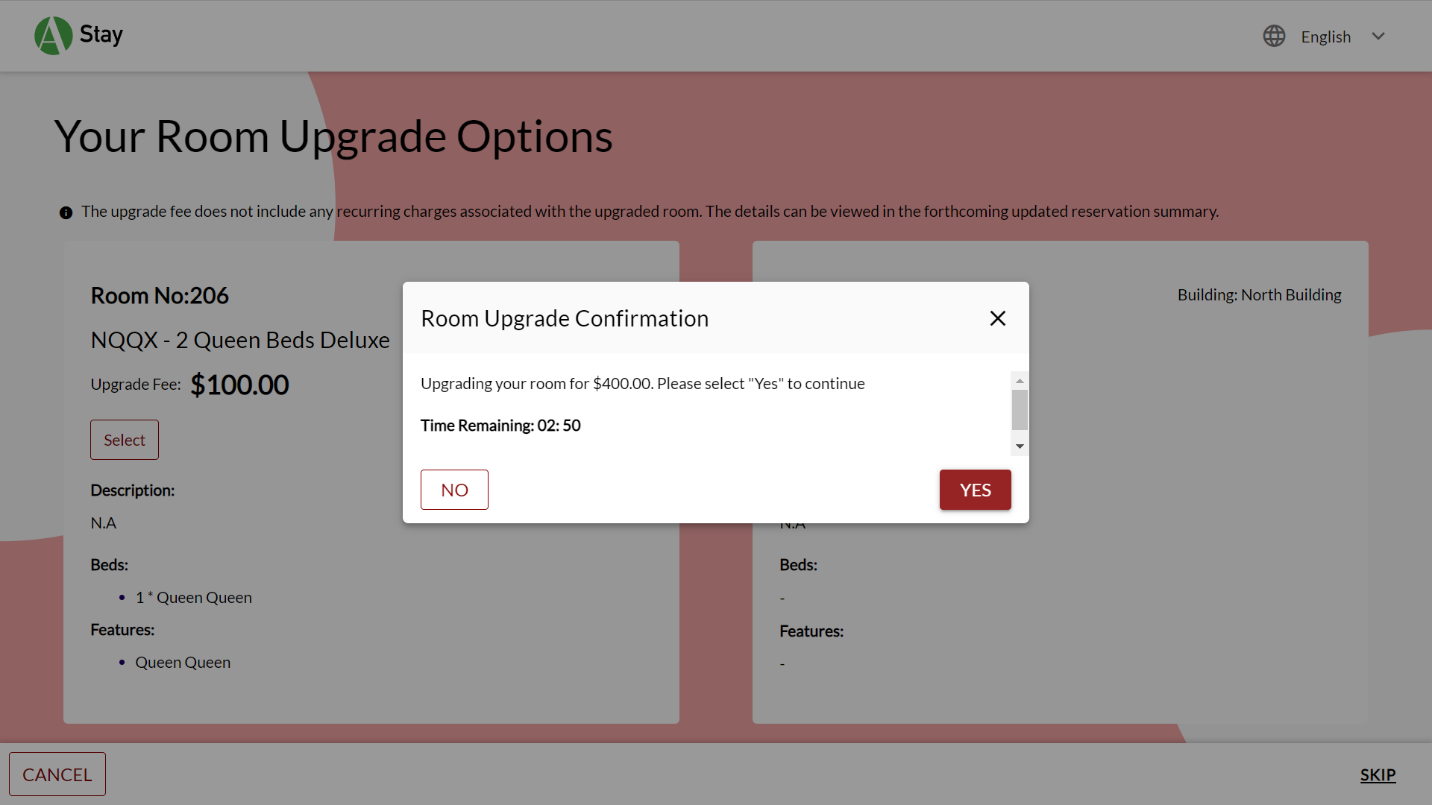
Click Yes to confirm your upgrade. The upgrade is added, and the Add-ons screen is displayed.
Clicking No discards the selected upgrade.
Click Select to select the Add-ons required.
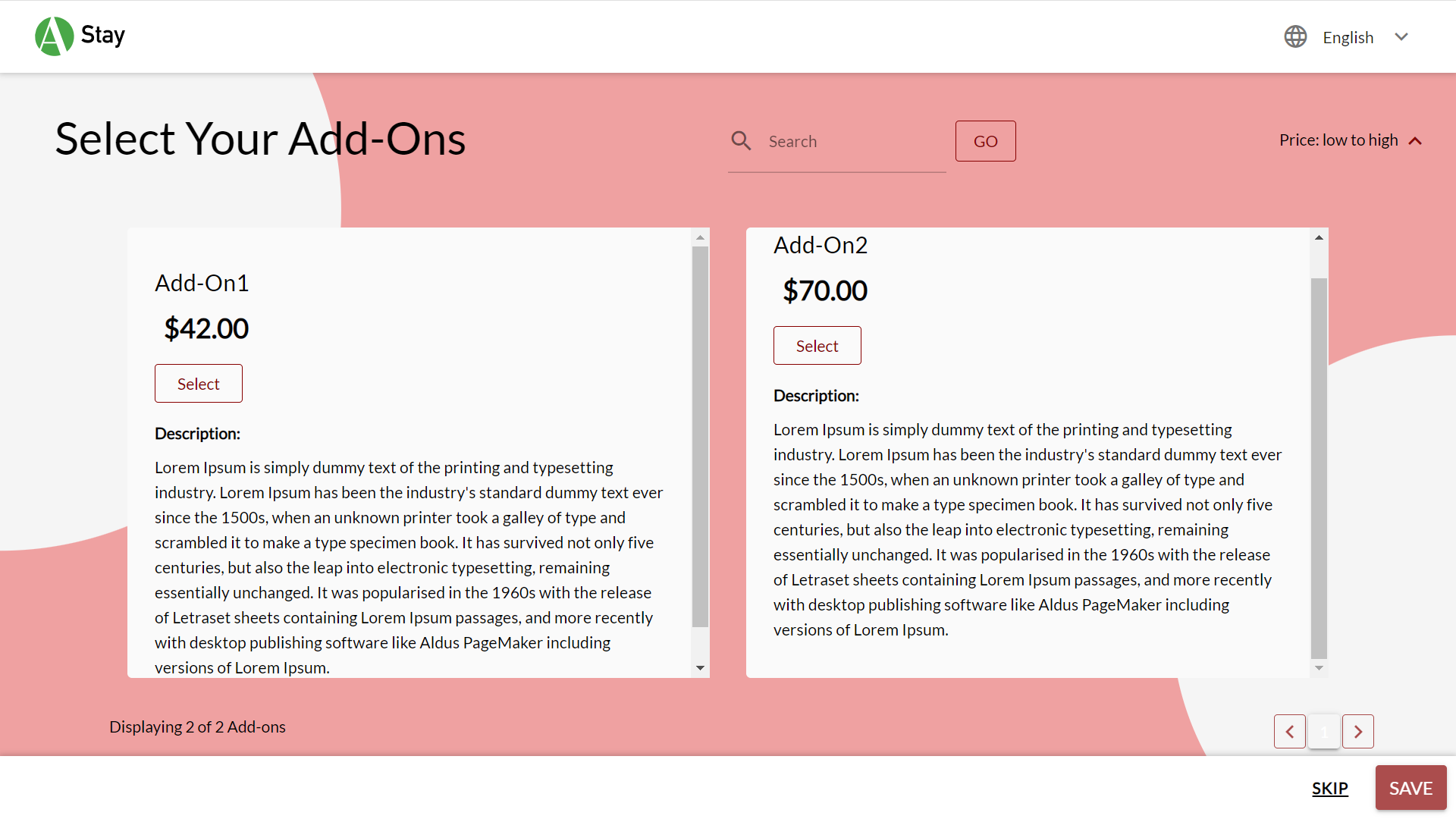
Users can search for add-ons using the search bar. Add-on prices can be sorted from low to high or high to low.
Click Save. The updated reservation summary page is displayed.
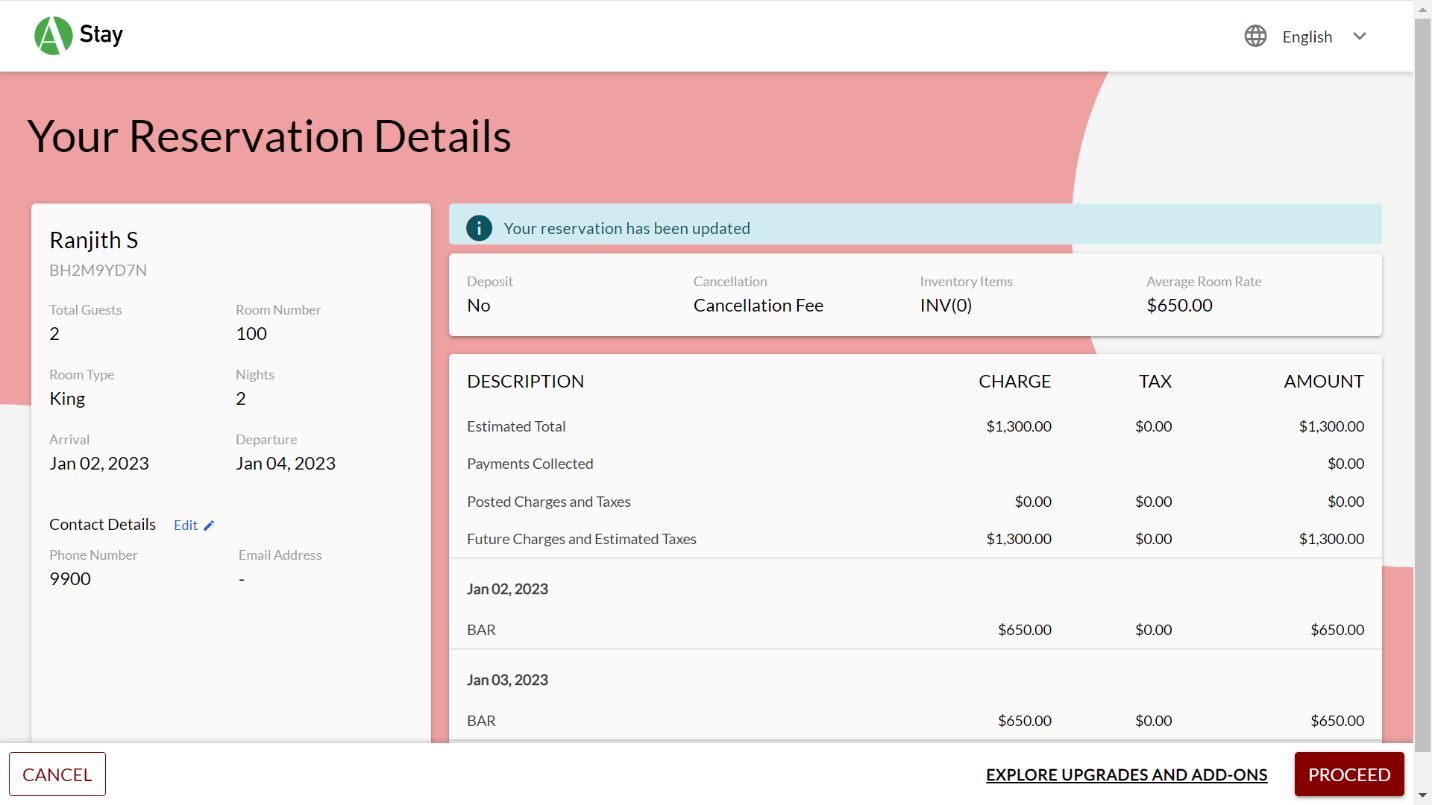
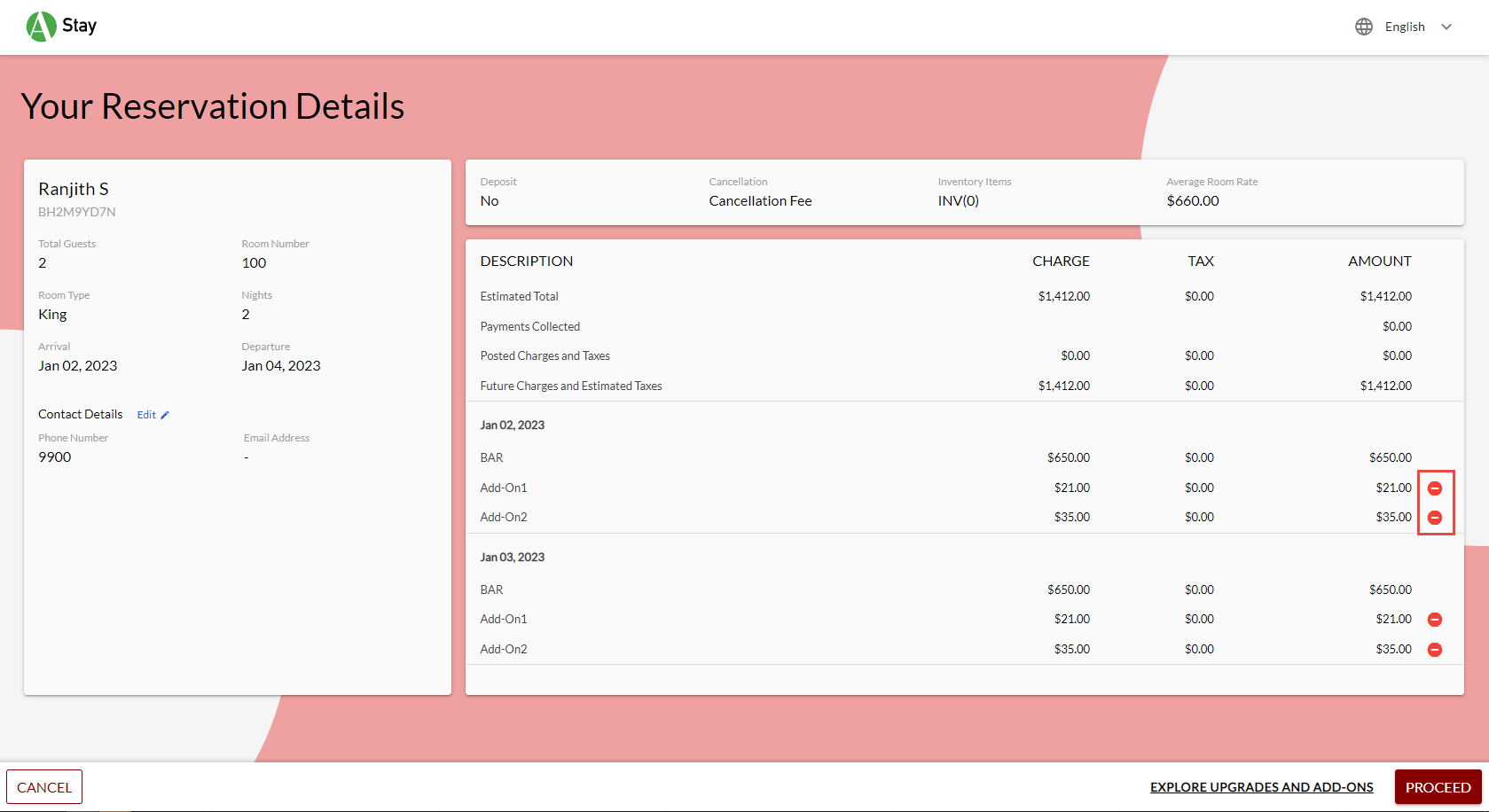
Users can also remove add-ons from the reservation summary screen. To support this, new remove icons are added to each add-on item in the reservation summary screen. When users click the remove icon, the respective add-on is removed from the reservation summary screen.