Improve User Experience When Changing Room Type or Swapping Rooms
To improve the user experience when users perform the following operations, the Modify Stay screen in Stay is enhanced to display a comparison of the room type, room number, and rate details of the current and newly selected room type/room number for a reservation in a new tab:
-
Change the room type of reservation
-
Swap rooms between reservations
-
Change the room number assigned to a reservation
Change the Room Type
When the room type of the reservation is modified using the Change Room Type option in the Currently Selected Room section of the reservation, the Change Room Type pop-up screen appears. When users select the new room type and click Save, they will navigate to the Modify Stay screen.
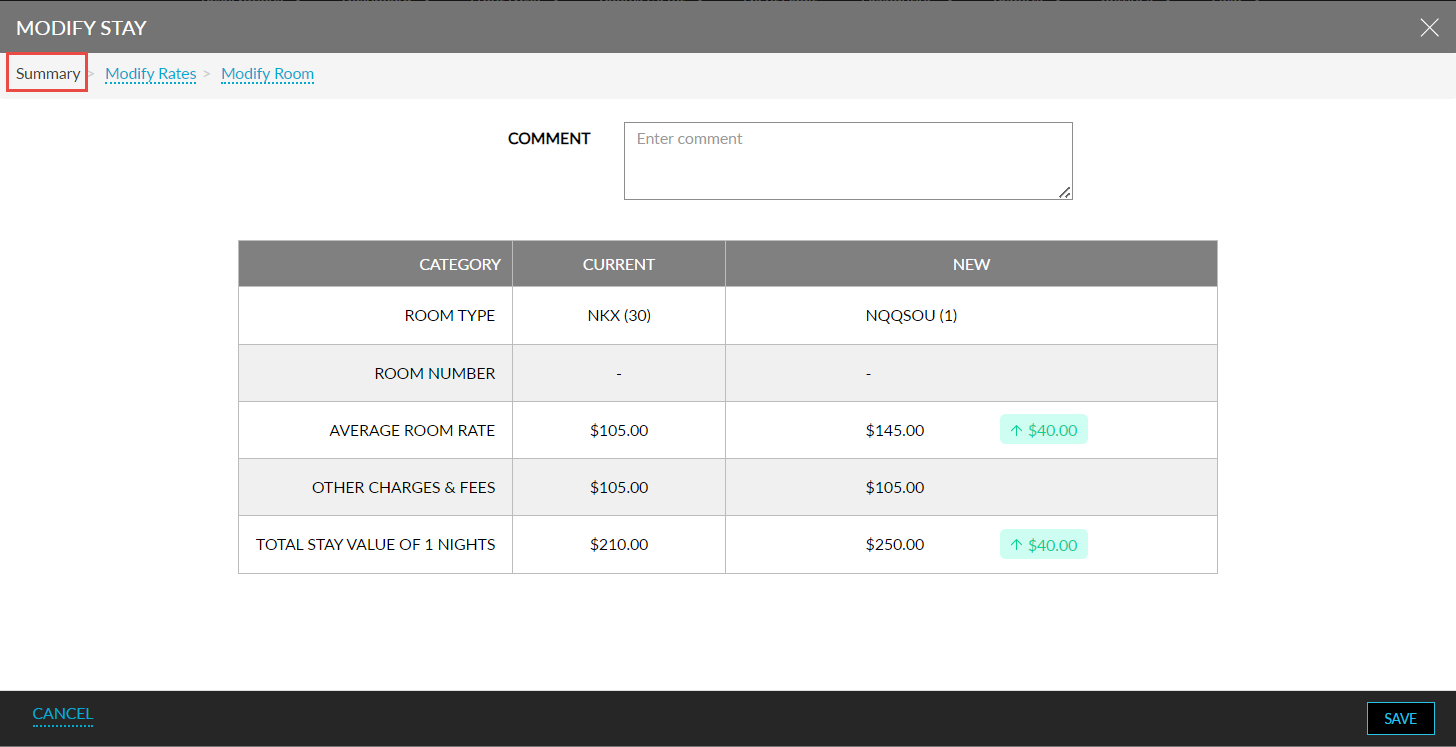
A new tab, Summary, has been added to this screen that displays the following details:
|
Category |
Description |
|---|---|
|
Room Type |
The current and the new room type selected is displayed along with the reason for the room change displayed next to the room type as a label (for example, Upsell, Modified). |
|
Room Number |
The room number previously assigned and the new room number selected are displayed. A hyphen (-) will be displayed if no room number is assigned. |
|
Group Contract |
The current room type blocked for the group and the new room type selected is displayed along with the number of rooms remaining in brackets. If there are no room blocks for the room type, the count will be displayed as 0. This category will be displayed only for group reservations. |
|
Average Room Rate |
The average nightly room rate of the current and new room type is displayed. If the new average room rate is higher or lower than the current rate, the difference in rate will be highlighted with an upward or downward arrow. |
|
Rate Override Indicator |
If the nightly room rate is overridden, the override indicator will be displayed below the current/new average room rate in the following format: Rate Override - Yes. |
|
Other Charges & Fees |
This category is displayed if the current or new room type has an auto recurring fee, or add-ons applied. The sum of the auto recurring fee and the add-ons for the current and new room type is displayed. If either the current or the new room type does not have an auto recurring fee, or add-ons applied, a hyphen (-) will be displayed. If the value in the New column is greater than the value in the Current column, the value will be highlighted with an upward or downward arrow. |
|
Total Stay Value of X Nights |
The sum of the Other Charges & Fees, base rate, modifiers, and the charges for the additional guests for the current and new room type is displayed. |
|
Reason |
This is a single select drop-down list that displays the room move reasons configured at the property. When the Room move reason based on category feature setting is enabled, all the reasons configured in the Room Move Reason screen (All Settings ➜ Reservations ➜ Room Move Reasons) for the Upsell/Upgrade and Other category will be displayed when the current room type is changed to a higher or lower ranked room type. |
|
Comment |
This is a text field that allows users to enter a comment for the modification. This is an optional field that allows users to enter a maximum of 500 characters. |
When the selected room type is overbooked, a message is displayed in the Summary tab stating that there are no rooms available for the selected room type. When users click on the Click here hyperlink, the Overbooking Details pop-up screen appears that displays the details of the overbooked room. Users with the required permissions can book a room by entering their credentials.
Change Rooms from the Other Matching Rooms Section
When the room number assigned to a reservation is changed from the Other Matching Rooms section of a reservation, the Modify Screen will be displayed. The Summary tab with the mentioned details will be displayed on this screen.
Swap Rooms Between Reservations
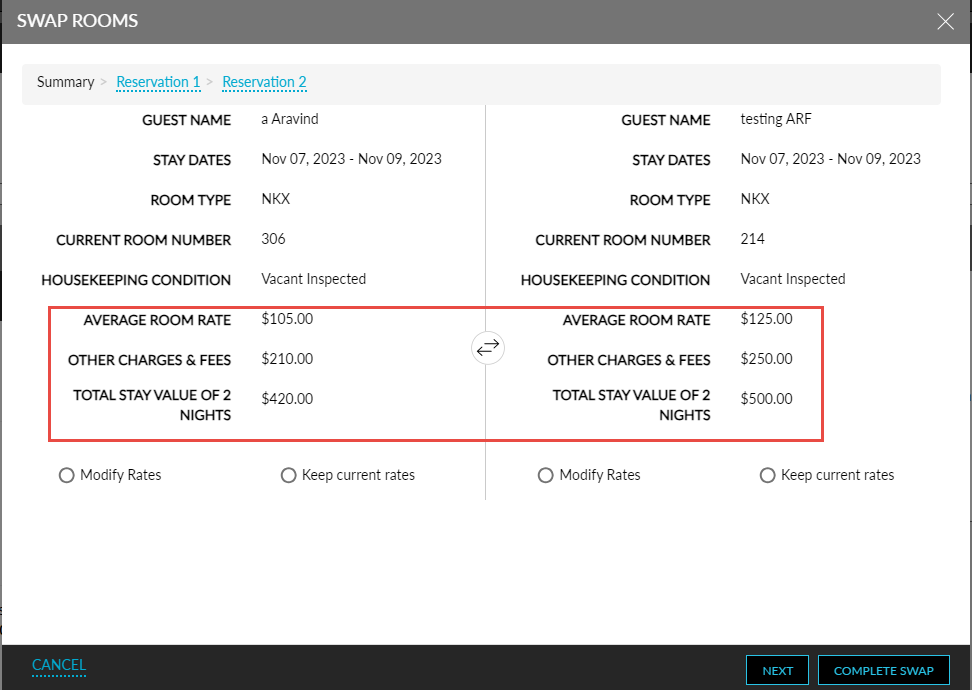
The Summary tab in the Swap Rooms pop-up screen that appears when users swap rooms between reservations has been enhanced to include the following new fields:
|
Field |
Description |
|---|---|
|
Average Room Rate |
The average nightly room rate for the rooms. |
|
Other Charges & Fees |
The sum of the auto recurring fee and the add-ons selected for the rooms. |
|
Total Stay Value of X Nights |
The sum of the Other Charges & Fees, base rate, modifiers, and the charges for the additional guests for the rooms. |
Keep Current Rates or Modify Rates
The Keep Current Rates and Modify Rates options in the Modify Stay screen will not be displayed if the price of the new room is the same as the currently selected room. The Upsell, Downgrade, and Upgrade labels will be displayed in the Summary tab based on the reason selected for the room move. If a reason associated with the Upsell category is selected, the nightly room rate will be updated and if a reason associated with the Upgrade category is selected, the nightly room rate will remain the same.
The Upsell label will be displayed only when the nightly room rate is modified. When the user switches to a different room type and selects a reason associated with Upgrade, the rate will not be modified. These labels are displayed below the new room type selected and an upward or downward arrow is displayed for the Average Room Rate category in the New column to indicate the difference in price.
Summary Tab in the Modify Stay Screen
Users will be navigated to the Summary tab of the Modify Stay screen for the following scenarios:
-
When users select a different room type associated with the current rate plan from the Currently Selected Room section of the reservation.
-
When users select a room number from a different room type associated with the current rate plan from the Other Matching Rooms section of the reservation.
-
When users select a room from the Recommended Upgrades section.
-
When users select a room from the Recommended Rooms and Recommended Room Upgrades Based on Guest Stay History sections when the Recommended Room Upgrades Based on Guest Stay History feature setting is enabled.
-
When users move a reservation to a different room number from the same room type from the Tape Chart screen.
-
When users move a reservation to a different room type associated with the current rate plan from the Tape Chart screen.
-
When users swap rooms for reservations from the same room type or a different room type associated with the current rate plan from the Tape Chart screen.
Modify Rates Tab in the Modify Stay Screen
Users will be navigated to the Modify Rates tab in the Modify Stay screen for the following scenarios:
-
When the room type of the reservation is modified to a different room type that is not associated with the current rate plan from the following areas:
-
Currently Selected Room section of the reservation.
-
Other Matching Rooms section of the reservation.
-
Estimated Charges section of the reservation.
-
Tape Chart screen.
-
-
When users modify a redemption reservation when the Redemption Reservation Restrictions feature setting is enabled.
The Summary tab will be updated after the user selects the rates in the Modify Rates tab. If the user accesses the Summary tab before selecting the rates in the Modify Rates tab, no details will be displayed. If a reason for the room move is mandatory, users must select a reason to save the selected rates in the Modify Rates tab.
System Changes
To support this enhancement, the following changes have been made:
-
A new tab, Summary, has been added to the Modify Stay screen.
-
The following new fields have been added to the Swap Rooms pop-up screen:
-
Average Room Rate
-
Other Charges & Fees
-
Total Stay Value of X Nights
-