Mark a Housekeeping Service as No Service/Limited Service
Stay is enhanced to allow users to mark housekeeping services as No Service/Limited Service. Users can use this option to deselect services that are not required to be performed for that day, from the housekeeping pattern of the reservation. For example, if a guest does not require the room to be cleaned on March 21, 2023, the stayover service for that day can be deselected by marking the service as No Service/Limited Service.
This option is available for all the existing and newly created housekeeping services. This option can be selected for any number of housekeeping services.
To support this feature, the following changes have been made:
-
A new flag, Mark This Service As No/Limited Service, is added to the Add/Edit Housekeeping Service screen in the Services section of the Housekeeping Setup screen. When enabled, the selected service will be marked as No Service/Limited Service.
-
A new flag, Allow Staff Assignment, is added to the Add/Edit Housekeeping Service screen in the Services section of the Housekeeping Setup screen. When enabled, a service request with the same name is created for staff assignment.
-
A new drop-down list, Select Service to be Unassigned, is added to the Add/Edit Housekeeping Service screen in the Services section of the Housekeeping Setup screen. Users can select the services to be deselected in the housekeeping pattern of the reservation from this drop-down list.
-
A new flag, Exclude No/Limited Services, is added to the Unassigned Service Requests section of the Housekeeping screen. When enabled, the services marked as No/Limited Service will not be assigned to the staff. This flag is visible only when at least one No/Limited Service is configured in the Housekeeping Services setup.
-
A new button, More, is added to the Housekeeping Pattern section of the Reservation screen (Reservation ➜ SVC ➜ Housekeeping). When clicked, the following options are displayed:
-
Apply to All Dates: the selected services are applied to all days in the reservation.
-
Apply to All Dates Except Last: the selected services are applied to all days except the last day of the reservation.
-
Clear Selected Services: the selected services should be cleared for all the selected days.
-
-
The housekeeping services marked as No Service/Limited Service is displayed by an icon alongside the service name in the following screens:
-
Housekeeping - Home
-
Staff
-
Rooms
-
Housekeeping - Assign
-
Unassigned service requests
-
Assigned service requests
-
Housekeeping - Print
-
Housekeeping Setup - Patterns
-
Housekeeping Setup - Services
-
Reservation - Service Requests
-
Reservation - Housekeeping Pattern
-
Reservation History
-
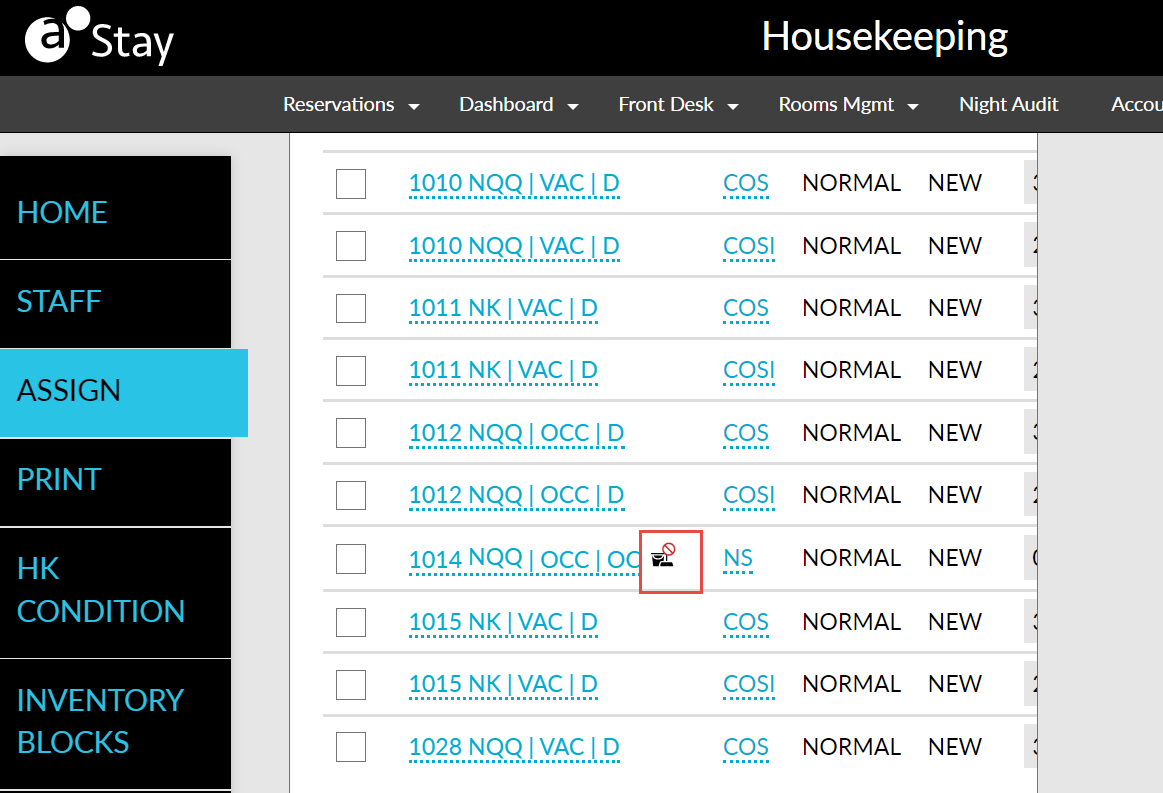
Marking a housekeeping service associated with a reservation as No/Limited Service
Navigate to the Add Housekeeping screen (Rooms Mgmt ➜ Housekeeping ➜ Setup ➜ Services ➜ Add New)
Refer to the following table and fill in the fields:
|
|
|---|---|
|
|
|
|
|
|
|
|
|
|
Click Save. The new No/Limited service is created successfully.
Navigate to the Pattern section (Housekeeping Setup ➜ Patterns) and associate the created No/Limited service to the required housekeeping patterns.
Navigate to the housekeeping pattern of the reservation (Reservation ➜ SVC ➜ Housekeeping).
Select the housekeeping pattern for which the No/Limited service is associated. The services marked as No/Limited service will get greyed out in the housekeeping pattern.