New Dashboard for Ledgers
Stay is enhanced for the addition of a new dashboard referred to as Ledgers in the Dashboard menu. The dashboard displays the outstanding balance of the following ledgers.
-
A/R
-
City
-
Guest
-
Deposit
Feature Setting
The following new feature setting must be enabled to view the Ledgers dashboard.
-
Name: Ledgers Dashboard
-
Comments: License is not required
Permissions
The following new permissions must be assigned to users.
-
Stay_ReadCityLedger: Allows users to access the City Ledger tab in the Ledgers dashboard.
-
Stay_ReadGuestLedger: Allows users to access the Guest Ledger tab in the Ledgers dashboard.
-
Stay_ReadDepositLedger: Allows users to access the Deposit Ledger tab in the Ledgers dashboard.
These permissions are assigned to the following roles by default:
-
System Administrator
-
Stay Hotel Manager
-
Department Manager
-
Stay Hotel Supervisor
-
Stay Accounting
-
Stay Reporting
-
Stay Night Audit
-
Stay Front Desk
The following existing permission must be assigned to users:
-
Stay_ReadAccountingReports: Allows users to access the AR Ledger tab in the Ledgers dashboard
When users without the new permissions assigned access any of the mentioned tabs in the dashboard, the message, User does not have permission. Please contact the respective team, will be displayed.
Ledgers Dashboard
The Ledgers dashboard displays the following tabs:
-
AR Ledger
-
City Ledger
-
Guest Ledger
-
Deposit Ledger
AR Ledger
The AR Ledger tab displays a summarized overview of the A/R accounts associated with the property. The following columns are displayed in this tab:
|
Column |
Description |
|---|---|
|
Company |
The company name associated with the A/R account. Users can search for a record using the company name. This column can be sorted. |
|
Current |
The amount displayed here indicates the total outstanding balance has aged for the last 30 days from the current property date. This column can be sorted. |
|
31 - 60 Days |
The amount displayed here indicates the total outstanding balance has aged for the last 31 - 60 days from the current property date. This column can be sorted. |
|
61 - 90 Days |
The amount displayed here indicates the total outstanding balance has aged for the last 61 - 90 days from the current property date. This column can be sorted. |
|
91 - 120 Days |
The amount displayed here indicates the total outstanding balance has aged for the last 91-120 days from the current property date. This column can be sorted. |
|
121+ Days |
The amount displayed here indicates the total outstanding balance has aged for the last 121+ days from the current property date. This column can be sorted. |
|
Invoiced |
The total amount invoiced to the company. This column can be sorted. |
|
Uninvoiced |
The total outstanding balance for transactions that are not invoiced. This column can be sorted. |
|
Unapplied Payments |
The total payment received in the Unapplied Payments section of A/R accounts but not applied to invoices. This column can be sorted. |
|
Balance |
The total outstanding balance for the A/R account that includes all aging categories and transaction types. This column can be sorted. |
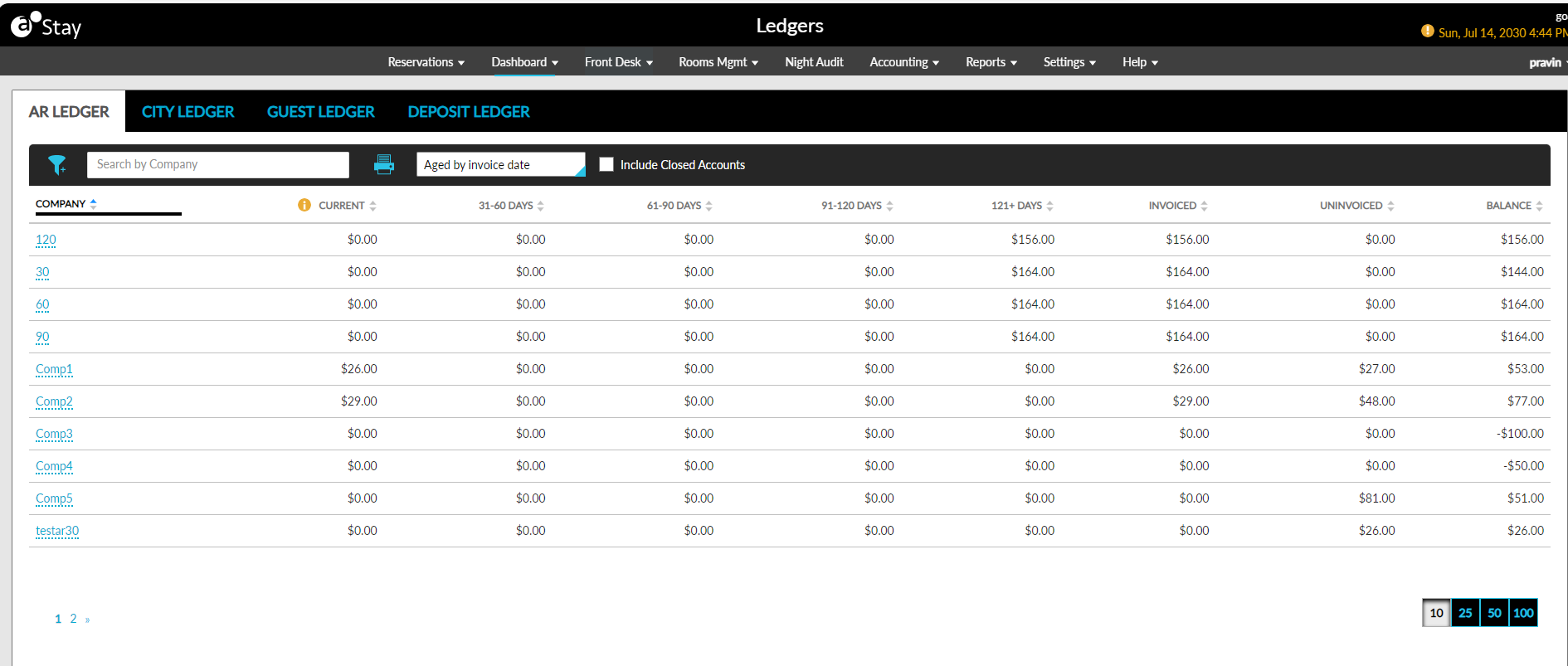
Users can filter records using the Uninvoiced Balance and Aging options. Users can view aged records in this tab based on the following options:
-
Aged by due date
-
Aged by invoice date
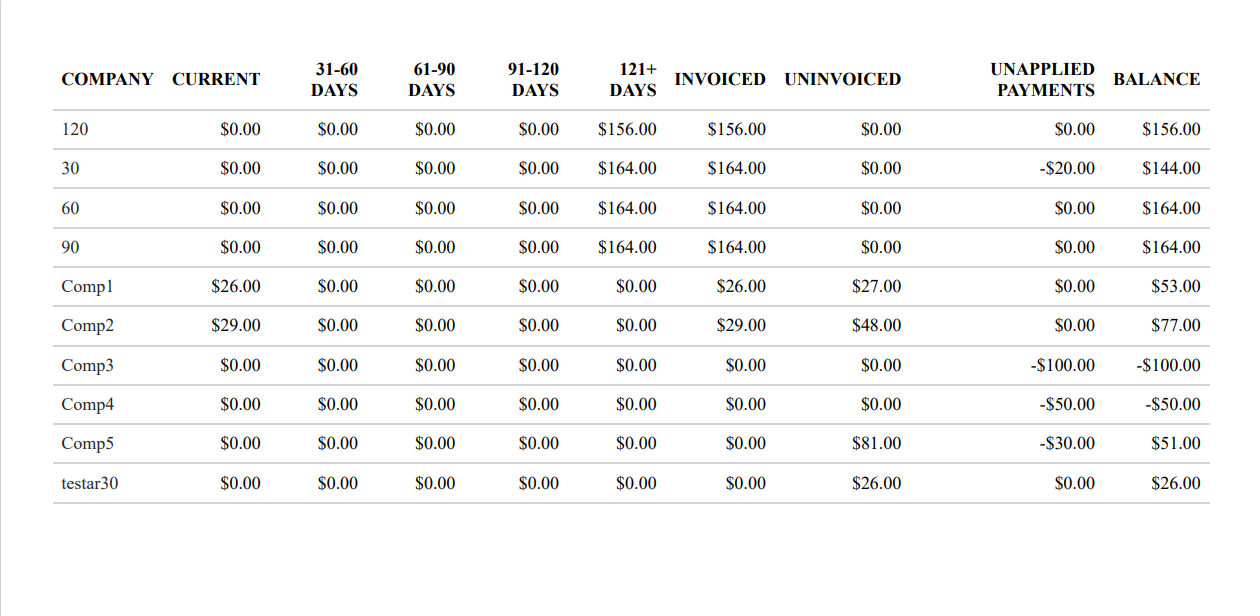
Users can print records displayed in this tab using the print icon. The records can be printed only for one page at a time.
City Ledger
The City Ledger tab displays the following tabs:
-
Reservations
-
Groups
-
House Accounts
Reservations Tab
The Reservations tab displays reservations in the following statuses with a balance due:
-
Reserved
-
Arriving
-
Cancelled
-
No-Show
-
Departed
By default, only reservations in the following statuses are displayed: Canceled, No-Show, and Departed. The data is displayed for the past 36 months from the current property date. The following columns are displayed in the Reservations tab.
|
Column |
Description |
|---|---|
|
Confirmation |
The confirmation number of reservations as a hyperlink. When clicked, users will be navigated to the Reservation screen. Users can search for a record using this value. |
|
Guest Name |
The guest name associated with a reservation. When clicked, users will be navigated to the guest profile. Users can search for a record using this value. |
|
Current |
The balance due of reservations for the past 30 days from the current property date. Users can filter records using this value. |
|
31 - 60 Days |
The balance due of reservations for the past 31 - 60 days from the current property date. Users can filter records using this value. |
|
61 - 90 Days |
The balance due of reservations for the past 61 - 90 days from the current property date. Users can filter records using this value. |
|
91 - 120 Days |
The balance due of reservations for the past 91 - 120 days from the current property date. Users can filter records using this value. |
|
121+ Days |
The balance due of reservations for the past 121 days from the current property date. Users can filter records using this value. |
|
Balance |
The total balance due of reservations calculated as the sum of the values in the following columns:
|
|
Status |
The following status of the reservations:
|
All columns can be sorted.
Users must select the Include Today’s Arrival checkbox to view the balance due of the reservations arriving on the current property date.
Users must select the Include Future Arrivals checkbox to view the balance due of the future reservations for the date range selected in the date pickers. By default, the start date will be displayed as current property date + 1. The end date can be selected as a maximum of 30 days from the start date.
Users can print records displayed in this tab using the print icon.
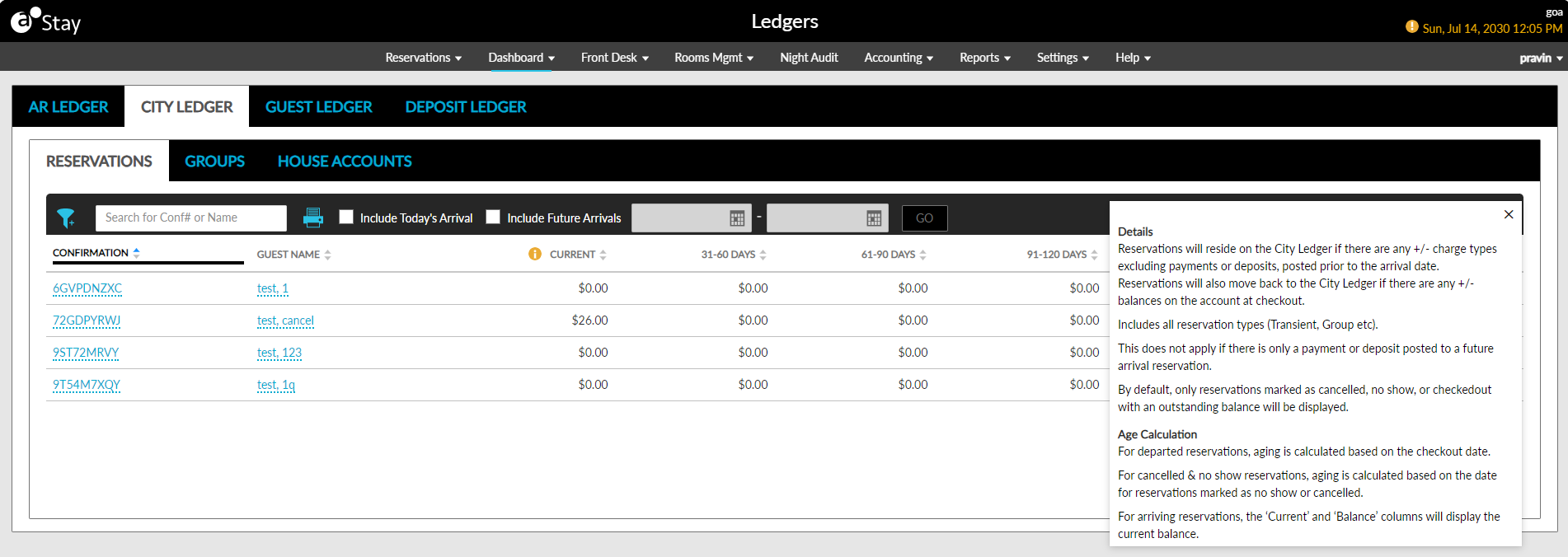
Users can view more information on the details displayed in the Reservations tab by clicking the legend icon displayed in this screen.
Groups Tab
The Groups tab displays groups in the Departed, Canceled, Arriving, Turndown, and In-House statuses with a balance due. By default, only groups in the Departed, Turndown, and Canceled statuses will be displayed. The Groups tab displays data for the past 36 months from the current property date. The following columns are displayed in this tab:
|
Field |
Description |
|---|---|
|
Group Name |
The group name as a hyperlink. When clicked, users will be navigated to the group. Users can search records using this value. |
|
Group Code |
The group code. Users can search records using this value. |
|
Current |
The balance due of groups for the past 30 days from the current property date. Users can filter records using this value. |
|
31 - 60 Days |
The balance due of groups for the past 31 - 60 days from the current property date. Users can filter records using this value. |
|
61 - 90 Days |
The balance due of groups for the past 61 - 90 days from the current property date. Users can filter records using this value. |
|
91 - 120 Days |
The balance due of groups for the past 91 - 120 days from the current property date. Users can filter records using this value. |
|
121+ Days |
The balance due of groups for the past 121 days from the current property date. Users can filter records using this value. |
|
Balance |
The total balance due of reservations calculated as the sum of the values in the following columns:
|
|
Booking Status |
Displays the following group booking status:
|
|
Status |
Displays the following status of the reservations:
Users can filter records using this value. |
All columns except the Booking Status column can be sorted.
Users must select the Include In-house/Today’s Arrival checkbox to view the balance due of the groups in the In-House and Arriving statuses. The Include Future Arrivals checkbox must be selected to view the balance due of the future groups for the selected date range. By default, the start date will be displayed as current property date + 1. The end date can be selected as a maximum of 30 days from the start date.
Users can print records displayed in this tab using the print icon.
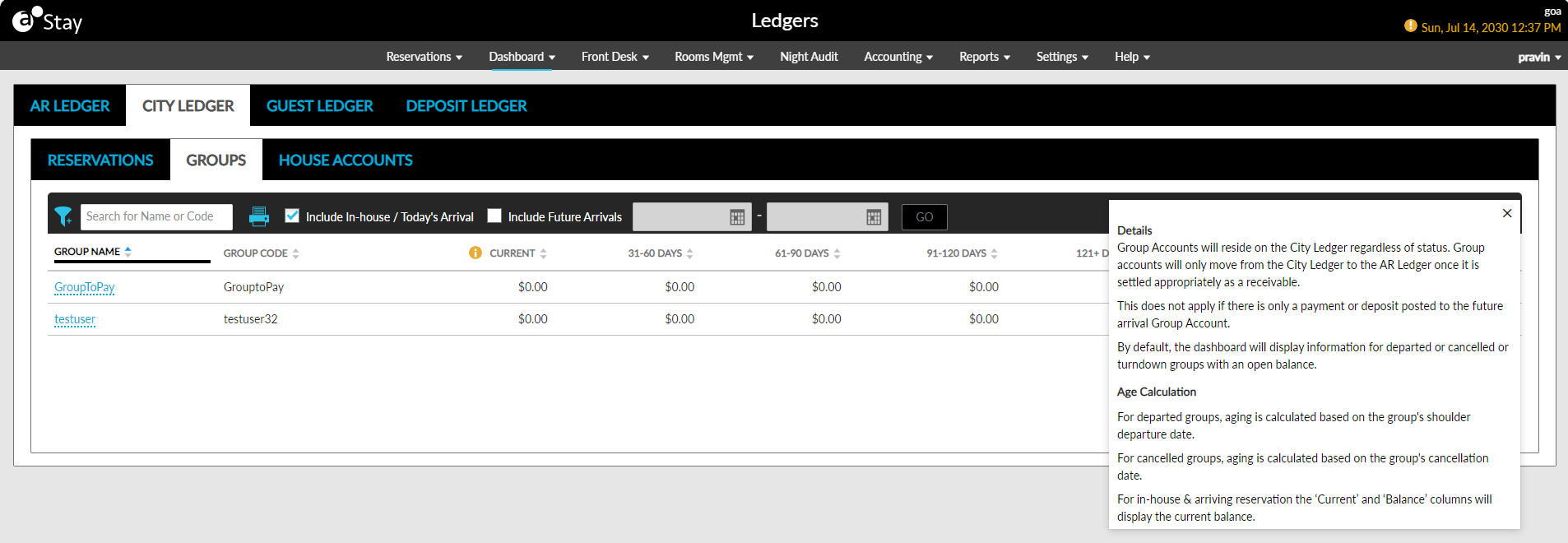
Users can view more information on the details displayed in the Groups tab by clicking the legend icon displayed in this screen.
House Accounts Tab
The House Accounts tab displays the balance due of all open and closed house accounts at the property. This tab displays data for the past 36 months from the current property date. The following columns are displayed in this tab:
|
Field |
Description |
|---|---|
|
Account Name |
The house account name as a hyperlink. When clicked, users will be navigated to the House Account screen. The house accounts are sorted alphabetically and displayed. Users can search for a record using the account name. |
|
Account Code |
The house account code. Users can search for a record using the account code. |
|
Current |
The balance due of accounts for the past 30 days from the current property date. Users can filter records using this value. |
|
31 - 60 Days |
The balance due of accounts for the past 31 - 60 days from the current property date. Users can filter records using this value. |
|
61 - 90 Days |
The balance due of accounts for the past 61 - 90 days from the current property date. Users can filter records using this value. |
|
91 - 120 Days |
The balance due of accounts for the past 91 - 120 days from the current property date. Users can filter records using this value. |
|
121+ Days |
The balance due of accounts for the past 121 days from the current property date. Users can filter records using this value. |
|
Balance |
The total balance due of reservations calculated as the sum of the values in the following columns:
|
|
Status |
The status of the house accounts. |
All columns can be sorted. When users click the legend icon, the following information will be displayed:
Users must select the Include Zero Balance Accounts checkbox to display accounts with a $0.00 balance.
Users can print records displayed in this tab using the print icon.
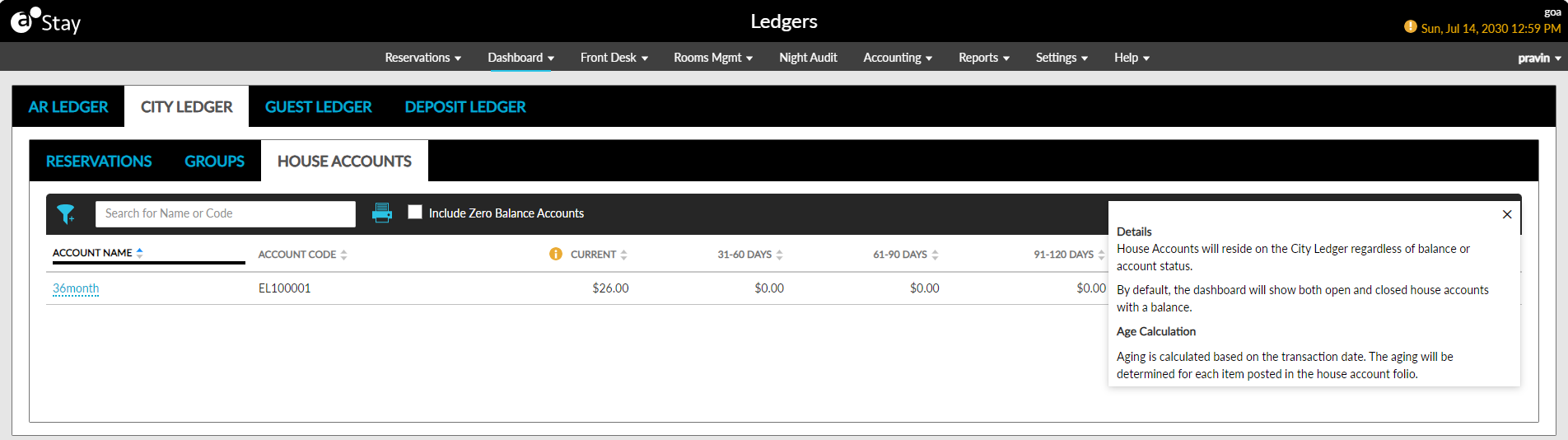
Users can view more information on the details displayed in the House Accounts tab by clicking the legend icon displayed in this screen.
Guest Ledger
The Guest Ledger tab displays in-house reservations with a balance due. This tab displays data for the past 36 months from the current property date. Users can select the columns to be displayed in this tab from the Manage Column Settings pop-up screen that appears when users click the Column Settings button. Users can select from the following columns:
-
Arrival Date
-
Departure Date
-
Loyalty Tier
-
Rate Code
-
Room Type
The following columns will be displayed by default:
-
Balance
-
Charges
-
Confirmation
-
Guest Name
-
Payment
-
Room Number
-
Status
The following table lists the column descriptions.
|
Field |
Description |
|---|---|
|
Confirmation |
The reservation confirmation number as a hyperlink. When clicked, users will be navigated to the reservation. Users can search for a record using this value. |
|
Guest Name |
The guest name associated with the reservation as a hyperlink. When clicked, users will be navigated to the guest profile. Users can search for a record using this value |
|
Room Number |
The room number assigned to the reservation. |
|
Arrival Date |
The arrival date of the reservation. |
|
Departure Date |
The departure date of the reservation. |
|
Room Type |
The room type of the reservation. Users can filter records using this value. |
|
Rate Code |
The code of the rate plan associated with the reservation’s first night of stay. Users can filter records using this value. |
|
Loyalty Tier |
The loyalty tier of the guest. Users can filter records using this value. |
|
Charges |
The total charges across all folios associated with the reservation. |
|
Payment |
The total payments made for the reservation. |
|
Balance |
The total outstanding balance for the reservation. |
|
Status |
The status of the reservation. Users can filter records using this value. |
All columns except the Status column can be sorted. Users must select the Include Zero Balance Reservation(s) checkbox to view in-house reservations with no outstanding balance.
Users can print records displayed in this tab using the print icon.
Deposit Ledger
The Deposit Ledger tab displays deposit details for all reservations in the Arriving and Reserved statuses for the past 36 months from the current property date. When a reservation is checked in, the deposit amount paid for the reservation will be automatically transferred from the Deposit Ledger to the Guest Ledger.
The following tabs are displayed in the Deposit Ledger tab:
-
Reservations
-
Groups
Reservations Tab
The Reservations tab displays the deposit details of the reservations in the Arriving and Reserved statuses. The following columns are displayed in this tab:
|
Field |
Description |
|---|---|
|
Confirmation |
The confirmation number of the reservation as a hyperlink. When clicked, users will be navigated to the reservation. Users can search for a record using this value. |
|
Guest Name |
The guest name associated with the reservation as a hyperlink. When clicked, users will be navigated to the guest profile. Users can search for a record using this value. |
|
Arrival Date |
The arrival date of the reservation. |
|
Departure Date |
The departure date of the reservation. |
|
Total |
The total deposit paid for the reservation. |
|
Status |
The status of the reservation. Users can filter records using this value. |
All columns can be sorted. Users can print records displayed in this tab using the print icon.
Users must select the Include Future Arrivals checkbox to view the deposit details of the future reservations for the date range selected in the date pickers. By default, the start date will be displayed as current property date + 1. The end date can be selected as a maximum of 30 days from the start date.
Groups Tab
The Groups tab displays the deposit details of groups in the Arriving and Reserved statuses. The following columns are displayed in this tab.
|
Field |
Description |
|---|---|
|
Group Name |
The group name as a hyperlink. When clicked, users will be navigated to the group. Users can search for a record using this value. |
|
Group Code |
The group code of the group. Users can search for a record using this value. |
|
Arrival Date |
The arrival date of the group. |
|
Departure Date |
The departure date of the group. |
|
Total |
The total deposit paid for the group. |
|
Status |
The status of the group. Users can filter records using this value. |
|
Booking Status |
Displays the following booking status of the group:
Users can filter records using this value. |
All columns except the Group Code column can be sorted. Users can print records displayed in this tab using the print icon.