New Views Added to the Housekeeping Dashboard

Stay is enhanced to provide additional views to the housekeeping dashboard. The current housekeeping dashboard displays a summary of progress made by a staff member (staff view), with details of the room assigned to them (rooms view). The following additional views are added to the housekeeping dashboard:

  • Priority Check-Ins

  • Housekeeping Condition

  • Group & Companies

  • Loyalty Program

  • VIP Status

Priority Check-Ins

This tab displays only the service requests assigned to priority check-in reservations, and not all the service requests. The service requests assigned to priority check-in reservations are grouped as follows:

  • Pre-Reg

    • All the service requests available for the rooms with the Pre-Reg option enabled in the reservation are displayed.

    • Only the service requests for the reservations that has the arrival date as the current property date are displayed.

  • Digital Check-Ins

    • All the service requests available for the rooms where the guests made a web check-in for the reservations are displayed.

    • Only the service requests for the reservations that has the arrival date as the current property date are displayed.

The following new columns are added to the Priority Check-Ins tab:

  • Field

  • Description

  • Priority Check-Ins

  • This is the first column that displays two groups namely: Pre-Reg and Digital Check-Ins. All the service requests are displayed below the respective groups. This column can be sorted. Users can filter records using this column.

  • Services

  • Displays the total number of service requests assigned or available under the Pre-Reg and Digital Check-In groups. This column can be sorted.

  • Room

  • Displays the room number assigned to the service requests created. Users can search for a request using this column.

  • Room Type

  • Displays the room type code of the room numbers assigned to the requests. Users can search for a request using this column. Users can filter records using this column.

  • Inventory Status

  • Displays the current inventory status of the room assigned to the requests. Users can filter records using this column.

  • Housekeeping Condition

  • Displays the housekeeping condition of the room. Users can filter records using this column.

  • PET

  • Displays the total number of pets available in the room.

  • If the same room is assigned to reservations in share, the sum of the pets in the reservations in share are displayed.

  • If no pet is available in the room, a (-) is displayed.

  • ETA

  • Displays the Estimated Time of Arrival if the service requests created for rooms are assigned to reservations that are set to arrive on the current property date.

  • If the room is assigned to reservations in share, the day’s primary reservation’s ETA is displayed.

  • If a threshold time is configured in the Indicate Priority Arrivals/Departures field in the Property Setup screen, the priority indicator is displayed in the dashboard.

  • Service Type

  • Displays the service request code for the request raised for the room as a hyperlink. When clicked, users are navigated to the Edit Service Request screen, where users can edit the service request details. Users can search for a request using this column. Users can filter records using this column.

  • Status

  • Displays the status of the service requests. Users can change the status of the service request from the status drop-down list that displays the following options:

  • New

  • In Progress

  • Completed

  • Denied - Do Not Disturb

  • Denied - Refused

  • Denied - Sleep Out

  • Cancelled

  • Users can filter records using this column.

  • Severity

  • Displays the severity set for the service requests, such as, Minor, Normal and Urgent. Urgent severity is displayed in red font to indicate the urgency.

  • Time or Points

  • Based on the housekeeping setup in the property, this column displays the following time or points:

  • Time: The time allocated for the respective service request is displayed.

  • Points: The points assigned for the respective service request is displayed.

  • Staff/Team

  • This column displays the name of the staff or the housekeeping team to whom the service request is assigned. Users can search for a request using this column. Users can filter records using this column.

  • Role

  • Displays the role of the staff to whom the service request is assigned.

  • This column is left blank if the service request is assigned to a team.

  • Users can filter records using this column.

  • Board

  • This column is displayed only if the Housekeeping Boards feature setting is enabled. When service requests are created and added to boards, the board name is displayed for each service request. Users can search for a request using this column. Users can filter records using this column.

Additionally, users can filter records using the Housekeeping Features option. A progress indicator is added to both the Pre-Reg and Digital Check-Ins groups.

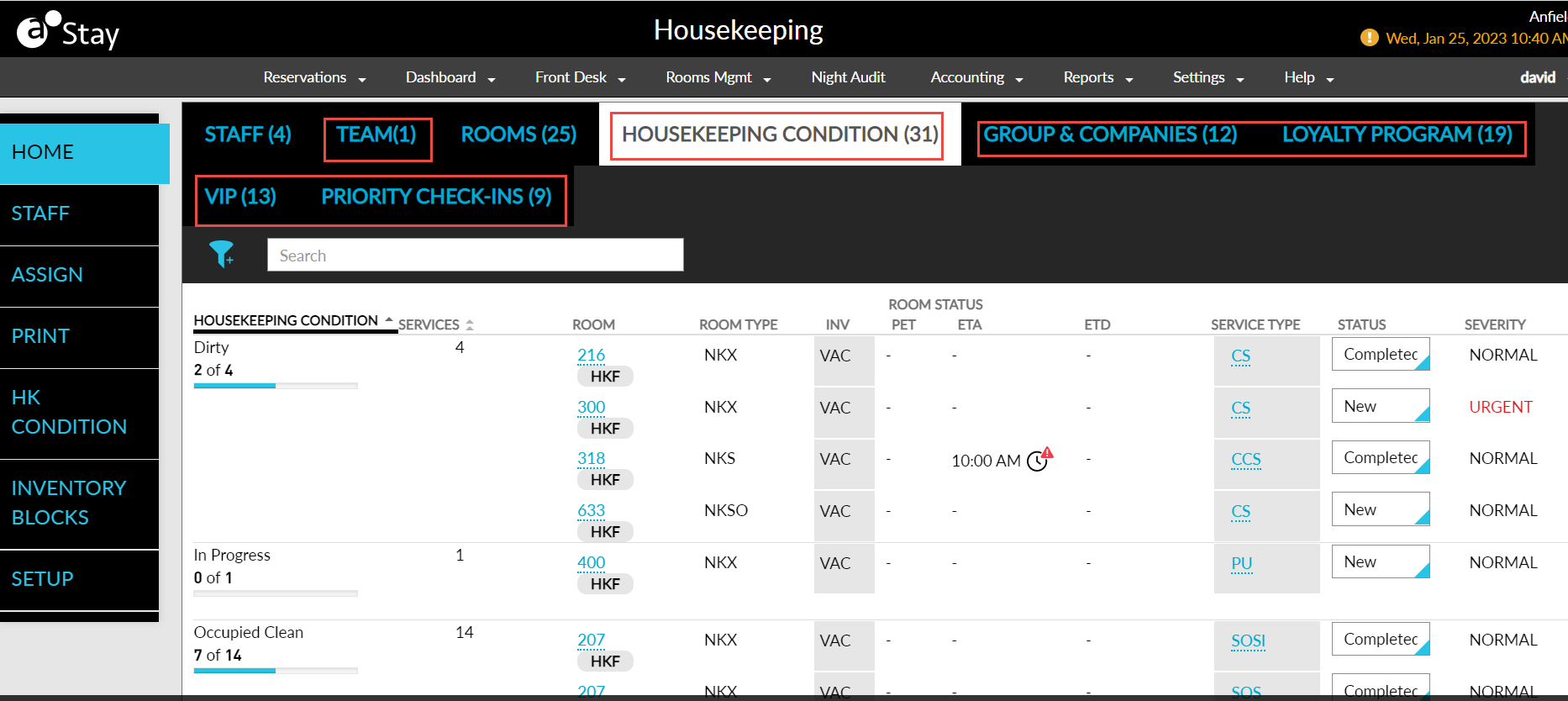
Housekeeping Condition

This tab displays all the assigned service requests in the property listed under the respective housekeeping condition of the rooms.

The following new columns are added to the Housekeeping Condition tab:

  • Field

  • Description

  • Housekeeping Condition

  • This is the first column that displays the housekeeping condition of the rooms in the property. The housekeeping conditions for which no rooms are available are not displayed in this column. Users can search for a record using this column. Users can filter records using this column. This column can be sorted.

  • Services

  • Displays the total number of service requests assigned or available under the respective housekeeping condition.

  • Room

  • Displays the room number assigned to the service requests created. Users can search for a record using this column.

  • Room Type

  • Displays the room type code of the room numbers assigned to the requests. Users can search for a record using this column. Users can filter records using this column.

  • Inventory Status

  • Displays the current inventory status of the room assigned to the requests. Users can filter records using this column.

  • PET

  • Displays the total number of pets available in the room.

  • If the same room is assigned to reservations in share, the sum of the pets in the reservations in share are displayed.

  • If no pet is available in the room, a (-) is displayed.

  • ETA

  • Displays the Estimated Time of Arrival if the service requests created for rooms are assigned to reservations that are set to arrive on the current property date.

  • If the room is assigned to reservations in share, the day’s primary reservation’s ETA is displayed.

  • If a threshold time is configured in the Indicate Priority Arrivals/Departures field in the Property Setup screen, the priority indicator is displayed in the dashboard.

  • ETD

  • Displays the Estimated Time of Departure if the service requests created for rooms are assigned to reservations that are set to depart on the current property date.

  • If the room is assigned to reservations in share, the day’s primary reservation’s ETD is displayed.

  • If a threshold time is configured in the Indicate Priority Arrivals/Departures field in the Property Setup screen, the priority indicator is displayed in the dashboard.

  • Service Type

  • Displays the service request code for the request raised for the room as a hyperlink. When clicked, users are navigated to the Edit Service Request screen, where users can edit the service request details. Users can search for a record using this column. Users can filter records using this column.

  • Status

  • Displays the status of the service requests. Users can change the status of the service request from the status drop-down list that displays the following options:

  • New

  • In Progress

  • Completed

  • Denied - Do Not Disturb

  • Denied - Refused

  • Denied - Sleep Out

  • Cancelled

  • Users can filter records using this column.

  • Severity

  • Displays the severity set for the service requests, such as, Minor, Normal and Urgent. Urgent severity is displayed in red font to indicate the urgency.

  • Time or Points

  • Based on the housekeeping setup in the property, this column displays the following time or points:

  • Time: The time allocated for the respective service request is displayed.

  • Points: The points assigned for the respective service request is displayed.

  • Staff/Team

  • Displays the name of the staff or the housekeeping team to whom the service request is assigned. Users can search for a record using this column. Users can filter records using this column.

  • Role

  • Displays the role of the staff to whom the service request is assigned.

  • This column is left blank if the service request is assigned to a team.

  • Users can filter records using this column.

  • Board

  • This column is displayed only if the Housekeeping Boards feature setting is enabled. When service requests are created and added to boards, the board name is displayed for each service request.

  • Users can search for a record using this column.

  • Users can filter records using this column.

Additionally, users can filter records using the Housekeeping Features option.

Group & Companies

This tab displays all the service requests assigned to group reservations, or reservations that are associated with a company. All the groups and companies that have active reservations on the current property date are displayed, and the service requests raised for the rooms assigned to these reservations are listed under the respective group or company.

The following new columns are added to the Group & Companies tab:

  • Field

  • Description

  • Group/Company

  • This is the first column that displays the service requests created for rooms assigned to reservations that are associated with groups and companies. They are displayed in the following format:

  • Format for group - group name (group) followed by group code below.

  • Format for company - company name (company) followed by company code below.

  • Users can search for a record using the group/company name and code. Users can filter records using this column. This column can be sorted.

  • Services

  • Displays the total number of service requests assigned or available under the respective groups and companies.

  • Room

  • Displays the room number assigned to the service requests created. Users can search for a record using this column.

  • Room Type

  • Displays the room type code of the room numbers assigned to the requests. Users can search for a record using this column. Users can filter records using this column.

  • Inventory Status

  • Displays the current inventory status of the room assigned to the requests. Users can filter records using this column.

  • Housekeeping Condition

  • Displays the housekeeping condition of the room. Users can filter records using this column.

  • PET

  • Displays the total number of pets available in the room.

  • If the same room is assigned to reservations in share, the sum of the pets in the reservations in share are displayed.

  • If no pet is available in the room, a (-) is displayed.

  • ETA

  • Displays the Estimated Time of Arrival if the service requests created for rooms are assigned to reservations that are set to arrive on the current property date.

  • If the room is assigned to reservations in share, the day’s primary reservation’s ETA is displayed.

  • If a threshold time is configured in the Indicate Priority Arrivals/Departures field in the Property Setup screen, the priority indicator is displayed in the dashboard.

  • ETD

  • Displays the Estimated Time of Departure if the service requests created for rooms are assigned to reservations that are set to depart on the current property date.

  • If the room is assigned to reservations in share, the day’s primary reservation’s ETD is displayed.

  • If a threshold time is configured in the Indicate Priority Arrivals/Departures field in the Property Setup screen, the priority indicator is displayed in the dashboard.

  • Service Type

  • Displays the service request code if the request raised for the room as a hyperlink. When clicked, users are navigated to the Edit Service Request screen, where users can edit the service request details.

  • Users can search for a record using this column.

  • Users can filter records using this column.

  • Status

  • Displays the status of the service requests. Users can change the status of the service request from the status drop-down list that displays the following options:

  • New

  • In Progress

  • Completed

  • Denied - Do Not Disturb

  • Denied - Refused

  • Denied - Sleep Out

  • Cancelled

  • Users can filter records using this column.

  • Severity

  • Displays the severity set for the service requests, such as, Minor, Normal and Urgent. Urgent severity is displayed in red font to indicate the urgency.

  • Time or Points

  • Based on the housekeeping setup in the property, this column displays the following time or points:

  • Time: The time allocated for the respective service request is displayed.

  • Points: The points assigned for the respective service request is displayed.

  • Staff/Team

  • Displays the name of the staff or the housekeeping team to whom the service request is assigned. Users can search for a record using this column. Users can filter records using this column.

  • Role

  • Displays the role of the staff to whom the service request is assigned.

  • This column is left blank if the service request is assigned to a team.

  • Users can filter records using this column.

  • Board

  • This column is displayed only if the Housekeeping Boards feature setting is enabled. When service requests are created and added to boards, the board name is displayed for each service request.

  • Users can search for a record using this column.

  • Users can filter records using this column.

Additionally, users can filter records using the Housekeeping Features option. A progress indicator is displayed for each group and company in the dashboard. The service requests of reservations that have groups and companies associated are considered under the group.

Loyalty Program

This tab displays the service requests assigned to reservations that are associated with a loyalty program.

The following new columns are added to the Loyalty Program tab:

  • Field

  • Description

  • Loyalty Program

  • Displays the loyalty program associated with the reservations for which the service requests are raised. The Loyalty Programs are displayed in the following format: Loyalty Program Name - Tier/Level of the loyalty Program. Users can search for a record using this column. Users can filter records using this column. This column can be sorted.

  • Services

  • Displays the total number of service requests assigned or available under the respective loyalty program. This column can be sorted.

  • Room

  • Displays the room number assigned to the service requests created. Users can search for a record using this column.

  • Room Type

  • Displays the room type code of the room numbers assigned to the requests. Users can search for a record using this column. Users can filter records using this column.

  • Inventory Status

  • Displays the current inventory status of the room assigned to the requests. Users can filter records using this column.

  • Housekeeping Condition

  • Displays the housekeeping condition of the room. Users can filter records using this column.

  • PET

  • Displays the total number of pets available in the room.

  • If the same room is assigned to reservations in share, the sum of the pets in the reservations in share are displayed.

  • If no pet is available in the room, a (-) is displayed.

  • ETA

  • Displays the Estimated Time of Arrival if the service requests created for rooms are assigned to reservations that are set to arrive on the current property date.

  • If the room is assigned to reservations in share, the day’s primary reservation’s ETA is displayed.

  • If a threshold time is configured in the Indicate Priority Arrivals/Departures field in the Property Setup screen, the priority indicator is displayed in the dashboard.

  • ETD

  • Displays the Estimated Time of Departure if the service requests created for rooms are assigned to reservations that are set to depart on the current property date.

  • If the room is assigned to reservations in share, the day’s primary reservation’s ETD is displayed.

  • If a threshold time is configured in the Indicate Priority Arrivals/Departures field in the Property Setup screen, the priority indicator is displayed in the dashboard.

  • Service Type

  • Displays the service request code for the request raised for the room as a hyperlink. When clicked, users are navigated to the Edit Service Request screen, where users can edit the service request details.

  • Users can search for a record using this column.

  • Users can filter records using this column.

  • Status

  • Displays the status of the service requests. Users can change the status of the service request from the status drop-down list that displays the following options:

  • New

  • In Progress

  • Completed

  • Denied - Do Not Disturb

  • Denied - Refused

  • Denied - Sleep Out

  • Cancelled

  • Users can filter records using this column.

  • Severity

  • Displays the severity set for the service requests, such as, Minor, Normal and Urgent. Urgent severity is displayed in red font to indicate the urgency.

  • Time or Points

  • Based on the housekeeping setup in the property, this column displays the following time or points:

  • Time: The time allocated for the respective service request is displayed.

  • Points: The points assigned for the respective service request is displayed.

  • Staff/Team

  • Displays the name of the staff or the housekeeping team to whom the service request is assigned. Users can search for a record using this column. Users can filter records using this column.

  • Role

  • Displays the role of the staff to whom the service request is assigned.

  • This column is left blank if the service request is assigned to a team.

  • Users can filter records using this column.

  • Board

  • This column is displayed only if the Housekeeping Boards feature setting is enabled. When service requests are created and added to boards, the board name is displayed for each service request.

  • Users can search for a record using this column.

  • Users can filter records using this column.

Additionally, users can filter records using the Housekeeping Features option. A progress indicator is displayed for each loyalty program in the dashboard. The service requests of reservations that have both loyalty program and VIP status associated are displayed in both the tabs.

VIP Status

This tab displays all the service requests assigned to reservations that are associated with a VIP status.

The following new columns are added to the VIP Status tab:

  • Field

  • Description

  • VIP Status

  • Displays the VIP status name associated with the reservations for which service requests are raised. Users can search for a record using this column. Users can filter records using this column. This column can be sorted.

  • Services

  • Displays the total number of service requests assigned or available under the respective VIP status. This column can be sorted.

  • Room

  • Displays the room number assigned to the service requests created. Users can search for a record using this column.

  • Room Type

  • Displays the room type code of the room numbers assigned to the requests. Users can search for a record using this column. Users can filter records using this column.

  • Inventory Status

  • Displays the current inventory status of the room assigned to the requests. Users can filter records using this column.

  • Housekeeping Condition

  • Displays the housekeeping condition of the room. Users can filter records using this column.

  • PET

  • Displays the total number of pets available in the room.

  • If the same room is assigned to reservations in share, the sum of the pets in the reservations in share are displayed.

  • If no pet is available in the room, a (-) is displayed.

  • ETA

  • Displays the Estimated Time of Arrival if the service requests created for rooms are assigned to reservations that are set to arrive on the current property date.

  • If the room is assigned to reservations in share, the day’s primary reservation’s ETA is displayed.

  • If a threshold time is configured in the Indicate Priority Arrivals/Departures field in the Property Setup screen, the priority indicator is displayed in the dashboard.

  • ETD

  • Displays the Estimated Time of Departure if the service requests created for rooms are assigned to reservations that are set to depart on the current property date.

  • If the room is assigned to reservations in share, the day’s primary reservation’s ETD is displayed.

  • If a threshold time is configured in the Indicate Priority Arrivals/Departures field in the Property Setup screen, the priority indicator is displayed in the dashboard.

  • Service Type

  • Displays the service request code for the request raised for the room as a hyperlink. When clicked, users are navigated to the Edit Service Request screen, where users can edit the service request details.

  • Users can search for a record using this column.

  • Users can filter records using this column.

  • Status

  • Displays the status of the service requests. Users can change the status of the service request from the status drop-down list that displays the following options:

  • New

  • In Progress

  • Completed

  • Denied - Do Not Disturb

  • Denied - Refused

  • Denied - Sleep Out

  • Cancelled

  • Users can filter records using this column.

  • Severity

  • Displays the severity set for the service requests, such as, Minor, Normal and Urgent. Urgent severity is displayed in red font to indicate the urgency.

  • Time or Points

  • Based on the housekeeping setup in the property, this column displays the following time or points:

  • Time: The time allocated for the respective service request is displayed.

  • Points: The points assigned for the respective service request is displayed.

  • Staff/Team

  • Displays the name of the staff or the housekeeping team to whom the service request is assigned. Users can search for a record using this column. Users can filter records using this column.

  • Role

  • Displays the role of the staff to whom the service request is assigned.

  • This column is left blank if the service request is assigned to a team.

  • Users can filter records using this column.

  • Board

  • This column is displayed only if the Housekeeping Boards feature setting is enabled. When service requests are created and added to boards, the board name is displayed for each service request.

  • Users can search for a record using this column.

  • Users can filter records using this column.

Additionally, users can filter records using the Housekeeping Features option. A progress indicator is added below each VIP status name in the dashboard. The service requests of reservations that are eligible for priority check-ins, and have loyalty program, VIP status, group, and company associated are displayed in all the tabs.

Rooms

The following changes are made to the existing columns, and new columns are added to the Rooms tab for an improvised user experience:

  • Field

  • Description

  • Room (existing column)

  • Displays the room number of the rooms to which the service requests are assigned. The room type merged with the room number is removed. The hyperlink on the room number that navigates to the room screen is retained. Users can search for a record using this column.

  • Room Type (newly added)

  • Displays the room type code of the room numbers assigned to the requests. Users can search for a record using this column. Users can filter records using this column.

  • Services (newly added)

  • Displays the total number of service requests assigned or available for the room.

  • PET (existing column)

  • Displays the total number of pets available in the room.

  • If the same room is assigned to reservations in share, the sum of the pets in the reservations in share are displayed.

  • If no pet is available in the room, a (-) is displayed.

  • ETA (newly added)

  • Displays the Estimated Time of Arrival if the service requests created for rooms are assigned to reservations that are set to arrive on the current property date.

  • If the room is assigned to reservations in share, the day’s primary reservation’s ETA is displayed.

  • If a threshold time is configured in the Indicate Priority Arrivals/Departures field in the Property Setup screen, the priority indicator is displayed in the dashboard.

  • ETD (newly added)

  • Displays the Estimated Time of Departure if the service requests created for rooms are assigned to reservations that are set to depart on the current property date.

  • If the room is assigned to reservations in share, the day’s primary reservation’s ETD is displayed.

  • If a threshold time is configured in the Indicate Priority Arrivals/Departures field in the Property Setup screen, the priority indicator is displayed in the dashboard.

  • Inventory Status (existing column)

  • Displays the current inventory status of the room assigned to the requests.

  • Users can filter records using this column.

  • Housekeeping Condition (existing column)

  • Displays the housekeeping condition of the room.

  • Users can filter records using this column.

  • Service Type (existing column)

  • Displays the service request code for the request raised for the room as a hyperlink. When clicked, users are navigated to the Edit Service Request screen, where users can edit the service request details.

  • Users can search for a record using this column.

  • Users can filter records using this column.

  • Status (existing column)

  • Displays the status of the service requests. Users can change the status of the service request from the status drop-down list that displays the following options:

  • New

  • In Progress

  • Completed

  • Denied - Do Not Disturb

  • Denied - Refused

  • Denied - Sleep Out

  • Cancelled

  • Users can filter records using this column.

  • Severity (existing column)

  • Displays the severity set for the service requests, such as, Minor, Normal and Urgent. Urgent severity is displayed in red font to indicate the urgency.

  • Time or Points (existing column)

  • Based on the housekeeping setup in the property, this column displays the following time or points:

  • Time: The time allocated for the respective service request is displayed.

  • Points: The points assigned for the respective service request is displayed.

  • Staff/Team (existing column)

  • Displays the name of the staff or the housekeeping team to whom the service request is assigned. Users can search for a record using this column. Users can filter records using this column.

  • Role (existing column)

  • Displays the role of the staff to whom the service request is assigned.

  • This column is left blank if the service request is assigned to a team.

  • Users can filter records using this column.

  • Board (existing column)

  • This column is displayed only if the Housekeeping Boards feature setting is enabled. When service requests are created and added to boards, the board name is displayed for each service request.

  • Users can search for a record using this column.

  • Users can filter records using this column.

  • Loyalty Program (newly added)

  • Displays the loyalty program associated with the reservations for which the service requests are raised. The Loyalty Programs are displayed in the following format: Loyalty Program Name - Tier/Level of the loyalty Program. Users can search for a record using this column. Users can filter records using this column.

  • Group/Company (newly added)

  • Displays the service requests created for rooms assigned to reservations that are associated with groups and companies. They are displayed in the following format:

  • Format for group - group name (group) followed by group code below.

  • Format for company - company name (company) followed by company code below.

  • Users can search for a record using this column. Users can filter records using this column.

  • VIP Status (newly added)

  • Displays the VIP status name associated with the reservations for which service requests are raised. Users can search for a record using this column. Users can filter records using this column.

Additionally, users can filter records using the Pre-Reg, Digital Check-In, and Housekeeping Features options. A progress indicator is added below the room number of each room.

New Indicators in Housekeeping Dashboard

The following new indicators are added to all views of the housekeeping dashboard:

  • Group Code: When service requests are created for the rooms assigned to group reservations, the group code is displayed next to the room number in all views of the housekeeping dashboard.

  • Housekeeping Features: The housekeeping features of the room are indicated by the HKF flag in the dashboard views, next to the room number. The features are displayed when users mouse over the HKF flag.

  • Shared Reservation: Reservations in share are indicated by the shared reservation icon next to the room number.

  • Pre-Reg: Reservations marked as Pre-Reg are indicated using the Pre-Reg icon next to the room number.

  • Digital Check-In: Digital check-in done for reservations are indicated using the digital check-in icon next to the room number.
A screenshot of a computer

Description automatically generated