Reverse Routed Charges from Group Masters
Stay is enhanced to allow users to reverse the charges that were routed to a group master using a reservation routing rule back to the source reservation.
-
The charges can be reversed to active reservations only.
-
The charges cannot be reversed to departed reservations.
Property Setting
Users must enable the Reverse Charge Routing for Groups flag in the Groups tab of the Property Setup screen (All Settings ➜ General ➜ Property, Buildings & Outlets) to reverse the routed charges.
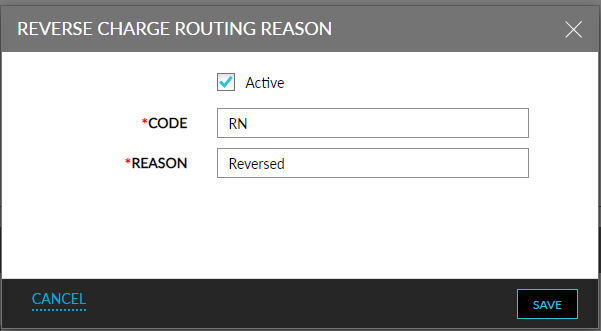
When enabled, the Reverse Charge Routing Reason section appears. This section allows users to configure the reasons to be selected when reversing the routed charges. When users click Add, the Reverse Charge Routing Reason pop-up screen appears that displays the following fields:
|
Field |
Description |
|---|---|
|
Active |
Select this checkbox to activate the reason. |
|
Code |
A unique code for the reason. This is a mandatory field that allows users to enter a minimum of 2 characters and a maximum of 25 characters. |
|
Reason |
A unique reason for the reversal. This is a mandatory field that allows users to enter a maximum of 50 characters. |
The created reasons are displayed in the Reverse Charge Routing Reason section. This section displays the following columns:
-
Reason: The configured reason.
-
Code: The code for the reason.
-
Status: The status of the reason.
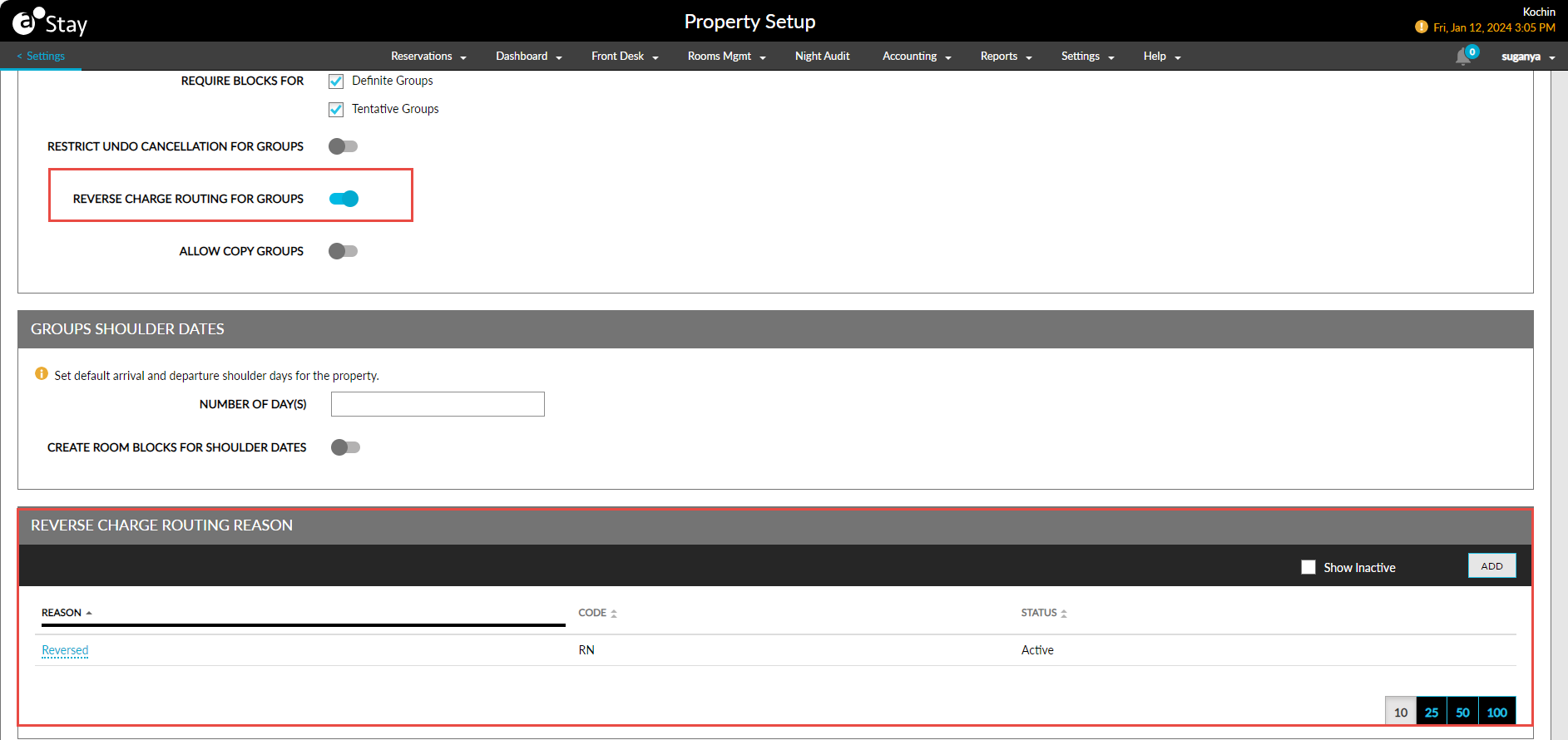
All columns in this section can be sorted. Users can reverse the charges routed to a group only when reasons are configured in this section.
Permission
The following new permission must be assigned to enable users to reverse the routed charges when deleting the routing rule from the Group Reservation Rules section of the group master:
-
Stay_ReverseChargeRouting
This permission is assigned to the following roles by default:
-
System Administrator
-
Stay Hotel Manager
-
Department Manager
Users without this permission can delete the rule but will not be able to reverse the routed charges to the source reservation.
Delete Rule When No Charges Were Routed
When users click the delete/remove icon for the routing rule through which no charges were routed, in the Group Reservation Rules section of the group master, the Update Routing Rule pop-up screen appears that prompts users to enter their credentials.
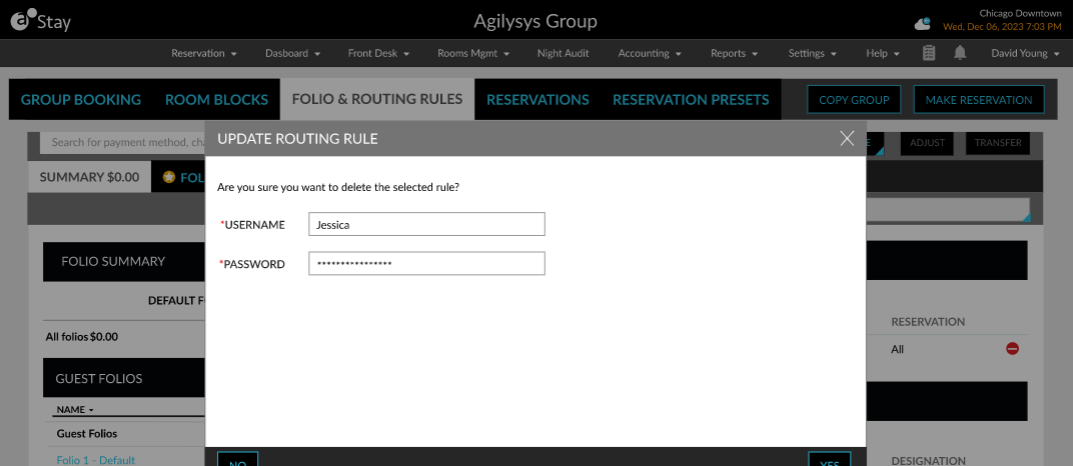
When users click Yes, the credentials of the user are validated. On successful validation, the rule is deleted from the group master successfully. If the validation fails, the following message is displayed: Username or password is invalid.
Delete Rule When Charges Were Routed
When users click the delete/remove icon for the routing rule through which charges were routed, in the Group Reservation Rules section of the group master, the Update Routing Rule pop-up screen appears that displays the following options:
-
Delete rule
-
Delete rule & reverse charges
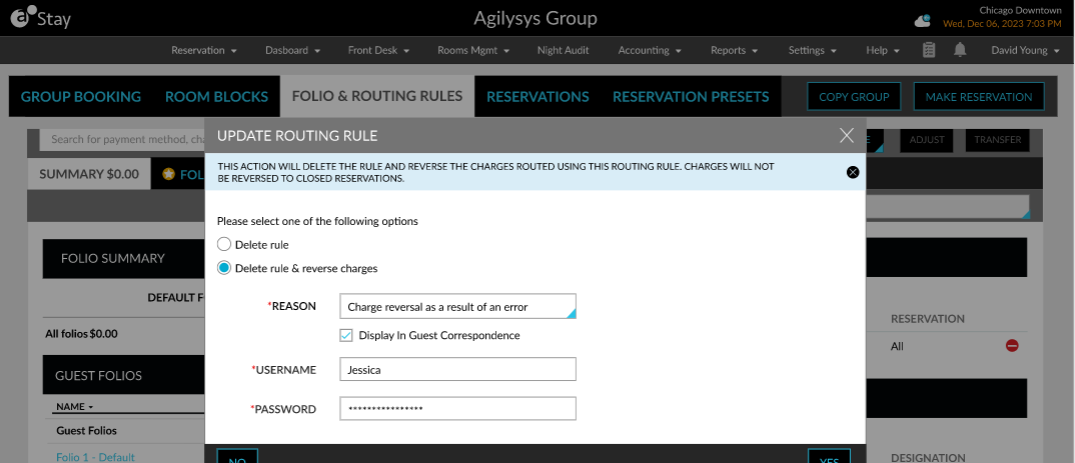
The Delete rule option is selected by default. When selected, users are prompted to enter their credentials. When users click Yes, the credentials of the user are validated. On successful validation, the rule is deleted from the group master successfully. If the validation fails, the following message is displayed: Username or password is invalid.
When the Delete rule & reverse charges option is selected by users with the Stay_ReverseChargeRouting permission, the following fields are displayed:
-
Reason: This is a mandatory single-select drop-down list that displays all the active reasons configured for reversing charges.
-
Display in Guest Correspondence: This is an optional field that allows users to choose if the selected reason must be displayed when printing and emailing the reservation folios to which the charges are reversed.
-
When enabled, the reason is displayed along with the reversed charges in folio email and print.
-
When disabled, only the charges that are reversed are displayed in folio email and print.
-
-
Username: The username of the user reversing the routed charges.
-
Password: The password of the user.
When users click Yes, the credentials of the user are validated, and the following actions are performed:
-
If the user does not have the Stay_ReverseChargeRouting permission, the charges are not reversed, and the following message will be displayed: User doesn’t have sufficient permission.
-
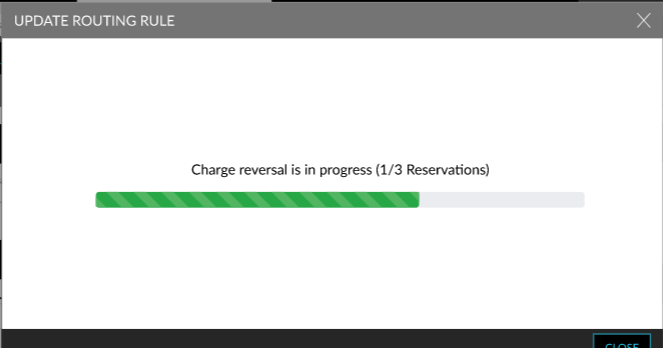
When the user has the Stay_ReverseChargeRouting permission, the charges are reversed to the source reservation successfully. A progress indicator appears that displays the count of the reservations processed.
-
When users close the Update Routing Rule pop-up screen when the reversal of charges is in progress, the progress indicator is displayed as a banner in the Group screen.
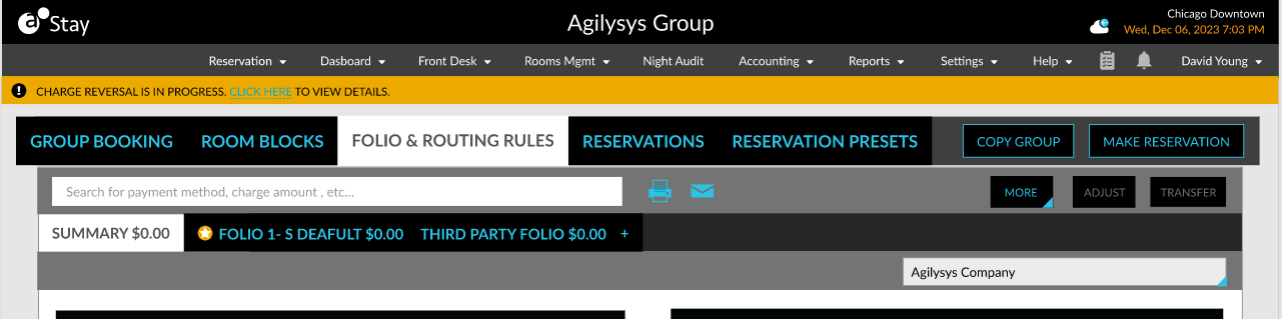
When users click the Click Here hyperlink, the Update Routing Rule pop-up screen appears that displays the count of the reservations processed.
-
When the charge reversal is partially successful, the following message will be displayed as a banner: Charge reversal completed. Click Here to see failures. <x> Success <y> Failure. When users click the Click Here hyperlink, the Update Routing Rule pop-up screen appears that displays the details of the reservations processed and the status of the reversal.
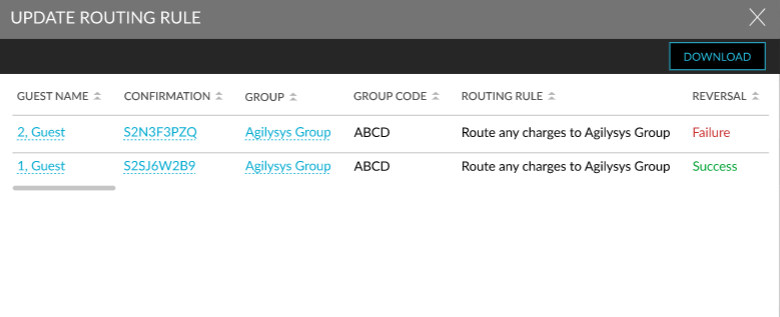
Users can download the results as an Excel file using the Download option.
-
When the charge reversal is completed successfully, the following message will be displayed as a banner: Charge reversal completed. Click Here to view details. When users click the Click Here hyperlink, the Update Routing Rule pop-up screen appears that displays the details of the reservations processed and the status of the reversal. Users can download the results as an Excel file using the Download option.
Modify Rule When No Charges Were Routed to the Group
Users can deselect the group reservations to which the rule was applied without deleting the rule. When users click the routing rule in the Group Reservation Rules section of the group master, the Edit Routing Rule pop-up screen will appear. Users can deselect the preferred reservations from Step 4: Apply Rule to these Reservations section.
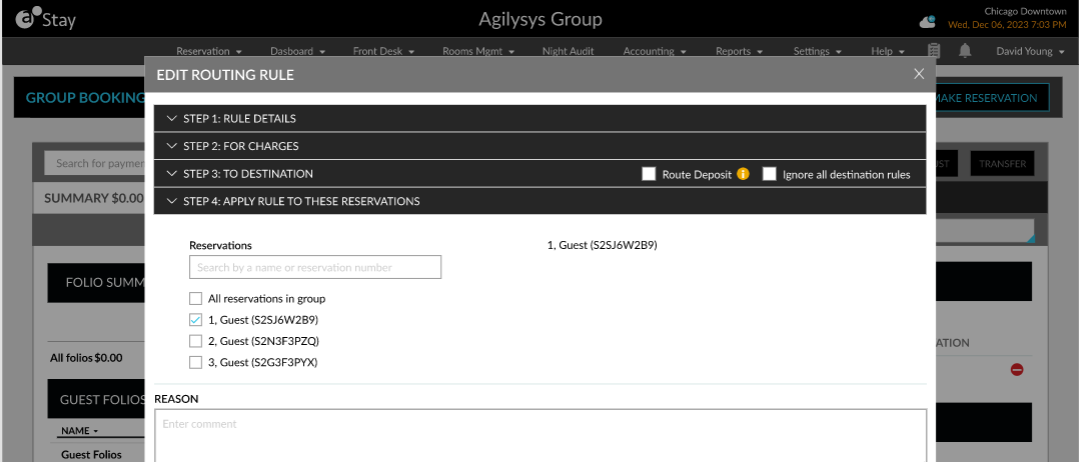
When there are no charges routed from the deselected reservations and users click Save, the Remove Guest from Routing Rule pop-up screen appears that prompts users to enter their credentials.
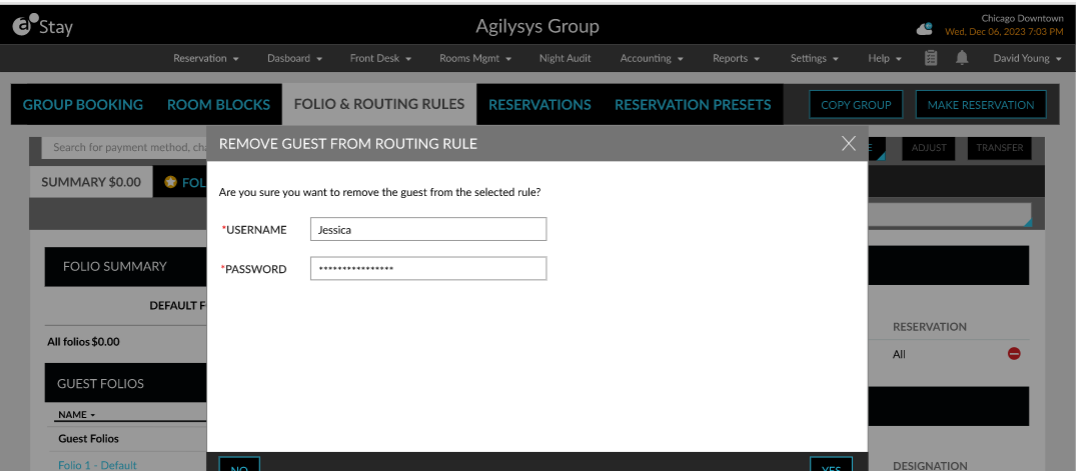
When users click Yes, the entered credentials are validated. On successful validation of the credentials, the deselected reservations are unapplied from the rule successfully. If the validation is not successful, the following message is displayed: Username or password is invalid.
Modify Rule When Charges Were Routed to the Group
When users deselect reservations from the Edit Routing Rule pop-up screen and when there are charges routed from the reservations to the group master, the following options will be displayed in the Remove Guest from Routing Rule pop-up screen:
-
Remove guest
-
Remove guest and reverse charges
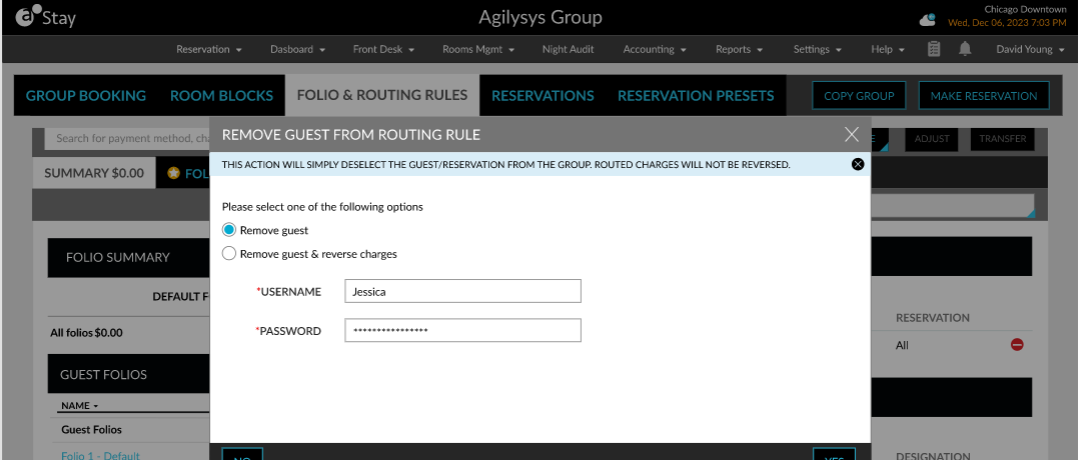
The Remove guest option is selected by default. When selected, users are prompted to enter their credentials. When users click Yes, the credentials of the user are validated. On successful validation, the rule is no longer applied to the deselected reservations. If the validation is not successful, the following message is displayed: Username or password is invalid.
When the Remove guest and reverse charges option is selected by the users with the Stay_ReverseChargeRouting permission, the following fields are displayed:
-
Reason: This is a mandatory single-select drop-down list that displays all the active reasons configured for reversing charges.
-
Display in Guest Correspondence: This is an optional field that allows users to choose if the selected reason must be displayed when printing and emailing the reservation folios to which the charges are reversed.
-
When selected, the reason is displayed along with the reversed charges in folio email and print.
-
When this checkbox is not selected, only the charges that are reversed are displayed in folio email and print.
-
-
Username: The username of the user reversing the routed charges.
-
Password: The password of the user.
When users click Yes, the credentials of the user are validated, and the following actions are performed:
-
If the user does not have the Stay_ReverseChargeRouting permission, the charges are not reversed, and the following message will be displayed: User doesn’t have sufficient permission.
-
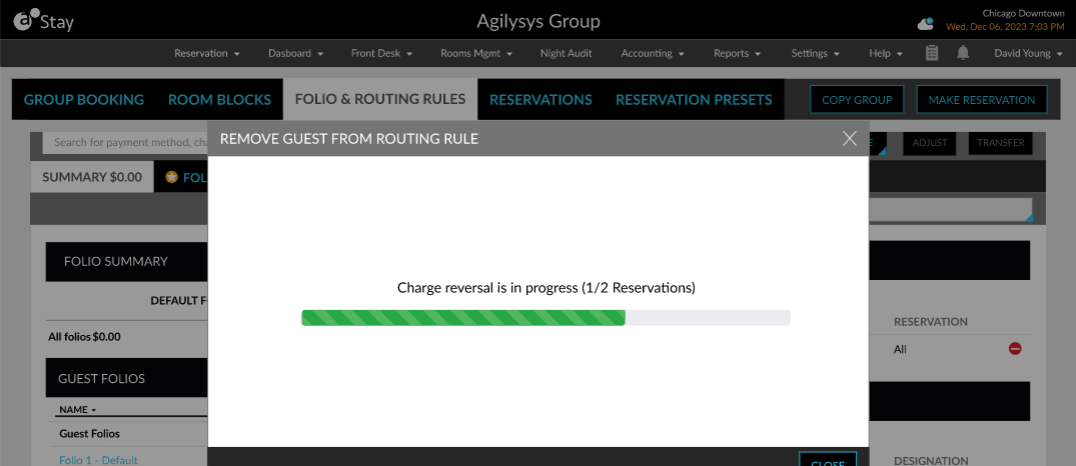
When the user has the Stay_ReverseChargeRouting permission, the charges are reversed to the source reservation successfully. A progress indicator appears that displays the count of the reservations processed.
-
When users close the Remove Guest from Routing Rule pop-up screen when the reversal of charges is in progress, the progress indicator is displayed as a banner in the Group screen.
When users click the Click Here hyperlink, the Remove Guest from Routing Rule pop-up screen appears that displays the count of the reservations processed.
-
When the charge reversal is partially successful, the following message will be displayed as a banner: Charge reversal completed. Click Here to see failures. <x> Success <y> Failure. When users click the Click Here hyperlink, the Remove Guest from Routing Rule pop-up screen appears that displays the details of the reservations processed and the status of the reversal.
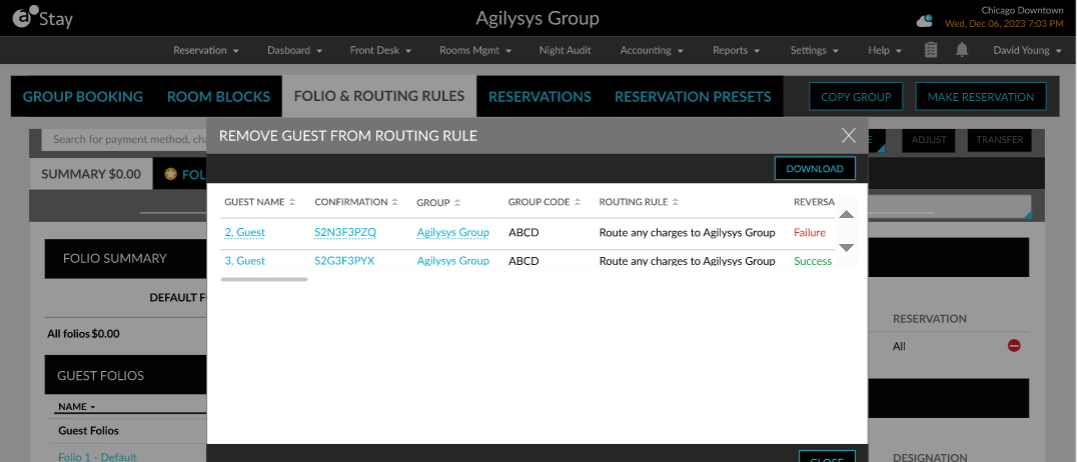
Users can download the results as an Excel file using the Download option.
-
When the charge reversal is completed successfully, the following message will be displayed as a banner: Charge reversal completed. Click Here to view details. When users click the Click Here hyperlink, the Remove Guest from Routing Rule pop-up screen appears that displays the details of the reservations processed and the status of the reversal. Users can download the results as an Excel file using the Download option.
The charges reversed from the group are categorized as a Transfer in the source destination.
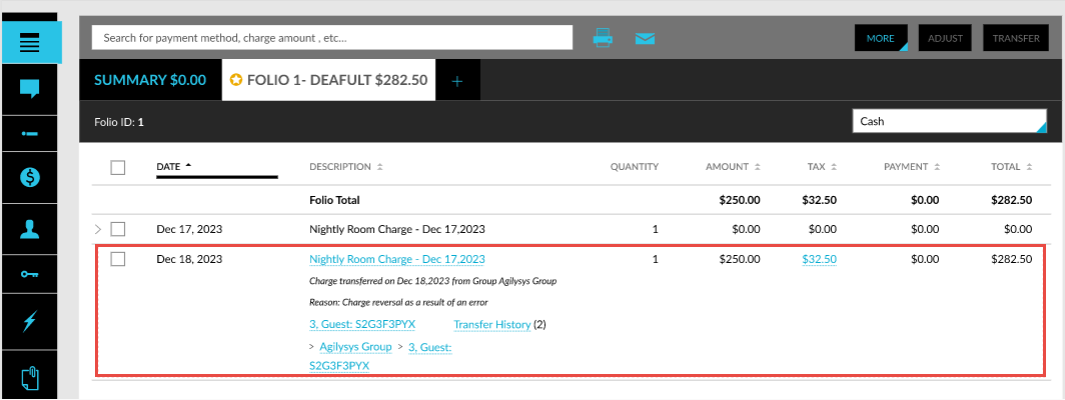
The reversed charges are tracked in the following reports:
-
Transaction Item Details
-
Transaction Item Summary
-
Transaction Journal
A record is created in the Audit Log screen when a routing rule is deleted from a group master or when a reservation is deselected from a routing rule.
System Changes
To support this feature, the following changes have been made:
-
A new flag, Reverse Charge Routing for Groups, has been added to the Groups tab of the Property Setup screen (All Settings ➜General ➜Property, Buildings & Outlets).
-
A new section, Reverse Charge Routing Reason, has been added to the Property Setup screen.
-
Two new pop-up screens, Update Routing Rule and Remove Guest from Routing Rule have been introduced.