Save Custom Reports in Dashboard
Stay is enhanced to allow users to generate custom views of Dynamic reports with the preferred parameters and save them to a dashboard in the Reporting screen. The reports are saved to the newly added My Dashboard tab at the user-level. The dashboard displays custom reports based on the user that has logged in to Stay.
Save Reports to Dashboard
When users generate a Dynamic report, the report can be saved to the My Dashboard tab using the Save to My Dashboard button that is present in the report generation parameters section of the report. When clicked, the Saving Custom Report on Dashboard pop-up screen appears that allows users to enter the name for the report and customize the dates for which the report must generated from the dashboard.
Based on the date range selected, the report will be generated when users initiate the option to generate the from the dashboard. For example, if current day + 1 day is selected, the report will be generated from the next property date.
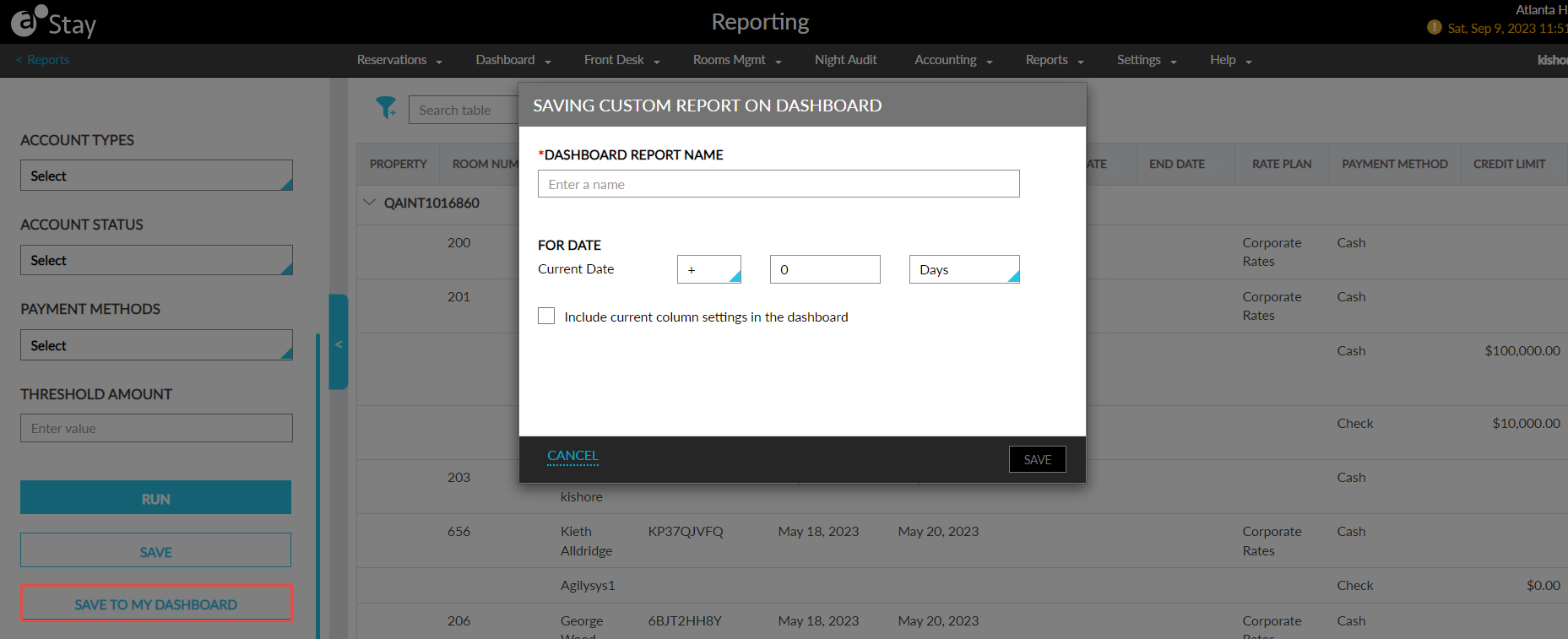
Users must select the Include current column settings in the dashboard checkbox to save the custom report to the dashboard along with the preferred columns selected for the report in the Column Settings screen. When users click Save, the report is saved at the user-level in the My Dashboard tab.
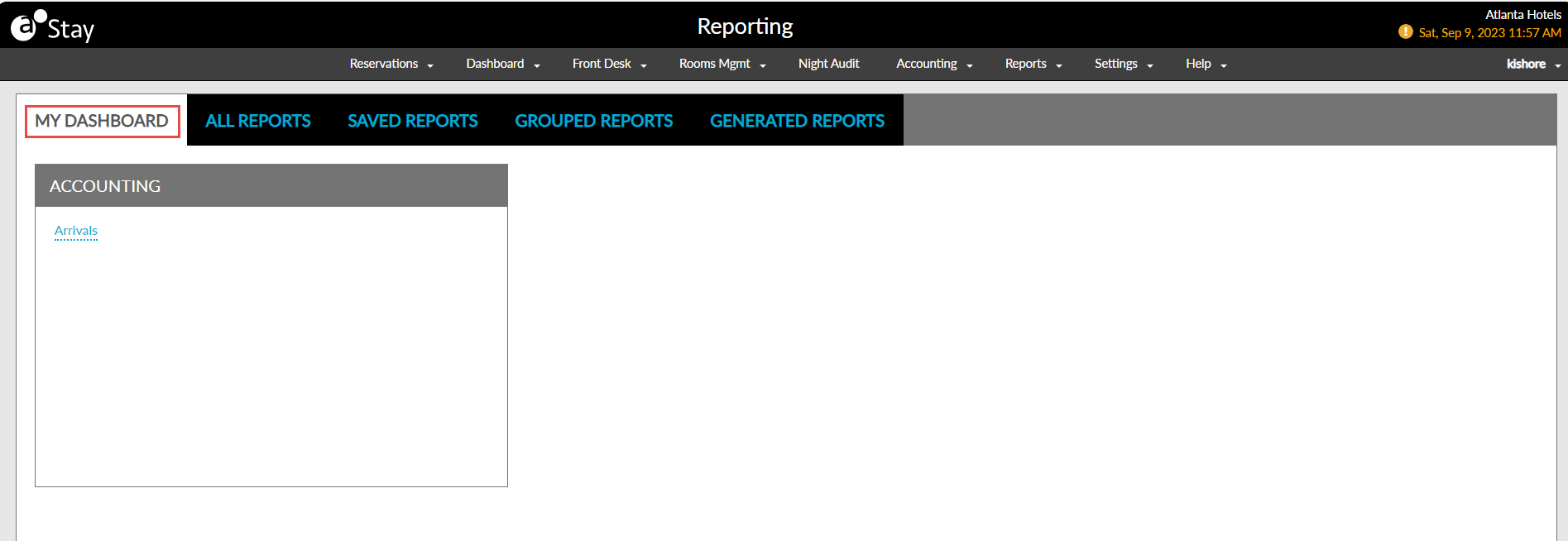
The report is saved to the dashboard with the following:
-
The report generation parameter values with which the report was generated.
-
The Group By value with which the report was generated.
-
The columns selected for the report in the Column Settings screen.
The following functionalities of the generated report are not saved to the custom report in the dashboard:
-
The order in which the records are sorted.
-
The filter options applied to the records.
-
Records searched in the report when the report was saved to the dashboard.
The report is saved to the dashboard based on the category under which the Dynamic report exists. When no report is saved to the dashboard, the following message is displayed in the My Dashboard tab: Get started and add reports to your dashboard using the “Save To My Dashboard” button.
The reports are saved to the dashboard under the respective category based on the order in which they are saved. The order of display cannot be changed.
View/Modify Saved Reports in Dashboard
To view the saved report, users must click the report name under the respective category in the My Dashboard tab. When clicked, the report will be generated with the saved parameters for the date customizations selected. Users can change the report parameters and run the report with the updated parameters. However, the change in parameters is not updated to the report saved to the dashboard unless it is saved again.
Users can save the modifications made to the report parameters by clicking the Save Dashboard Report button. When clicked, the updated report parameters are saved to the dashboard report and the following message is displayed: Dashboard report updated successfully.
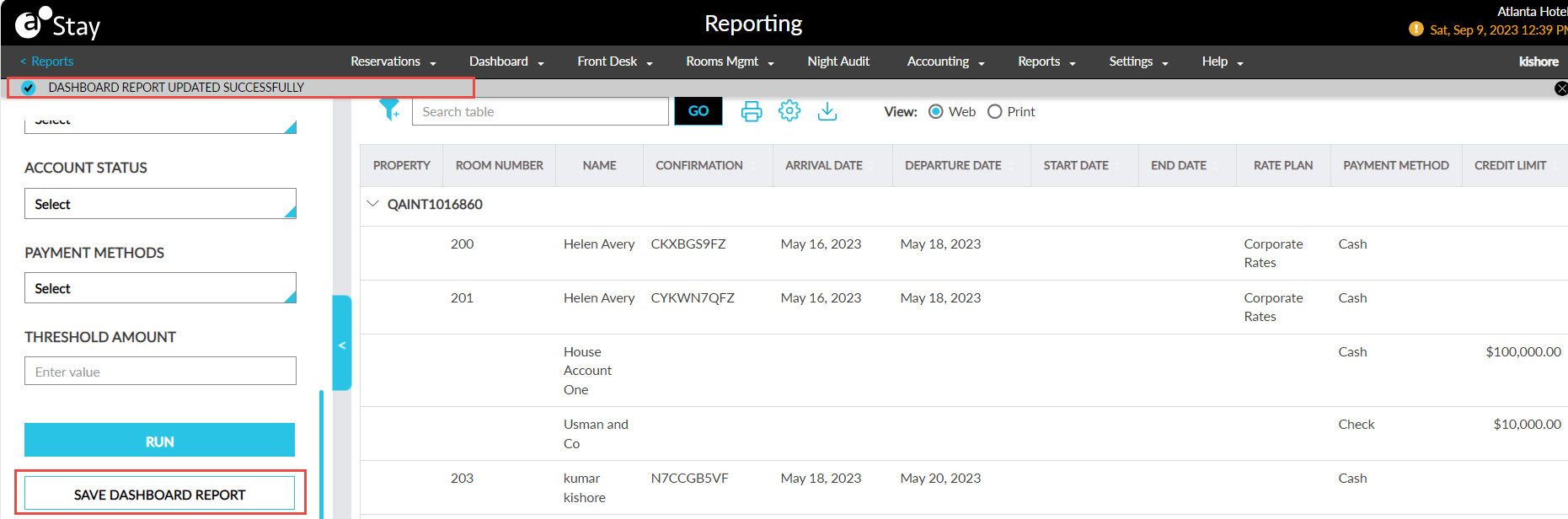
The next time the users generate the report from the dashboard, the report is generated with the updated report parameters. This button can be used to save the modifications made to the report parameters only. It cannot be used save the changes made to the dates.
Modify Saved Custom Report
Users can edit the report by clicking the Edit icon that is displayed near the dashboard report name below the report generation parameters.
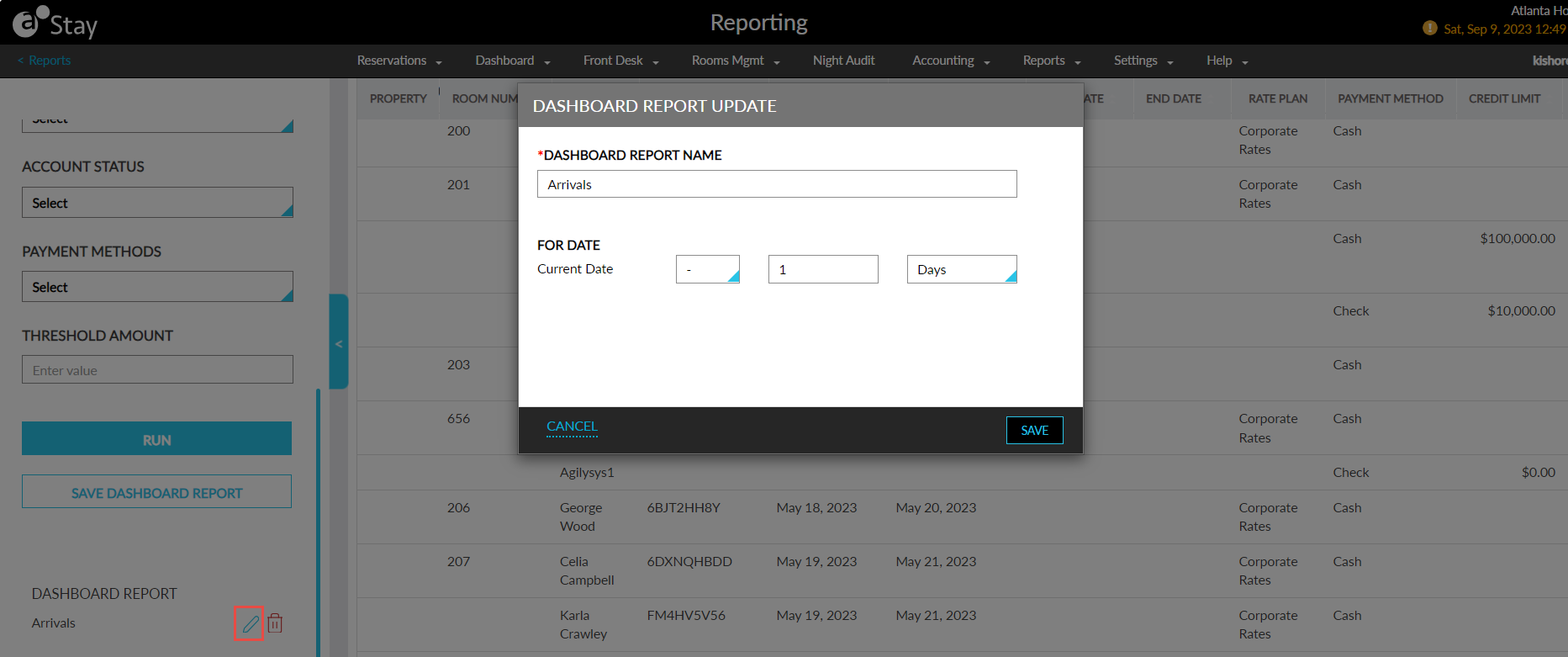
When clicked, the Dashboard Report Update pop-up screen appears that allows users to modify the report name, and the dates from which the report must be generated. When users make the preferred changes and click Save, the modifications are saved to the dashboard report.
Delete Dashboard Report
Users can delete the dashboard report by clicking the Delete icon that is displayed near the dashboard report name below the report generation parameters.
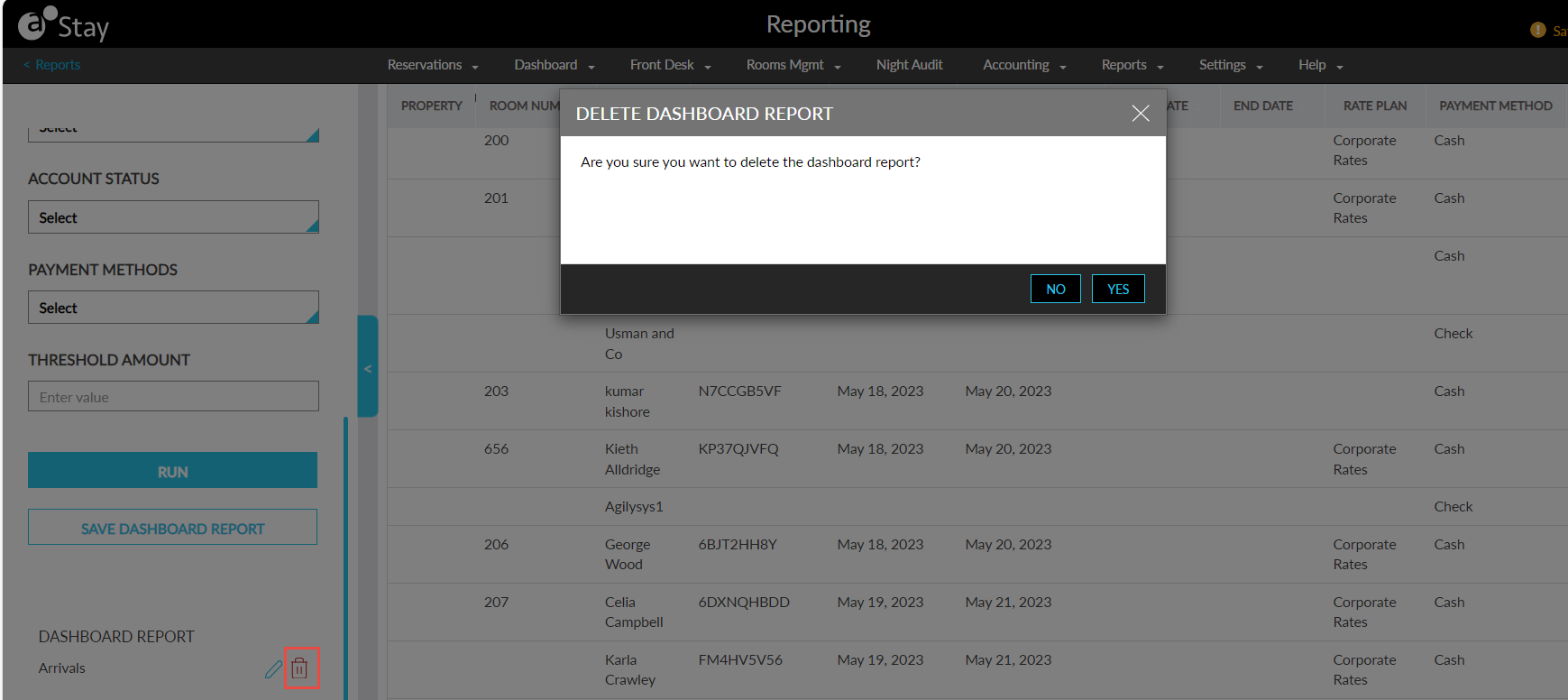
When clicked, the Delete Dashboard Report pop-up screen appears that prompts users to confirm if the report must be deleted from the dashboard. When users click Yes, the report is deleted from the My Dashboard tab.
Switch Reports Within the Dashboard
When users generate a report from the My Dashboard tab, the name of the report is displayed in the Report Name drop-down list. The other reports that are saved to the dashboard under the same category can be viewed from this drop-down list. Users can switch to a different report under the category by selecting the preferred report.
Switch to Different Categories Within the Dashboard
When users generate a report from the My Dashboard tab, the various categories under which the reports are saved to the dashboard are displayed in the Dashboard drop-down list. Users can switch to a different category by selecting the preferred category from this drop-down list.
When users switch to a different category, the saved reports that are available under that category are displayed in the Report Name drop-down list. Users must select the preferred report and generate it. No report is selected and generated by default. The screen is displayed blank until users select and generate a report. The Dashboard drop-down list is displayed only in reports that are generated from the My Dashboard tab.
Hyperlinks in Dynamic Reports
The following accounts and profiles are hyperlinked in the Dynamic reports to help users navigate to the respective account/profile from the report:
-
Reservation
-
House account
-
AR account
-
Group
-
Guest profile
-
Company profile
-
Travel agency profiles
System Changes
To support this enhancement, the following changes have been made:
-
A new tab, My Dashboard, has been added to the Reporting screen that displays the custom Dynamic reports that are saved under various categories.
-
A new button, Save to My Dashboard, has been added to the Dynamic reports that allows users to save the generated reports with the following:
-
The report generation parameter values with which the report was generated.
-
The Group By value with which the report was generated.
-
The columns selected for the report in the Column Settings screen.
-
-
The following accounts and profiles are hyperlinked in the Dynamic reports to help users navigate to the respective account/profile from the report:
-
Reservation
-
House account
-
A/R account
-
Group
-
Guest profile
-
Company profile
-
Travel agency profilesda
-