Split Payments to Settle Pantry Receipts
Stay is enhanced to allow users to spit payments by using multiple payment methods when making payments to settle charges, incurred on pantry items, posted to a reservation or default house account.
Feature Setting
-
Name: Split Payments in Pantry
-
Value: Must be enabled
-
Comments: License is required
Split Payments for Charges Posted to Default House Account
Users can settle the pantry charges posted to the default house account using multiple payment methods by selecting the pantry item, clicking on the Pay Now option, and selecting the default house account option as the Destination on the Pantry screen. When selected the following new fields are displayed:
|
Field |
Description |
|---|---|
|
Payments Split |
This is a mandatory single select drop-down list that allows users to select the number of payments. When a charge is split, it can be divided to a maximum of five payments. By default, 1 is selected. |
|
Split-By |
Allows users to split payments based on the following options:
|
Once the number of payments and the split-by option is selected, the following fields are displayed:
|
Field |
Description |
|---|---|
|
Payment Type |
Displays the number of payments selected. For example, if the number of payments is selected as 2, two drop-down lists, Payment 1, Payment 2, are displayed with all the payment methods configured in the property except gift card payments. Users can select a payment method for each payment. |
|
Pantry Items |
|
|
Total |
|
|
Comments |
|
|
Reference Number |
|
|
Authentication for Cash Payment Class |
If a payment method belonging to the Cash or Check payment class is selected, users are prompted to enter the username and password for authentication. |
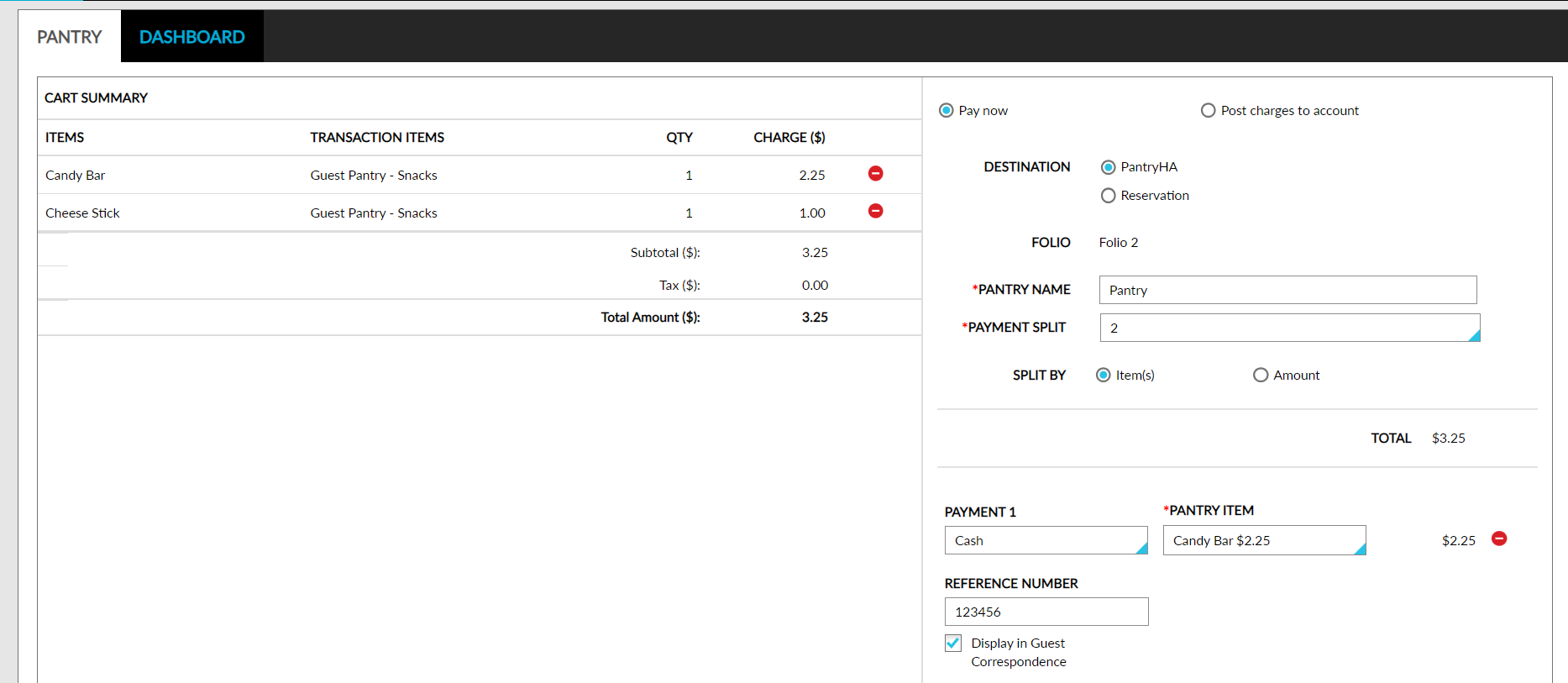
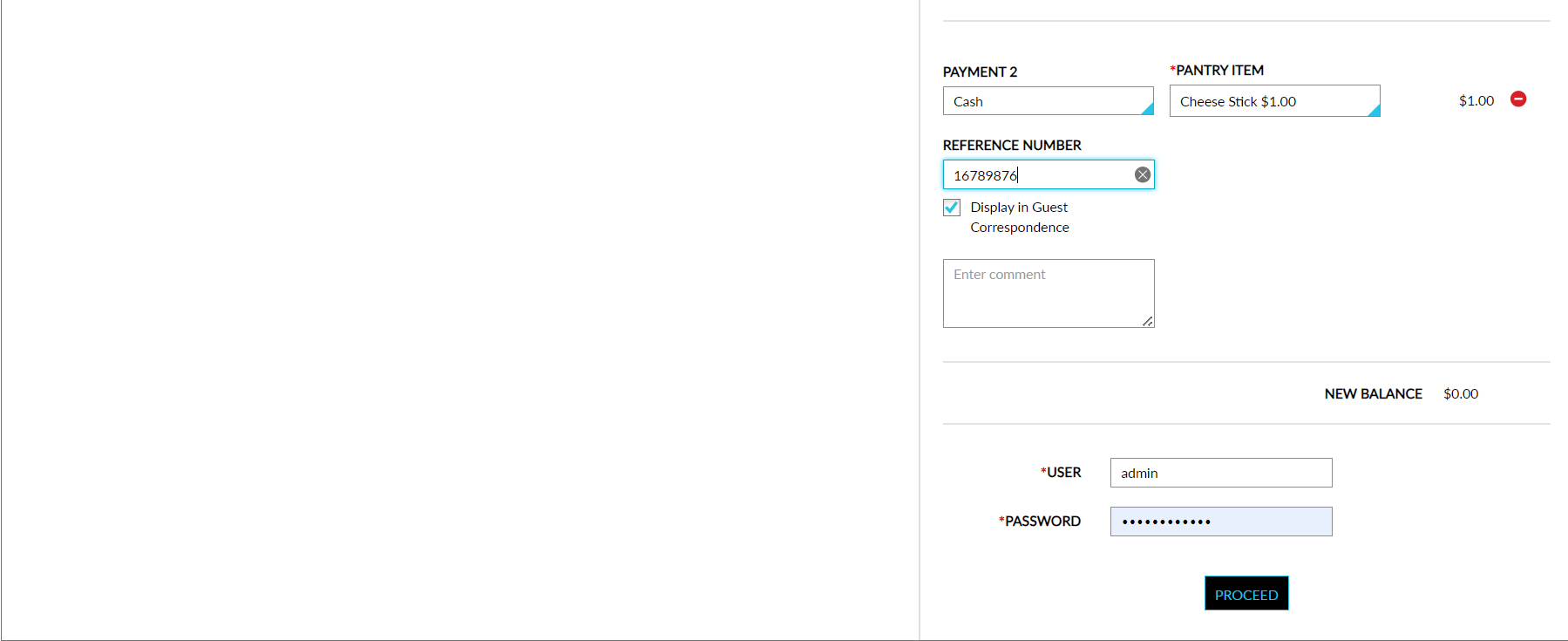
When users enter the required details and click the Confirm button, the Process Split Payments screen appears. This screen displays the list of payment methods and the amount entered for each payment method on the Pantry screen.
-
A Collect button is provided for the cash and check payment methods. When clicked, the payment amount is collected.
-
A Process button is provided for the credit card payment method. When clicked, the request is sent to the payment device and the payment is collected. The processed payments are posted to the pantry receipt as individual line items.
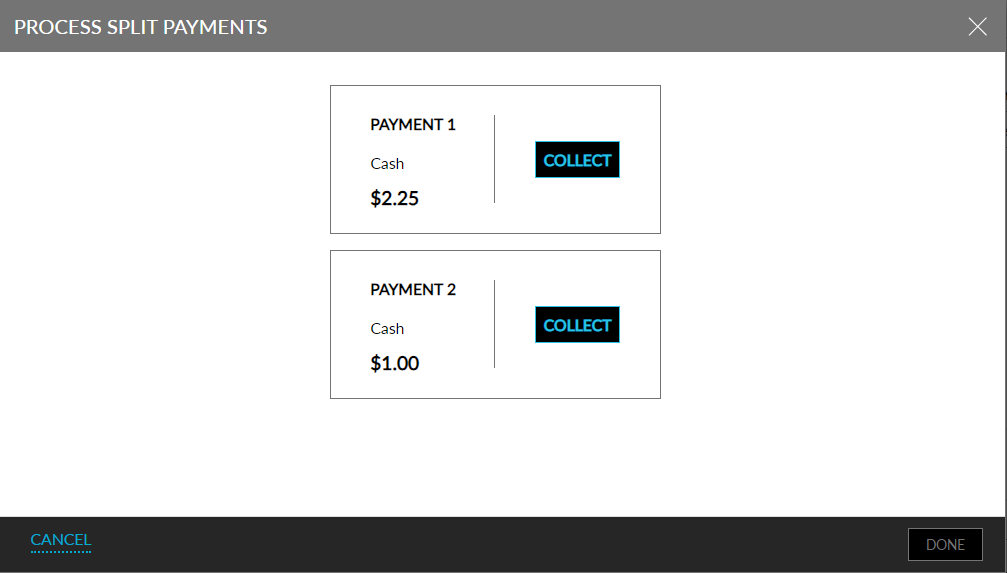
When users close the Process Split Payments screen before all the payments are collected, the unprocessed payments remain as they are. The Done button is enabled when at least one payment is processed. When clicked, the Process Split Payments screen closes, and the unprocessed payments remain as they are. When users click Close or Done before all the payments are collected, the following message is displayed: All payments have not been processed. Click Yes to proceed. Charges will be posted to the House Account.
When the Process Split Payments screen is closed, users are navigated back to the Pantry screen where the message, The transaction has been processed, is displayed and the following options are available for selection:
-
Continue Shopping - redirects users to the Pantry screen.
-
Print Itemized Receipt - allows users to print the receipt that displays all pantry items and payments posted.
Split Payments for Charges Posted to Reservations
Users can choose to settle the pantry charges posted to a reservation by selecting the Reservation option as the Destination in the Pantry screen (Front Desk ➜ Pantry) after the pantry items are selected. When selected, users can search for the reservation in the search box. Once the reservation is selected, users can select the number of payments and the split-by options as mentioned in the previous section and process the payments. All the payment methods associated with the reservation are available for selection. Users can choose preferred payment method to make payments.
Users can also settle the pantry charges posted to a reservation from the folios section on the Reservation screen by clicking on More ➜ Pantry. The current reservation is selected by default on the Pantry screen. Users cannot select any other reservation. All the payment methods associated with the reservation are available for selection. Users can choose the existing payment method or a new payment method and process the payments for the reservation as mentioned.
All the payment methods used for making payments for the pantry items posted to various accounts using the Split By - Amount option is displayed in the Pantry Postings Report (Dynamic) separated by a comma.
Refund Multiple Payments When Adjusting Pantry Items
Users can choose to refund the payments made for pantry items that are posted to house accounts and reservations. If the Split Payments in Pantry feature setting is enabled and if the payments are made using multiple payment methods, all the payment methods are displayed in the drop-down list when the Refund checkbox is enabled in the Adjust Charge screen. Once the payment methods are selected, the following columns are displayed:
|
Column |
Description |
|---|---|
|
Payment Method |
|
|
Payment |
This is a non-editable field that displays the amount paid using that payment method. |
|
Refund |
|
|
Total |
|
The refunds are processed successfully when users click Save and the record for the refund is created in the respective folios.
To support this enhancement the following changes have been made to the Pantry screen that appears when users select the items and click the Pay Now option:
-
A new section, Destination, is added that has two options: Default House Account (mapped in the pantry setup), and Reservation.
-
When Reservation is selected, a search text box and the Include Closed Accounts filter is enabled that allows users to search for a reservation in Reserved or Inhouse status or in Departed, Cancelled/ No show status.
-
-
A new single-select drop-down list, Payments Split, has been added that allows users to select the number of payments to be made.
-
Two Split-By options, Items, and, Amount, have been added that allows users to split payments based on the pantry items or the amount.