Staff Mobility – Reservations Landing Page

Staff Mobility - Reservations is enhanced for the addition of a new search screen that allows users to view and search for reservations made at the property for a selected date.  The Search screen allows users to filter and display the reservations at the property. The Search screen now has the following options.

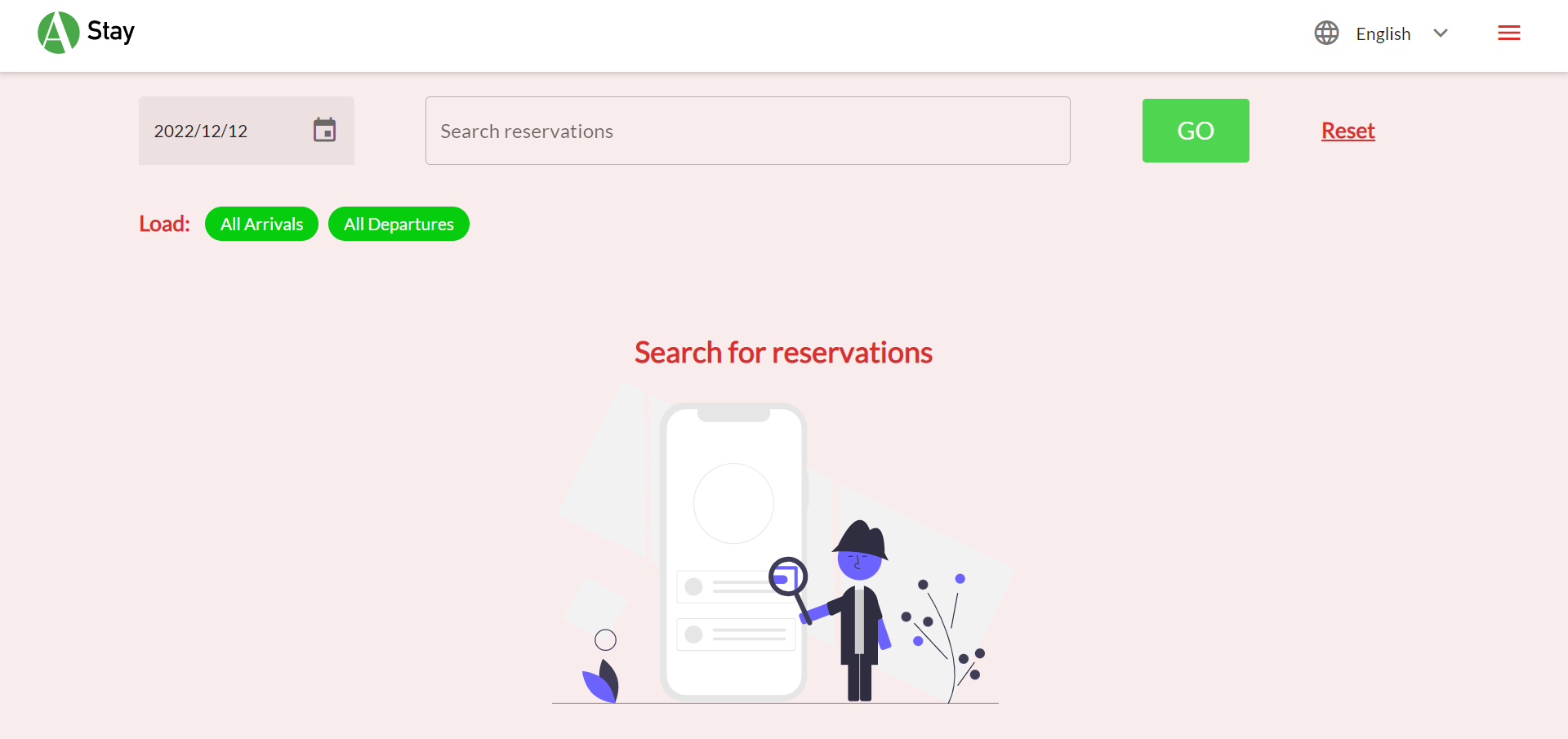
Date Picker - The date picker allows users to select a single date. By default, the current date will be displayed in this field. Users can view the reservations made for the day as well as search for reservations beyond the current property date.

Search Bar - The search bar allows users to search for reservations based on any of the following criteria:

  • Reservation confirmation number

  • First name

  • Last name

  • Last name, First name

  • Phone number

  • Email ID

  • Room number

Tapping on Go allows users to proceed to the next page. Tapping on Reset resets the search bar and search results and takes the user back to the first screen.
Graphical user interface, application

Description automatically generated

Load - The Load option helps users to choose the reservations to be displayed for the selected date. The following two options are available to load:

  • All Arrivals - Tap on this option to load all arrivals on a particular day based on the current reservation status.

  • All Departures - Tap on this option to load all departures on a particular day based on the current reservation status.

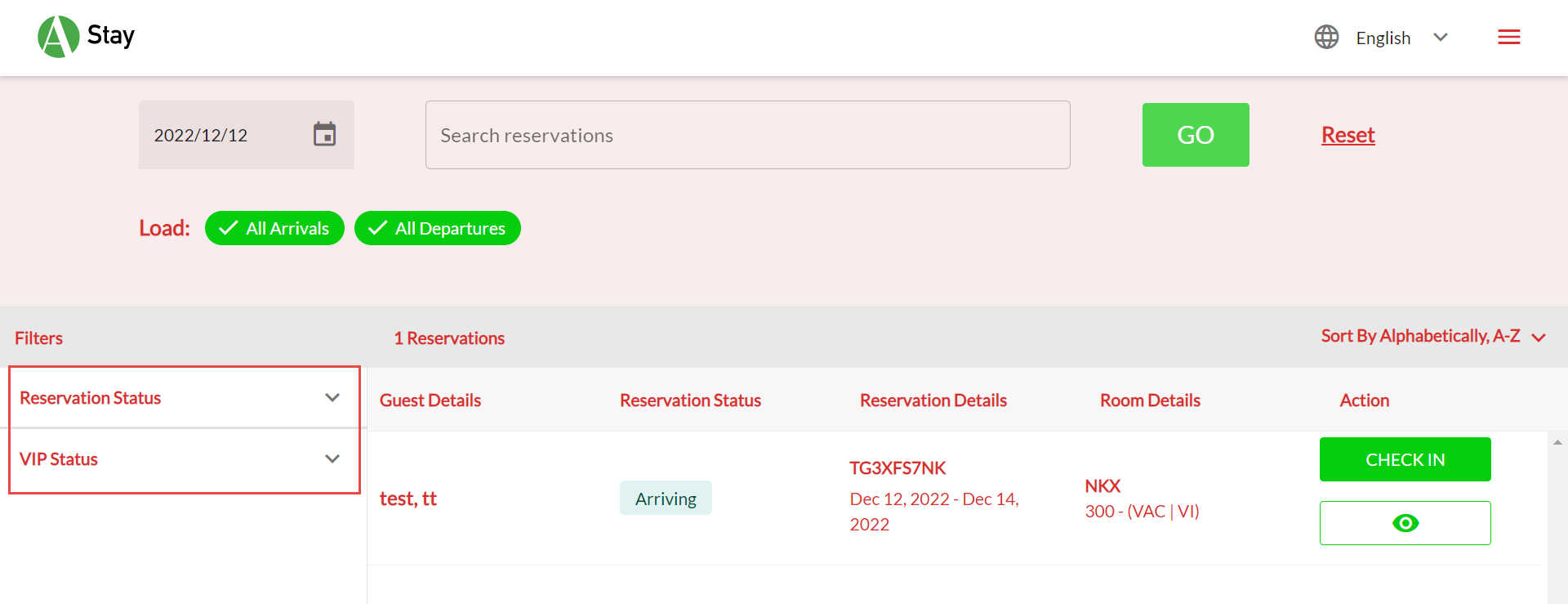
Search Filters - The search filters are displayed on the left side of the screen after search results are loaded. The search filters can be categorized to the following 3 options within which there more search filters:

  • Reservation Status

    • Arriving

    • Cancelled

    • Departed

    • Departing

    • In House

    • Moved

    • No Show

    • Reserved

  • Web Status (Will be displayed only if the property has enabled web check-in/check-out)

    • Web Check In

    • Web Check Out

  • VIP Status (All active VIP statuses will be displayed when they are configured in Stay)
Graphical user interface

Description automatically generated with medium confidence

Search Results

The following details are displayed in the search results section:

  • The total number of reservations found based on the search criteria

  • Sorting options -  By default, results are sorted in the ascending alphabetical order.

  • Search results display the following details for a reservation:

  • Field

  • Description

  • Guest Details

  • The following details are displayed in this column:

  • Last Name, First Name

  • Casino Player ID, Loyalty ID

  • Additional guest names

  • Company Name

  • Group Name

  • VIP status

  • Reservation Status

  • The following reservation status are displayed:

  • Arriving

  • Cancelled

  • Departed

  • Departing

  • In House

  • Moved

  • No Show

  • Reserved

  • Reservation Details

  • The following details are displayed in this column:

  • Reservation Confirmation Number

  • Check-In Date - Check-Out Date

  • Applicable icons

    • SRM (scheduled room move)

    • Shared Reservations (Display Text - Shared)

    • Linked Reservations (Display Text - Linked)

    • Packages (Display Text - Package)

    • Web Check In (Display Text - Web Check In)

    • Web Check Out (Display Text - Web Check Out)

    • Digital Key (Display Text - Digital Key)

  • Room Details

  • The following details are displayed in this column:

  • Room Type Name

  • Room Number

  • Housekeeping Status

  • Action

  • Before the reservation is checked-in, the following details are displayed:

  • Check In button - clicking this button redirects users to the Payment screen directly (bypassing the Reservation Summary screen).

  • Eye icon - clicking this icon redirects users to the Reservation Summary screen.

  • When the reservation is in-house, the following details are displayed:

  • Key icon - clicking this icon redirects users to the Key Creation screen. This icon will be displayed always.

  • When the reservation is in the departing day, the following details are displayed:

  • Check Out button - clicking this button redirects users to the Payment screen directly (bypassing the Reservation Summary screen). It will be in disabled state during In House and enabled only on the day of departure.

  • Eye icon - clicking this icon redirects users to the Reservation Summary screen. It will be enabled only on the day of reservation. It will be in disabled state during In House and enabled only on the day of departure.

  • Key icon - clicking this icon redirects users to the Key Creation screen. This icon will be displayed always.