Support for Secondary Authorization Using Approver Code
Agilysys Stay provides customers with the option to enable secondary authorization using an approver passcode to perform various operations within Stay. With this feature, instead of keying in a password, users are required to enter a passcode to authorize transactions. Users cannot use this passcode to log in to Stay.
This option is mandatory for customers using the SSO login method to log in to Stay.
Contact Agilysys to set this up at your property.
Feature Setting
The following new feature setting has been added to allow properties to enable the approver code option for users and to allow users to configure the approver code for their username:
-
Name: Enable Approver Code
-
Value: Must be enabled
-
Comments: License is not required
Using Approver Code in Stay
Users will be required to enter their username and passcode when the following conditions are satisfied:
-
Approver code option is enabled for the customer.
-
Approver code feature setting is enabled at the property-level.
-
Approver code option is enabled at the user-level.
Once these conditions are met users will be displayed the fields to enter their username and passcode in the User and Approver Code fields in various screens in Stay.
-
If the user credential and the passcode match, users can proceed to perform the transaction.
-
If the user credential and the passcode do not match, the following message is displayed: Invalid Approver Code and users will not be allowed to further proceed to perform the transaction.
-
If a logged in user does not have sufficient permissions to perform certain operations, then a user with sufficient permissions can enter their username and their passcode to complete a transaction.
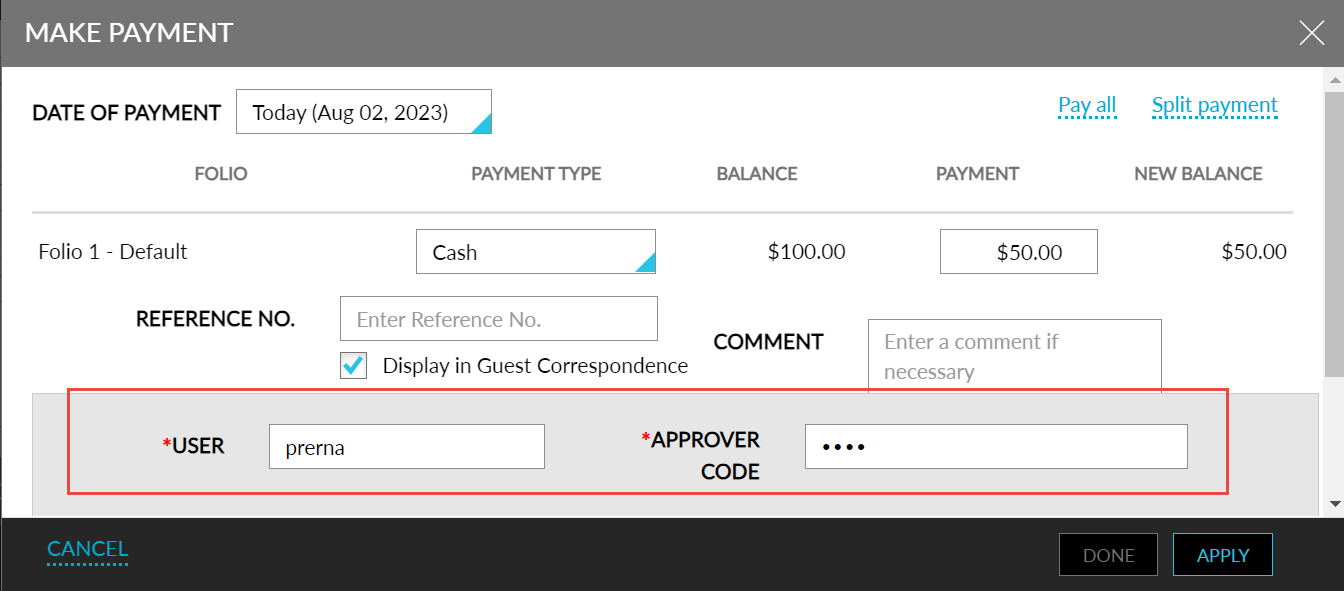
The User and Approver Code fields are displayed in the following screens in Stay:
-
Rooms Management ➜ Lost and Found ➜ Release
-
Book Reservation ➜ Deposit Due ➜ When credit card is not selected as the payment method
-
Reservation ➜ Payment ➜ More ➜ Make Payment & Pay All
-
Reservation ➜ Payment ➜ More ➜ Make Payment ➜ Split Payment
-
Reservation ➜ Payment ➜ More ➜ Pantry ➜ Pay Now ➜ When credit card is not selected as the payment method
-
Reservation ➜ Estimated Charges ➜ Collect Deposit Due ➜ When credit card is not selected as the payment method
-
Book Reservation ➜ Cancel Reservation
-
Group ➜ Folio & Routing Rules ➜ More ➜ Make Payment
-
Group ➜ Folio & Routing Rules ➜ More ➜ Make Payment ➜ Split Payment
-
Group ➜ Folio & Routing Rules ➜ More ➜ Make Payment ➜ Pay All
-
House Accounts ➜ Folio ➜ More ➜ Add Charge
-
House Accounts ➜ Folio ➜ More ➜ Make Payment
-
House Accounts ➜ Folio ➜ More ➜ Make Payment ➜ Pay All
-
Company Profile ➜ Accounts Receivable ➜ Make Payment
-
Company Profile ➜ Accounts Receivable ➜ Unapplied Payments ➜ More ➜ Make Payment
-
Company Profile ➜ Accounts Receivable ➜ Invoices ➜ Make Payment
-
Early Checkout With a Balance screen
-
Gift Card ➜ Load Card ➜ Post or Pay
-
Offers
-
Change Key Expiration ➜ Reservation
-
Reservation ➜ Undo Cancel
-
Reservation ➜ Undo Checkout
-
Override AR Charge posting
-
Edit Reservation ➜ Cancellation Policy Override
-
Auto Recurring Charge (ARC) override screen
-
AR validity ➜ Group and Reservation
-
Settings ➜ Collect Deposit Due Pop Up
-
Gift Card ➜ Load Amount
-
Shopping Cart ➜ Addons ➜ Override amount and inventory
-
Reports ➜ Dynamic Report ➜ Override
Activate Approver Code Option for Users
Perform the following steps to activate the approver code option for users:
Log on to Agilysys Stay.
Navigate to Settings ➜ Administration ➜ User Accounts. The User Accounts screen is displayed.
Select the user for whom restriction at login should be enabled and click Edit. The View a User Account pop-up screen is displayed.
Select the Approver Code checkbox to enforce the entry of an approver code for this specific user.
Click Save.
Configure Approver Code on Log In
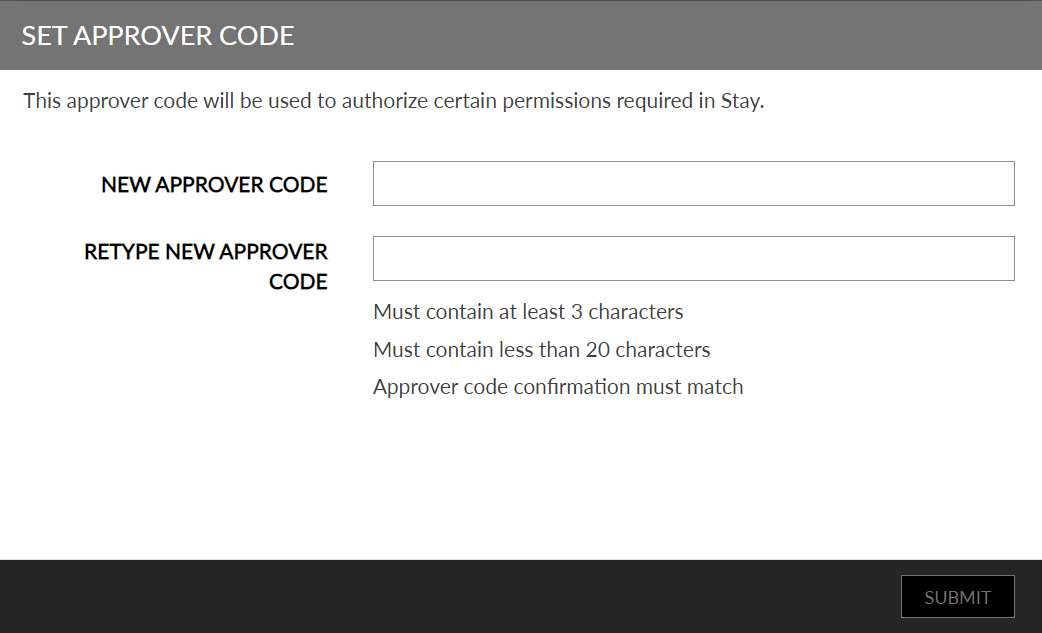
When users log in to Stay after the approver code option is enabled for them, they are required to configure the approver code in the Set Approver Code screen. Users can enter the code in the New Approver Code field. This text field supports alpha numeric characters and special characters. The length of the code can be a minimum of three characters and a maximum of 20 characters.
Reset Approver Code
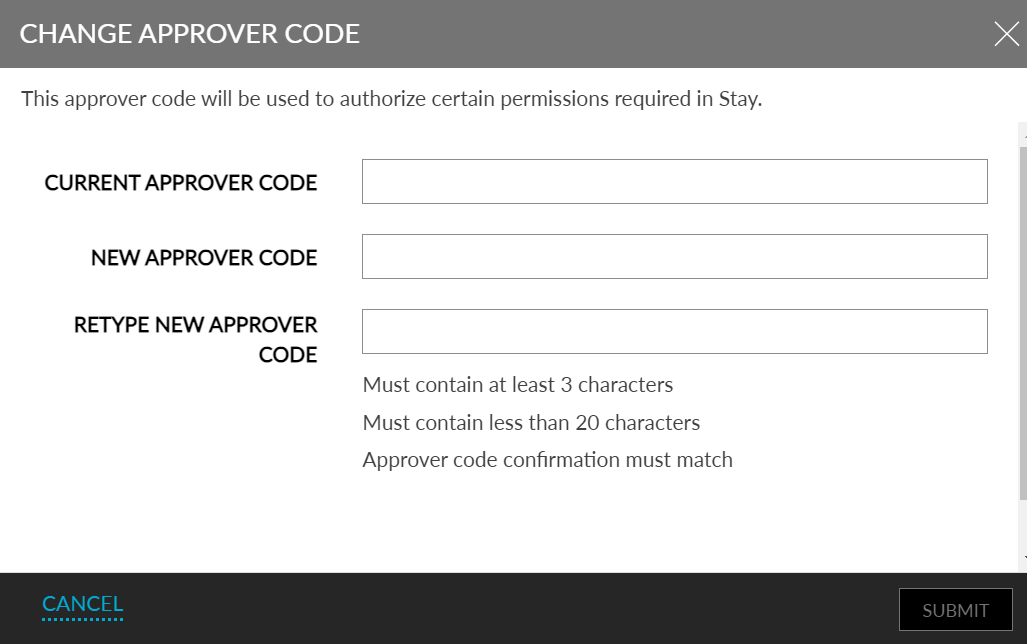
To reset the approver code, select the Change Approver Code option that is displayed on clicking the drop-down list under their username for user-specific options. On clicking this option, the Change Approver Code screen is displayed. Users can configure a new code by entering the code in the New Approver Code field.