March 2024
Release 12.5.2
User Experience Improvements to Daily Rates Screen
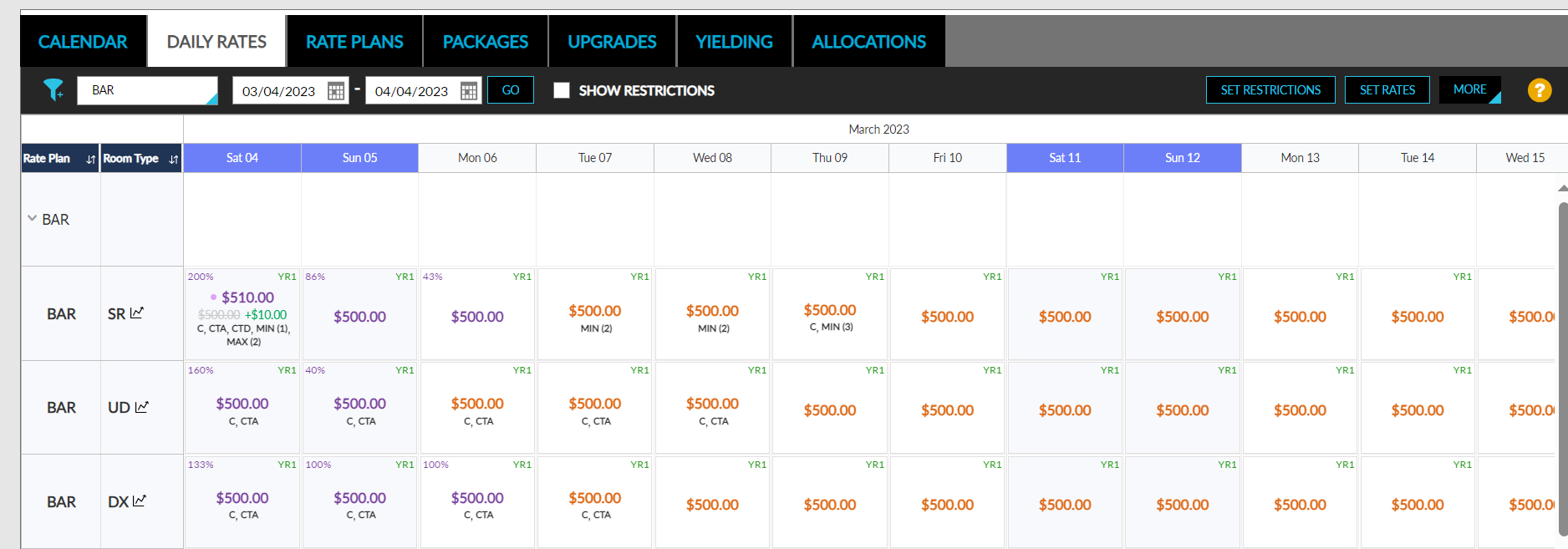
The Daily Rates screen has been enhanced for an easier user experience. Users can now apply restrictions directly from the Daily Rates screen (Settings ➜ Rates ➜ Daily Rates). Previously, users had to select the Set Restrictions option under More (Settings ➜ Rates ➜ Daily Rates ➜ More) to create restrictions.
Improvements Made to the UI
The following changes have been made to the Daily Rates screen:
-
The term, Range, that was present next to the date pickers is removed.
-
A new checkbox, Show Restrictions, has been added. When selected, the restrictions for the cells are displayed without the rate.
-
A new button, Set Restrictions, has been added that allows users to create restrictions directly from the Daily Rates screen.
-
The Set Restrictions option that was present under More has been removed.
-
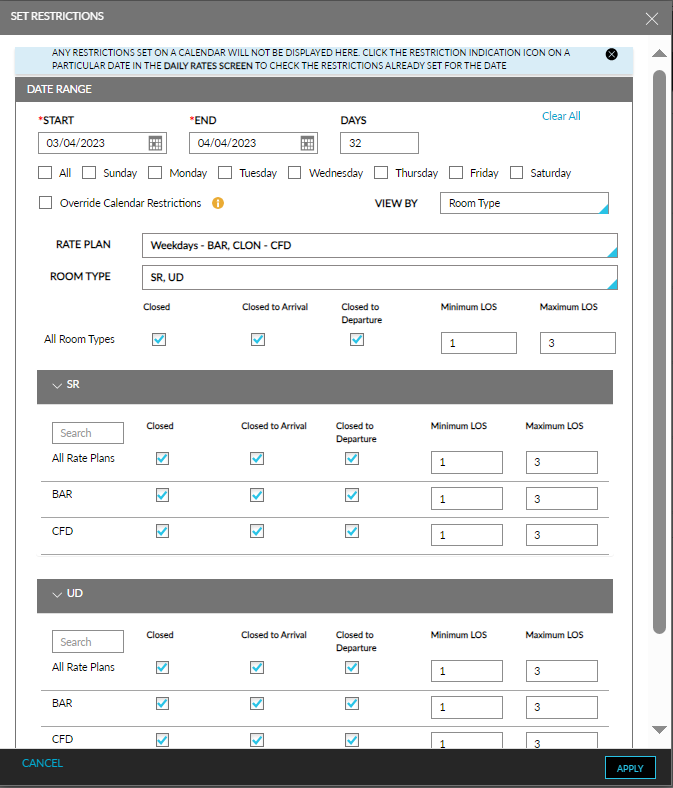
The following new fields have been added to the Set Restrictions pop-up screen:
-
A new drop-down list, Rate Plan, has been added that allows users to select the preferred rate plans.
-
A new drop-down list, Room Type, has been added that allows users to select the preferred room types.
-
A new section, All Room Types, has been added that allows users to configure restrictions for all the selected room types in the selected rate plans.
When users click the Set Restrictions option, the Set Restrictions screen is displayed where users can proceed to configure restrictions. Optionally, users can also drag, drop, and select multiple cells on the Daily Rates screen for the preferred dates and select the Set Restrictions option. In this case, the details of the selected cells are pre-filled in the Set Restrictions pop-up screen.
The Set Restrictions pop-up screen displays the following existing and newly added fields:
|
Field |
Description |
|---|---|
|
Date Range |
Follows the existing functionality. |
|
Days of the week checkboxes |
Follows the existing functionality. |
|
Override Calendar Restrictions checkbox |
Follows the existing functionality. |
|
View By |
The is drop-down list that allows users to configure restrictions by rate plans or room type.
|
|
Rate Plan |
This is a multi-select drop-down list.
|
|
Room Type |
This is a multi-select drop-down list.
|
|
All Room Types |
|
Users can save and apply the restrictions for the selected dates by clicking Apply.
Display Restrictions for the Applied Cells
For restrictions to always be displayed in a cell along with the rate on the Daily Rates screen, a new flag, Always Show Restrictions is added to the Settings section of the Daily Rates screen. (Settings ➜ Rates ➜ Daily Rates ➜ More ➜ Settings ➜ Always Show Restrictions).
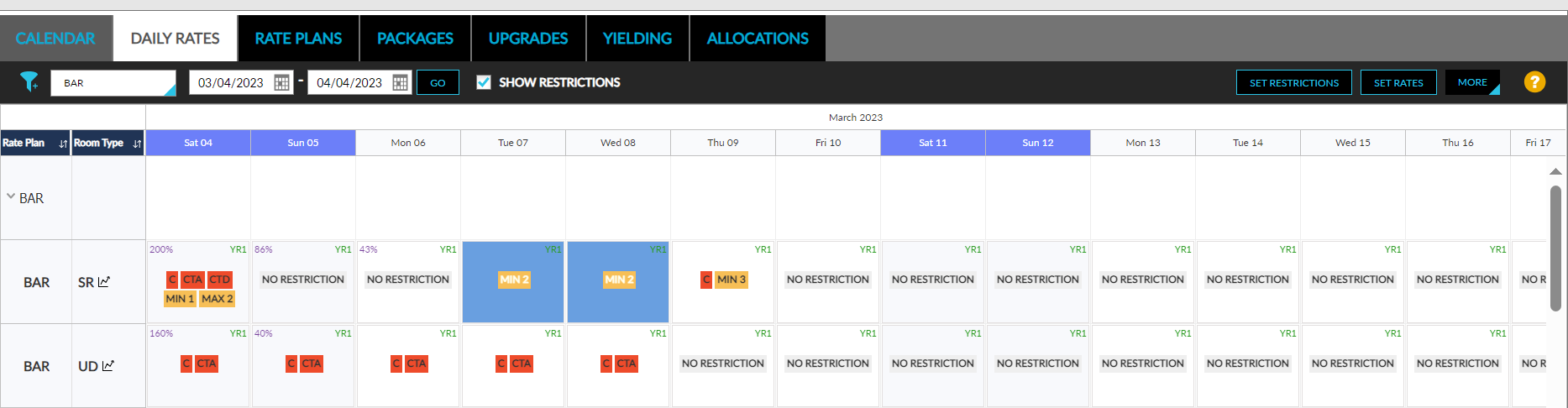
When the Show Restrictions checkbox is selected in the Daily Rates screen, the rates are no longer displayed, and the restrictions are displayed more prominently. The following changes can be observed when this checkbox is selected:
-
The occupancy percentage is displayed at the top-left corner of the cell. The color of the occupancy percentage is based on the selections made in the Occupancy Thresholds field in the Daily Rate Settings screen.
-
If an yielding rule set is applied to a cell, the applied rule set is displayed as a hyperlink in the top-right corner of the cell. When clicked, users are navigated to the respective rule set in the Yielding tab of the Rates screen.
-
The additional details of the rates and the restrictions applied to a cell are displayed when users hover over the cell.
-
The restrictions applied for the cell is displayed in the following color codes:
-
Closed (C): Red
-
Closed to Arrival (CTA): Red
-
Closed to Departure (CTD): Red
-
Minimum LOS: Yellow
-
Maximum LOS: Yellow
-
No restriction: Grey
-
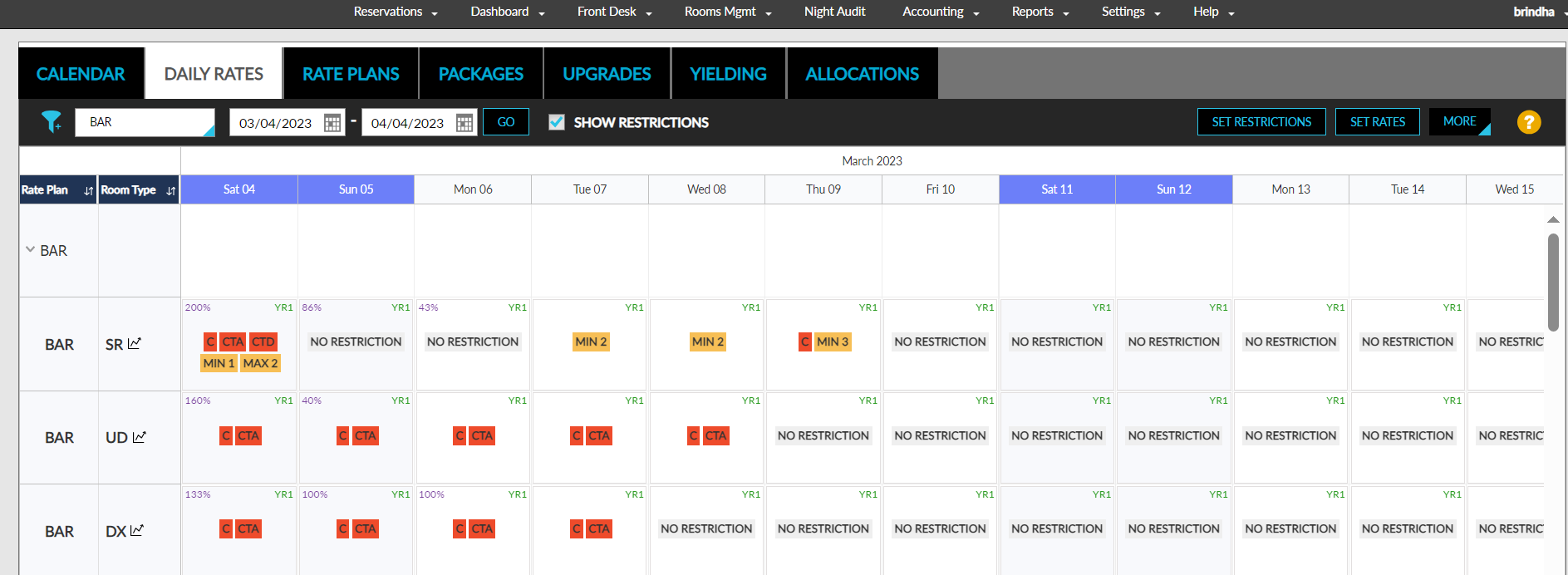
The Show Restrictions checkbox is not selected by default. The checkbox is no longer selected when users navigate to a different tab or refresh the screen.
Viewing Details of Restrictions Applied When Multiple Cells are Selected
When multiple cells with restrictions are selected, the details of the restrictions can be viewed in the Set Restrictions screen. The following are the various scenarios for which users can view the details of the restrictions applied:
-
When different restrictions are applied for the selected cells
-
When same restrictions are applied for the selected cells
-
When the selected cells have both similar and different restrictions
When Different Restrictions are Applied for Selected Cells
When users select cells for which different restrictions are applied and navigate to the Set Restrictions screen, the restrictions that are different across the selected cells are highlighted and displayed without any values in the rate plan/room type section.
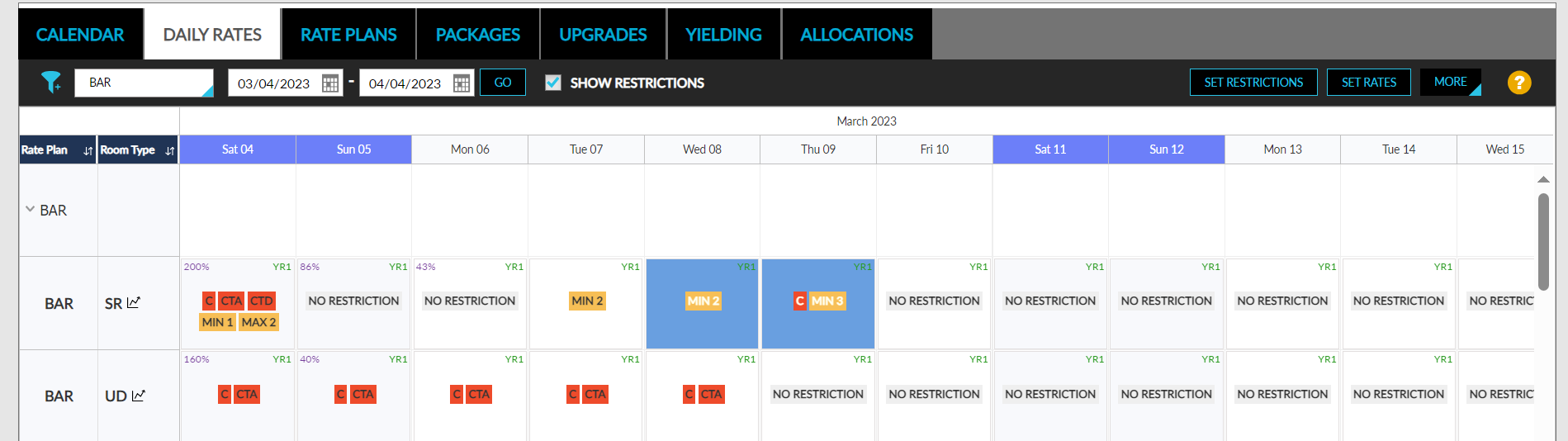
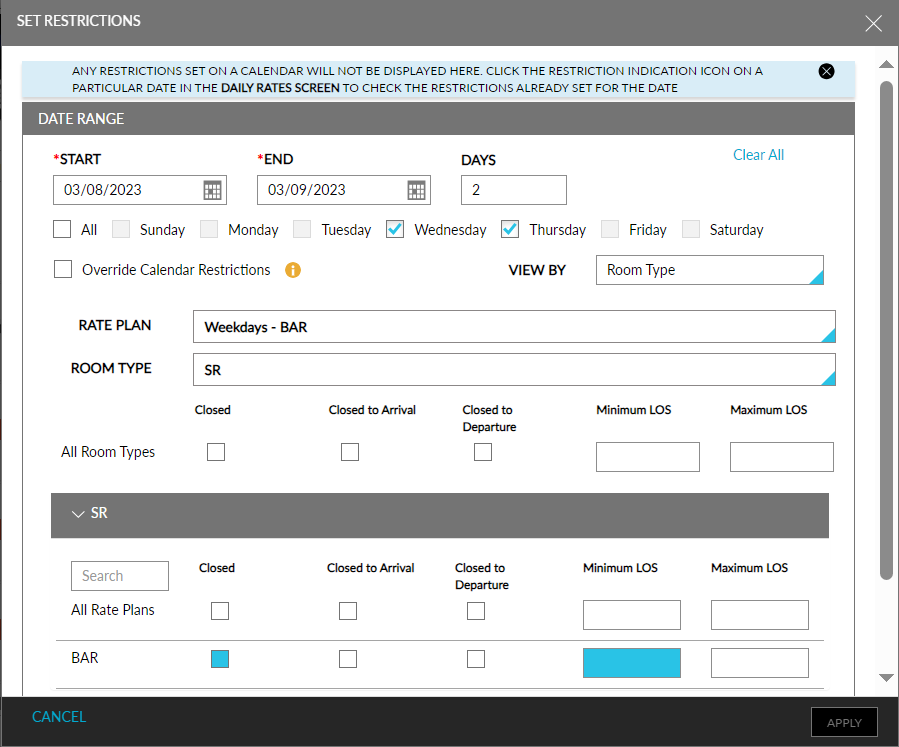
Users can enter values for the highlighted fields if required. When a value is entered, the field will no longer be highlighted. Users can also modify the other non-highlighted fields if required. The modifications made are uniformly applied to the selected cells.
When Same Restrictions are Applied for Selected Cells
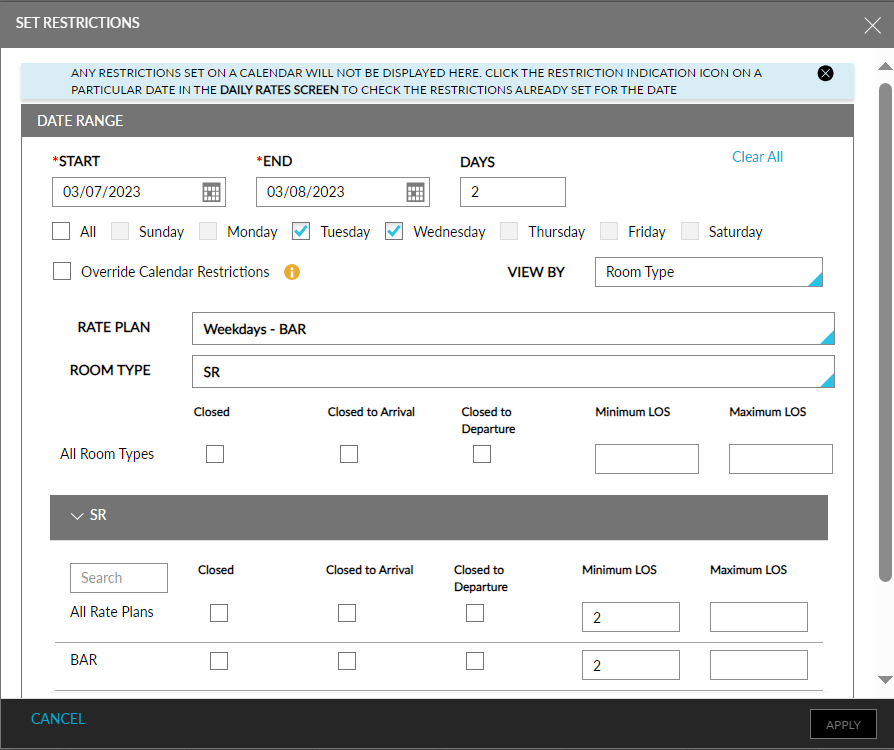
When users select cells for which the same restrictions are applied and navigate to the Set Restrictions screen, the restriction configured is displayed in the rate plan/room type section. Users can modify the restrictions if required. The modifications made are uniformly applied to the selected cells.
When Selected Cells Have Similar and Different Restrictions
When users select cells that have similar and different restrictions applied and navigate to the Set Restrictions screen, the restrictions that are different across the selected cells are highlighted and the restrictions that are similar are displayed in the rate plan/room type section. Users can modify the restriction values if required. The modifications made are uniformly applied to the selected cells.