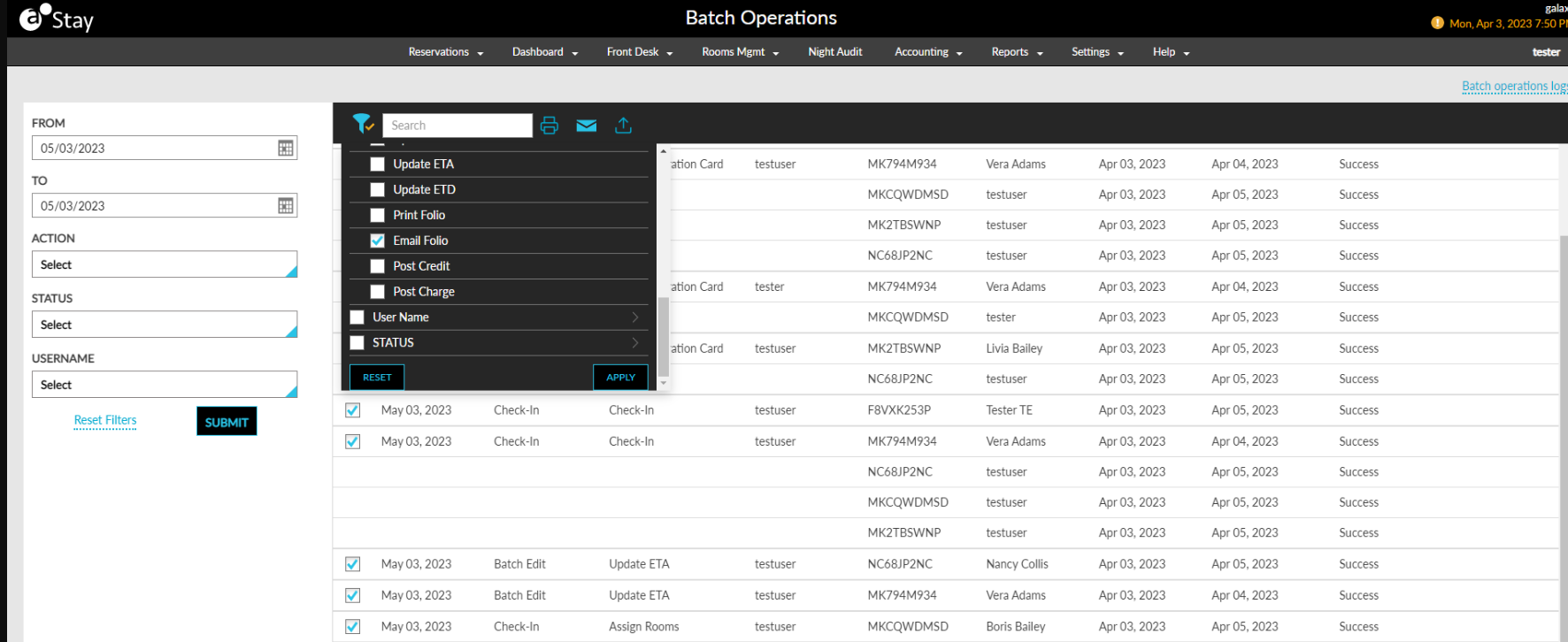
Batch Operations Logs
Logs are saved for all the actions performed by users in the Batch Operations screen. Each action performed in the Batch Operations screen is displayed as an individual entry in the Batch Operations Log screen. Additionally, users can perform the following actions on this screen:
-
Sort
-
Filter
-
Search
-
Print
-
Email
-
Export
Users can navigate to the Batch Operations Logs screen by clicking on the Batch Operations Logs hyperlink.
The Batch Operations Logs screen displays the following input parameters:
|
Field |
Description |
|---|---|
|
From |
Allows users to select the start date from which the logs should be generated. The current property date is selected by default. Users can select any date from the past, up to the current property date. |
|
To |
Allows users to select the end date till which the logs should be generated. The current property date is selected by default. Users can select any date from the past, up to the current property date. |
|
Action |
Allows users to select the required actions performed in the Batch Operations screen for which the logs should be generated. It is a multi-select drop-down list that displays the following actions:
The actions are not selected by default. A Select All option is provided to allow users to select all actions. |
|
Status |
Allows users to generate the logs based on the status of the actions performed by the users in the Batch Operations screen. It is a multi-select drop-down list that displays the following options:
|
|
Username |
Allows users to generate the logs based on the actions performed by a specific user or multiple users. It is a multi-select drop-down list that displays all the users in the tenant and property. The users are not selected by default. A Select All option is provided to select all the users. |
The following columns are displayed for the generated logs:
|
Field |
Description |
|---|---|
|
Date & Time |
Displays the date and time at which the users performed the action. This column can be sorted. |
|
Type |
Displays the name of the tab in the Batch Operation screen where the action was performed, such as, Registration Card, Check-in, and Deposit Due. This column can be sorted. Users can filter records using this column. |
|
Action |
Displays the action performed by the user. This column can be sorted. Users can filter and search records using this column. |
|
Username |
Displays the username of the user who performed the action. This column can be sorted. Users can filter and search records using this column. |
|
Confirmation |
Displays the confirmation number of the reservations for which the action was performed. Users can search records using this column. |
|
Guest Name |
Displays the primary guest’s name of the reservations for which the action was performed. This column can be sorted. Users can search records using this column. |
|
Arrival |
Displays the arrival date of the reservations for which the action was performed. This column can be sorted. Users can filter records using this column. |
|
Departure |
Displays the departure date of the reservations for which the action was performed. This column can be sorted. Users can filter records using this column. |
|
Status |
Displays the following status of the action performed for each reservation:
This column can be sorted. Users can filter records using this column. |
|
Exception Details |
Displays the reason due to which the update was not completed successfully for the reservation. The various reasons include permission limitations, system errors, and so on. Users can search records using this column. |
-
Users can select the count of records to be displayed per page (10, 20, or 50 records).
-
Pagination is provided to help users navigate to the previous and next pages.
-
Users can print the generated logs by clicking on the Print icon.
-
Users can email the generated logs by clicking on the Email icon. When clicked, users are prompted to enter the email address to which the log file should be emailed.
-
Users can export the logs as a CSV file by clicking on the Export icon.