Create Back-to-Back Reservations
Stay allows users to link multiple reservations booked for a guest over a continuous duration as back-to-back reservations. This enhancement helps properties know that the reservations have been booked for the same guest and are set to arrive on consecutive days.
For example, consider a reservation, A, booked for a guest, John Doe, for the duration July 05, 2024, to July 10, 2024. Consider another reservation, B, booked for the same guest for the duration July 10, 2024, to July 16, 2024. The two reservations can be linked as back-to-back reservations. This will help users identify that they have been booked for the same guest, John Doe.
Reservations can be linked as back-to-back only when the departure date of a reservation and the arrival date of the consecutive reservation is the same. Same-day reservations cannot be linked.
Feature Setting
The following feature setting must be enabled to use this feature.
-
Name: Back-to-Back Reservations
-
Comments: License is not required
Linking Reservations
When the Back-to-Back Reservations feature setting is enabled, a B2B badge will be displayed in the Reservation Summary section of reservations. This badge is displayed for reservations in the following statuses only:
-
Reserved
-
Arriving
-
In-House
-
Departing
When clicked, the Back-to-Back Reservations pop-up screen appears. The current reservation will be displayed in the Current reservation block highlighted in blue. The reservations can be linked based on the following options:
|
Option |
Description |
|---|---|
|
Add After |
This option is selected by default. When selected, the preferred reservation can be linked as the next successive reservation to the current reservation. For example, if the current reservation’s duration is from July 05, 2024, to July 10, 2024, users can link a reservation arriving on July 10, 2024, with the current reservation using the Add After option. |
|
Add Before |
When selected, users can link a preferred reservation as a preceding reservation to the current reservation. For example, if the current reservation’s duration is from July 05, 2024, to July 10, 2024, users can link a reservation departing on July 05, 2024, with the current reservation using the Add Before option. |
|
Swap Reservation |
When selected, users can swap the current reservation with the preferred reservation. For example, if the current reservation’s duration is from July 05, 2024, to July 10, 2024, users can swap the current reservation with another reservation that has the same arrival and departure dates. |
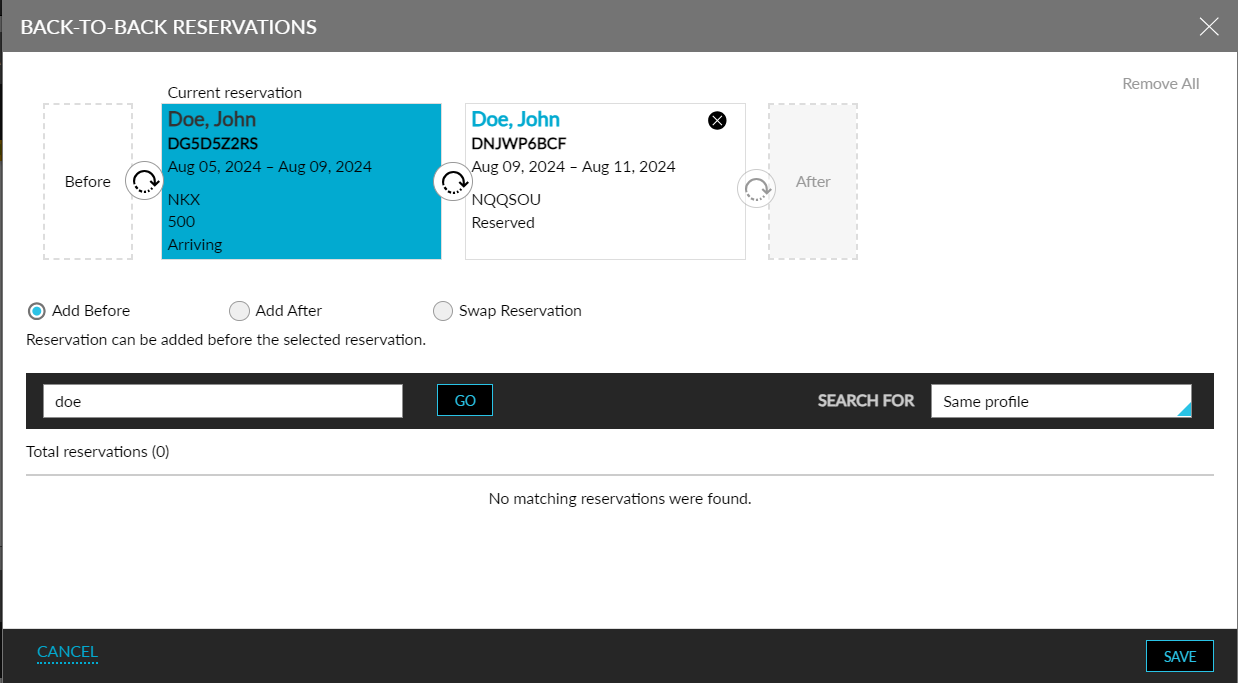
Users can select the preferred reservation using the +Add hyperlink.
Searching for Profiles to Link
The reservations are retrieved and displayed in the Back-to-Back Reservations pop-up screen based on the following options selected in the Search For drop-down list.
|
Option |
Description |
|---|---|
|
Same profile |
Reservations associated with the same guest profile as the current reservation is retrieved and displayed. This option must be selected when all preferred B2B reservations are created with the same guest profile. |
|
Same first name & last name |
Reservations associated with profiles having the same first name and last name as the current reservation are retrieved and displayed. This option must be selected when the preferred B2B reservations are created with different guest profiles, but the profiles have the same first and last name. |
|
All reservations |
All reservations matching the arrival and departure dates of the current reservation are retrieved and displayed. This option must be selected when the preferred B2B reservations are created with different profiles and the profiles do not have the same name. |
For all 3 options, the arrival and departure dates of the preferred B2B reservations must match the current reservation.
Reservations List to Link as Back-to-Back
The reservations list is displayed based on the Add Before/Add After/Swap Reservation options selected.
-
Add Before: When selected, reservations that are departing on the arrival date of the current reservation are retrieved and displayed.
-
Add After: When selected, reservations that are arriving on the departing date of the current reservation are retrieved and displayed.
-
Swap Reservation: When selected, the reservations list will display reservations that can be swapped with the current reservation.
Once a reservation is selected from the list, the list will be updated to display the next matching reservations. By default, reservations booked with the same guest profile are displayed.
The following table lists the various combinations in which reservations are retrieved and displayed based on the Add Before/Add After/Swap Reservation options and the Search For option selected.
|
Option Selected |
Description |
|---|---|
|
Add Before + Same profile |
Reservations associated with the same guest profile departing on the arrival date of the current reservation are displayed. |
|
Add Before + Same first name & last name |
Reservations associated with guest profiles with the same first and last name departing on the arrival date of the current reservation are displayed. |
|
Add Before + All reservations |
All reservations irrespective of the guest profile name departing on the arrival date of the current reservation are displayed. |
|
Add After + Same profile |
Reservations associated with the same guest profile arriving on the departing date of the current reservation are displayed. |
|
Add After + Same first name & last name |
Reservations associated with guest profiles with the same first and last name arriving on the departing date of the current reservation are displayed. |
|
Add After + All reservations |
All reservations irrespective of the guest profile name arriving on the departing date of the current reservation are displayed. |
|
Swap Reservation + Same profile |
Reservations associated with the same guest profile with the same arrival and departure dates as the current reservation are displayed. |
|
Swap Reservation + Same first name & last name |
Reservations associated with guest profiles with the same first and last name with the same arrival and departure dates as the current reservation are displayed. |
|
Swap Reservation + All reservations |
All reservations irrespective of the guest profile name with the same arrival and departure dates as the current reservation are displayed. |
The Add Before/Add After/Swap Reservation options are disabled for selection based on the following conditions:
-
Add Before is disabled when the selected reservation has a B2B reservation prior to it.
-
Add After is disabled if the selected reservation has a B2B reservation successive to it.
-
Swap Reservation is disabled when the current reservation is selected.
When users select the preferred reservations and click Save, the reservations are linked successfully and the B2B badge is highlighted for the reservation. Reservations that are in at the first or last position in a B2B link can be linked to another B2B link. The intermediate reservations cannot be linked to a different B2B link.
Representation of B2B Reservations in the Search and Tape Chart Screens
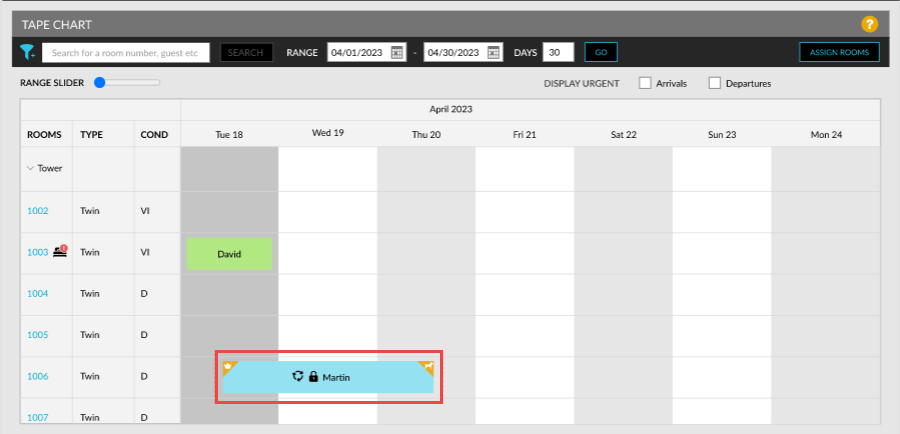
A B2B indicator is displayed in the block created for the B2B reservation in the Tape Chart screen (Dashboard ➜ Tape Chart).
In the Search screen, the indicator is displayed next to the confirmation ID of the reservation.
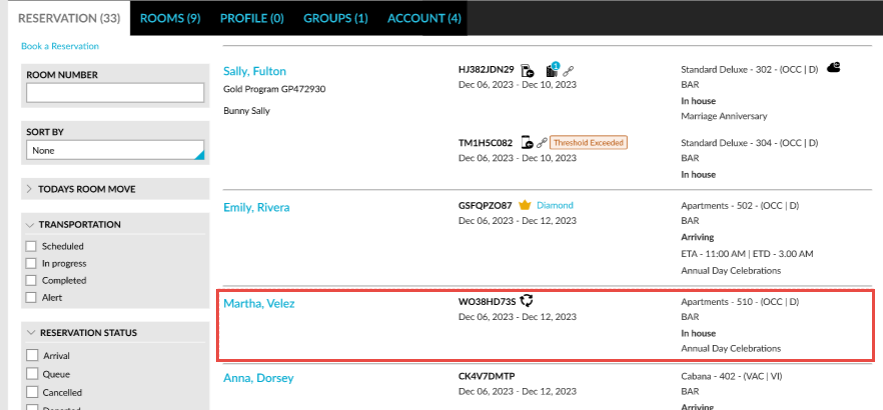
The B2B icon is displayed for the reservations linked as back-to-back in the Search screen.
Modifying B2B Reservations
Users can replace a reservation linked as back-to-back by clicking on the B2B badge and modify the preferred reservation in the Back-to-Back Reservations pop-up screen using the Swap Reservation option and select a different reservation. The newly selected reservation will replace the previous reservation when the dates of both the reservations match and the link will continue as before.
When the newly selected reservation has different dates than the previously selected reservation, the link will be broken. In this case, the Confirmation pop-up screen appears that prompts users to confirm the change.
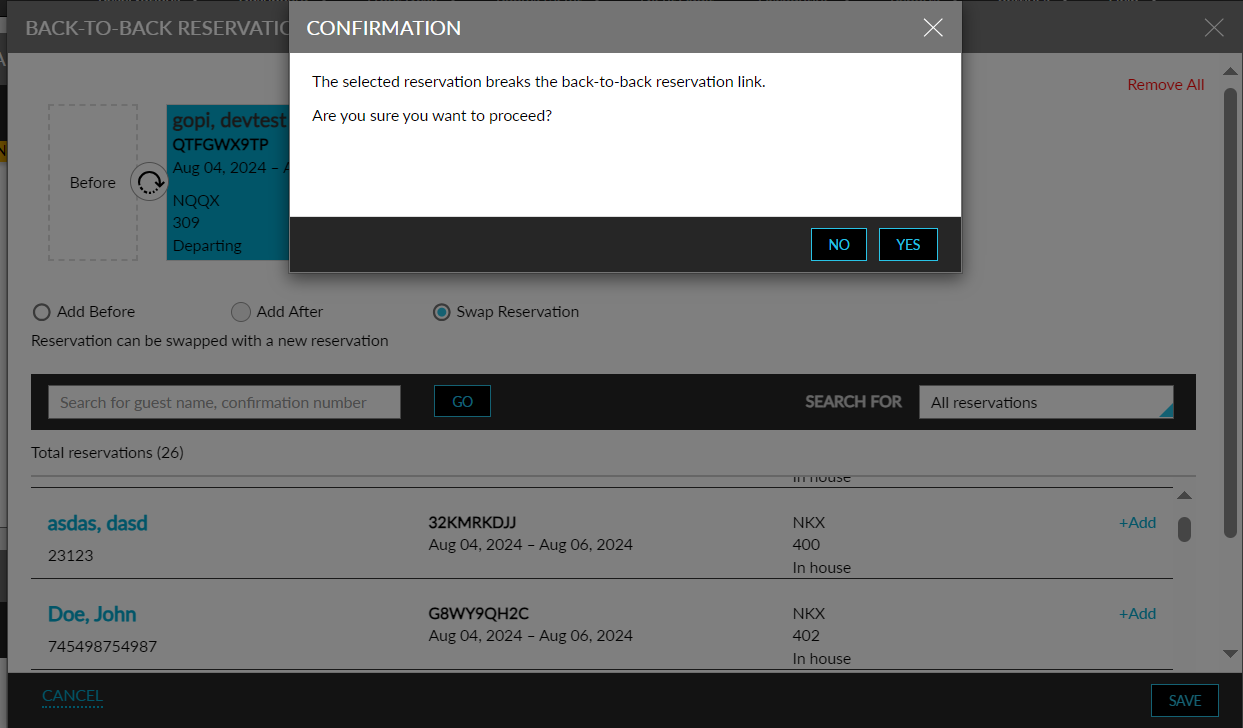
When users click Yes, the newly selected reservation will be swapped and the other reservations that were part of the link will be removed and formed as a separate back-to-back link.
Sample Scenario
Consider the following reservations linked as back-to-back.
-
Reservation A ➜ May 1, 2024 - May 5, 2024
-
Reservation B ➜ May 5, 2024 - May 10, 2024
-
Reservation C ➜ May 10, 2024 - May 15, 2024
-
Reservation D ➜ May 15, 2024 - May 20, 2024
-
Reservation E ➜ May 20, 2024 - May 25, 2024
Instead of reservation C, if another reservation (X) with dates May 10, 2024 - May 16, 2024, is selected, then reservation X is added instead of reservation C, and the other reservations are broken from the B2B link and new links will be formed as follows:
B2B Set 1
-
Reservation A ➜ May 1, 2024 - May 5, 2024
-
Reservation B ➜ May 5, 2024 - May 10, 2024
-
Reservation X ➜ May 10, 2024 - May 16, 2024
B2B Set 2
-
Reservation D ➜ May 15, 2024 - May 20, 2024
Reservation E ➜ May 20, 2024 - May 25, 2024
Removing Back-to-Back Reservations
Users can remove a reservation from the B2B link by clicking on the remove icon (x) for the reservation in the Back-to-Back Reservations pop-up screen. When the last reservation in the link is removed, the other reservations will remain unaffected. When the middle reservation is removed, the B2B link will be broken. In this case, the Confirmation pop-up screen will be displayed that prompts users to confirm the change.
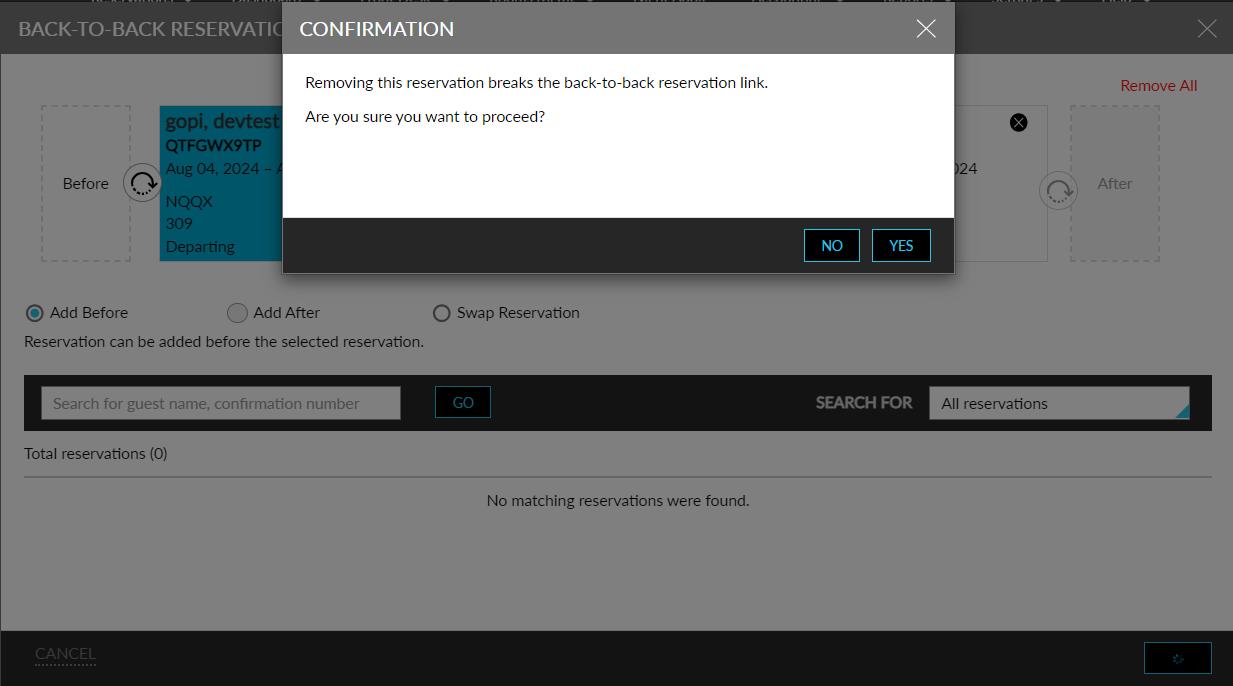
When users click Yes, the selected reservation and the consecutive reservations are removed from the B2B link, and the Back-to-Back Reservations pop-up screen will display the remaining reservations.
When users want to remove all reservations from the B2B link, the Remove All option must be selected. When selected, the Confirmation pop-up screen is displayed that prompts users to confirm the change.
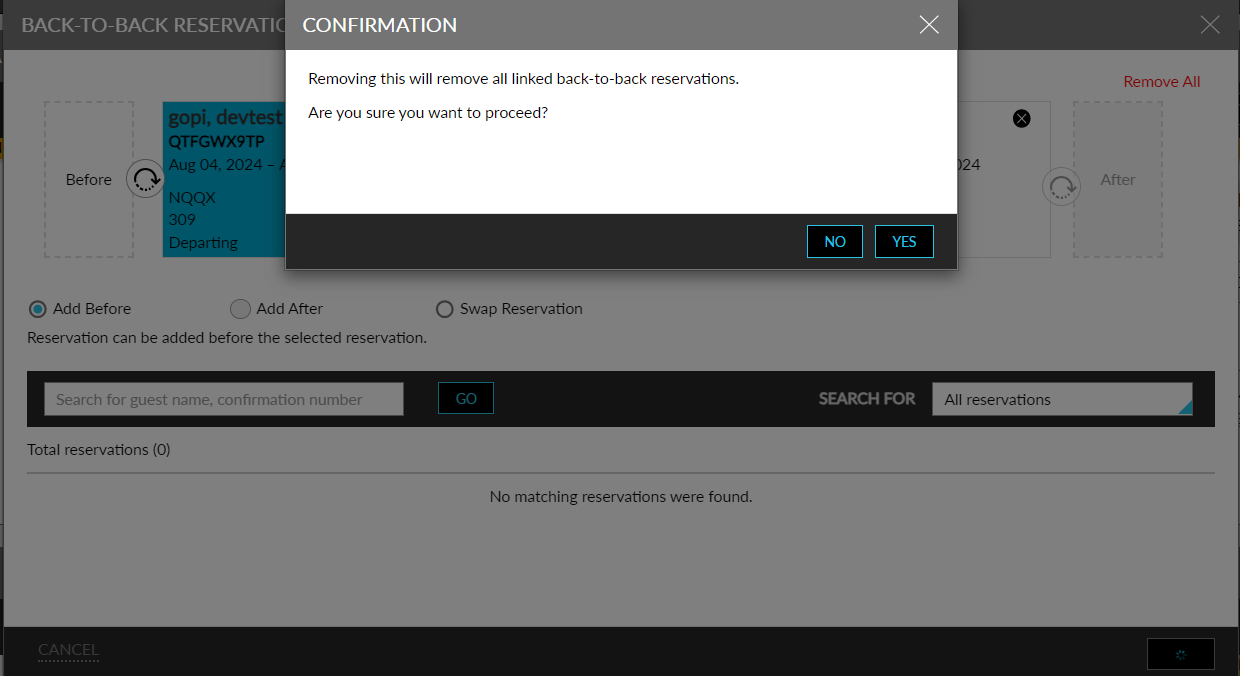
When users click Yes, all reservations will be removed from the B2B link and only the current reservation will be displayed.
Automatic Breaking of Back-to-Back Reservations
The reservations linked as back-to-back are broken automatically when any of the following updates have been made to the linked reservations.
-
When a reservation in the link is canceled
-
When a reservation in the link is checked out early
-
When the duration of the reservation is extended or shortened
When a reservation in the link is canceled, the remaining reservations in the link will be affected. Once the cancellation is confirmed, the Breaking Back to Back Reservations pop-up screen appears that prompts users to confirm if the B2B link must be broken.
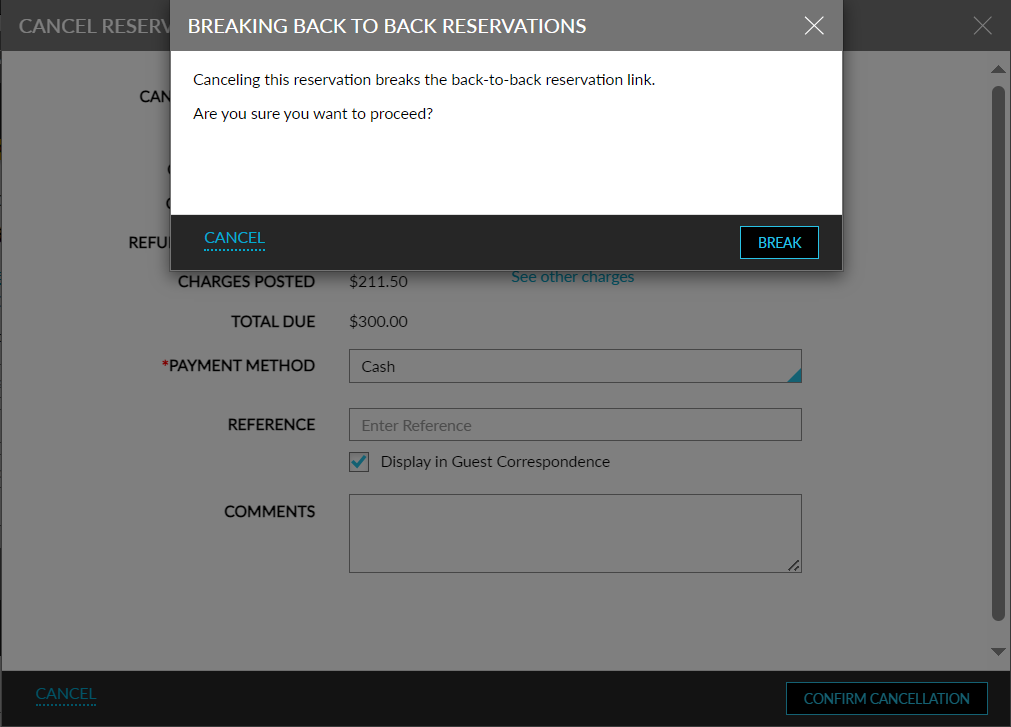
When users click Break, the reservation will be canceled and the remaining reservations in the link will be split into different link sets accordingly.
When a reservation in the link is checked out early, the remaining reservations in the B2B link will be affected. Once the check-out is confirmed, the Breaking Back to Back Reservations pop-up screen appears that prompts users to confirm if the B2B link must be broken. When users click Break, the reservation is checked out and the remaining reservations in the link will be split into different link sets accordingly.
When the duration of the reservation in a B2B link is modified, the remaining reservations in the link will be affected. Once users confirm the modification, the Breaking Back to Back Reservations pop-up screen appears that prompts users to confirm if the B2B link must be broken. When user clicks Break, the reservation will be modified and the remaining reservations in the link will be split into different link sets accordingly.
Linking Scheduled Room Move Reservations
Users can link scheduled room move reservations. When a scheduled room move reservation is included in the B2B link, keys for the reservations are handled as follows:
-
When the reservation is first in the link, the keys generated for the reservation will be deactivated on the departure date of the reservation.
-
When the reservation is at the middle or at the end of the link, keys will be created for the reservation that is prior to the scheduled room move reservation.
Requesting Housekeeping Services for B2B Reservations
Users can configure the housekeeping services to be performed for the B2B reservations in the Back to Back Reservation screen (All Settings ➜ Reservations ➜ Back-to-Back Reservations). The Housekeeping section in this screen allows users to select the housekeeping services to be performed from the Back-to-Back Service Requests multi-select drop-down list. All active services available at the property are displayed. Users can select the services to be performed on the day of transition of room, that is, during the check-out of the 1st reservation and check-in of the 2nd reservation.
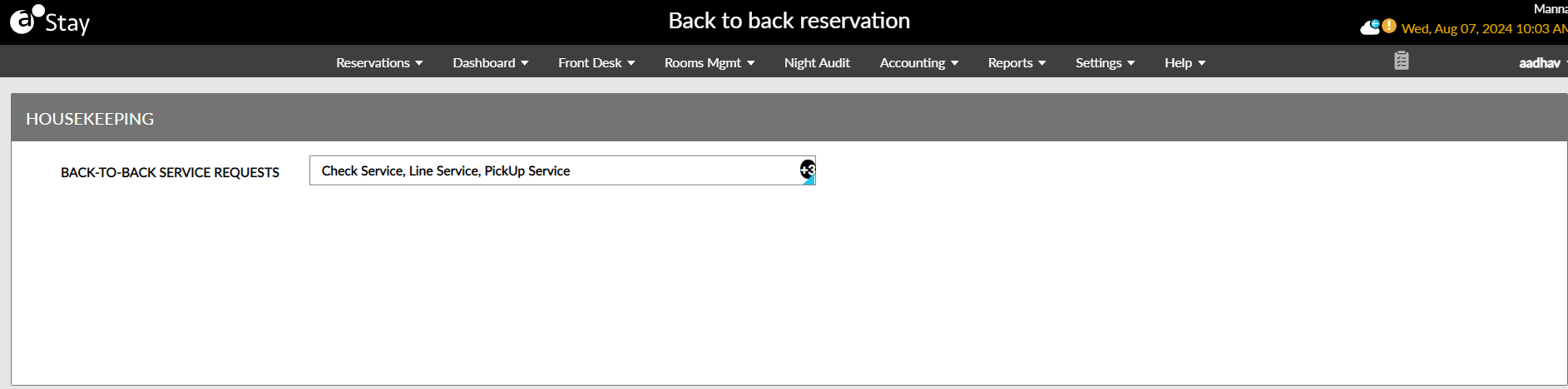
For B2B reservations, the following are the two scenarios based on which the housekeeping services are carried out on the day of room move:
-
When the same room is assigned to both reservations, the check-out services that are usually performed are not required for the room as it is a stayover and not a check-out. Only services configured for the B2B reservations in the Back to Back Reservation screen will be carried out.
-
When different rooms are assigned to both reservations, the check-out services are performed for the room assigned to the first reservation. These services are triggered during the date roll based on the housekeeping pattern associated with the reservation.
Representing B2B Service Requests in Housekeeping Boards
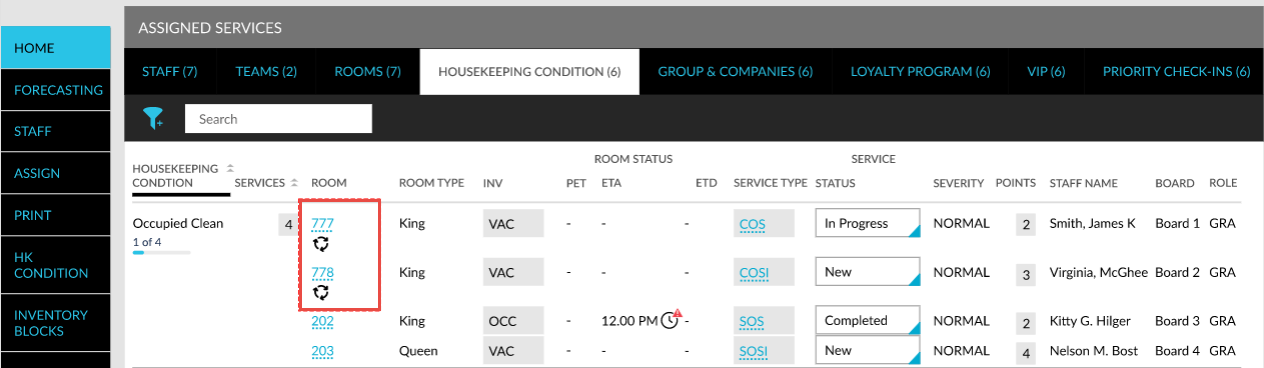
The B2B indicator is displayed for the service requests created for the B2B reservations in the following areas:
-
Assigned Services section of the Housekeeping screen (Rooms Mgmt ➜ Housekeeping ➜ Home ➜ Assigned Services).
-
Unassigned Service Requests and Assigned Service Requests section in the Assign tab (Rooms Mgmt ➜ Housekeeping ➜ Assign).
-
When the housekeeping staff assignment sheet is printed (Rooms Mgmt ➜ Housekeeping ➜ Print).
Reservation Confirmation Letter and Registration Card Template
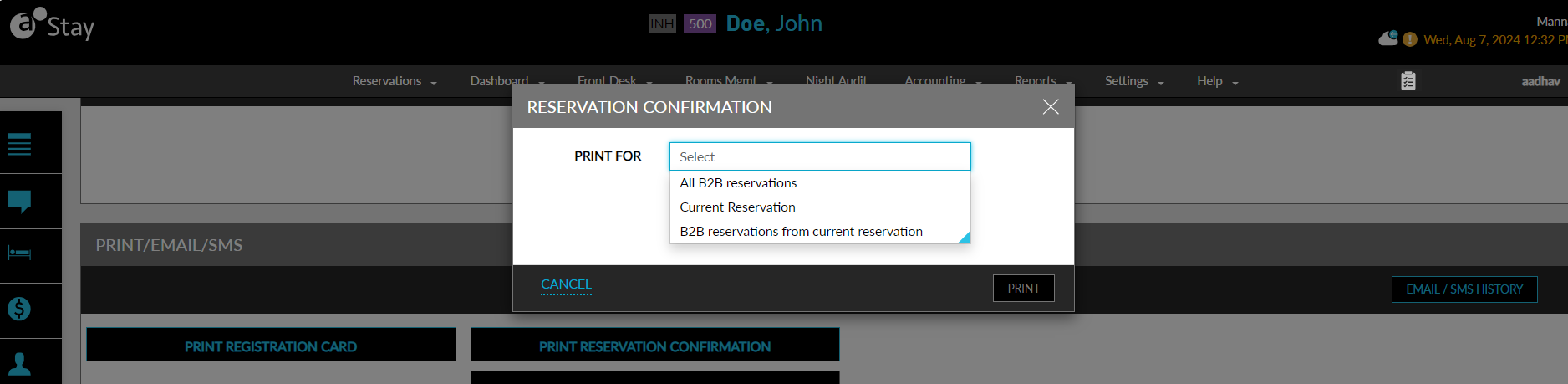
Users can print the confirmation letter for B2B reservations in the Print/Email/SMS section by selecting the Print Reservation Confirmation option. When selected, the Reservation Confirmation pop-up screen appears that displays the single-select drop-down list, Print For, that allows users to choose from the following options for printing the confirmation letter:
|
Option |
Description |
|---|---|
|
All B2B reservations |
When selected, the confirmation letters of all B2B reservations in the link will be printed one after the other. |
|
Current Reservation |
When selected, the confirmation letter will be printed for the current reservation only. |
|
B2B reservations from current reservation |
When selected, the confirmation letter will be printed from the current reservation till the last reservation in the link. For example, if there are 5 reservations in the B2B link and print option is selected for the 3rd reservation, the confirmation letters will be printed for the 3rd, 4th, and 5th reservations. |
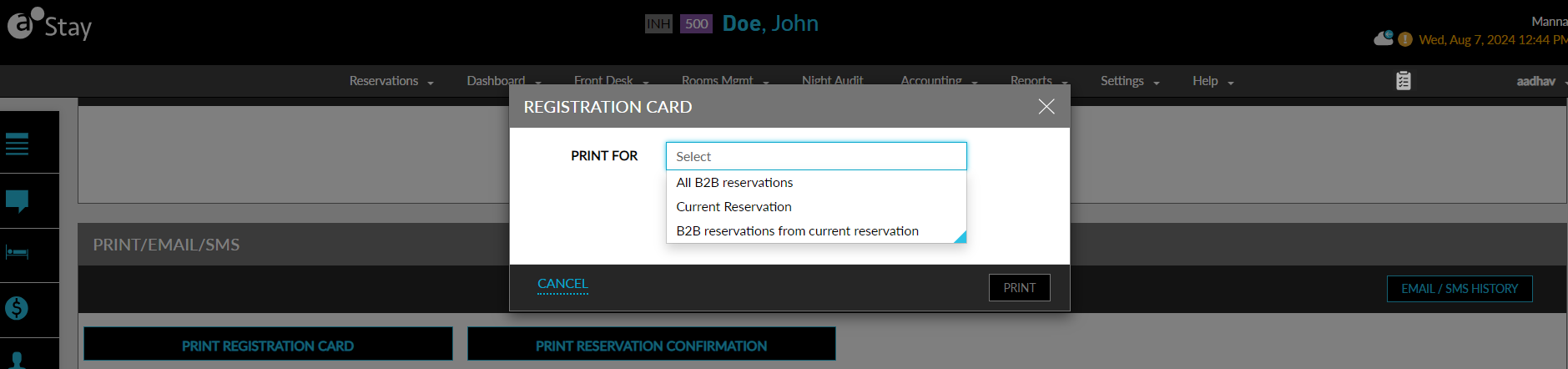
Similarly, when users print the registration card for B2B reservations, the Registration Card pop-up screen appears that allows users to select from the mentioned options in the Print For drop-down list.
Records for B2B Reservations
A record is created in the Audit Log screen (Reports ➜ Audit Log) and in the Reservation History section of reservations when the following operations are performed:
-
When a reservation is added/removed/modified in the B2B link
-
When all reservations in the B2B link are removed
B2B Reservations in Group Bulk Update
When users perform a bulk update to modify the arrival and departure dates of reservations in a group, and when one or more B2B reservations are included in the selection, the bulk update will not be completed successfully since modifying the arrival and departure dates will result in breakage of the B2B link. The other details of B2B reservations can be modified as part of the bulk update.
Physical Keys for B2B Reservations
For B2B reservations that are assigned to the same room number, the expiry date of the physical key generated is set to the departure date of the reservation in the last position in the B2B link. When a reservation in the link is assigned to a different room number, the physical key generated will expire and a new key must be generated for the room.
When a reservation in the link is canceled or checked out early, the physical keys must be obtained from the guest by the front desk agent and the expiry date will not be updated automatically.
Linked/Back to Back Reservations Report
The Linked/Back to Back Reservations report available in the Guests/Reservations section of the Reporting screen (Reports ➜ Dynamic Reports ➜ Guests/Reservations) allows users to track the B2B reservations created for a selected date range. Each B2B link set is grouped and displayed. The records are grouped based on the confirmation number of the first reservation in the link. The other reservations in the B2B link are displayed under the first reservation.
Linked Reservations: Bulk Check-Ins and Add Routing Rules
Stay has introduced the capability to assign rooms, apply routing rules, and perform bulk check-in operations for linked reservations. This allows users to efficiently manage reservations within a link set by assigning rooms in batch, applying routing rules to specific reservations, and checking in multiple reservations simultaneously.
Assign Rooms Tab for Linked Reservations
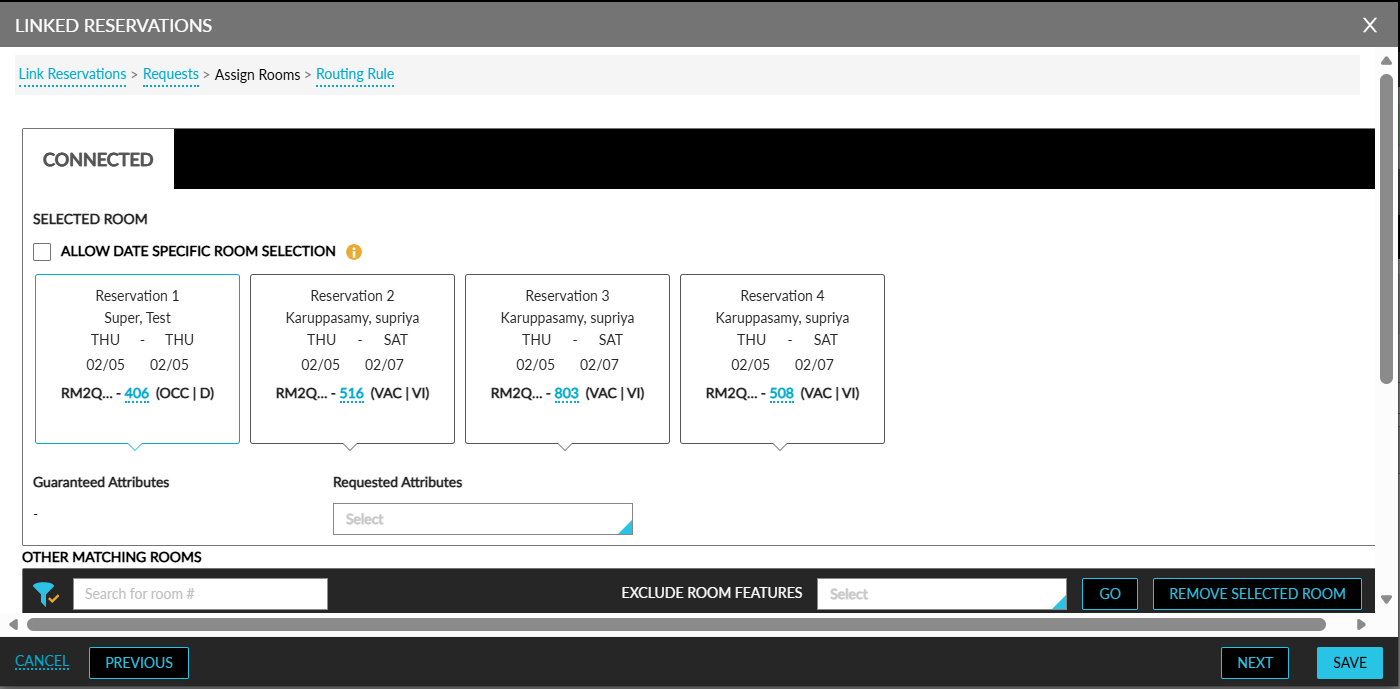
The Assign Rooms tab in the Linked Reservations pop-up screen appears when users link reservations (Reservation ➜ Reservation Summary ➜ Link badge). Based on the room preferences selected in the previous tabs, the following sub sections will be displayed in this tab:
-
Connecting
-
Near By
-
Same Floor
-
Same Building
-
No Preference
The reservations selected in each subsection will appear under the corresponding section. Each reservation will be displayed in a separate box, and users will be able to select each reservation and assign rooms.
Users will be able to assign different room numbers for each day using the existing Allow Date Specific Room Selection feature. Only reservations in the following statuses will be displayed:
-
Arriving
-
Reserved
-
Inhouse
When a reservation already has a room assigned, the room number will automatically populate in the respective box. When the user modifies the room number for an already assigned reservation, a Room Summary tab will be displayed dynamically after the Routing Rule tab. This tab displays details of the modified room as per the existing functionality.
Other Matching Rooms
The Other Matching Rooms tab will be displayed in the Assign Rooms tab. This table will display matching rooms for the selected reservation. When a reservation is selected, the rooms that match the reservation’s room type will be automatically displayed. Only rooms with the same room type assigned to the reservation will be displayed. Rooms of the same room type from guest stay history and guest preferred rooms will be displayed in a separate table.
A new column, Connector Type, has been added to this table that displays the following values:
-
Connecting Room
-
Nearby Room
When rooms are marked as connecting or nearby, the corresponding values will be displayed. Based on the room preference selected, the following rooms will appear at the top of the table:
-
Connecting rooms
-
Nearby rooms
-
Same building rooms
-
Same floor rooms
Users can filter rooms using the housekeeping condition filters.
The Assign tab allows users to perform the following operations for all applicable reservations within the link set:
-
Assign rooms
-
Change rooms
Assigning a room to a linked reservation is not mandatory. After providing preferences, users may exit the process by clicking Save. When the user clicks Remove Selected Room in the table, the room assigned to the selected reservation will be removed. When the room is removed for an Inhouse reservation:
-
The Assign Room section becomes mandatory.
-
The Save button will be disabled until a room is reassigned.
Routing Rules for Linked Reservations
The Routing Rule will be displayed in the Linked Reservations pop-up screen. A drop-down list, Reservations, present next to this tab displays all linked reservations in the following statuses:
-
Arriving
-
Reserved
-
Inhouse
The following message will be displayed as a banner above the drop-down list: The routing rule will be applied to the selected reservation.
Selecting a reservation becomes conditionally mandatory when adding routing rules. When a routing rule is selected, a reservation must also be selected. Otherwise, the Save button will remain disabled. A maximum of three routing rules can be added during the batch link process.
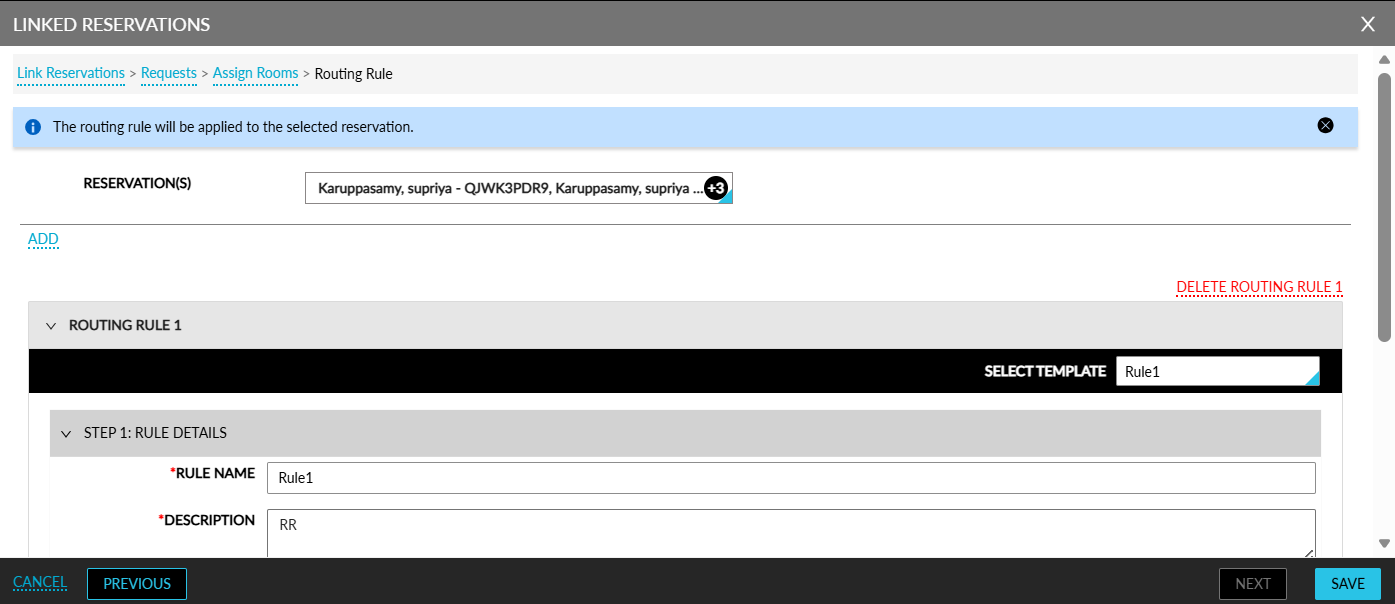
The Routing Rule section allows users to add routing rules. Users can add multiple routing rules by clicking the Add hyperlink. The routing rules can be deleted using the Delete Routing Rule (routing rule number) option. Users can select an existing routing rule template or crate a new template. Routing rules labelled as Credit type will not be available for selection. Only routing rules whose valid dates overlap with the linked reservation set will be displayed.
Valid dates will be determined using:
-
The earliest arrival date
-
The latest departure date
Reservations in the following statuses will be ignored when determining date ranges:
-
Departed
-
Cancelled
-
No-Show
Within the destination section of each routing rule, users cannot select the default folio of the reservation selected above. Clicking on Save will apply the selected preferences, assign rooms, and apply routing rules to the selected reservation.
Confirmation Tab
The Confirmation tab will be displayed next to the Routing Rule tab. This tab will be displayed dynamically whenever there is a change in the auto recurring fee rules. The Auto Recurring Fees section in this tab will be displayed only when there is a change in the auto recurring fees. The following message will be displayed in this section: Room assignment might impact the auto recurring fees for the reservation. Select ‘Yes’ to update the fees or ‘No’ to continue with the current fees.
-
Clicking on Yes updates the auto recurring fee based on the current changes.
-
Clicking on No continues with the existing auto recurring fee configuration.
Room Summary Tab
When users modify the room assigned to a reservation previously, the Room Summary tab will be displayed. Each reservation with a room change will appear as a separate accordion. Each accordion will include:
-
Reason for Room Change section
-
Summary section
When the link set contains more than 15 reservations, the Room Summary tab will not be displayed, even if room numbers are changed.
When users click Save, the Link Batch Update pop-up screen appears that displays the following message: Batch Update for Link Reservation is in progress. The progress bar will be displayed in all reservations within the link set that are affected by the update process.
When a user exits the reservation and navigates back while the process is still running, the following message will be displayed: Batch Update for link reservation is in progress. Please wait for it to complete before making any changes.
Once the process is completed, a success message with a Click Here hyperlink will be displayed. When clicked, the results will be displayed across all reservations updated in the process in the Linked Reservations pop-up screen. This screen will display reservations where:
-
Room numbers were assigned
-
Room numbers were changed
-
Routing rules were added
The following columns are displayed in this screen:
|
Column |
Description |
|---|---|
|
Name |
The guest name associated with the reservation. |
|
Confirmation Number |
The confirmation number of the reservation. |
|
Arrival Date |
The arrival date of the reservation. |
|
Departure Date |
The departure date of the reservation. |
|
Room Number |
The room number assigned to the reservation. |
|
Room Status |
The status of the room assigned to the reservation. |
|
Reservation Status |
The reservation status. |
|
Program & Tier |
The loyalty program and tier associated with the reservation. |
|
Routing Rule |
The routing rules successfully added to the reservations. |
|
Failed Routing Rule |
The routing rules that failed during the update process. |
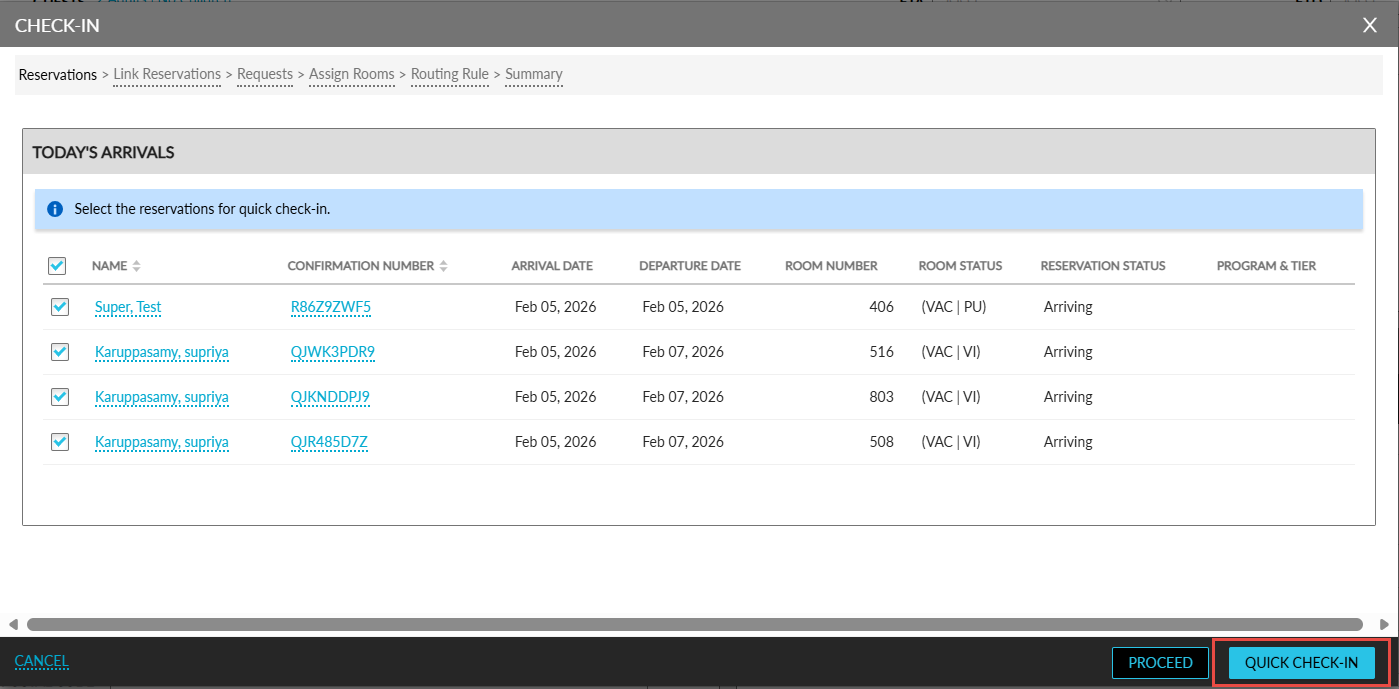
Check In Linked Reservations
When checking in a reservation that belongs to a linked reservation set, a Confirmation pop-up screen appears that displays the following message: This reservation is associated with linked reservations. Do you want to check in the other linked reservations also?
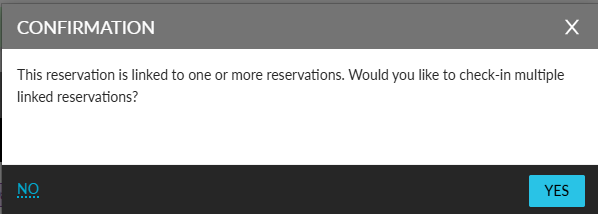
When users click Yes, the Check-In pop-up screen appears that displays the following sections:
-
Preferences
-
Assign Rooms
-
Routing Rule
-
Confirmation
-
Room Summary
-
Check-in
The following details are displayed in each section:
|
Section |
Description |
|---|---|
|
Preferences |
Displays preferences selected during the linking process. If preferences were not previously defined, users will have the option to assign preferences. |
|
Assign Rooms |
Displays already assigned rooms. If rooms are not assigned, users can assign rooms. |
|
Routing Rule |
Displays existing routing rules applied during link creation or batch update. When no routing rule exists, this section will not appear. Users can also perform the following:
|
|
Confirmation |
This section will appear dynamically when:
This section will be mandatory. The following message will be displayed: Room assignment might impact the auto recurring fees for the reservation. Select ‘Yes’ to update the fees or ‘No’ to continue with the current fees.
When a dirty room is assigned, the following message will be displayed: One or more selected rooms are not ready for check-in. Are you sure that you want to check in the guests into the room?
|
|
Room Summary |
This tab will be displayed when the user changes an already assigned room. |
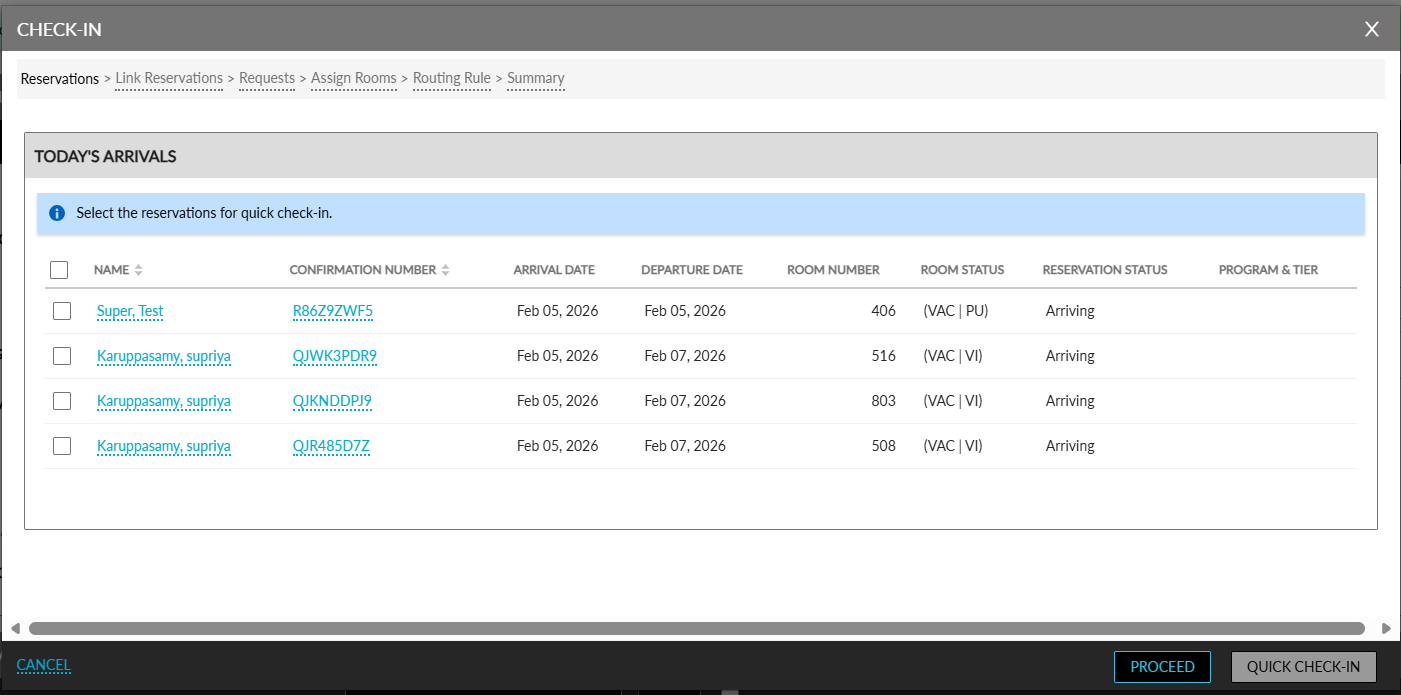
The Check-in tab displays the linked reservations arriving on the current property date and reservations in the Reserved status in the Today’s Arrivals and Future Reservations sections. The following columns are displayed in these sections:
-
Name
-
Confirmation Number
-
Arrival Date
-
Departure Date
-
Room Number
-
Room Status
-
Reservation Status
-
Routing Rule
-
Program & Tier
The checkbox to select the reservations will be disabled when a room number is not assigned. When a reservation is already checked in, it will not appear in the table. Users can select the preferred reservations and click Check-in. When clicked, the Link Batch Update pop-up screen appears that displays the following message: Batch update for link reservation is in progress. Once the process is completed, the success message will be displayed along with the Click Here hyperlink.
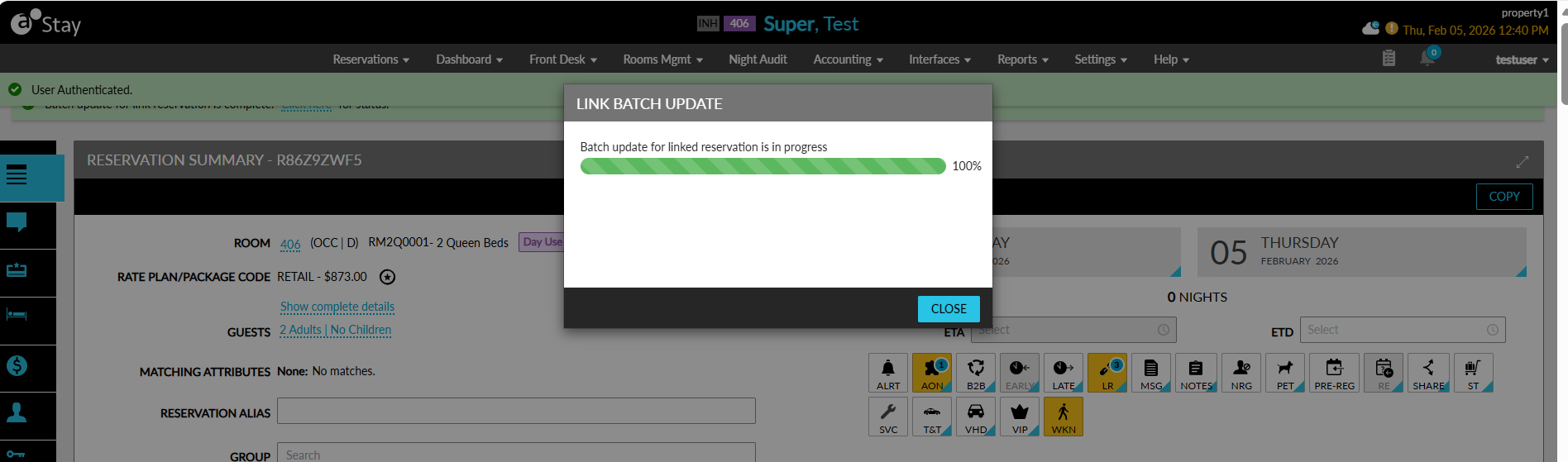
When the hyperlink is clicked, the Linked Reservations pop-up screen appears that displays the reservation details in the following columns:
|
Column |
Description |
|---|---|
|
Name |
The guest name associated with the reservation. |
|
Confirmation Number |
The confirmation number of the reservation. |
|
Arrival Date |
The arrival date of the reservation. |
|
Departure Date |
The departure date of the reservation. |
|
Room Number |
The room number assigned to the reservation. |
|
Room Status |
The status of the room assigned to the reservation. |
|
Reservation Status |
The reservation status. |
|
Program & Tier |
The loyalty program and tier details of the reservation. |
|
Check-in Status |
Displays whether the reservation was successfully checked in. |
|
Reason for Failure |
Displays the reason for check-in failure. |
|
Routing Rule |
Displays routing rules added during the process. |
|
Failed Routing Rule |
Displays routing rules that failed during the update |
Users can also perform bulk quick check-in for linked reservations. Users can choose to check in all linked reservations by clicking on the Quick Check-in button. When any selected reservation has a dirty room assigned, the Confirmation pop-up screen appears that prompts users to confirm if the guest must be checked in. When users click Yes, the reservation will be checked in and the Link Batch Update pop-up screen appears. Once the process is completed, the success message appears along with the Click here hyperlink. When clicked, the Linked Reservations pop-up screen appears that displays the reservation details.
Assign Rooms to Linked Reservations
When assigning a room number to a reservation that belongs to a link set, a Confirmation pop-up screen appears that displays the following message: This reservation is associated with linked reservations. Do you want to assign rooms to other linked reservations also? When users click Yes, the Assign Rooms pop-up screen appears. Users can assign the preferred room in this screen.
When users click Save, the Link Batch Update pop-up screen appears that displays the following message: Batch update for link reservation is in progress. Once the process is completed, the success message appears along with the Click here hyperlink. When clicked, the Linked Reservations pop-up screen appears that displays the reservation details.
Assign Rooms for Shared Reservation
When a reservation is part of both a link set and shared reservation, and the shared reservation does not have a room assigned, the assigned room will apply to the entire share set. When a room is already assigned to a shared reservation, users cannot change the room number for any reservation within that share set.
Manage NRG Profiles for Linked Reservations
To manage NRG guest details when displayed, searched, and presented in linked reservations, the following modifications have been made in Stay:
-
When a reservation has an alias name, then the reservation is displayed with the alias name and with the NRG tag and info icon.
-
When a reservation is masked, then the original profile name is masked along with the NRG tag and info icon.
-
When a user searches for a profile with original guest name, then the result displays the original guest name with the NRG tag.
-
When a user searches for a profile with an alias name, then the result displays the alias name with the NRG tag and info icon.
-
When a profile is masked, and a user searches with the original profile name, the result displays the masked/alias name with the NRG tag in the result.
-
In the Routing Rule section of the Linked Reservation screen, when users select the reservation from the Reservations drop-down list, if reservations have an alias name, then it is displayed with the alias name along with the reservation confirmation number.
-
In the Routing Rule section of the Linked Reservation screen, when users select the reservation from the Reservations drop-down list, if the reservations are masked, then the original profile name is masked and displayed along with the reservation confirmation number.